
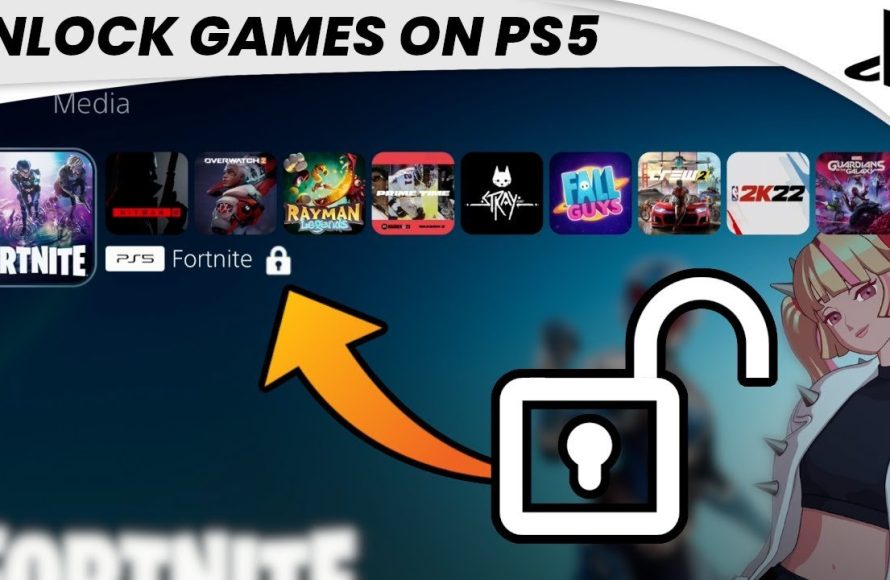
To access your games on a PS5, you must purchase them through the PlayStation Store or use a physical disc. Digital games will automatically become available after purchase and download.
Wondering how to access your latest PlayStation purchases? Many players are eager to jump into new adventures, but might need a little guidance. Understanding how to unlock games on ps5 is very straightforward once you know the process.
It primarily involves getting the games from the PlayStation Store or inserting a disc. After obtaining the title, digital downloads initiate and after it, games can be immediately played. Physical copies are similarly easy to play by inserting the disc, allowing you access to your games.

How to Access Your Games on PS5
Getting new games on your PlayStation 5 is super exciting! But sometimes, figuring out how to actually play them can feel a bit tricky. Don’t worry, it’s much simpler than it seems. This guide will walk you through all the different ways you can access your games on your PS5, whether they are on a disc, downloaded from the PlayStation Store, or even shared by a friend.
Using Physical Game Discs
The most straightforward way to play a game is by using a physical disc. It’s just like popping a DVD into a player. Here’s how it works:
Inserting the Disc
First, make sure your PlayStation 5 is turned on. Locate the disc drive slot. It’s a long, narrow opening on the front of your console. Gently slide the game disc into the slot with the label facing up. You’ll feel it get pulled in by the PS5. Once the disc is inside, the game’s icon will show up on your PS5’s home screen.
Starting the Game
Select the game icon with your controller using the directional buttons or the left joystick. Press the ‘X’ button on your controller. The game will then start up. Simple as that! Now, you are ready to play. If it is a new game, it might take some time to install and copy data from the disc. Be patient, and soon, you’ll be playing!
Dealing With Disc Errors
Sometimes, the PS5 might have trouble reading a disc. If this happens, check the disc for scratches or smudges. A soft cloth can be used to clean it by wiping gently from the center outwards. If the problem continues, you might have to try a different game to see if it is a problem with the console or disc itself. If other discs also have an issue, contact Sony support.
Playing Digital Games from the PlayStation Store
The PlayStation Store is like a big online game store, and buying and playing digital games is a super convenient method. Here’s the breakdown:
Purchasing Games
You need to be connected to the internet and logged into your PlayStation Network account. On your PS5, find the PlayStation Store icon (it looks like a shopping bag with the PlayStation logo on it). Once in the store, you can browse for games using categories, search bar or featured titles. When you find a game you like, click on it. You’ll see a price and an option to add it to your cart. After making your selections, follow the prompts to complete your purchase. You will need a valid payment method linked to your account. You can use a credit card, debit card, PayPal or Playstation gift card.
Downloading and Installing Games
After you buy a game, it will automatically start downloading. You can see the progress of the download by going to the “Downloads/Uploads” section in the Control Center. The Control Center is the little card that appears at the bottom of the screen, you can open that by pressing the Playstation button in the middle of your controller. Once the download finishes, the game will install itself. The icon for the game will appear on your PS5’s home screen.
Starting the Game
Once the game has installed, just select the game’s icon with your controller and press ‘X’ just like with a disc based game. Now you are ready to play!
Finding Your Games
All the games that you’ve purchased digitally are available on your game library. You can find the library on the right side of the PlayStation dashboard. It’s easy to find and manage all your installed and not installed purchased games.
Game Sharing and Family Play
One really neat feature of the PS5 is the ability to share games with your family or close friends. It’s a great way to let someone else play the games you have, or to access games that another person owns. Here’s how it works:
Primary Console Sharing
You can designate one PS5 as your primary console. This allows anyone who is logged into your Playstation account on that console to access all of your downloaded games and content, without needing to sign into your main account. It’s like sharing access to your games when having someone over at your home. To set your PS5 as your primary console, go to settings, then users and accounts, then other, then console sharing and offline play. If that setting is enabled, anybody using the PlayStation can play your games. This is a great way to share games with family members on the same console.
Game Sharing on Different Consoles
With the game share feature, you can also allow another console to play your digital games. Here are the steps:
- Make sure your account is logged in on both your console, and the console you want to play games on.
- Make sure you enable console sharing and offline play on the console you want to game share.
- Log out of your account on the second console. This way the second console can access your game library.
- Make sure that the person using the second console signs in with their account, so they can play your games using their own accounts.
Keep in mind that only one PS5 can be set as your primary console. This is not intended to allow several different accounts to play the same games at the same time.
Managing Game Storage
Games, especially new ones, can take up quite a bit of space on your PS5’s hard drive. Here are ways you can manage that space:
Checking Storage Space
To see how much space you have left, go to Settings, then Storage. You will see a list of both your console storage and any external storage devices. This will tell you how much space you are using up with games, media, and any other saved data. If you are running out of space, you may need to delete old games.
Deleting Games
If your storage is full, you may have to delete games that you are not playing. Go to your game library. Select a game that you no longer play, then press the Options button (the button with three horizontal lines) on your controller. You will see an option to Delete the game. Deleting a game only removes the game from your console, not from your account. You can always redownload it later from your library.
Using External Storage
You can use a USB external hard drive to expand your PS5’s storage capacity. External storage is very useful if you like having many games downloaded at once. Plug in the USB storage device. The console will prompt you to format the drive and set it up. Once set up, you can choose to move games to your external hard drive. This is a useful way to keep all your favorite games installed without filling up your console storage.
Subscription Services
PlayStation has subscription services that give you access to many games. These are PlayStation Plus and PlayStation Now. These services give access to games every month and also a catalog of games you can download and play. Here is a breakdown of how that works:
PlayStation Plus
PlayStation Plus is a subscription service that gives you access to online multiplayer, cloud storage, and two free games each month. You can access your PlayStation Plus games in the PlayStation Plus section of the PlayStation Dashboard. The games are available to download and play as long as your subscription is active.
PlayStation Now
PlayStation Now is a subscription service that allows you to stream hundreds of games directly to your console. You don’t have to download them, but you do need a fast internet connection to make the games work properly. You can browse the games in the PlayStation Now app on your PlayStation. The games available will rotate from time to time, so your catalog of games will change every once in a while.
Troubleshooting Common Issues
Sometimes, you might run into issues when trying to get a game to work. Here are a few common problems and how to handle them:
Game Won’t Start
If a game doesn’t start, try restarting your PlayStation 5. Make sure the game is properly installed or the disc is clean. Check if there is a software update available for the game. Make sure your system software is also up to date by checking in settings under the system tab.
Download Issues
If a game is stuck downloading, check your internet connection. Make sure it is stable. Sometimes pausing and restarting the download can solve the issue. If the download gets stuck, go to the downloads section and cancel the download, then try to start the download again. If you are using wifi, try using a wired connection to see if there is any change.
Controller Problems
If your controller isn’t working correctly, make sure it’s charged. Try connecting it to your PS5 using a USB cable. If the controller is charged and plugged in and still not working, try restarting the console. Sometimes the controller might get unpaired, you can try to re-pair it in the controller section of your console’s settings.
These methods will allow you to enjoy your game library on the PlayStation 5. From disc based games to downloads, to game sharing, there are many methods to get in the game, and with a little practice, you’ll be accessing your games with ease.
How to UNLOCK Games on PS5 (EASY) (2022) | SCG
Final Thoughts
To play games on your PS5, you need to purchase them from the PlayStation Store or use a game disc. Digital purchases become available once the download completes. Disc games are playable as soon as you insert them.
Knowing how to unlock games on ps5 involves these basic steps. You will access any game either through digital download or disc. Make sure your game is activated with proper license.
If you have an active subscription through Playstation, it will help you to have access to more games.

