
To fullscreen a Steam game, press Alt+Enter while the game is running, or adjust display settings within the game’s options menu.
Ever found yourself playing a game with those annoying window borders? It’s a common issue that distracts from the immersive experience we all crave. You might be wondering how to fullscreen a steam game and fully enjoy your gaming session.
There are a couple of quick methods to make it happen. One involves a simple key combination. Another lets you tweak things right inside the game itself. Both are super easy to use.
We’ll walk you through the simple process, ensuring you get that glorious, borderless gaming experience. Get ready to dive in fully!

How to Fullscreen a Steam Game
Alright, gamers! Let’s talk about something super important: making your games fill your whole screen. It’s the best way to really get into the action and see all the cool details. Sometimes, a game might open in a small window, which isn’t nearly as fun. Luckily, there are a bunch of simple ways to make almost any Steam game go fullscreen. We’ll go through all of them step-by-step, so you’ll be a fullscreen expert in no time!
The Quickest Fix: Using the Keyboard Shortcut
The absolute easiest way to fullscreen most games is by using a simple keyboard shortcut. It’s like magic, but it’s actually just your computer doing what you tell it to! Here’s how it works:
- Make sure you have the game window active. This means click on the game so it’s the thing your computer is paying attention to.
- Now, press the Alt key and the Enter key at the same time ( Alt + Enter ).
- Boom! In most cases, the game will instantly switch to fullscreen mode.
This shortcut works for tons of games, not just Steam games! If you’re trying to get a different application or even a video to go fullscreen, this is the first thing to try. However, sometimes, this simple shortcut won’t do the trick. Don’t worry; there are more things to try.
Checking the Game’s Settings Menu
Many games have an option inside their own settings menus to change the display mode. This is where you will often find options for fullscreen, windowed mode, or borderless windowed mode. Here’s how to explore these options:
Finding the Settings Menu Within the Game
First, you’ll need to open your game and find the settings menu. Here are some common places where settings are often located:
- Main Menu: Usually, you will see a button labeled “Options,” “Settings,” or “Configuration” right on the main menu screen, where you start the game.
- Pause Menu: Sometimes, you might need to start the game, then pause to access the options.
- Gear Icon: Look for an icon that looks like a gear or tool. This often indicates the settings menu.
Locating the Display or Graphics Settings
Once you’re in the settings menu, you need to find the section that controls how the game looks. These settings are usually labelled as “Display,” “Graphics,” “Video,” or “Screen.” Click on the appropriate tab or option.
Choosing Fullscreen Mode
Within the display settings, you should see different display mode options. Look for a dropdown menu, checkboxes, or buttons that include the following:
- Fullscreen: Select this option to make the game take over your entire screen.
- Windowed Mode: If fullscreen is already chosen, this might be the current setting, this makes the game display in a separate window.
- Borderless Windowed: This setting makes the game appear to fill the screen, but it’s technically still in a window. This lets you quickly switch to other programs if needed, but it can impact performance in some games.
Choose the “Fullscreen” setting, then click “Apply,” “Save,” or “OK,” to save the changes.
Steam’s Launch Options
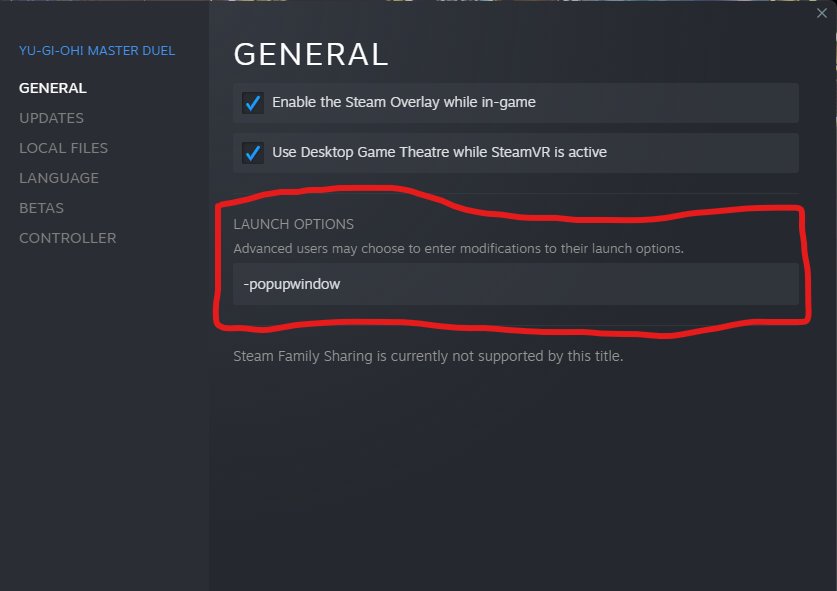
Steam also has a special way to control how your games start up. These are called “launch options,” and you can use them to force your game into fullscreen mode from the very beginning.
Accessing Steam’s Game Properties
Here’s how to access these special settings:
- Open the Steam app on your computer.
- Go to your game library.
- Find the game you want to fullscreen.
- Right-click on the game’s name.
- Click on “Properties” from the menu that appears.
Entering the Launch Option
In the Properties window, you’ll see several tabs. Click on the “General” tab. You will see the text box called “Launch Options”. Here’s what you need to enter in the Launch Options text box to force fullscreen:
- Type -fullscreen into the launch options field.
Once you’ve added this launch option, close the Properties window, and now when you launch the game through Steam, it should automatically start in fullscreen mode. If that doesn’t work, here are a few more options you can try:
- -windowed This command forces the game to start in a window mode, so if your game starts in fullscreen but crashes, you can force it to run in window mode.
- -borderless This command forces the game to run in borderless window mode, which looks like fullscreen but lets you quickly switch to other applications if necessary.
- -w [Width] -h [Height] This setting specifies the screen resolution. Replace [Width] with the width of your screen (like 1920), and replace [Height] with the height of your screen (like 1080). For example, -w 1920 -h 1080
You can also combine options, such as -fullscreen -w 1920 -h 1080.
Checking Your Computer’s Display Settings
Sometimes, the issue isn’t with the game itself but with your computer’s display settings. Your display resolution can sometimes mess with how fullscreen works.
Accessing Your Display Settings
Here’s how to get to your computer’s display settings on Windows:
- Right-click on an empty area of your desktop screen.
- Select “Display Settings” from the menu.
On a Mac, you can find display settings by clicking on the Apple menu (the logo in the upper left corner), then going to “System Settings”, then choosing “Displays”
.
Adjusting Resolution
In the display settings, look for an option that says “Display resolution.” Make sure that the resolution matches your screen’s native resolution. For example, if your monitor is designed for 1920×1080 resolution, select that in the list. If the game uses a resolution that does not match your screen, it may not fullscreen properly.
Scaling Options
Also, in display settings, sometimes you will see settings related to “scale”. This is how your operating system makes elements on the screen bigger or smaller. If scale is set too high, sometimes games will not be able to display properly. Setting this to 100% will fix this problem in some cases.
Graphics Drivers and Compatibility
Your computer uses special programs called graphics drivers to communicate with your graphics card, which is responsible for displaying games. Outdated or problematic graphics drivers can cause all sorts of issues, including problems with fullscreen modes.
Updating Your Graphics Drivers
The best way to ensure that you have the newest graphics drivers is by checking the website of your graphics card. Here’s how to find the drivers you need:
- NVIDIA Cards: Go to NVIDIA’s website and look for the “Drivers” section.
- AMD Cards: Go to AMD’s website and search for the “Support and Drivers” area.
- Intel Cards: Go to Intel’s website and find the “Drivers and Software” downloads.
On these sites, you should be able to select your specific graphics card and operating system. The website will show you the latest drivers you need to download and install. After installation you need to restart your computer.
Troubleshooting
Sometimes a game is not properly supported by your graphics card or the drivers for it. In cases like these, you may have to play the game at lower settings, or even in windowed mode, to make it work correctly. If you have issues with certain games not working properly, try updating your drivers first before playing. If that does not work, you should look to the settings of your game for options related to “Graphics”. You can try turning off options like antialiasing, v-sync, shadows, and other effects. These can sometimes make a game work if there is an issue.
Game-Specific Issues
Some games, because of how they are made, may have some issues when trying to switch to fullscreen. These might be older games, games that are not compatible with newer computer systems, or games that have a glitch.
Compatibility Mode
If you have an older game that doesn’t want to work correctly in fullscreen mode, there is something you can try.
- Find the game on your computer. You can do this by right-clicking on the game in your Steam Library, then selecting “Manage” then selecting “Browse Local Files”.
- After the file explorer opens, find the game’s main executable file. It should have the same name as the game, and it should have the .exe extension.
- Right-click on the file and select “Properties.”
- Go to the “Compatibility” tab.
- Check the “Run this program in compatibility mode for” box.
- In the drop-down box, select an older version of Windows (such as Windows 7 or Windows XP).
- Click “Apply” then “OK” and run the game again.
Community Forums and Support
If all else fails, the best option is to search online for information about the game and its fullscreen issues. The best places to find this are game-specific forums, general gaming forums, or the Steam community. You may also want to contact the game’s developers directly if you are unable to fix the issue.
You’ve got multiple methods now to get your games playing in fullscreen mode! From simple shortcuts to diving into your game settings, you have a full set of tools for a smooth, immersive gaming experience. Remember, some games might be a bit tricky, but with patience and these steps, you’ll get that game filling your whole screen in no time. Happy gaming!
How to Start Steam Games in Windowed or Full Screen [Easy Guide]
Final Thoughts
To fullscreen a Steam game, simply press Alt + Enter while in the game. You can also adjust display settings within the game’s options menu to select fullscreen mode. Many games also offer borderless windowed options for a similar effect.
These methods provide the basic approach. Most games default to fullscreen, but these steps solve problems when they don’t. Knowing how to fullscreen a steam game enhances your gaming experience.

