
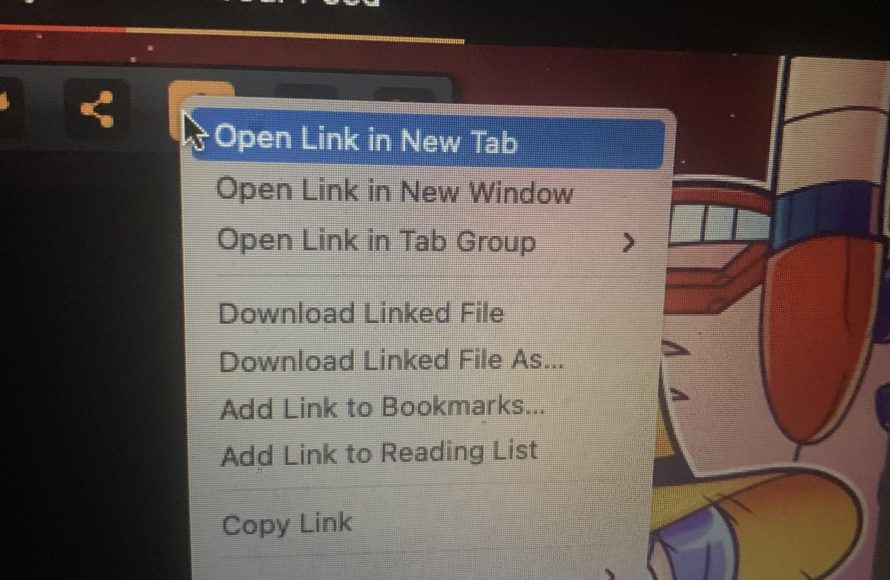
To fullscreen Newgrounds games, click the small square icon, usually located in the bottom corner of the game’s window.
Ever get frustrated trying to play your favorite Newgrounds game, confined to a tiny box on your screen? It’s a common issue! Many players wonder how to fullscreen Newgrounds games and get fully immersed.
The good news is, it’s usually very simple. You don’t need complicated software or any tech wizardry. Usually a single click is all it takes to enlarge the game.
We’re about to show you how easy it is to fill your entire screen with all that pixelated goodness. Let’s jump right into it and get you playing in fullscreen.

How to Fullscreen Newgrounds Games
Playing games on Newgrounds can be a blast, but sometimes that small window just doesn’t cut it. You want to see all the action, all the details, and really get immersed in the game! Luckily, there are several ways to get those classic Newgrounds games into glorious fullscreen. This guide will walk you through everything you need to know to make your favorite flash games fill your whole screen.
Understanding the Challenge: Why Fullscreen Isn’t Always Easy
Before we dive into the how-to, it’s good to understand why fullscreening Newgrounds games isn’t always a simple click. Many of the games on Newgrounds are built with Adobe Flash, a technology that’s a bit older now. Flash was awesome in its day, but it doesn’t always play perfectly with modern web browsers and operating systems. This means you may run into a few hurdles when trying to get that fullscreen view. We’ll tackle these issues head-on, providing solutions that are simple and easy to follow. The key is knowing which buttons to push and where to look!
The Flash Player Hurdle
Flash Player was the engine that made these games work. Modern browsers have generally stopped using it directly due to security concerns. This is why you often see that puzzle piece symbol on many Newgrounds game pages and you may see the error or an information like “You need flash to view this content.” If that is the case then you need to install the Flash plugin emulator, and don’t worry it’s very simple and easy!
The Standard Fullscreen Method: The Built-In Button
The easiest and quickest way to try fullscreening a Newgrounds game is to look for a button right on the game itself. Many Flash game developers included a fullscreen button within the game’s interface. This button usually looks like a small square or rectangle and the game will use this button for going fullscreen mode. It might also have an icon with arrows pointing outward. It’s normally located in the corner, or at the bottom right of the game window. However, not every game is the same, so you might find it in a different location.
How to Use the Built-in Fullscreen Button
- Load the Game: First, visit the Newgrounds page of the game you want to play and wait for the game to fully load.
- Look for the Button: Carefully scan the edges of the game window and the game interface. Look for a fullscreen icon. It will most often be in the corner of the game window but in some cases it may be located in the game interface.
- Click the Button: If you find it, click the button. In many cases, the game should expand to fill your whole browser window.
- Enjoy!: If this method works then congratulation, you can now enjoy playing your favorite Newgrounds game in a fullscreen.
This is the quickest way to fullscreen your game. However, it does not work with all the games.
Using Browser Fullscreen: A Universal Approach
If the game itself doesn’t have a fullscreen button, don’t worry! Your web browser likely has its own fullscreen feature that you can use. This method works for most webpages, including those with embedded Newgrounds games. It is easy to implement and very helpful when you just want to get that fullscreen view without the game having a separate button.
How to Fullscreen Using Your Browser
Here is the general method that you can use to easily make the Newgrounds games go into fullscreen mode.
- Load the Game Page: Go to the Newgrounds page where your chosen game is hosted.
- Activate Browser Fullscreen: On your keyboard, press the F11 key. This is the shortcut key to activate the browser fullscreen mode, which generally works on almost all the browsers on windows and linux. On Mac, the short-cut keys are Ctrl + Cmd + F keys together.
- Play in Fullscreen: Your browser window should now expand to fill the screen, and your game should now look big and immersive.
- Exit Fullscreen: If you are done with playing in fullscreen, then you can press the F11 key again or press the ESC key to exit fullscreen and go back to normal mode.
Note: The exact location of the fullscreen mode button may vary depending on your browser version and your operating system, but the F11 method should work perfectly on windows and linux. If you are on Mac then the short cut keys are Ctrl + Cmd + F keys together.
The Right-Click Menu: A Hidden Fullscreen Option
Sometimes, the fullscreen option is not visible on the screen. But still there may be a full-screen option through the right click menu of the game. This is another method that you can use to make the games go fullscreen. This method may or may not work for all the games, but it is worth trying for once when you are having problems using the normal methods.
Using the Right-Click Menu for Fullscreen
Here is a detailed guide for using the right click method:
- Load the game page: Go to the Newgrounds page where your game is located and wait for the game to load properly.
- Right-click the Game: Move your mouse cursor on the game window and right-click anywhere inside the game. This should open up a pop-up menu.
- Find the Fullscreen Option: Inside the right-click menu, look for an option that says “Fullscreen” or “Go Fullscreen”.
- Click it: Click on this “Fullscreen” option to make your game go into fullscreen mode. The game will now expand to fill the entire browser.
- Exit: Press ESC to exit the game out of the fullscreen mode and back into normal mode.
Using Flash Emulators: The Most Effective Option
Because Flash is no longer directly supported by browsers, you might sometimes find that the above methods do not work. Luckily, the community has created Flash emulators that allow you to run Flash content, including Newgrounds games, directly in your browser. This is one of the most effective ways to ensure you can fullscreen games that don’t want to play nice. There are several free browser extensions that do this like, Ruffle emulator which you can use.
How to Install and use a flash emulator?
Here is the step-by-step process for how you can install and use flash emulators on your browser. Please note that different extensions might have slight different methods but they follow similar pattern.
- Choose an emulator: Search for browser extensions like Ruffle which are available in chrome, firefox and other browsers as well.
- Install the extension: Go to your browsers extension store and then search and install the extension in your browser. You might have to confirm that you want to install the extension.
- Go to the Newgrounds game page: After installing the extension, go to the Newgrounds game that you want to play.
- The emulator will load the game: Generally, the flash emulator will automatically load the game in the browser window.
- Fullscreen: After this you can use any of the above-mentioned methods like F11 shortcut key, or through the game button or the right-click menu option to play the game in fullscreen.
Troubleshooting Common Fullscreen Issues
Even with the best methods, you might still encounter problems. Here are a few common issues and how to fix them:
Game Won’t Fullscreen
- Try a different method: If the game’s built-in button isn’t working, try using your browser’s fullscreen option or the right-click menu.
- Check for browser updates: Make sure your browser is up to date, as outdated versions might not support some features correctly.
- Try a flash emulator: If the above-mentioned methods aren’t working then you can always try using a flash emulator for better compatibility.
Game is Too Small in Fullscreen
- Zoom options: Some browsers have a zoom feature. Check if you can zoom the webpage with the Ctrl + + or Ctrl + - keys to make it bigger.
- Try another game: If the game developer didn’t designed the game to expand to full screen, there might not be much you can do, unfortunately.
Game Looks Pixelated
- Resolution: Older games were created in lower resolutions, so they might look pixelated when stretched to full screen. This is normal and there isn’t much you can do about it.
- Try another game: Some games look less pixelated than others when stretched in full screen mode, try to play with other games if it matters to you.
Tips for a Better Newgrounds Gaming Experience
Here are a few tips for having a comfortable gaming experience in Newgrounds games.
- Check game reviews: See other players experience by checking game reviews before playing a game. This will give you a heads up on what type of game it is and what you can expect from it.
- Use headphones: This will provide you with a more immersive gaming experience if you are playing a game that has good sound design.
- Play responsibly: Remember to take breaks and give your eyes a rest, as it may harm your eyes if you play for prolonged period of time.
Fullscreening Newgrounds games doesn’t have to be a hassle. With a little bit of know-how and these easy steps, you can enjoy your favorite flash games in a big, immersive way. So, go ahead, try out these methods, and enjoy playing your favorite games. Happy gaming!
how to fullscreen FNF in newgrounds(OUTDATED)
Final Thoughts
Fullscreening Newgrounds games usually involves a simple button click within the game itself. Often, you will see a dedicated icon, often a square or arrows pointing outwards, to enable fullscreen mode.
If the in-game option is missing, try pressing the “F11” key on your keyboard. This is a common shortcut to toggle fullscreen for many applications and browser-based content. Therefore, how to fullscreen Newgrounds games is mostly down to those two methods.

