
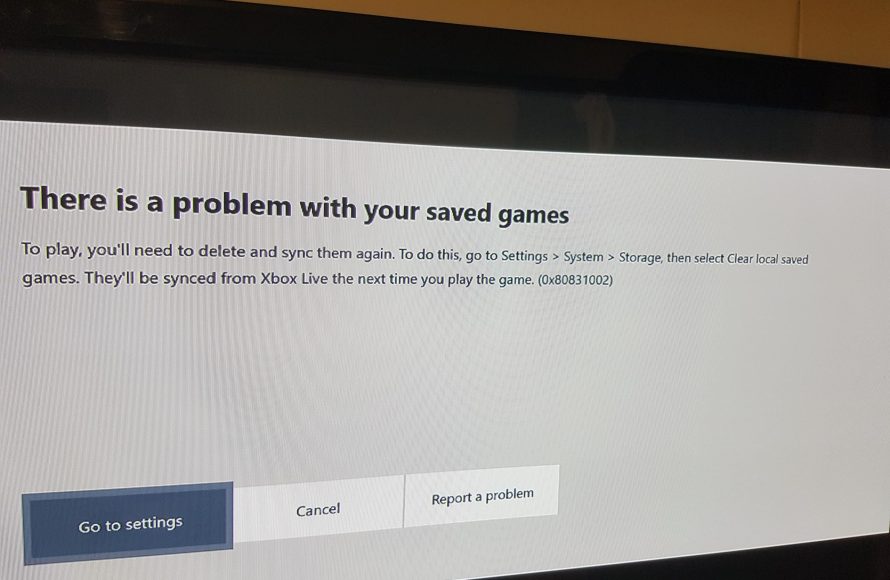
Clearing local saved games deletes the game progress stored on your device, effectively resetting the game to its initial state.
Ever wondered what happens when you click that “clear local saved games” button? It sounds a bit technical, doesn’t it? Well, let’s simplify it. You’ve probably been gaming for hours, days or maybe even weeks, building up progress, right?
That progress, all those levels you’ve conquered, is stored locally on your device. When you decide to explore what does clear local saved games mean, you are about to remove those records.
This action essentially wipes the game clean and takes you back to the starting line, like you’re playing for the first time.

What Does Clear Local Saved Games Mean?
Ever played a video game and made awesome progress, only to have something go wrong? Maybe your character got stuck, or you wanted to start over from the very beginning? That’s where understanding “clearing local saved games” comes in handy. It’s like hitting a reset button specifically for your game’s progress. It’s important for gamers to understand what this process entails, why they might need to do it, and how to do it properly. Let’s dive in and explore the ins and outs of clearing local saved games.
Understanding Game Saves
Before we get to clearing them, let’s quickly understand what saved games actually are. When you play a video game, your progress—think your character’s level, collected items, or how far you’ve gotten in the story—is stored somewhere. This information is stored in a “save file.” These save files are like little snapshots of your game at a specific point in time. There are two primary places where these save files are often kept:
- Local Storage: This means the save files are stored on your own device. This could be your computer, your PlayStation, your Xbox, your Nintendo Switch, or even your phone.
- Cloud Storage: Some games also store your saves on the internet, in what is called the “cloud.” This means you can sometimes pick up your game on a different device and still have your progress.
When we talk about “clearing local saved games,” we’re talking about deleting those save files that are on your device, not necessarily from the cloud.
Why Clear Local Saved Games?
Now that you know what saved games are, why would you ever want to delete them? There are several reasons why this might be something you want to do. Let’s explore some of the most common ones.
Starting Fresh
One of the most common reasons to clear local saved games is to start a game completely from the beginning. Maybe you finished a game and want to experience it again without all of your old progress getting in the way. Or maybe you made some bad choices early in the game and want a clean slate to try a different path.
Fixing Game Glitches
Sometimes, games can have glitches. Maybe your character gets stuck in a wall, or a quest won’t activate. Clearing your local save files and starting again might help fix these problems. It’s like giving the game a clean start, hopefully without the issue that was plaguing you. This is a very crucial step for many gamers when troubleshooting issues in their games.
Troubleshooting Issues
If a game is not working correctly, such as crashing or not loading, removing the save files can be a troubleshooting step. Sometimes corrupted save files can cause issues with the game itself. Deleting them helps to pinpoint whether the problem is with the game itself, or something caused by the saved data.
Freeing Up Storage Space
Local save files may not take up a lot of space, but it can add up if you play a lot of games. Clearing save files can help you get some space back on your hard drive or console storage. If you play a lot of different games, over time, saved data for each game will add up. If you no longer play a particular game and still have its local saves, deleting them can be a good option to keep things tidy.
Preparing to Sell or Gift a Device
If you’re planning to sell or give away your gaming device, clearing your saved games is important to protect your privacy. This ensures the new owner doesn’t have access to your previous progress, character names, or any in game details. You want to start the new user with a clean state to have the same experience as if they were buying the device new.
How to Clear Local Saved Games
The process to clear local saved games is a little different depending on the device you’re using. Let’s go through how to do it on some of the most popular gaming platforms.
Clearing Saved Games on PC (Windows)
PC gaming is diverse. There are many places where save files can be located. Here’s a basic guideline:
- Game’s Save Folder: Many games store save data in a specific folder within the game’s install directory. This is usually in a folder in the “Documents” or “AppData” folders, or sometimes in the game’s folder itself. You’ll need to find this folder.
- Open File Explorer.
- Navigate to the folder where the game is installed or where the save files are located. Common locations include:
- C:\Users\[Your Username]\Documents\My Games\
- C:\Users\[Your Username]\AppData\Local\
- C:\Users\[Your Username]\AppData\Roaming\
- Look for a folder with the game’s name or something related to the game.
- Inside this folder, you’ll find the save files. These files will often have extensions like .sav, .dat, or .bin.
- Delete the save files.
- Steam: If you’re playing a game on Steam, it might use Steam Cloud, but you may also have local saves. You might want to turn off Steam Cloud Sync for the game to ensure that you’re fully deleting the local data and not automatically downloading old data.
- Right click on the game in Steam library.
- Select properties.
- Select “General” tab.
- Under the Steam Cloud section, uncheck “Keep games saves in the Steam Cloud”.
- Epic Games Launcher: The process is similar to Steam. You might have to manually delete the local files for the games if they are not backed up through the cloud save method, and you may have to disable cloud save through the Epic Games launcher settings.
Important: Be very careful when deleting files. Make sure you’re deleting the correct game’s save files and not something else. Deleting the wrong files can create issues on your computer.
Clearing Saved Games on PlayStation (PS4/PS5)
PlayStation makes it fairly easy to manage your saved game data. Here’s how:
- On PS4:
- Go to Settings from the main menu.
- Select “Application Saved Data Management.”
- Choose “Saved Data in System Storage.”
- Select the game you want to clear.
- Select the save data you want to delete, and then select “Delete”.
- On PS5:
- Go to Settings from the main menu.
- Select “Storage.”
- Choose “Saved Data.”
- Select the game you want to clear.
- Select the save data you want to delete, and then select “Delete”.
You may also want to check your cloud saves, if you have PlayStation Plus, to make sure the data is not synced from the cloud after you delete your local save files.
Clearing Saved Games on Xbox (Xbox One/Xbox Series X|S)
Xbox also gives you control over your saved game data.
- Go to “My Games & Apps” from the main menu.
- Highlight the game you want to clear.
- Press the “Menu” button on your controller.
- Select “Manage game & add-ons.”
- Select “Saved data.”
- Choose the saved data you want to delete, and confirm deletion. You can also clear all data for a game here.
Again, if you are using Xbox cloud saving, you may want to check the cloud save data is removed as well. This will prevent your old game data from syncing to your console if you start a new game after removing the local data.
Clearing Saved Games on Nintendo Switch
The Nintendo Switch has its own unique way to handle save data:
- Go to “System Settings” from the HOME Menu.
- Select “Data Management.”
- Select “Save Data.”
- Choose the game you want to clear.
- Select “Delete Save Data”.
Unlike some other consoles, the Nintendo Switch doesn’t always offer a way to delete specific save files. It typically deletes all saved data for a game, and you will have to start from the very beginning.
Clearing Saved Games on Mobile Devices (Android/iOS)
Mobile games often handle saved data differently. Here’s a general guide:
- Android:
- Go to Settings, then Apps, then find the game.
- Choose “Storage,” then “Clear Data” or “Clear Storage”. This usually removes all saved data for the app, including saved games.
- iOS (iPhone/iPad):
- iOS doesn’t usually let you delete saved game data directly. Instead, you often need to delete the app completely, and then reinstall it. Some games might have in-app settings to reset save data.
Keep in mind that many mobile games use cloud saves, which will load the data back in once you log in to your account. Check for game specific settings to manage your save data before proceeding, or if you have any problems after uninstalling and reinstalling the game.
What Happens After Clearing Local Saves?
Once you’ve cleared your local saved game data, here’s what to expect:
Starting Over
When you launch the game again, it will be like starting for the very first time. All of your previous progress will be gone. You’ll be at the beginning screen as if you were playing a new game.
Potential Loss of Progress
It is crucial to note that clearing local saves removes your progress and achievements from that device. Be absolutely sure you want to start over before you delete the save data. If you have cloud saves enabled, the game may try to re-download your old game data when you start playing the game again. You might want to disable the cloud saves option if you’re looking for a fresh start.
Cloud Save Sync Issues
As mentioned before, if your game uses cloud saves, there can sometimes be sync issues. Your game might re-download your old progress. To make sure you are starting from scratch you need to disable the cloud saving functionality before deleting the local save files and starting the game again, or at least try to remove the cloud save from your account.
When Should You Not Clear Local Saves?
While clearing local saves can be helpful in some situations, there are times when you should absolutely avoid it:
If You Have Cloud Saves Enabled
If you don’t want to lose your progress, avoid clearing local saves if cloud saves are enabled. There is a good chance that the game will just download your old save data from the cloud, resulting in you not being able to start with a clean slate.
When You Aren’t Sure
If you’re not sure whether you want to lose your game progress, or how to manage cloud saves, it’s best to avoid clearing local saves. It’s always better to be safe than sorry. Do not delete any data if you’re unsure about what you’re doing or if you’re not sure how cloud saves work for the specific game.
If You Have Valuable Items or Characters
If you have spent a lot of time getting rare items or maxing out your character’s level, it’s best to be very careful before clearing any data. Make sure that you have a backup or that you know exactly what you’re doing.
Clearing local saved games is a useful tool for gamers who wish to start fresh, fix issues, or free up space. It’s important to understand what you’re doing before you delete your save files, especially considering the cloud save functionality in modern gaming. Be mindful of the potential consequences of your actions and you’ll have the ability to manage your gaming experience much more efficiently and effectively.
How to Delete Local Saved Games on Xbox Series X|S (For Beginners!)
Final Thoughts
Clearing local saved games erases game progress data from your device. It removes saved states, settings, and achievements. This action frees up storage space and can help fix issues.
The crucial thing is, what does clear local saved games mean? It means you start the game from scratch again. Ensure you back up data if you want to keep your progress.

