
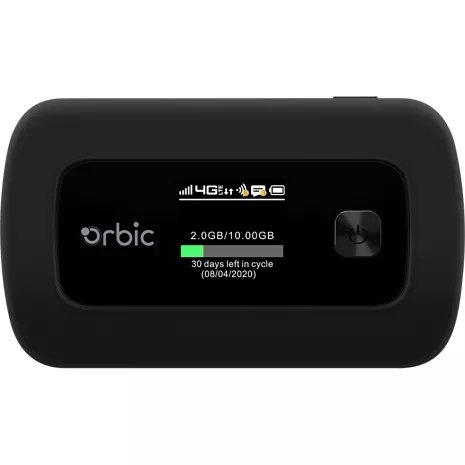
Gaming on a Verizon hotspot requires ensuring a strong and stable connection, minimizing other device usage, and potentially adjusting game settings for lower bandwidth consumption.
Ever wondered how to game on a Verizon hotspot when you’re away from your regular internet? It’s a common question for those who love gaming on the go. Setting up your mobile gaming experience doesn’t have to be a struggle.
With some careful planning and adjustments, you can get the most out of your gaming sessions. This article will help you understand the steps involved. Let’s explore how to game on verizon hotspot effectively!

How to Game on Verizon Hotspot
Want to play your favorite video games on the go? A Verizon hotspot can be a great way to get online, but gaming can be tricky. It’s not as simple as just connecting and playing. You need to understand how it works, and how to make sure you get the best gaming experience. Let’s explore how to make your Verizon hotspot a gamer’s best friend.
Understanding Verizon Hotspot Technology
Before we jump into gaming, it’s helpful to know a little about how your Verizon hotspot actually works. It’s basically like a small, portable Wi-Fi router. It uses Verizon’s cellular network to connect to the internet, and then shares that internet connection with your devices, like your phone, laptop, or game console. This is super useful when you don’t have a regular internet connection at home or when you’re traveling. But there are some important differences to keep in mind when compared to home Wi-Fi, like potential latency and data caps.
Data Limits and Throttling
One very important thing to know about Verizon hotspots is that they come with data limits. This means you only have a certain amount of data to use each month. When you use a lot of data, like when you’re playing online games or watching videos, you use that data up. If you go over your limit, Verizon might slow down your internet speed. This slowing down is called “throttling.” When your internet is throttled, gaming will become super frustrating because it will be slow and laggy. So, keeping track of your data usage is important. Verizon offers various plans with different data allowances, so choosing one that suits your gaming needs is crucial.
Checking Your Data Usage
Luckily, Verizon makes it easy to check how much data you’ve used. You can do this through:
- The Verizon mobile app on your phone or tablet.
- Logging into your account on the Verizon website.
- By dialing DATA# from your Verizon mobile phone, or a code specific to your device and plan.
Make sure you do this regularly to avoid nasty surprises. The app will show you how much data you’ve used, and how much you have left for the month. This information is crucial for planning your gaming sessions.
Latency and Ping
When we talk about online gaming, “latency” or “ping” is a key factor. Latency is the time it takes for your game actions to travel from your device to the game server, and back. The lower your latency, the faster and smoother your gaming experience. A high latency can cause lag, where the game seems to stop and start, and your actions happen later than they should.
Cellular connections, which Verizon hotspots use, can sometimes have higher latency compared to traditional home internet connections like fiber or cable. This is because the data has to travel wirelessly to cell towers and then to the internet, adding extra steps. This extra travel can increase latency and affect your gaming experience. The distance from your nearest cell tower, the number of users on the tower, the weather, and even the type of device you use, can have an affect on your latency. It is usually not as stable as a wired connection. You should therefore always keep in mind, when gaming, that your connection may vary at different times.
Setting up Your Verizon Hotspot for Gaming
Okay, now that we have a little better understanding of how your hotspot works, let’s talk about how to set it up for gaming. There are some things you can do to make sure you have the best chance for a great gaming session.
Choosing the Right Location
Where you set up your hotspot can make a big difference. Try to be near a window or in an open space. This can help your device connect to the cell tower more effectively. Buildings or thick walls can block the signal and make your connection weaker. Avoid being in places like basements or areas surrounded by many buildings or heavy vegetation. A stronger signal will make your games run smoother, and keep that latency as low as possible. You should test a few spots in your home to determine the best location for your hotspot when you play games.
Connecting Your Game Console or PC
Connecting your game console or PC to your hotspot is usually similar to connecting to a regular Wi-Fi network. Here’s how it generally works:
- Turn on your Verizon hotspot and make sure it has a strong signal.
- Go to the Wi-Fi settings on your game console or PC.
- Find your hotspot’s name (usually the name you set or a default name).
- Select it and enter the password for your hotspot.
- Once connected, you should be able to access the internet.
Some devices might require you to enter a security key or set up a more specific Wi-Fi connection method. Check your device’s manual for specific instructions if needed. Make sure you have a strong signal on both the hotspot and the device. You can usually check the signal quality on the hotspot’s screen or in the settings.
Prioritizing Your Gaming Device
If you have multiple devices connected to your hotspot, they all use the same internet connection. This can slow things down, especially when playing games. If you have the option, see if you can prioritize your game console or PC in your hotspot’s settings. This way, your gaming device gets more of the internet speed than other devices. Some hotspots allow you to do this through a quality of service (QoS) settings menu. These settings allow you to prioritize your traffic, ensuring that your game gets the data it needs for smooth gameplay. This feature helps to minimize the strain on your connection when many devices use it.
Optimizing Your Gaming Experience on a Verizon Hotspot
So, you’ve connected your device. Great! Now let’s make sure your gaming session is the best it can be.
Choosing the Right Game
Some games are much more demanding than others when it comes to internet speed and data usage. Games with a lot of players and real time action, such as “Fortnite”, “Call of Duty”, or “League of Legends”, can be very data-heavy and sensitive to latency. These type of games can also put a heavy strain on a cellular connection. In order to make sure that you get the best gaming session, it is always best to choose games that are not so data intensive. For example, games like “Minecraft” or “Stardew Valley”, are usually not as data-intensive, or as sensitive to latency. Also, single player games, where you do not need to connect to a server, can be ideal when you have a more limited data plan, or potentially unstable connection.
Adjusting Game Settings
Often, games let you adjust their graphic settings. If you’re playing on a hotspot, it’s often best to lower these settings to reduce the strain on your internet connection. Lower graphics settings will mean less data use and could help keep that ping low. Try reducing things like texture quality, resolution, and the number of special effects. It may not look as amazing, but the trade-off is a smoother gameplay experience with less lagging and fewer disconnections. Experiment with the settings to find a balance between visual appeal and smooth gameplay.
Closing Background Apps
When you play games on a PC or game console, other apps on your device can still use the internet. These programs are often running in the background. Close any apps or programs that you’re not actively using. Having too many things running can slow down your internet speed, and can make your game run worse. Close extra web browsers, streaming programs, or anything else that might be grabbing bandwidth. If you’re on a PC, go to your task manager and stop these processes. This will free up more bandwidth and help your game run smoothly.
Using a Wired Connection (If Possible)
Sometimes, your hotspot will let you connect your computer with a USB cable or ethernet cable. If this is an option, it’s often better than using Wi-Fi, even if it is not always possible. A wired connection can be more stable than Wi-Fi and may have lower latency. This might help with lag. This is especially true when you’re using the hotspot at a fixed location. Not all hotspots support a wired connection, but if yours does, it’s worth considering.
Monitoring Your Connection
While you’re playing your game, always watch your connection and see if you have a strong signal. If your signal quality drops a lot, and you are having problems playing your games, it might be best to stop and try to change your location, or try again at a later time. Most of your hotspot devices will provide visual indicators, like signal bars, to let you know if your connection has a strong signal.
Managing Your Data While Gaming
Remember data caps? They can be a gamer’s nightmare. Here are some tips to keep you from going over that limit.
Limiting Download and Updates
Downloading large game files or game updates can use a lot of data. Try to download these when you are on a non-metered network (where data use doesn’t matter). At home, you can use your home internet for updates, and then you can use your hotspot to actually play the game. If you do have to download a game or update while using your hotspot, try to avoid doing it at times when you want to be playing, because it will use up precious data. It’s also helpful to configure your game or console settings to not do automatic downloads. This will help prevent unwanted updates that you didn’t know about, from eating up your data when you are not paying attention.
Understanding Game Data Usage
It’s helpful to understand how much data your games actually use. Data usage can vary widely, depending on the type of game you are playing. Some online games, such as “Fortnite” or “Call of Duty”, might use around 100-200 MB per hour, while other online games may be less. Some games don’t use much data at all, especially single-player titles. If you are concerned about data use, try searching for some information about the specific game you are playing to find out how much data it uses per hour, and that will allow you to make a more educated plan when it comes to playing on a hotspot connection.
Setting Data Usage Alerts
Verizon allows you to set up data usage alerts on your account. These alerts will let you know when you are getting close to your data cap. Go to the Verizon app or the website to set up these alerts. These can help keep you from going over your limit and having your service slowed down. These alerts can be a valuable resource for helping you manage your data, and making sure that you can continue to game the entire month.
Considering a Larger Data Plan
If you find that you are constantly going over your data limit, or getting your service slowed down, you may want to think about upgrading to a data plan with a bigger monthly allowance. Although this may cost a little more each month, it can be better than the alternative of constantly being slowed down because you have exceeded your data cap. You should also look for deals from time to time. Verizon frequently changes it’s data plans and sometimes may have promotional plans with better deals than you have now.
Troubleshooting Common Gaming Issues
Even when you do everything right, you can still have problems. Here are a few issues you might face and some things you can try.
Lagging and Disconnections
If you are experiencing lagging or having your game disconnect, it could be a number of things. First, always check your hotspot signal and make sure you have a strong signal. If your signal is weak, try moving the device to a new location. Make sure you have no other apps or devices that are using your bandwidth. If it is a consistent problem, you should check with Verizon to see if there are any problems with the service, or you may want to investigate other reasons for lag. Sometimes, even if you have a strong signal, issues with the cell towers themselves can cause problems with speed and connectivity. If you try everything here, and it is still not working, it may be a problem with the cellular network or your device itself.
High Ping
A high ping (latency) can be frustrating. Try to move your hotspot and check your signal strength. Check to see if there are other devices that are using bandwidth. Close out of any apps or programs that may be running in the background. It’s worth looking to see if other people in your region are experiencing similar problems with the game you are playing. You can use an internet speed test app to see if your latency is higher than it normally is. This can be helpful to see if it is an issue that you might be able to troubleshoot, or an issue that you will just have to deal with.
Hotspot Overheating
Sometimes, a hotspot can overheat, especially when it’s being used a lot. Make sure it has proper ventilation. Don’t leave it in direct sunlight or cover it up. If it gets too hot, it might not work as well. The hotspot may throttle the speed to reduce the heat, and that will negatively impact your gameplay. If your device overheats too often you may have to look into a better hotspot that is able to handle the amount of use you require.
Contacting Verizon Support
If you have tried all of these steps, and are still having trouble, it might be time to contact Verizon’s support team. They can help you with any issues you may be having and they may be able to provide you with solutions or even find a problem you are not aware of. They are often able to provide specific information about your service, and they may know of outages or issues in your area.
Gaming on a Verizon hotspot is completely possible, but it requires some thought and management. By understanding how hotspots work, optimizing your setup, managing your data, and being ready to troubleshoot, you can enjoy smooth gaming on the go. Just remember to keep an eye on your data usage and be prepared to make a few adjustments. Now go out and have fun!
Verizon Jetpack Mobile Internet Device REVIEW
Final Thoughts
To game on a Verizon hotspot effectively, prioritize a strong signal and limit other connected devices. Configure your gaming device for optimal network settings. This action improves latency.
Adjust game settings to reduce bandwidth usage, this makes the connection more stable. Experiment with different server locations in your game. These steps can improve the overall experience.
Remember, how to game on verizon hotspot requires managing your data carefully. Limit background apps consuming bandwidth. This keeps your gaming sessions smooth and enjoyable.

