
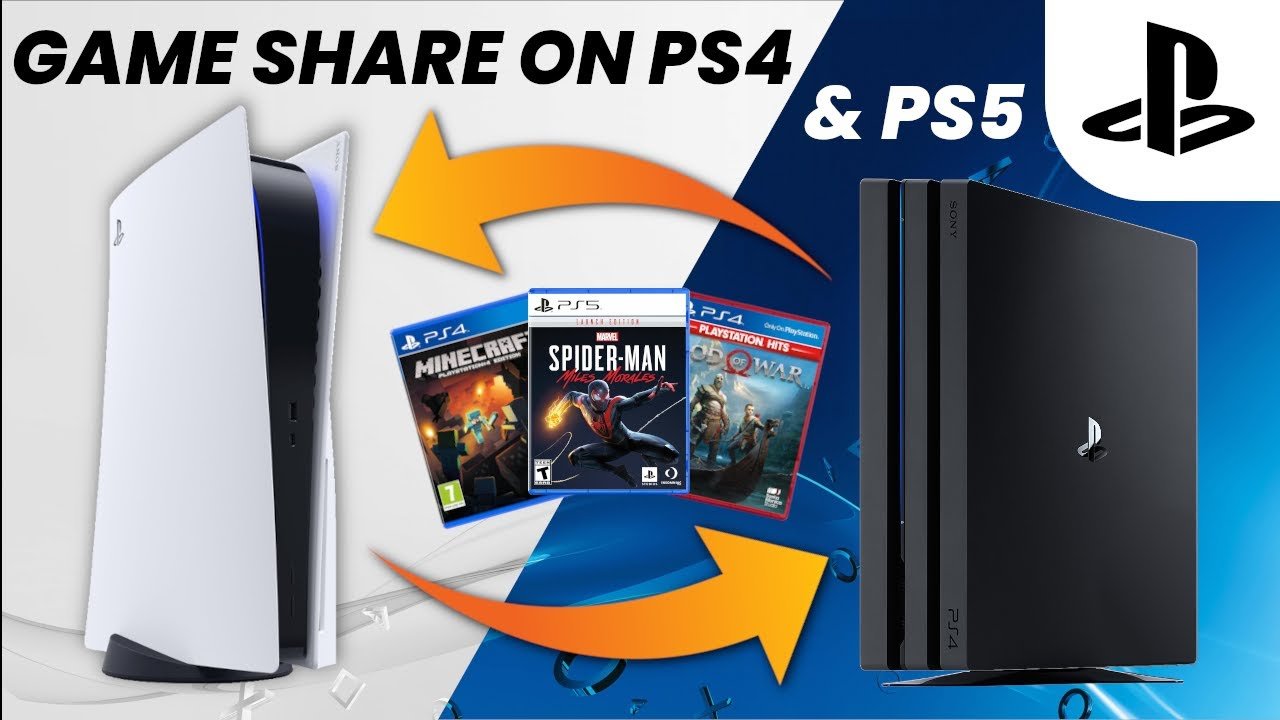
To game share MW3, you typically need to set your console as the home console for the account that owns the game, allowing other profiles on that console to access it.
Want to share the intense action of Modern Warfare 3 with your friends or family? Many players are curious about how to game share MW3, and it’s actually quite straightforward. This process enables multiple profiles on one console to enjoy the same digital copy of the game.
Essentially, you’ll be utilizing your console’s primary settings to grant access. By designating a specific console as the home for an account, you let others on that console play the games associated with it. It’s a simple way to share your digital purchases.

How to Game Share MW3: A Simple Guide
So, you want to share the fun of Modern Warfare 3 (MW3) with a friend or family member? Maybe you want to play together without buying two copies of the game. That’s where game sharing comes in! It’s like sharing your toys, but with video games. This guide will walk you through how to game share MW3 on different gaming systems. Let’s dive in!
Understanding Game Sharing
Before we get into the nitty-gritty, let’s talk about what game sharing really means. Game sharing lets someone else play a digital game you bought on your console without them having to buy it themselves. It’s a great way to save money and let others experience awesome games like MW3. But, there are a few rules and restrictions you need to know about.
What is a “Primary” Console?
Think of your primary console as your home base. It’s where all your games are ready to play. When you set a console as your “primary,” anyone who logs into that console can play your digital games, even if they are using their own profile. However, you can only have ONE primary console linked to your account at a time.
How Does it Affect Your Profile?
If your account is set as primary on another console, your account will need to be online to play your games on your console that is not set as primary. If your console is the primary one for your account then you can play offline also. So it’s like your account is unlocking the games on the other console, but you’ll need to be online to show that you have the right to play them on other consoles that are not the primary one.
Game Sharing MW3 on PlayStation 5 (PS5)
Sharing your games on the PS5 is pretty straightforward. Here’s what you need to do:
Setting up Console Sharing and Offline Play
- First, make sure you and the person you’re sharing with are on the same page. You’ll both need to have a PlayStation Network (PSN) account.
- On the PS5 of the person you want to share with, log in with your PSN account (the one with MW3).
- Go to Settings on that PS5.
- Find Users and Accounts.
- Click on Other.
- Select Console Sharing and Offline Play.
- Click Enable.
By doing this, you are making that PS5 your account’s “primary” console. Now, anyone on that PS5 can play your games. Don’t forget to log back out of your account on that PS5. If you are on the person’s account who you shared the game with, make sure they log back in on their account, after you did all steps above.
Playing on Your Original PS5
Here’s the key thing: After you set the other PS5 as your primary, you’ll need an internet connection to play your games on your own PS5. You also must be logged into your PSN account to play your games. If you want to play offline on your original PS5, you’ll need to switch back which console is your primary. Only one PS5 can be primary for your account at a time.
Restrictions on PS5 Game Sharing
- Only one console can be set as primary at a time per account.
- You need to be logged into your PSN account and online to play games on your own console if another console is your primary.
- DLC, add-ons, or in-game purchases might not be shared depending on the specific game. Always check before you purchase them.
Game Sharing MW3 on Xbox Series X/S
Game sharing on Xbox is similar to PlayStation. Here’s how it works:
Setting up Home Xbox
- Just like with PS5, make sure both you and the person you’re sharing with have Xbox accounts (Microsoft Accounts).
- On the Xbox console of the person you want to share with, sign in with your Microsoft account (the one that bought MW3).
- Press the Xbox button on your controller to open the guide.
- Go to Profile & system.
- Choose Settings.
- Go to General.
- Click Personalization.
- Select My home Xbox.
- Choose Make this my home Xbox.
Now, that Xbox is your “home Xbox.” Anyone who signs into that Xbox can play your games. After you complete the steps above, log out of your account on that Xbox and have the other person log back in.
Playing on Your Original Xbox
Just like with the PS5, If you set a console as your home Xbox for another account, you must be connected to the internet to play your digital games on your Xbox, and must be signed in to your account. You can change your home Xbox once in 5 times a year.
Restrictions on Xbox Game Sharing
- You can only have one “home Xbox” at a time.
- You must be connected to internet and signed in to your account to play games on your original Xbox when you set another Xbox as your “home Xbox”.
- Game sharing may be limited if the games are tied to specific accounts or licenses.
- Some add-ons might not transfer between accounts.
Important Things to Consider When Game Sharing MW3
Game sharing might seem easy, but there are a few things to remember.
Security and Privacy
When you share a game, you are also sharing your account on someone else’s console. Make sure the person you’re sharing with is someone you trust. They will have access to your account information. Don’t share with strangers. Be sure to change your password once you have finished the sharing process and set your console back to your home/primary system to avoid any issues or unwanted access to your account.
DLC and Add-ons
Not all game extras share perfectly. Sometimes, things like downloadable content (DLC), in-game items, and other add-ons won’t be shared with the other person. This can be different from game to game, so it’s good to check what the game developers say about game sharing for each game. It is important to check the details to see if the items are tied to the original account and console, or if they are going to be shared to a specific profile.
Internet Connection
As we have said before, remember that to play on your own console after setting your home Xbox or primary console on another console, you need a good internet connection to play your games. If the console that you usually play on is set as your home Xbox, you can still play without an internet connection.
Sharing with Multiple People
Unfortunately, you can’t game share with a group of people at the same time. You can only set one other console as your “home” or “primary.” You can share with many people, but they will have to take turns. Game sharing is usually designed for sharing with one other person at a time.
Keeping Your Accounts Safe
Always keep your passwords secret, and don’t share your passwords with anyone. Enable extra security like two-factor authentication on your accounts, where you need a code from your phone as well as your password to sign in.
Troubleshooting Common Issues
Sometimes things don’t go as planned. Here are some common problems and how to fix them.
Game Locked or Not Available
If the game is showing as locked or not available on the shared console, make sure you have set the console as primary or home. Double-check that you are signed into the correct account. You can also try restarting the console.
Cannot Connect to the Game Server
If the game has problems connecting to servers, make sure your internet connection is working fine. Both you and the other person should test the connection, as poor connections on either console can cause issues. Also, make sure that the game servers are not having issues.
DLC or Add-ons Missing
If some game content is missing, it might not be shareable. If the DLC is tied to the main profile, then the profile that didn’t buy it, will not have access to the content. Make sure that both consoles have the latest updates and that the content has been downloaded correctly.
Account Issues
If you’re having trouble logging into your account, try changing your password. This can fix login issues and will make sure your account is secure. If you are still having issues, you should contact support of your respective platform such as Playstation or Xbox support.
A few more extra tips
- Always make sure that the game sharing setting is turned on.
- Keep your console updated, because this can fix issues with the sharing feature.
- Before you buy DLC, check the game developer website or community page, about the game sharing of it.
- If you’re unsure about something, search for answers online, contact platform support, or check online game communities.
Game sharing is a useful feature that can let you share your favorite games with your friends and family. It’s important to understand how it works, to protect your accounts, and what the limitations are to avoid problems. By following these simple steps, you can enjoy the fun of MW3 with others.
MW3 PS4/PS5: How to Gameshare Full Tutorial! How to Play Multiplayer, Campaign, & Zombies Free!
Final Thoughts
To game share MW3 on your console, set the primary console for the account with the game. Another account on a different console can then access it. This method depends on platform-specific account linking.
Ensure both accounts are properly set up. Remember that specific limitations might apply. Carefully follow platform guidelines for a successful game share.
For a clear understanding on how to game share mw3, always check your console’s official help section. Correct settings will grant access.

