
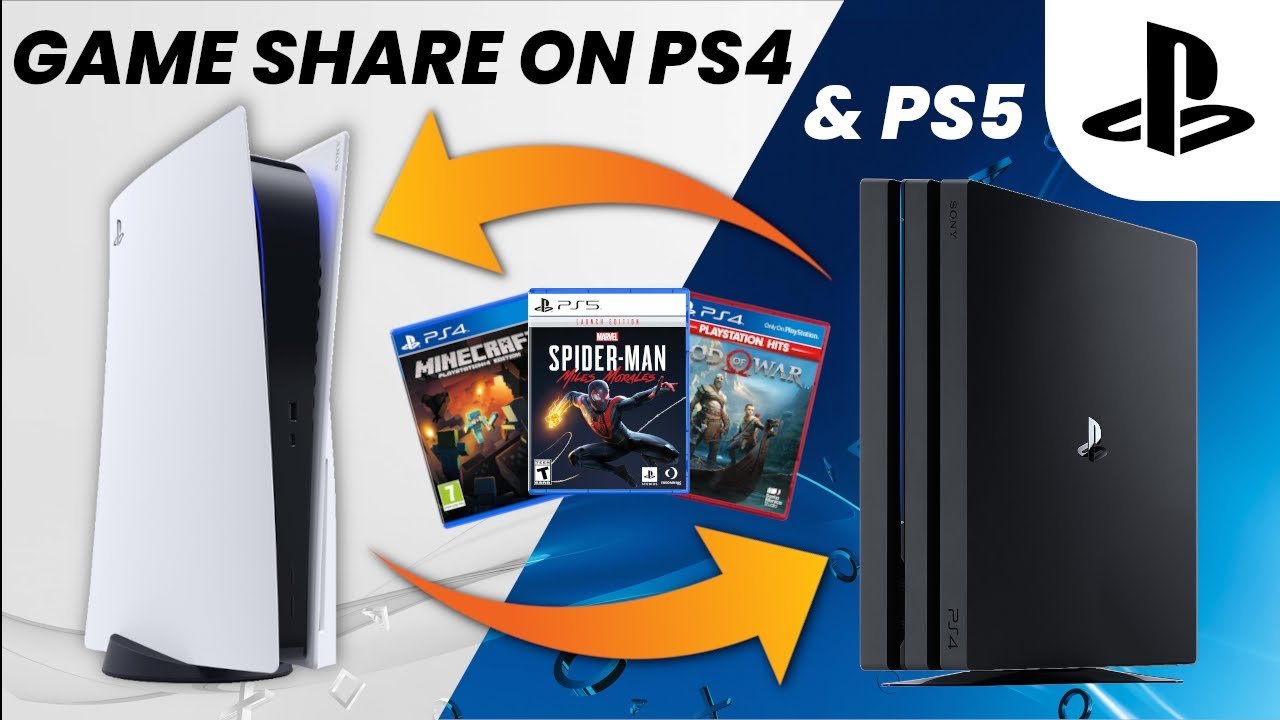
Unfortunately, you cannot directly game share on PS5 with a PS4. PS5 game sharing only works with other PS5 consoles.
Want to play your friend’s new game on your old PS4, or share yours with them? It’s a common question players have – “how to game share on PS5 with PS4?” Sadly, Sony does not support cross-generation game sharing like that.
While you can’t directly share games between consoles of different generations, remember that you can still share play via PSN accounts on the same generation console. This functionality remains the same, letting you enjoy gaming together.

How to Game Share on PS5 with PS4
Want to share your awesome PlayStation games with a friend or family member, even if one of you has a shiny new PS5 and the other is rocking a reliable PS4? Good news! It’s totally possible, and we’re going to show you how. This is called game sharing, and it lets you play games from someone else’s library. It’s like borrowing a game, but digitally! You can also enjoy your favorite games on both consoles by sharing your account. While it’s not a direct, one-click solution, we’ll walk you through the steps for setting up this system so you can both enjoy your collection of PlayStation games. This method works both ways, allowing someone with a PS4 to enjoy the games of a friend on a PS5, and vice-versa. Let’s dive into the specifics of how to make it work.
Understanding Game Sharing Limitations on PlayStation
Before we get started, it’s super important to know the rules of the game (pun intended!). Game sharing on PlayStation, which involves logging into your account on another console, has some limits. You need to be aware of them to have a smooth gaming experience. Here are the key limitations to keep in mind:
Primary Console Designation
Each PlayStation account can only have one “primary console” designated at a time. This primary console is the one where your digital games can be played by other users on that console, even if they have their own accounts. This is crucial for game sharing with other users, as you’ll need to activate your account on the console of the person you’re sharing with and designate it as your primary console.
Account Access
Game sharing is directly linked to your PlayStation Network account. The account that owns the game needs to be logged into a console for that game to be playable on that console using another account. If the account is not logged in or if the console is not designated as the primary console of that account, games will not be available for use by other accounts.
Simultaneous Play
Only one person can play a game at a time from a single PlayStation account, regardless of the number of consoles. This means if you’re logged into your account on two different consoles, you can’t both play the same game simultaneously. Also, if the game sharing partner has not logged in through the owner’s account and is trying to play a game which the owner account owns, it won’t be playable even if he has logged in using his own account on the primary console. You have to be aware that, when sharing games, the owner’s account has to be logged in to make the game playable.
Digital Purchases Only
Game sharing only works for digital games purchased from the PlayStation Store. If you have physical copies of games (discs), they cannot be shared digitally through this method. The disc has to be inserted into the console to be playable.
Potential for Account Security Risks
Because you are giving access to your account details, make sure you’re only doing this with trusted people, like close friends or family members. Always be careful with your account information. We highly recommend enabling two-factor authentication to protect your account and privacy.
Preparing Your PS5 for Game Sharing with a PS4
Before you begin, make sure you and the person you’re sharing with know the details of the PlayStation Network account being used for sharing. It is always helpful to have these details written down to make the process quicker. This will make sure the process goes smoothly. Here’s what you should do on your PS5:
Step 1: Logging into the Account on Your PS5
The first important step is to log into the account you’d like to share on your PS5. If you’re lending your PS5 to a friend, make sure to have them log in to your account on their console.
- Turn on your PS5 and go to the user selection screen.
- Choose the option to add a new user or account.
- Follow the prompts and log in using the email address and password of the PlayStation Network account you wish to share games from.
Step 2: Designating Your PS5 as the Primary Console
After logging in, you need to activate your PS5 as the primary console for that account. This step is essential to allow other accounts on that PS5 to play the games owned by the account you just logged in with.
- Go to the PS5 main menu and select “Settings” (the gear icon in the top-right corner).
- Select “Users and Accounts.”
- Choose “Other.”
- Select “Console Sharing and Offline Play.”
- Enable the setting. Now other users of this console can play your games.
Remember that after you have enabled the “Console Sharing and Offline Play,” the PS5 is designated as the primary console for the specific PSN account that you have logged into.
Step 3: Ensuring all Games are Downloaded
You might not have all your purchased games downloaded on the PS5. Before you proceed any further, you have to ensure that any game you are planning to share are downloaded on the console.
- Navigate to your game library.
- Locate any games you want to share and start downloading them.
- Wait for the download to complete.
Preparing the PS4 for Game Sharing with the PS5
Now, let’s get the PS4 ready to play games from the PS5 account. This involves a similar process on the PS4. Just make sure that you have the PSN account details handy.
Step 1: Logging into the Account on Your PS4
The first part of setting up game sharing on the PS4 is to log in with the PlayStation account that you used on your PS5. Make sure that your friend’s or family member’s PS4 is on, and ready to go.
- Turn on your PS4.
- Go to the user selection screen.
- Add a new user and choose to log in with an existing account.
- Use the email address and password of the PlayStation account used on the PS5.
Step 2: Designating Your PS4 as the Primary Console
Once you’ve logged in to the PS4 with the shared account, you will have to enable the console as the primary console. This way, the other accounts on that console can also play the purchased games from this account.
- Go to the PS4 main menu and choose “Settings.”
- Select “Account Management.”
- Choose “Activate as Your Primary PS4.”
- Select “Activate.” The primary PS4 activation has been completed.
It is important to note that if you designate the PS4 as your primary console using the PSN account that you are using for game sharing, the PS5 will have to be designated as the secondary console and vice-versa.
Step 3: Starting the Downloads on the PS4
Similar to the PS5, the games have to be downloaded before they can be played.
- Navigate to your game library on the PS4.
- Find the games you wish to download and select them.
- Begin downloading the games. You will have to wait until they are fully downloaded.
Switching Back and Forth Between Primary Consoles
One key thing to remember is that you can only have one primary console active at a time for each account. If you change your primary console, it means that the other console can no longer use the digital games of that particular account. So, if you want to share a game with a friend or family member for a long time, you should not switch the primary console unless necessary. This could be frustrating for you or your sharing partner, if you play on different consoles. If you need to switch, here is how it’s done.
Deactivating a Primary Console
You will need to deactivate the previous console before activating another one as the primary console. Let’s say you’ve already designated your PS5 as the primary console, and now you need to switch to your PS4. Here’s what you need to do:
- Turn on your PS5.
- Navigate to “Settings.”
- Go to “Users and Accounts,” then “Other”.
- Choose “Console Sharing and Offline Play.”
- Select the option to “Disable.”
- This will deactivate the console as the primary for that PSN account.
Remember to only deactivate the primary console when necessary. Make sure that you only deactivate if you have plans to use the other console instead.
Activating a New Primary Console
Once you have deactivated the primary console, you can activate the other one. Let’s use the same scenario and assume that you are planning to switch to the PS4. Here is what you need to do:
- Turn on your PS4.
- Navigate to “Settings.”
- Select “Account Management”.
- Choose “Activate as Your Primary PS4.”
- Choose “Activate” and this will activate the console as the primary for the PSN account.
Troubleshooting Common Game Sharing Issues
Sometimes, things don’t always go as planned. Here are some common problems you might encounter while sharing games between PS5 and PS4, and how to fix them:
Game Locked or Showing a Lock Icon
If you see a lock icon on a game, it means the account that owns the game is not currently set up as the primary console on your device. In this case, here is what you need to do:
- Make sure the account that owns the game is logged into the console.
- Verify that the console is set as the primary console for that account.
- If these things are in order, you can also try restoring your licenses. To do this, go to “Settings,” then “Account Management,” and select “Restore Licenses.”
Unable to Connect to PlayStation Network
If you can’t log in to your PlayStation Network account, the most common reason is that there may be an issue with your internet connectivity. Also, the PlayStation Network servers could be down, in which case you can check the PlayStation Network status on their website.
- Make sure your Wi-Fi or internet is working properly.
- Restart your router and your console.
- If it is still not working, check the status of the PlayStation servers.
Games Not Appearing in Game Library
Sometimes games may not show up in your library, and this could be an issue. If this happens, you can try these steps.
- Make sure that the account that owns the game is set up as the primary account on your console.
- Check that the games are already downloaded, if not, start downloading the games.
- You can also try refreshing the game library. You can do this by going to the library and then restarting the console.
Two-Factor Authentication Issues
Two-factor authentication is important to protect your account. However, this can cause issues when trying to set up game sharing.
- When prompted, make sure to enter the correct security code from your two-factor authentication app or from your mobile number.
- You can also log out of all devices and then log in again. This will refresh the process.
By following these steps, you should be able to enjoy your games with friends or family across your PS5 and PS4 consoles. Remember that game sharing is meant to be used within a close-knit group of people. Sharing your account details with strangers could put your account at risk. Always keep your information secure and only share your details with people you trust. Happy gaming!
How to Game Share on PS4 and PS5! (and how to get the PS Plus collection on PS4) (EASY) (2021) | SCG
Final Thoughts
In short, you cannot directly game share between a PS5 and a PS4. PlayStation’s system only allows sharing within the same console generation. This means PS5 users share with other PS5 consoles. PS4 users share with other PS4 consoles.
Therefore, the answer regarding ‘how to game share on ps5 with ps4’ is that it isn’t possible. You must buy a game for each platform separately if you wish to play it on both devices.

