
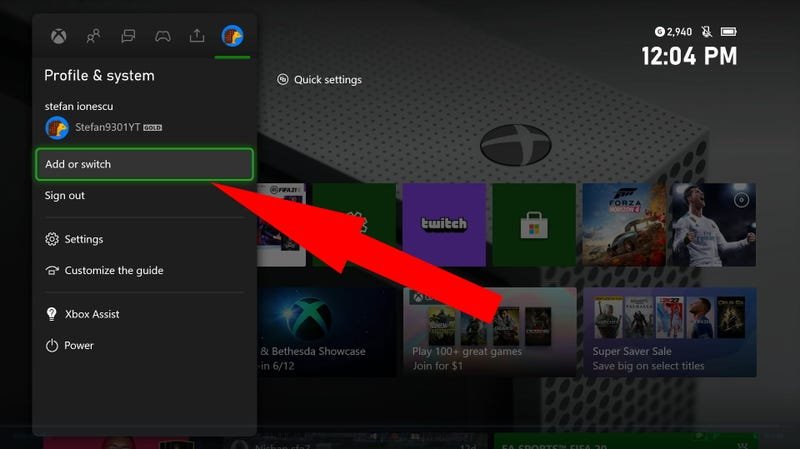
To game share on Xbox One, you need to designate your friend’s console as your home Xbox and have them designate yours as theirs. This allows both accounts to play each other’s digital games.
Want to share your amazing game library with a friend? It’s simpler than you might think. The Xbox One allows for game sharing, so you and a buddy can enjoy each other’s digital titles. This process, though not always obvious, involves a few key steps on each console.
Learning how to game share on Xbox One is a great way to save money. You get to access a much larger collection of games. It also means you can try games before committing to a purchase.

How to Game Share on Xbox One
Want to play awesome Xbox One games with your friends or family without buying a second copy? You can! It’s called game sharing, and it’s like sharing your toys but in the digital world. Game sharing lets two Xbox One consoles share digital games and even Xbox Live Gold subscriptions. This means you and a friend can both play the same game, at the same time, using just one purchase. Pretty cool, right? Let’s dive into how you can set it up.
Understanding Game Sharing: The Basics
Before we start the setup, let’s understand how it works. Game sharing on Xbox One uses a concept called “Home Xbox”. Think of it as designating one console as your primary, or “home,” console. When you set an Xbox as your “Home Xbox,” anyone who uses that console can play all your digital games and use your Xbox Live Gold subscription. This feature is meant for family members or very close friends who live in the same household, because you need to give away your account information.
Here are the two important things to understand:
- Your Home Xbox: This is the console where others can play your games and use your gold. You’re not using this console, your friend/family are.
- Your Profile: This is linked to the digital games and subscriptions you bought. You use your profile to log in and play games on your own main Xbox.
Now, you can have only one “Home Xbox” at a time, so picking the right one is key. For instance, if your friend uses their Xbox much more than you use yours, then it might make sense for their Xbox to be your “Home Xbox.” You should use your Xbox to log in with your profile and then play your shared games on your console. This lets both of you enjoy your games.
Setting Up Game Sharing: A Step-by-Step Guide
Ready to get started? Here is how you can set up game sharing between two Xbox One consoles:
Step 1: Getting Ready
Before you begin, you will need two Xbox One consoles and two Xbox accounts. Also, you and your gaming partner will need to know each other’s Xbox account email address and password. This is important, so do this with someone you trust. You also have to be physically with each other, at least for this initial step.
Step 2: Logging in to the Friend’s Xbox Console
Go to the console that will become your home Xbox (which might be your friend’s console). On that console, sign out of the profile that is currently logged in. Then, press the Xbox button on the controller, choose “Add new,” and sign in with your Xbox account email and password.
This makes you logged in on your friend’s Xbox with your account and profile.
Step 3: Making the Xbox Your Home Console
While you are logged in to your account on your friend’s Xbox, follow these steps:
- Press the Xbox button to open the guide.
- Go to “Profile & system” (the last icon on the left side).
- Select “Settings”.
- Choose “Personalization.”
- Pick “My home Xbox.”
- Select “Make this my home Xbox.”
This step makes your friend’s Xbox your “Home Xbox.” Remember, anyone who uses this console can now play your digital games.
Step 4: Switching Back to Your Own Console
Now, head back to your own Xbox One console. Sign in with your own Xbox account on your console.
Step 5: Game Time!
You’re all set! Now, both of you can play the same games at the same time. Here is how it works:
- On your Xbox (the one that’s not your home): You will use your account to log in and play all of your purchased games.
- On your friend’s Xbox (your “Home Xbox”): Your friend can use their account to log in and play the same games and use your Xbox live gold subscription that you have purchased.
You only have to complete this initial set up once. After the setup, you and your gaming buddy can play games from your digital library. You need to be connected to Xbox live to verify you have the right licenses to play, so a constant internet connection is essential.
Managing Your “Home Xbox”
It’s good to know a few things about managing your “Home Xbox.” You can only change your “Home Xbox” a limited number of times per year (up to 5 times). This is to prevent misuse of the feature. So, if you switch too often, you will have to wait a while before changing it again.
Also, if you’re planning to sell or give away your Xbox, remember to switch your “Home Xbox” back to your console first. This way, your account will be safe and your games won’t be shared.
Steps to Change Your Home Xbox:
If you need to switch your “Home Xbox” back to another console, here’s what you need to do:
- Sign in to the Xbox console that is currently your “Home Xbox” with your account.
- Press the Xbox button to open the guide.
- Go to “Profile & system.”
- Select “Settings”.
- Choose “Personalization.”
- Pick “My home Xbox.”
- Select “Remove this as my home Xbox.”
- Now you can make a new Xbox console your home console, follow steps 1-3.
Troubleshooting Common Issues
Sometimes things don’t go as planned, and you might face some problems while game sharing. Don’t worry; here are some tips to handle the most common ones:
Issue: Games Are Locked
If you find games locked on your friend’s “Home Xbox,” check these things:
- Check your internet connection: Make sure both consoles have a stable internet connection to access games.
- Double-check “Home Xbox” settings: Verify that you have correctly set the “Home Xbox” on your friend’s console.
- Restart consoles: Sometimes, a simple reboot can fix the problem. Turn off both consoles completely, wait a few seconds, and turn them back on.
Issue: Only One Can Play at a Time
If you are experiencing the issue where only one of you can play games at a time, it might mean you’re trying to play the same game with the same account. This setup allows you to play the same game, but with different profiles. Remember, that you play on your profile and your friend/family play on their profile.
Issue: “Home Xbox” Change Error
If you cannot change your “Home Xbox,” it might mean you have already used your limit for the year. You will have to wait before you can change it again. You can try again later.
Issue: Games Not Showing Up
If your games are not showing up on the shared console, try this:
- Sync your licenses: Try doing a license sync on the console where the games are not appearing. You can find that under “Settings,” then “Account,” and then “Other settings” and then “Sync licenses”.
- Check the game library: Make sure the game was actually purchased on the shared account.
Keeping Game Sharing Secure and Safe
While game sharing is great, keeping your Xbox accounts safe is very important. Here are some tips:
- Share only with trusted friends or family: Because they will have your login information, only share with people that you know and trust.
- Do not share account information with strangers: You should not share your account details with anyone you don’t trust.
- Keep your passwords safe: Use hard-to-guess passwords and never share them with others online.
- Use two-factor authentication: Turn this security feature on for extra protection of your account.
- Be careful of phishing: Don’t click on suspicious links or messages asking for your Xbox account information.
The Benefits of Game Sharing
Why do so many people use game sharing? It provides many benefits. Here are some of the best reasons:
- Save Money: You can share the cost of games with someone else.
- Play More Games: You can explore more games by sharing with someone who owns different games than you.
- Play Together: You and your friend can play the same games at the same time.
- Enjoy Subscription Benefits: Both of you can share the Xbox Live Gold membership, saving you extra costs.
Game sharing on Xbox One is an awesome feature that lets you save money, try more games and play games with friends. It requires a little setup, but once you understand how “Home Xbox” works, it becomes easy. Now go ahead and enjoy the fun of shared gaming!
Remember to stay safe, share wisely, and have lots of fun!
How To Gameshare On Xbox One
Final Thoughts
To game share on Xbox One, you must first set up your console as the home Xbox for your friend’s account. Then, your friend needs to set your console as their home Xbox. This allows both of you to play each other’s digital games.
Remember that only one console can be set as your home Xbox at a time. You can change it up to five times per year. This process explains how to game share on Xbox One effectively.

