
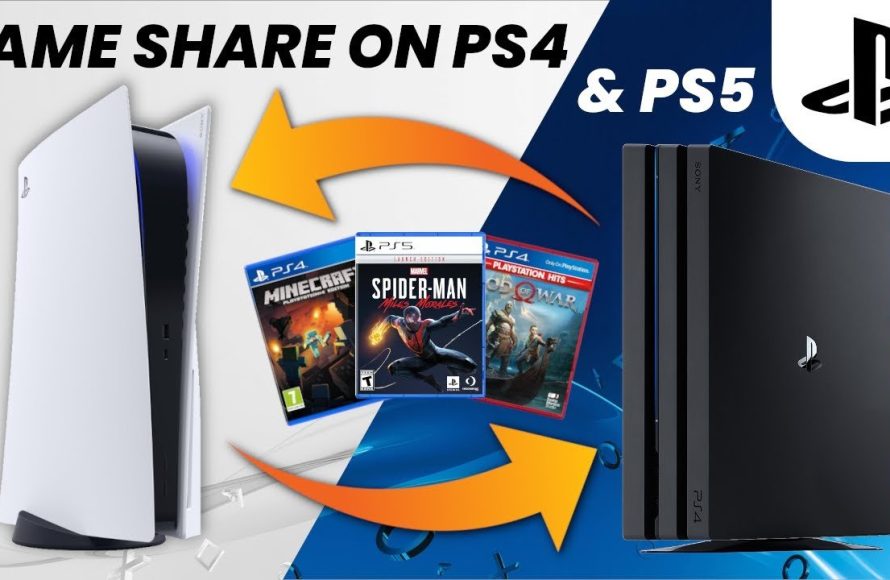
You cannot directly game share PS5 games to a PS4. Game sharing is only possible between consoles of the same generation.
Want to play that new PS5 title with your friend who only has a PS4? Many gamers are asking about how to game share PS5 to PS4, hoping to enjoy the latest releases together. Unfortunately, the PlayStation ecosystem doesn’t currently allow direct sharing of PS5 games with a PS4. The technology and architecture of the two consoles are just too different for a seamless game share experience.
This limitation means that a PS5 game simply won’t run on a PS4. There are no workarounds to bypass this generation gap limitation, despite the desire for such a feature. So, while sharing is a great feature within the same console family, it is not possible between the PS5 and PS4.

How to Game Share PS5 to PS4: A Simple Guide
So, you’ve got a shiny new PlayStation 5, and you’re wondering if you can share all those awesome games with your buddy who’s still rocking a PS4? It’s a great question, and the short answer is: it’s a bit tricky. Directly sharing PS5 games with a PS4 isn’t something Sony designed into the PlayStation ecosystem. The two consoles have different architectures and game formats, making direct game sharing impossible. But, don’t worry! There are alternative methods that work similarly to game sharing on other platforms, allowing you and your friends to enjoy games together, albeit with a few steps. In this guide, we will explore the methods that allow you to enjoy the games on the PS5 and PS4 in a similar experience to game sharing, explaining all the ins and outs, making sure everyone can enjoy more gaming experiences.
Understanding the Limitations: Why Direct PS5 to PS4 Game Sharing Doesn’t Exist
Before we dive into the how-to, let’s understand why direct game sharing between PS5 and PS4 isn’t a feature. It all boils down to the significant hardware differences between the two consoles. The PS5 uses a completely different processor, graphics card, and storage system than the PS4. This means that PS5 games are built with these advanced technologies in mind. They use a different game code that PS4’s simpler hardware can’t interpret. Imagine it like trying to play a Blu-ray disc on a DVD player; it just won’t work.
Here are some crucial points to keep in mind:
- Architecture Differences: PS5 uses a custom AMD Zen 2 CPU and a custom AMD RDNA 2 GPU, while the PS4 uses an AMD Jaguar CPU and an older AMD Radeon GPU. The PS5 also uses a super-fast custom SSD, compared to the PS4’s traditional hard drive.
- Game Code: Games are specifically coded for the console they’re designed for. The PS5 game code is not backward-compatible with the PS4 system.
- Storage and File Formats: The storage types, file formats, and loading speeds are very different. Therefore, even if the PS4 could run a PS5 game, it wouldn’t be able to handle the file size or loading requirements.
So, although you cannot directly transfer or share the actual PS5 game file to a PS4, there are still some alternatives to get similar benefits to the concept of “game sharing”.
Alternative 1: The Account Sharing Method
This method works by allowing another person to access your game library on a console. It’s the closest thing to traditional “game sharing” between PlayStation consoles. Keep in mind that this method requires sharing login details and is not officially endorsed by Sony, so use it with caution and only with people you trust. Here’s how it works:
Setting Up Account Sharing on PS5
- Log in: On your PS5, log in with the PlayStation Network (PSN) account that has the games you want to “share”.
- Enable Console Sharing and Offline Play: Go to Settings, then Users and Accounts. Select Other, then choose Console Sharing and Offline Play. Enable the setting to allow another console to access your games.
Accessing Games on PS4
- Log in: On the PS4, log in with the same PSN account from which you enabled the console sharing.
- Access your library: Go to Library in the PS4 menu. The games you have downloaded or bought on your PS5 account will be shown there, and you can download and play them on the PS4.
Important Notes on Account Sharing:
- Primary Console: The console where you enable console sharing becomes the “primary” console for that account.
- Simultaneous Play: Only one person can play a game using your account at a time. If you try to play on your PS5 while someone is using your account on the PS4, you will be logged out on the PS4.
- Digital Only: This method only works with digital games. Physical games cannot be shared using this method.
- Security Risk: Sharing your account details has risks, so be sure you trust the person you are sharing with.
- Terms of Service: This method technically goes against Sony’s terms of service, so proceed with caution.
Alternative 2: Using PlayStation Plus Share Play Feature
PlayStation Plus’s Share Play feature provides a way to let your friend on a PS4 experience games that you own on your PS5, but it’s a bit different from direct sharing. Instead of your friend downloading the game, they are effectively “streaming” the game from your PS5. Here’s how it works:
How Share Play Functions
- Streaming, Not Downloading: Your friend isn’t downloading or accessing your game files but is playing the game directly through a video stream from your PS5.
- PS Plus is Necessary: Both of you need to have an active PlayStation Plus subscription for this method to function correctly.
- Limited Playtime: Share Play sessions are typically limited to one hour, but you can start a new session afterwards.
- Internet Connection: A strong and stable internet connection is critical for smooth streaming and gameplay for both players.
Setting Up Share Play on PS5
- Start a Party: On your PS5, start or join a party with your friend.
- Begin Share Play: In the party screen, select Share Play.
- Invite Friend: Choose the option to invite your friend to join the Share Play session.
- Game Selection: Pick the game you wish to share from your library.
Participating in Share Play on PS4
- Accept Invitation: Your friend will get an invitation. They need to accept it on their PS4.
- Start Playing: Once they accept the invitation, they will start seeing a stream of your PS5 game on their screen.
Important Notes on Share Play:
- Guest Player Role: The person on PS4 is essentially a guest who watches and plays, so they can’t earn any achievements or game saves.
- Local Multiplayer Option: If the game supports it, you can set Share Play to “play together” mode for local multiplayer games.
- Lag Issues: Depending on your internet connection, there may be input lag and latency issues, which affect the gaming experience.
- Bandwidth Requirement: The stability of the Share Play depends a lot on the bandwidth of the internet for both players.
Alternative 3: Using Remote Play
Remote Play is another method to enjoy the game from your PS5 library on your PS4. Unlike Share Play, Remote Play doesn’t focus on playing together; instead, it’s about you accessing your games on another screen through your console. This feature doesn’t allow the game to be played on two different consoles at the same time, but allows you to play a PS5 game on your PS4.
How Remote Play Works
- Access via Stream: Remote Play involves streaming gameplay from your PS5 to another device, such as the PS4.
- One Player at a Time: It’s designed for individual use, not for sharing games with others concurrently.
- Internet Connection Needed: A good internet connection is necessary for smooth gameplay.
Setting Up Remote Play on PS5
- Enable Remote Play: On your PS5, go to Settings, then System, then Remote Play. Enable the option.
- Link Device: Select Link Device. The PS5 will generate a code that you need to enter on your PS4.
Using Remote Play on PS4
- Install the App: Download the PS Remote Play app from the PlayStation Store.
- Sign-In: Sign in with your PSN account.
- Connect to PS5: Choose to connect to your PS5, and you can start streaming gameplay.
Important Notes on Remote Play:
- Single User Experience: Only one player can access the game at a time, so it’s not helpful if you and your friend want to play the same game at the same time.
- Primary Account: You have to use the same account on both consoles.
- Smooth Gameplay: The quality of your experience depends on your internet connection for both consoles.
- Network Dependent: Network settings can sometimes affect Remote Play.
Common Issues and Troubleshooting Tips
When trying out these alternatives, you might encounter a few problems. Here are some of the most common and how to solve them:
Network and Connection Issues
- Problem: Lag, disconnections, or choppy gameplay.
- Solution: Check your internet connection speed. Use wired connections (Ethernet cable) for better performance over Wi-Fi. Make sure your router is functioning properly and updated.
Account and Login Issues
- Problem: Not being able to log in or not seeing the game library.
- Solution: Double-check your login details are correct. Restart both consoles. Make sure you are using the correct account linked with the games you’re looking for.
Share Play Issues
- Problem: Unable to start or maintain a stable Share Play session.
- Solution: Verify both of you have active PlayStation Plus memberships. Restart your consoles and router. Make sure the game supports share play.
General Performance
- Problem: Game running poorly on the PS4 through Remote or Share play.
- Solution: Lower the streaming resolution (check the setting in the Remote play application settings) for a smoother experience. Also check if both devices are having other background application using up the processing power.
If the problem persists, checking Sony’s support pages could give you more direct solutions.
While direct game sharing between PS5 and PS4 is not possible, these methods do provide you with options to enjoy games together with friends and family. Remember to always practice safe account sharing and follow PlayStation’s guidelines. By taking your time and following the proper steps, you will be able to enjoy games from your PlayStation 5 on your PlayStation 4.
How to Game Share on PS4 and PS5! (and how to get the PS Plus collection on PS4) (EASY) (2021) | SCG
Final Thoughts
To summarize, game sharing between PS5 and PS4 consoles isn’t directly possible. PlayStation does not support cross-generation game sharing. You cannot share digital games from a PS5 to a PS4.
However, you can use Remote Play for similar experience. Remote Play allows you to play PS5 games on a PS4. This is a useful alternative if direct ‘how to game share ps5 to ps4’ functionality isn’t available.

