
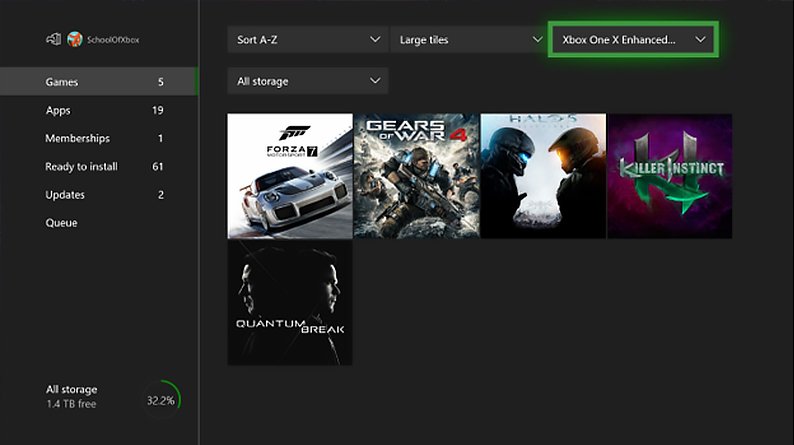
To update an Xbox One game, simply ensure your console is connected to the internet; updates usually download and install automatically when available.
Have you ever been eager to jump into your favorite Xbox One game, only to find it needs an update? It can be a small hurdle, but it’s necessary to keep games running smoothly and introduce new content. Understanding how to update an Xbox One game is quite straightforward. The console handles most of it behind the scenes, making sure you have the most up-to-date versions.
Usually your Xbox will automatically download these updates. However, if you are having issues, you can manually check for updates through the system menu. This quick fix will make sure you are always prepared to get into the gameplay.

How to Update an Xbox One Game: A Simple Guide
Keeping your Xbox One games updated is super important for a great gaming experience. Updates often include bug fixes, new features, and sometimes even fresh content! Imagine playing a game with annoying glitches or missing out on a cool new level – nobody wants that! This guide will walk you through the easy steps to update your games on your Xbox One, ensuring you have the best gaming sessions possible. We will cover everything from automatic updates to troubleshooting tips when things don’t go as planned. Let’s get started!
Understanding Game Updates
Before we dive into the “how,” let’s understand the “why.” Game updates are like little gifts from the game developers. They help make the game better, smoother, and more fun to play. Think of it like this: a chef is always trying to make their dishes better, tweaking a recipe here, adding a new ingredient there. Game developers do the same thing with their games. They listen to player feedback and then release updates to fix problems or add new stuff. These updates are essential for enjoying a game to its fullest potential.
Types of Updates
There are generally two kinds of updates:
- Patches: These are usually small updates designed to fix bugs or issues in a game. Think of them as a quick fix for problems.
- Content Updates: These updates are usually larger and can include new levels, characters, weapons, or other new features. They’re like getting a brand new part of the game to explore.
Both types of updates are very important for the health and playability of a game.
Why Updates Are Important
Game updates are not just about new content. They also help in many other ways:
- Fixing Bugs: Updates remove those annoying problems that can make a game frustrating to play.
- Improving Performance: They can make a game run smoother with less lag or stuttering.
- Enhancing Gameplay: New features and content updates add more variety and keep the game exciting.
- Security: Updates can patch security flaws, making sure your system and gaming account are safe.
Therefore, keeping your games updated is a great way to get the best and safest gaming experience.
Automatic Game Updates
The good news is that your Xbox One is set up to automatically update your games by default. This means you usually don’t have to lift a finger! The console will download and install updates whenever they are available, usually when the console is idle. However, sometimes, things might not go exactly as planned, and that’s when you need to know how to check and update manually.
How Automatic Updates Work
When your Xbox One is connected to the internet, it will periodically check for game updates. If updates are available, it will download them in the background when your console is not in active use. Once downloaded, the update will install automatically. This happens typically when you are not actively using the console.
Ensuring Automatic Updates are Enabled
To make sure automatic updates are turned on, here’s how to check:
- Press the Xbox button on your controller to open the guide.
- Go to Profile & system (the icon on the far right).
- Select Settings.
- Go to System, and then select Updates & downloads.
- Make sure the box next to Keep my console up to date is checked.
- Also make sure that the Keep my games & apps up to date option is also checked.
This ensures that your console automatically searches and installs the updates, so you don’t need to bother doing this again and again.
When Automatic Updates Might Not Happen
Sometimes, even with automatic updates enabled, things can be delayed. Here are some reasons why:
- Internet Connection Issues: A weak or intermittent internet connection can prevent the console from downloading updates.
- Console is in Use: If the console is actively in use (playing a game or watching a movie), updates may be paused until it’s idle.
- Console Storage: If your console is running out of space, it may delay updates.
- Xbox Live Service Issues: Occasionally, the Xbox Live service may experience problems, which can affect downloads.
Manually Checking for Updates
If you suspect that a game hasn’t updated automatically, or if you just want to be sure, it’s very easy to manually check for updates. This is a great skill to have and ensures you’re always playing the newest version of your game. This is especially helpful if you’ve been away from your Xbox for a few days, or when a major update is announced.
Steps to Manually Update a Game
Here’s how to check for updates for a specific game on your Xbox One:
- Press the Xbox button on your controller to open the guide.
- Go to My games & apps.
- Select See all.
- Highlight the game that you want to update.
- Press the Menu button on your controller (the button with three lines).
- From the menu that appears, select Manage game & add-ons.
- Then select Updates.
If an update is available, you’ll see a button to update. Select it, and the download and install will begin.
Checking All Updates at Once
If you’d like to check for updates on all games at the same time, there is a way you can do this.
- Press the Xbox button on your controller to open the guide.
- Go to My games & apps.
- Select Manage.
- Select Updates from this menu.
This page shows you all the updates pending, and you can select the update all option.
Troubleshooting Update Issues
Sometimes, even with the best of intentions, updates can hit a snag. It’s important to know how to handle these situations when they arise. Let’s take a look at some common update problems and their fixes.
Common Update Problems
- “Installation Stopped” Error: This error usually indicates that the update download has been interrupted or has had a technical issue.
- Slow Download Speeds: Updates might take a long time to download if your internet connection is slow or overloaded.
- Not Enough Disk Space: If your hard drive is almost full, the update might fail to install.
- Pending Installation: If another game is being installed or updated, sometimes it might delay the current update.
- Xbox Live Service Problems: Occasionally, the Xbox Live service could have problems that affect downloads.
Troubleshooting Steps
If you run into update problems, try these troubleshooting steps:
- Check Internet Connection: Make sure your Xbox One is connected to a stable internet connection. Try restarting your modem and router.
- If you are using wifi, try using a wired connection temporarily to see if the download speeds improve.
- Pause and Resume the Download: Sometimes, pausing and then resuming the download can fix issues. Go back to Manage game & add-ons, and use the options there to pause the update, then resume.
- Restart Your Console: A simple console restart can often resolve many issues. Press and hold the Xbox button on your console for about 10 seconds until it shuts off, then turn it back on again.
- If restarting the console doesn’t work, then try unplugging the console for a minute and plugging it back in, and check again for the updates.
- Check Console Storage: Go to Settings > System > Storage, to see how much space you have left. If it’s very low, delete unnecessary games or apps to free up space.
- Clear Local Saved Games: Sometimes, clearing the local saved games can solve these issues. To do this, go to Settings > System > Storage > Clear Local Saved Games. Your progress will be saved on the Xbox cloud servers, so it won’t be deleted.
- Check Xbox Live Status: Visit the Xbox Live status page to see if there are any service issues affecting downloads.
- You can visit xbox.com/status to see the current live status of Xbox services.
When to Seek Further Help
If none of the above steps work, you may need to seek further help from Microsoft support. They have additional diagnostic tools and may know of ongoing specific issues. Here’s how you can contact Xbox support:
- Visit the Xbox Support Website: Search on the official Xbox website for support options.
- Use the Xbox Support app on your Xbox console.
- Use social media channels to message them and seek help.
Managing Update Preferences
Your Xbox One lets you set up certain preferences related to updates. These settings give you more control over how and when updates are installed.
Controlling Download Times
You can schedule updates to happen when you are least likely to be using your console, reducing interruptions to gaming. This is especially useful for those who have limited bandwidth during certain times of the day. However, the console will try to check for updates automatically when it is idle.
Using the Xbox Mobile App
The Xbox app for your smartphone or tablet lets you manage game updates remotely. You can check on the status of updates, or even start them, from anywhere as long as your console is connected to the internet. This is super handy if you want to start an update before you are home.
- First, you have to download the Xbox app on your phone/tablet.
- Make sure that you log in using the same Microsoft account as your Xbox.
- You will see the option to manage your console and manage its game library from there.
Keeping your Xbox games up to date is essential for a better gaming experience. It may sound complex, but it’s very easy to manage with the tools provided by the Xbox One. Now, with a clear understanding of automatic updates, manual checks, and troubleshooting, you’re fully prepared to keep your games running smoothly and ready for action. Remember, updates are there to improve your gaming, and taking a few moments to ensure they are installed correctly will make your play much more fun. You are all set to conquer new challenges and explore new worlds with updated and smooth-running games.
How to Download & Update Games Faster in 2023 on Xbox One, Xbox Series S, & Xbox Series X
Final Thoughts
To update an Xbox One game, ensure your console connects to the internet. Games typically update automatically when you launch them, but you can manually check for updates in the “My games & apps” section. Select the game, press the menu button, and choose “Manage game & add-ons” to see available updates.
Sometimes, a system restart helps if a game fails to update. Checking your console’s storage space is also crucial. Insufficient space can hinder the update process. Finally, always remember that how to update an xbox one game is straightforward, usually requiring minimal user input.

