
To game share Xbox One, you need to designate one console as your ‘Home’ Xbox and have another account on that console. Then, sign in with your primary account on the second Xbox. This allows both consoles to play your digital games.
Want to share your massive game library with a friend or family member? Sharing digital games on an Xbox One is straightforward, letting you both enjoy titles you’ve purchased. Many people find this a great way to play together.
We will explore how to game share Xbox One. Setting up game sharing does not take long. You’ll be playing together in no time at all. This process can save you money.

How to Game Share Xbox One: A Simple Guide
Want to play games with your friends or family without buying multiple copies? That’s where Xbox One game sharing comes in! It’s a cool feature that lets you share your digital game library with one other person. Imagine getting to play all your favorite games and they get to enjoy yours, too—it’s like having two Xboxes but only paying for one set of games! It’s a great way to save money and enjoy more games. Let’s dive in and see how it works.
Understanding the Basics of Xbox One Game Sharing
Before we get into the step-by-step process, let’s talk about the key concepts. Game sharing on Xbox One works through the “My Home Xbox” feature. Think of it like setting up a primary Xbox console. When you do this, the person you’re sharing with can access any digital games you own and even your Xbox Live Gold subscription, even when you’re not logged in. This also applies to Xbox game pass. It’s important to note that you can only share with one person at a time. You can change who you’re sharing with, but you can’t share with multiple people simultaneously. This system prevents people from abusing the system. Also it’s worth to know that you can game share only if you are using digital games, if you have physical discs, then you can only share it by giving disc to the other user.
Key Terms to Know:
- Home Xbox: The Xbox console you designate as your “home,” making your games accessible to others on that console.
- Primary Account: Your Microsoft account that owns the games and Xbox Live subscription.
- Secondary Account: The account that gains access to the games and subscription from the primary account via the Home Xbox setting.
Setting up Game Sharing on Xbox One: A Step-by-Step Guide
Now, let’s go through how you can actually set up game sharing. It’s not super complicated, but you need to follow the steps carefully. Here’s how you do it:
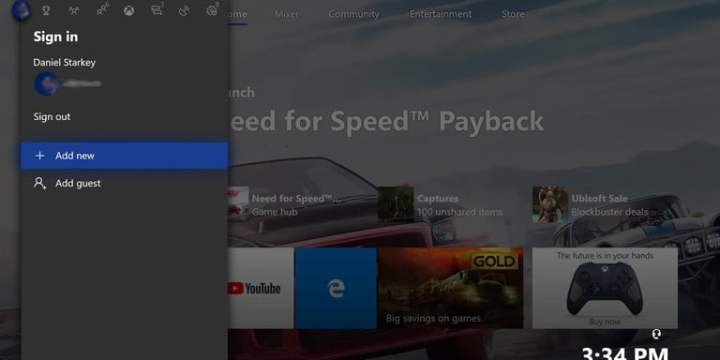
- Log in to Your Account: First, you need to sign in to your Microsoft account on the Xbox One console of the person you want to share your games with. This will be their console, not your primary console.
- Navigate to Settings: Once logged in, go to the Xbox Home screen. Press the Xbox button on your controller to open the guide, and then navigate to the “Settings” icon. It looks like a gear.
- Go to Personalization: In the “Settings” menu, find and select “Personalization.”
- Select My Home Xbox: Under “Personalization,” you’ll see an option called “My Home Xbox”. Choose this option.
- Make this Your Home Xbox: If it’s not already set, select “Make this my home Xbox.” This action is very important, because it is this step that will allow your friend or family member to play your games, also use your Xbox live gold or game pass.
- Confirmation Message: After you select to make this console your home xbox, you will see a confirmation message. This confirmation message indicates that your home Xbox is now this new console, and now your games and subscription can be shared.
- Sign Out: After you set the other console as home console, it’s very important that you sign out from this console, so that the other person can use their own account.
Important Notes:
- Your account can be set as “Home Xbox” on one console at a time. If you set another console as your Home Xbox, the previous console will lose access to your games and subscription.
- It’s important that you have a strong internet connection during this whole process.
- Always do this on the console where your friend or family member will play your games.
How Does Game Sharing Actually Work?
Okay, now that you know how to set it up, you may be wondering how it works behind the scenes. When you set an Xbox One console as your “Home Xbox,” you are basically giving permission for anyone who uses that console to access all of your digital games and your Xbox Live Gold subscription (or Xbox Game Pass). This means:
- Shared Game Library: The person on your Home Xbox can download and play any game in your digital library, even if you’re not logged in to their console.
- Shared Xbox Live Gold: They can play online multiplayer games, use the party chat feature, and get free games with gold, all using your Xbox Live Gold subscription.
- Shared Xbox Game Pass: If you subscribe to Xbox Game Pass, they can play all the games available via that service on your Home Xbox.
Example Scenario
Let’s say your name is Alex, and you want to share your games with your friend, Sam. Alex needs to log into their Microsoft account on Sam’s Xbox One. Then, follow the steps to set Sam’s Xbox as Alex’s home Xbox. After that, Sam will be able to play all of Alex’s purchased digital games and will benefit from Alex’s Xbox Live Gold membership.
Switching Your Home Xbox
Sometimes, you might want to change which console is your “Home Xbox”. This could be because you got a new console, or you want to share with someone else. Here’s how to do it:
- Log In: Log in to your Microsoft account on the new Xbox console where you want to set up your Home Xbox.
- Follow Setup Steps: Go to Settings > Personalization > My Home Xbox and select “Make this my home Xbox” again.
- Automatic Change: When you set a new Xbox as your Home Xbox, your previous Home Xbox no longer has access to your shared games and Xbox live gold or game pass.
Important Considerations When Switching:
- You can only switch your Home Xbox a limited number of times per year. Microsoft has this limit to prevent abuse.
- Be mindful of this limit before switching often. Usually you can do it maximum five times in a year.
- If you exceed the limit you may need to contact Microsoft customer service to resolve the issue, which is not a smooth process.
Troubleshooting Common Game Sharing Issues
Sometimes, things might not work as expected. Here are some common problems and how you can fix them:
Issue 1: Games Aren’t Showing Up
- Check Home Xbox Settings: Make sure you have correctly set the other console as your home Xbox. Double-check in the settings.
- Sign out and back in: Sometimes, signing out of your account and then signing back in can refresh the settings and make the games appear.
- Restart the Xbox: If the games still aren’t showing up, try restarting the Xbox. A simple restart will often fix any temporary glitches.
Issue 2: Can’t Play Online
- Verify Gold/Game Pass Subscription: Make sure the account sharing the games has an active Xbox Live Gold or Game Pass subscription.
- Check Network Connection: A weak or unstable internet connection can also prevent online multiplayer play. Make sure the Xbox is connected to a strong wifi network.
- Xbox Live Server Issues: Sometimes, Xbox Live might have service issues. You can check the Xbox Live service status on the Xbox website.
Issue 3: License Issues
- Sign in to the game account: Sometimes, you need to be signed in to the game account if you want to play the game on your main xbox, if the game account is not logged on the console where you are trying to play it.
- Check Microsoft Account: Ensure your account is in good standing with Microsoft. Any issues with your account could cause license problems.
- Redownload the Game: As a last option, you can try to redownload the game to refresh the license.
Benefits of Game Sharing
Now that we know everything about setting up and troubleshooting game sharing, let’s check out the benefits:
- Save Money: Share the cost of digital games with friends or family. It is like buying one copy for two person.
- Access More Games: Play games that are owned by the other account holder, expanding your game library. It’s like borrowing games from each other, but digitally.
- Enjoy Multiplayer: Share Xbox Live Gold or Game Pass to enjoy online multiplayer and other subscription features. It can save money on subscriptions as well.
- Flexible Gaming: Play games on either your console or the shared console.
Important Reminders
Before you jump into game sharing, let’s review the most important things to keep in mind:
- One Home Xbox at a Time: You can only set one Xbox console as your “Home Xbox” at any given time.
- Limit to Switching: You can only switch your Home Xbox five times a year, so be careful while switching your “Home Xbox”.
- Trust Your Sharing Partner: Always share with someone you trust, because this gives them access to your account and games.
- Digital Games Only: Game sharing only works with digital games, it does not work with physical games.
Game sharing on Xbox One is a fantastic way to enjoy more games and save money while playing with friends or family. By following these easy steps and keeping the important notes in mind, you can make the most of your digital game collection and enjoy a shared gaming experience. Now you are all set to set up your Home Xbox and enjoy your favorite games with your friend or family member.
How To Gameshare On Xbox One
Final Thoughts
To game share xbox one, set one console as ‘My Home Xbox’. Then, on the second console, log in with the account that owns the games. This enables both accounts to play digital titles. This is a simple method for sharing your game library.
Remember to switch the ‘Home Xbox’ back when you want to use your console primarily. This prevents any potential access issues. You successfully learned how to game share xbox one!

