
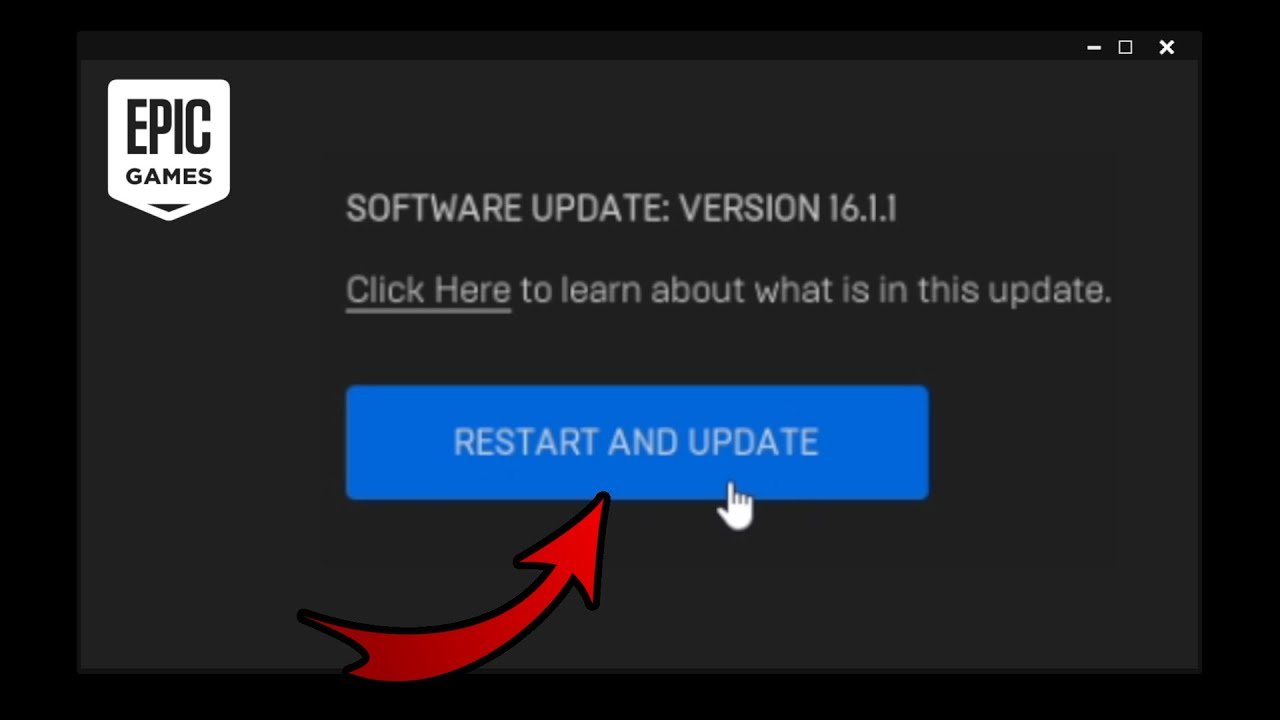
The Epic Games Launcher updates automatically when a new version is available. Usually, it prompts you to restart the launcher to apply the update.
Keeping your game launcher updated is crucial for a smooth gaming experience. Many wonder how to update Epic Games Launcher, and the good news is, it largely handles updates itself. You rarely need to perform manual updates.
The launcher generally checks for new versions in the background. When an update is ready, a notification appears prompting you to restart the application. Click the restart option and the launcher will take care of the rest. This ensures you always have the latest features and bug fixes.

How to Update Epic Games Launcher
Keeping your Epic Games Launcher updated is super important for a smooth gaming experience. An updated launcher makes sure you can access new games, get the latest features, and keeps things running nicely. It also helps avoid problems like crashes or glitches. Think of it like updating your favorite toy – it works better and has new cool stuff! Let’s explore how to make sure your Epic Games Launcher is always up-to-date.
Automatic Updates: The Easy Way
The good news is that the Epic Games Launcher usually updates itself automatically! This means you don’t always have to do anything. Most of the time, when you close the launcher and open it again, it will check for updates in the background. If a new version is available, it will quickly download and install it. It’s like magic – but it’s really just clever software doing its job!
How Automatic Updates Work
Here’s a closer look at how automatic updates handle the job for you.
- Background Check: When you turn on your computer and start the Epic Games Launcher, the launcher quietly checks with Epic’s servers to see if there’s a new update. It does this without you even noticing most of the time.
- Download Phase: If a new update is available, the launcher starts downloading it in the background. You might notice a small download happening, or you might not even realize it’s going on.
- Installation Stage: After the download finishes, the launcher will install the new update. Sometimes, it will ask you to close the launcher and reopen it to finish the process, or it might do it all by itself.
- Restart Required: Occasionally, the launcher will need a restart to fully apply the update. It will prompt you to restart, and after that, you’re all set.
This automatic update process is designed to keep your launcher current without needing much effort from you. However, sometimes things don’t go as planned, and you might need to check for updates manually. We will look into this soon.
Manual Updates: When Automatic Doesn’t Work
Sometimes the automatic update process might not work perfectly. Maybe you have poor internet connection, or there’s a glitch somewhere. In these cases, you’ll need to update the launcher manually. Don’t worry; it’s not difficult at all! Here’s how you do it:
Checking for Updates Manually
Here are the steps you’ll follow to check for a new version of the Epic Games Launcher manually:
- Open the Epic Games Launcher: Start by opening the Epic Games Launcher on your computer. You can usually find it on your desktop, in the start menu, or by searching for it.
- Find the Settings: Look for your profile icon in the bottom-left corner. Click it. This will open a menu where you can find “Settings.”
- Locate Updates: Scroll down in the settings menu until you find a button or section that says “Check for Updates.” It might say something similar, like “Restart and Update” if an update is waiting.
- Click the Update Button: Click on the update button. This tells the launcher to look for any available updates right now. If a new update exists, the download and install process will start.
- Wait and Restart: Wait for the download and installation to finish. The launcher may ask you to restart, or it may do it automatically. Once done, the launcher will start and you will have the latest version installed.
If you follow these steps, you should be able to update your Epic Games Launcher even if automatic updates didn’t work. Sometimes the update button might not be visible if your launcher is already up to date.
Troubleshooting Manual Updates
What if you try to update manually and it still doesn’t work? Here are a few things you can try:
- Restart Your Computer: Sometimes, a simple computer restart can fix many problems. Turn off your computer, wait a minute, and turn it back on. Then try the update again.
- Check Your Internet Connection: Make sure your internet is working properly. Try opening a website to check if your internet is connected. A weak or disconnected network will stop the launcher from downloading the update.
- Close and Reopen the Launcher: Close the Epic Games Launcher completely. Then open it again. This can refresh the launcher and help start the update process.
- Temporarily Disable Your Antivirus or Firewall: Sometimes, antivirus or firewall software can block the update process. Temporarily disable them and try to update again. Remember to turn them back on after the update!
- Reinstall the Launcher: If nothing else works, you may need to reinstall the Epic Games Launcher. Uninstall it from your computer and download the installer again from the Epic Games website. Install it and then try to update it.
Why Keep Your Launcher Updated?
It’s very important to keep your Epic Games Launcher updated. Here are some good reasons for doing this:
Accessing New Games
New games are constantly being added to the Epic Games Store. Often, to access these new games and features you need the latest version of the launcher. If you have an old version, you might not see the new games or you might not be able to download them.
Getting the Latest Features
The Epic Games Launcher is always getting better. Epic Games adds new features and improvements regularly. For example, they might add new ways to find games, changes to the store, or improvements to your friends list. To use these new features, you need to make sure your launcher is up to date. Otherwise you may miss out on new and useful features.
Improved Performance and Stability
Updates aren’t just about new features; they can also make the launcher run more smoothly and avoid errors. Updated versions typically have fixed bugs and performance issues that were in previous versions. This means the launcher will run faster, and have fewer crashes or freezes. Having an updated launcher results in a better experience.
Security and Protection
Keeping your software updated is also very important for your security. Updates often include fixes for security flaws that could make your computer vulnerable. These issues can make your personal information or your computer less safe. By updating the launcher, you are helping to protect yourself while you use it.
Compatibility with Games
Sometimes, games will require the latest version of the Epic Games Launcher to work correctly. If your launcher is not updated, you might face problems starting a game. This can be frustrating, and it’s much easier to keep the launcher updated.
Understanding Update Issues and Solutions
Even with automatic and manual updates, you may face problems. Here’s a rundown of the most common problems and how to fix them:
Common Update Issues
- Slow Download Speeds: The update might download slowly, especially if your internet connection is not very good.
- Update Failure: Sometimes, the update process will stop or fail. This can happen because of network problems or a glitch in the launcher software itself.
- Launcher Not Responding: The launcher might freeze or stop working while trying to update.
- Update Loop: The launcher might restart repeatedly while trying to update but never fully complete the installation.
Troubleshooting Solutions
Here are some solutions to these problems:
- Check Your Internet Connection: Make sure you have a stable and working internet connection. If you use Wi-Fi, try moving closer to your router. If you have a wired connection, try checking the cable is securely connected to your device and your router.
- Restart Your Router and Modem: Sometimes, problems are not with your computer, but with your network equipment. Turn off your modem and router, wait for one minute, and turn them back on again.
- Pause Other Downloads: If you are downloading other files on your network, pause those downloads to see if it improves the speed of the launcher update.
- Run the Launcher as Administrator: Right click on the Epic Games Launcher shortcut, and select the “Run as Administrator” option. This gives the launcher the required permission to update itself without any interruptions.
- Clear the Cache: You can clear the launcher’s cache files which may resolve some issues. To do this, search for ” %localappdata%” in windows search, and find the “EpicGamesLauncher” folder. Delete the “WebCache” folder. Restart the launcher after doing this.
- Uninstall and Reinstall: If none of these solutions work, uninstall the Epic Games Launcher and download the latest version from the Epic Games website. This makes sure you have a fresh install that is completely new.
- Contact Support: If you have tried everything and you are still having issues, reach out to Epic Games support for help. They may have some additional solutions for your specific problem.
Best Practices for a Smooth Update
To help you keep things running smoothly, here are a few best practices:
- Restart Your Computer Regularly: Turning your computer off and on regularly helps ensure everything works well. This also help fix minor issues that could interfere with the update process.
- Keep Your Operating System Up to Date: Make sure your Windows or Mac operating system is always up to date with the latest updates. Outdated operating systems can sometimes cause problems with software updates, including the Epic Games Launcher.
- Check Your System Requirements: The launcher may have certain requirements. Make sure that your computer meets the specifications to run the launcher smoothly. This also ensures you have no troubles in downloading the update and using the updated launcher.
- Have Enough Storage Space: The Epic Games Launcher and its updates need some space on your computer. Make sure that you have sufficient hard drive space available for both the launcher and its game files.
- Monitor for Updates: Open the launcher sometimes to see if there are updates available. Even if automatic updates work, checking once in a while helps to make sure that everything is working correctly.
Following these best practices helps keep your launcher running well and make sure that you can download updates without any problems.
Keeping the Epic Games Launcher updated is key for a good time playing games. With a little understanding of how updates work, and by using these simple steps, you can enjoy all that the launcher has to offer. Remember, if you face any difficulties, don’t hesitate to ask for help!
How To Update Epic Games Launcher Tutorial
Final Thoughts
To update the Epic Games Launcher, the process is usually automatic. The launcher checks for updates upon startup and downloads them. If the download does not initiate, try restarting the application.
Sometimes a manual update is needed. Close the launcher completely, then reopen it. This should trigger the update process. If it still doesn’t work, the Epic Games support website must have more solutions.
Ultimately, how to update epic games launcher involves these simple steps. The system should handle the updates, but you may need to restart it if it doesn’t begin automatically.

