
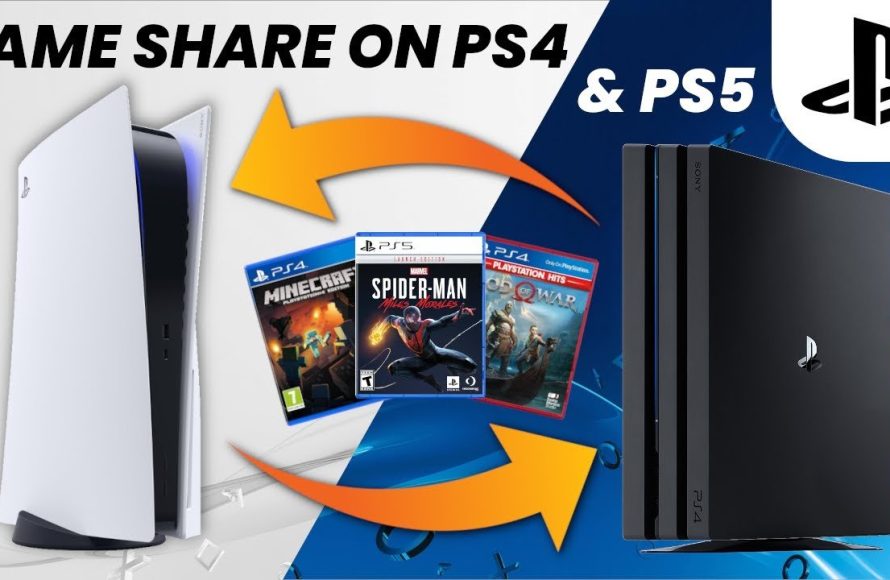
To gameshare PS4 games, you need to activate one console as the primary PS4 for another user’s account, allowing them to access your digital library.
Want to share your awesome collection of PlayStation 4 games with a friend? It’s easier than you might think! Figuring out how to gameshare PS4 games can save you both money and expand your gaming options.
You can both play each other’s games without having to purchase them twice, making it a great option for households or close friends. This process involves a little setup but ultimately is a valuable way to share your digital titles.

How to Gameshare PS4 Games
So, you’ve got a friend who’s got that awesome new game you’ve been dying to play, or maybe you just want to share your library with a family member. Good news! The PlayStation 4 has a feature called “gamesharing” that lets you do just that. Think of it like borrowing a game, but digitally! It’s a great way to save some money and experience more games without needing to buy them all individually. This guide will show you exactly how to share your PS4 games.
Understanding the Basics of PS4 Gamesharing
Before we jump into the how-to, let’s quickly understand how gamesharing on PS4 works. It’s all about primary and secondary consoles. When you buy a digital game on the PlayStation Store, that game is tied to your account. Your account can have a “primary” console, and other consoles, are considered “secondary”.
Here’s the important bit: On your primary console, anyone who logs in to that console can play all your digital games. But, on your secondary consoles, only your account can play your games. This creates the gamesharing opportunity.
The Primary Console
Think of the primary console as your main home base. You can log in with your account, and everyone else who has accounts on that console gets to play the games connected to your account, without needing to log into your account to play. This console can access your purchased games and any PlayStation Plus benefits you might have.
- Anyone can play your games, regardless of their own PSN account.
- You can play offline on this console.
- You can only have one primary console per account.
The Secondary Console
The secondary console is where gamesharing magic happens. This console can also access your purchased games and PlayStation Plus content, but with some key differences.
- Only your account that purchased the games can play them.
- The console needs an active internet connection to confirm your licenses and allow you to play the shared games.
- Other accounts on this console cannot play your games.
- You can have as many secondary consoles as you wish, but only one can be primary console at any given time.
Setting Up Gamesharing: Step-by-Step Guide
Now that you understand the primary and secondary concepts, let’s move into the step-by-step guide to sharing PS4 games.
Step 1: Choosing Who to Share With
First things first, you need to decide which friend, or family member’s console you want to use as your secondary console, or vice-versa if they want to share games with you. Remember, you’ll need to know their PSN account username and password, and they will need yours too for the process.
Step 2: Logging into Your Account on Their PS4
Now, on your friend’s or family member’s PS4 console, use their controller to navigate to the user selection screen and add a new user. This process will be different if there is already an extra user slot, you have to select and change the user for your profile.
- Select “New User”.
- Choose “Create a User”.
- Follow the prompts and log in with your PlayStation Network (PSN) account email and password.
Step 3: Making Their Console Your Primary PS4
Here’s where the magic happens. Once you’re logged into your account on their PS4, you need to make their console your primary console. This might feel a little counterintuitive, but it’s the key to gamesharing. Don’t worry, you can change it back later.
Here’s how you do it:
- Go to “Settings” from the main PlayStation menu (the tool box icon).
- Go to “Account Management”.
- Select “Activate as Your Primary PS4”.
- Choose “Activate”.
Their console is now your primary console. This means anyone using their PS4 can play all the games you own on your account, without you needing to be logged in. This works in the background to allow you to share games.
Step 4: Logging into Your Account on Your PS4 and Deactivating it as Primary
Now you need to return to your own PS4 console. Use your controller to navigate to the user selection screen and log in with your account. Now we have to deactivate it as primary on your console, which was previously your primary PS4. This might sound confusing, but it’s just a reversal process.
Here’s how you do it:
- Go to “Settings” from the main PlayStation menu (the tool box icon).
- Go to “Account Management”.
- Select “Activate as Your Primary PS4”.
- Choose “Deactivate”.
Your PS4 is now secondary. Only your account on your PS4 can now access your digital games. The other user account profiles on your PS4, cannot access those games.
Step 5: Playing the Shared Games
That’s it! On your friend’s or family member’s console (which is now your primary console), anyone can now access your games. If it’s you who is using the primary console, you can also now play those games without any extra step. You will be able to find and play those games from the library section.
On your PS4 (which is now a secondary console), you can access your games by logging into your account. Remember, your console will need to be connected to the internet for the game licenses to be verified. It’s important to stay online to play these shared games. You’ll need to log into your account on your secondary console, to access your games.
Important Considerations and Troubleshooting
While gamesharing is generally simple, there are a few things you need to consider and some troubleshooting steps in case things don’t go smoothly.
Internet Connection
The secondary console always requires an internet connection to verify licenses for gamesharing. This is a safeguard for the game developers to make sure the games are being used properly. If the internet is down, games cannot be played on a secondary console. Also, if the connection isn’t stable, sometimes that could hinder the gamesharing process.
Simultaneous Play
A common question is, can you both play the same shared game at the same time? The answer is, it depends. If the game supports it, yes, you can play together at the same time. If the game is single player, or doesn’t allow multiple people to play at the same time, then no. For example, if you share a game that allows online multiplayer, both of you can log in and play the same game online together at the same time.
However, you can’t log in on your account on both PS4 consoles simultaneously to play your games. If you try, one of the consoles will get an error message saying that you are using the account on another console.
PlayStation Plus Benefits
If you have PlayStation Plus, the benefits do share to an extent. The primary console will get PlayStation Plus benefits, however the secondary console will get the games, but wont get the other benefits.
- The primary console will get PlayStation Plus benefits.
- The secondary console wont get the same benefits, like the monthly free games.
- The primary console will have access to online multiplayer, but only the account with the PlayStation Plus subscription on secondary console can play online multiplayer.
Changing Primary Consoles
If you need to switch which PS4 is your primary console, you can easily do that again using the steps mentioned earlier. However, there are a few limitations:
- You can only deactivate your primary console once every six months. So be sure you are sharing with the right person, before activating that PS4 as primary for your account.
- You can deactivate your console through the web, via PlayStation Account Management. This is useful when you don’t have access to the console.
- You can deactivate your console through the PlayStation app on mobile device. This is useful when you don’t have access to the console.
Games with Multiple Accounts
Some games support multiple accounts within the same game. This means that if your friend or family member’s console is your primary console, they can use their PSN account, create a new profile in that game, and play on that profile. All the saves and settings are unique to that profile.
Troubleshooting Errors
- License Error: If you get a license error on the secondary console, make sure the console is connected to the internet. Log out and log back into your account to refresh the licenses.
- Account Log-in Problems: If you are having log-in issues, check your internet connection, and verify your account details are correct. Try changing password.
- Game Locking: If a game is showing a lock icon on the secondary console, it means that the licenses are not verifying properly. Logging out and back in can often solve this.
Ethical and Safe Gamesharing Practices
Gamesharing is a fun feature, but it’s important to use it responsibly and ethically. Here are some tips:
- Only share with people you trust: Remember, you are sharing your account information. Make sure you only do this with people you know well.
- Don’t sell gamesharing: Gamesharing is intended for friends and family, not for profit. Selling access to your games might lead to your account being banned.
- Be mindful of the six-month limit: Since you can only deactivate the primary console once every six months, be sure of who you share with.
- Communicate with the person you’re sharing with: Ensure the other person is also ok with sharing accounts, especially if they have games they don’t want to be accessible to others. Open communication always helps to create a smooth sharing process.
- Change your password after use: After you’ve finished the gamesharing process, it’s a good idea to change your password just to be safe.
Tips for Making Gamesharing Smooth
- Keep a note of which consoles are primary and secondary: This is vital so you don’t get confused. It is wise to keep a note so you remember, and this avoids having problems later on.
- Communicate game preferences: Talk with the person you are sharing with, so both of you have an understanding of what you want to play.
- Be patient: Sometimes things might not work right away, but be patient and double-check all the steps if you run into issues.
- Try restarting the console: If you run into issues, sometimes restarting the console can often solve the problem.
- Check for PlayStation Network outages: Sometimes issues arise due to the PlayStation Network servers having outages. Always check to make sure that the servers are working fine.
Gamesharing on the PS4 is a great way to save money and have fun with friends and family. It can help you experience a range of games, without having to buy each individually. With the steps outlined here, you should be well on your way to successfully gamesharing your favorite PS4 titles. Now, go have fun and game on!
How To Gameshare On PS4
Final Thoughts
To gameshare PS4 games, you need to activate console sharing and offline play on your primary console. Then, log into your account on your friend’s PS4, activating it as your primary console. Your friend can then access your digital games.
Remember, only one PS4 can be activated as primary for your account at a time. This method lets you both play digital titles. This explains how to gameshare ps4 games effectively.

