
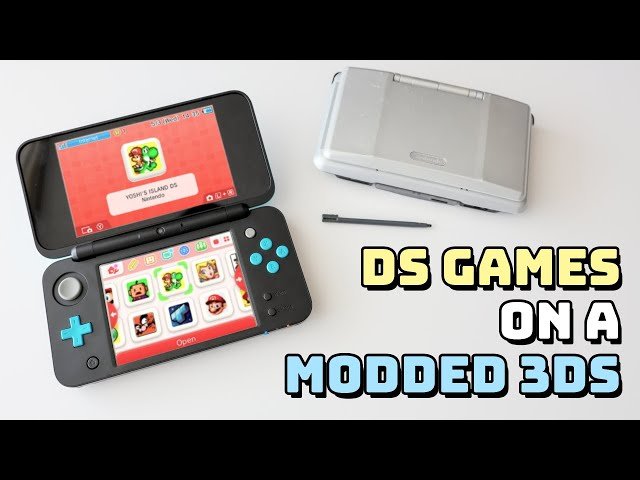
You can get DS games on a modded 3DS by using a combination of custom firmware and a compatible application, allowing you to install and play DS ROM files.
So, you’re wondering how to get DS games on modded 3DS? It’s a common question for anyone who’s ventured into the world of 3DS modification. Many people are finding ways to enjoy their classic DS favorites on their beloved handheld.
The process involves a little setup, but with the right tools and guidance, it’s quite manageable. It opens up a whole new library of titles to explore, allowing you to revisit or experience DS games.

How to Get DS Games on Modded 3DS
So, you’ve got a modded 3DS and you’re itching to play some of those classic Nintendo DS games? That’s awesome! Getting DS games running on your modded 3DS is totally possible and it opens up a whole new world of gaming fun. Think of it: all those great adventures, puzzles, and characters from the DS era, right on your 3DS. This article is here to guide you through the process, making it easy and understandable, even if you’re not a tech whiz. We will cover everything from understanding the necessary tools to how to actually get the games playing, and we will help you make sure that you do everything safely. Let’s get started!
Understanding the Basics
Before we dive into the “how,” let’s chat a little about what makes this possible. Your modded 3DS isn’t just any ordinary 3DS; it has special software installed that allows it to run things the original 3DS wasn’t designed for, like DS games in a specific way. Think of it like giving your 3DS a special key that opens a door to a secret treasure room full of old games. This special key involves custom firmware (often called CFW) which bypasses Nintendo’s restrictions.
What is Custom Firmware (CFW)?
CFW is like a souped-up version of the 3DS system software. It allows your 3DS to do things it normally couldn’t, such as playing games from different regions, installing homebrew applications, and yes, playing DS games directly from your SD card. Installing CFW is usually the first big step for most people who want to do anything more advanced with their 3DS. The best CFW to use is typically Luma3DS, as it is actively supported and very stable. If you already have CFW installed, you’re ready to move on. If you don’t, you will need to follow a guide to install it before continuing further, but that is beyond the scope of this specific article.
Why Not Just Use a DS Cartridge?
Of course, you can play DS games with the original cartridges. But, putting the games on your SD card has many advantages. For example: you don’t need to carry a pile of game cartridges around, you can have all your games in one place, and it is more convenient to manage. It’s like having a huge digital library of DS games all on one little card.
Preparing Your 3DS for DS Games
Now that you have a bit of understanding of what is going on, let’s make sure your system is properly prepared for these DS games. Here’s what you need to get your 3DS ready for DS gaming action.
Making Sure You Have the Right SD Card
DS games, while not very large by modern standards, can quickly take up space if you have many. Make sure you have a good-sized SD card that provides you with sufficient space. A 32GB or 64GB card should be more than adequate for a good collection of DS games and other 3DS files as well. A larger size means more games, but also remember that the 3DS, in particular, has limits on what types of cards it can support without specific formatting, so research your chosen SD card before purchasing to ensure compatibility. Here’s a quick guide:
- Small Collection: 16GB might work for a small amount of games, but we don’t recommend this due to its limitations.
- Medium Collection: 32GB is great for a decent-sized library of games and is generally considered the sweet spot.
- Large Collection: 64GB or 128GB if you want to have everything with room to grow.
Formatting Your SD Card
The SD card needs to be in the correct format for your 3DS. Usually, FAT32 is the required format. If you recently bought the card, it probably comes in a compatible format already, however, if you are having issues with your 3DS recognizing the card, try reformatting it using a tool on your PC.
How to Format Your SD Card:
- Back Up Your SD Card: Always back up the contents of your card before reformatting, as this will erase all data.
- Use a Formatting Tool: Download a dedicated SD card formatting tool. SD Card Formatter is a great one.
- Select the Correct Drive: Make sure you’ve selected the correct drive for your SD card in the formatting tool.
- Choose FAT32 Format: Set the file system to FAT32.
- Start Formatting: Follow the tool’s prompts to format the card.
Getting the DS Game Files
Now that your 3DS is prepared, it is time to acquire the actual DS game files. These files, sometimes called ROMs or backups, are copies of the games that you will be running on your 3DS. It’s crucial that you only obtain backups of games that you already own. Distributing games that you do not own is illegal.
Where to Find Game Files (Safely)
The internet is full of websites offering game files. However, there are many that are unsafe, so only download files from trusted sources, like websites that are known for providing clean roms. Avoid sketchy sites that are full of pop-ups and ads, as they often hide viruses and malware. Think of it as being careful where you buy your candy—you wouldn’t want to get something that’s unsafe.
File Formats: .nds
DS game files are typically in the .nds format. These are the files that your 3DS will recognize and be able to play. If you find files in other formats, they will likely not work. Make sure to always check the file format before downloading. .nds is the magical format you’re looking for.
Installing DS Games on Your 3DS
With the SD card and the game files all ready, it is time to get the games onto your 3DS. This is where the magic happens.
Using TWiLight Menu++
TWiLight Menu++ is a homebrew application for the 3DS that acts as a game launcher for DS games. It will allow you to run DS games right from your SD card. If you have CFW installed, you probably already have this app. If not, you will need to install it (there are plenty of tutorials available online for this). It’s like the special key that lets you start all your DS adventures.
Here’s how to get your games onto your SD card to use with TWiLight Menu++:
- Locate Your DS ROM Folder: On your SD card, there should be a folder called ‘roms’ (if you don’t have one, create it.) Inside, there is usually a folder called ‘nds’ (create it if it doesn’t exist). This is where your .nds game files will go.
- Copy Your .nds Files: Copy your .nds files into the ‘roms/nds’ folder on your SD card.
- Put Your SD Card Back into Your 3DS: Once you’ve copied all your games, safely eject the SD card from your computer and put it back into your 3DS.
- Open TWiLight Menu++: Launch TWiLight Menu++ on your 3DS from the home menu. You’ll see a list of your games show up.
Running Your DS Games
Once TWiLight Menu++ is open, navigating it is very simple, similar to other consoles. You will be able to see your games. Simply select the game you want and select launch. Now you can enjoy playing your favorite DS games directly on your 3DS.
Troubleshooting Common Issues
Sometimes, even with careful preparation, you may run into problems when using your modded 3DS with DS games. Here are some common issues and how to resolve them:
Game Doesn’t Load or Freezes
If a game doesn’t load or it freezes during gameplay, try the following:
- Check the File: Ensure the file you have is the .nds file format.
- Try a Different Game: If only one game has issues, then it is likely that the game file itself is corrupted. Try re-downloading the file or a different source.
- Check TWiLight Menu++: Make sure your TWiLight Menu++ is updated. An outdated menu can sometimes cause issues.
Black Screen or Error Message
If you get a black screen or error message, here’s what you should look into:
- SD Card: Ensure that your SD card is correctly formatted as FAT32, not exFAT or something else. Re-format if necessary.
- Check CFW: Make sure that Luma3DS is up-to-date, and that all required files are placed into the correct location.
- File Corruption: If the issue persists, try to acquire the file from a different source. The original file might be corrupt or incomplete.
Game Not Showing Up in TWiLight Menu++
If your game isn’t showing up in the TWiLight Menu++ game list, look at these things:
- Check the Folder: Make sure the .nds file is in the correct folder (sdcard/roms/nds).
- Refresh the Game List: Try going back to the main menu of TWiLight Menu++ and go back into the folder, which will refresh the list.
- File Naming: Sometimes, file names with special characters can cause issues. Rename the file to something basic.
Tips for a Better DS Gaming Experience on Your 3DS
With a bit of planning, you can greatly improve your gaming experience. Here are some tips to get the most out of your DS games.
Organizing Your Game Collection
With a large collection of games, organizing them makes it much easier to find the game you want. You can create new folders within the ‘roms/nds’ folder to group games by category, which TWiLight Menu++ will read.
Using Save States
DS games don’t always have very flexible save systems. With TWiLight Menu++, you can use save states. These allow you to save your game progress at any point, which is very convenient.
Adjusting Settings
TWiLight Menu++ has many customizable settings, that can improve things such as the graphics and controls, so play around with these settings, and see what works for you.
Playing DS games on a modded 3DS is a fantastic way to relive some classic games, and with just a little bit of preparation, it is a very simple task. With custom firmware, the correct files, and tools like TWiLight Menu++, you are able to get many hours of enjoyment from your favorite DS games on your 3DS. Remember always to back up your files, and only play the games that you own. Following the steps above, and understanding the information provided, will give you the best chance of a smooth experience, and help you to enjoy all the games you want.
How to Play DS Games on 3DS Homebrew
Final Thoughts
To play DS games on a modded 3DS, you first install custom firmware. Then, you use a tool like TWiLight Menu++ to load DS ROM files. This effectively sidesteps the need for physical DS cartridges.
Essentially, having custom firmware on your device gives you the ability to load games. This process lets you explore a huge library of games. It simplifies ‘how to get ds games on modded 3ds’.

