
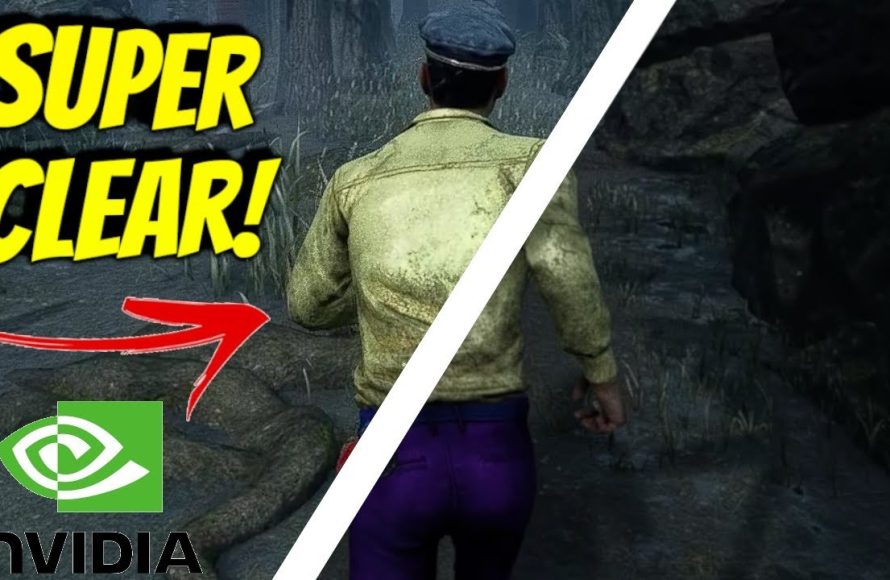
To get game filter on DBD, you need to use third-party software like ReShade, which allows custom post-processing effects.
Have you noticed some Dead by Daylight players sporting a different visual style and wondered how they achieved it? Many use external programs to enhance their in-game graphics. Figuring out how to get game filter on DBD is a common question among players wanting to personalize their experience.
These filters can alter colors, sharpness, or add effects, making the game appear visually distinct from its default presentation. Remember that using such programs comes with some risks, so proceed carefully.

How to Get Game Filter on DBD
Ever seen your favorite Dead by Daylight streamers playing with those cool, colorful filters and wondered how they do it? It’s not magic! They’re using special tools to change how the game looks. These filters can make the game brighter, darker, more colorful, or even look like it’s from a different movie. In this guide, we’re going to walk through how you can get those cool game filters on DBD too. Get ready to make your game look awesome!
Understanding Game Filters in DBD
Before we dive into how to get them, let’s talk about what these game filters actually are. Game filters are basically like a see-through sheet that goes over your game. These sheets change how you see the colors and lights of the game. Think of it like adding a cool filter to a photo on your phone, but for your game! In DBD, people use these filters to help them see better in dark areas, to make the game look more exciting, or just to give it their own personal touch.
Why Use Game Filters?
There are lots of reasons why players add filters to their DBD experience. Some filters make it easier to spot killers hiding in the shadows. Other filters make the game look more vibrant and fun. It’s all about personal preference. Here’s a quick look at why people like to use them:
- Better Visibility: Some filters make it easier to see in dark maps. This can give you an advantage when playing survivor or even help you as a killer when tracking.
- Improved Aesthetics: Filters can change the look of the game, making it more enjoyable and visually appealing.
- Personalization: You get to make your game look exactly how you want. It’s like having your own special version of DBD.
- Reduced Eye Strain: Some users find that certain filters can reduce eye strain, particularly in long sessions.
Available Methods for Getting Game Filters
Now, let’s get into the fun part – how you can actually add these filters to your game. There are a few different ways to do it, but they generally involve third-party software. Here are the most common methods:
Using ReShade
ReShade is a very popular program that lets you add all sorts of filters to games. It’s free to download and use, and it has a huge community that creates and shares new filter options. Many Dead by Daylight players use ReShade to customize their games. Here’s how to get started with it:
Downloading ReShade
First, you will need to visit the official ReShade website and download the latest version. Once the download is complete, locate the downloaded file and run the installer. Make sure to get it from the official site to stay safe!
Installing ReShade for DBD
When you run the installer, it will ask you which game you want to install ReShade for. Browse through your computer until you find your Dead by Daylight game folder. It should have the “DeadByDaylight.exe” file. Once you’ve chosen the right game folder, the installer will install ReShade.
Selecting and Applying Presets
After installing, you need to open your game and press “Home” or “Shift+F2” to open the ReShade menu. From there, you can choose from existing filters, called “presets,” or make your own. The ReShade community has many presets available online, simply search ‘ReShade DBD presets’ on your search engine, and download the presets and import them into ReShade menu.
Configuring ReShade Settings
ReShade is highly customizable, so you can adjust settings for each filter to get it just right. Some users might prefer a more subtle change, while others like a really dramatic look. Spend some time testing different settings to find what you enjoy best.
Important Tips when using ReShade:
- Make sure you download ReShade only from the official website to avoid any harmful programs on your computer.
- Try out a variety of presets to see what suits your taste, rather than jumping to make your own custom filter right away.
- Always keep ReShade up to date with the latest version for optimal performance.
Using Nvidia GeForce Experience (For Nvidia Graphics Card Users)
If you have an Nvidia graphics card, you can use Nvidia GeForce Experience, which is a program that comes with your graphics card drivers, to add some filters directly to your games. This is often a simpler method than ReShade, and it’s built right into your video card’s software. Here’s how to do it:
Enabling In-Game Overlay
First, open the Nvidia GeForce Experience app, and go to settings and then you will find an “In-Game Overlay” setting, turn it on if it’s not on already. This overlay is what you’ll use to adjust the filters while playing.
Accessing the Filters
Now, start up Dead by Daylight and press the key combination ‘Alt+Z’. This should open the Nvidia overlay. Once the overlay is open, click “Game Filter” button, usually it is located on top left or right side of the overlay window.
Choosing Your Filters
Nvidia GeForce Experience has several filters to choose from, such as “Brightness/Contrast”, “Color”, “Sharpen” and “Special effects” such as “Bloom”, “Blur” etc.. You can adjust the intensity of each filter. Experiment and see what works for you best. You can also combine different filters to make unique looks.
Saving and Loading Filters
Once you are happy with your filter settings, you can save them as a preset, so you can easily apply it next time. You can create different presets for different game modes or moods.
Important Tips when using Nvidia GeForce Experience:
- Make sure your Nvidia drivers are updated to the most recent version.
- Explore the different types of filters to find what suits your preference the best.
- Use the saved presets option to quickly switch filters.
- Nvidia filters may not have as many options as ReShade, but it’s simpler to use and requires less computer knowledge to understand.
Alternative Methods and Potential Risks
While ReShade and Nvidia GeForce Experience are the most common ways to add filters to DBD, there are other programs that might offer similar options. However, it’s always important to be careful when downloading and using software from unverified sources. Some of these programs may contain malware, which is dangerous for your computer, or they might not be allowed by the game’s rules. Always do your research before trying any new software.
Third-Party Software
It’s essential to stick with trusted software like ReShade and Nvidia GeForce Experience. If you do decide to use other programs, make sure they are from a trusted source and are well-reviewed. Always read the user reviews and check with the Dead by Daylight community for any advice on their reliability. Also, make sure that you understand what they actually do before using them on your game, and they are allowed by game rules, to avoid the risk of any bans.
Game Rules and Bans
While filters are generally accepted by the Dead by Daylight community, it’s important to make sure you are not using them to gain an unfair advantage. For example, filters that allow you to see through walls or that give you an unfair edge over other players could get you banned. Always check the game’s rules and community guidelines before using any game filters. If you are unsure, it’s better to stay safe than to risk a ban. The developers usually do not punish players for using visual enhancing filters which are already available in the game for many colorblind players, but you should always double check this with the game rules of conduct.
Choosing the Right Filter for You
With so many different filters available, how do you pick the right one for you? This is all about your personal preference and needs. Some filters are good for making the game brighter, while others change the color to make it more visually appealing. Here are some tips for finding the perfect filter:
- Start Simple: Don’t overwhelm yourself with all the options. Begin with basic filters like brightness and contrast, and then explore more complex ones.
- Experiment: Try out different filters and see how they look in different maps and situations. What looks good on one map might not look so good on another.
- Look at Streamers: Watch your favorite DBD streamers and see what filters they are using. They might give you some great ideas.
- Read Reviews: Check what other players say about different filters before you try them. You can find lots of great advice on the web and social media.
Remember that there is no right or wrong filter, use whatever you find fun and helps you in the game.
Troubleshooting Common Issues
Sometimes, you might run into problems when you try to add filters to DBD. Here are some common issues and how to fix them:
Game Crashes
If your game crashes after installing a filter program, it may mean that the program is not compatible with your system or that the filters are too demanding for your computer. Try to update your graphics drivers, disable some of the filters, or use a less demanding filter settings. Sometimes restarting your computer may also help resolve this.
Filters Not Working
If the filters are not showing up, double-check that you have installed the program correctly and that the overlay is enabled. Make sure that the software is compatible with your version of DBD, and also ensure that there aren’t any other programs that may be interfering with the filter. A simple re-installation of the filter software may help.
Performance Issues
Filters can sometimes make your game slower. If you notice that your game is lagging, try turning off some of the filters. Also, lower your game settings to see if that helps improve your game speed. You may also want to try simpler filter setting and see if that improves performance. You might need to upgrade your computer if you have to use filters on maximum settings.
Conflict with Other Programs
Sometimes other applications running on your computer might clash with game filter software. Close any unused apps, particularly overlays or screen capturing software, when using filter softwares.
Getting those cool game filters on DBD is all about knowing the right tools and how to use them. ReShade and Nvidia GeForce Experience are the most popular and user-friendly methods. Remember to always prioritize safety and follow the game’s rules. By experimenting and finding what you like, you can make your Dead by Daylight experience even more enjoyable!
Make Your Game Beautiful! Dead by Daylight Nvidia Filter Settings 2024!
Final Thoughts
Game filters in Dead by Daylight enhance visuals. You can find them within the game’s settings menu. Explore the graphics section to locate filter options. Adjust them according to your preference for a customized experience.
To apply a specific filter, simply choose one from the available list. Each filter alters the game’s aesthetic in a unique way. Experiment with each option to find your favorite. This is how to get game filter on dbd.
Changing filters is straightforward and quick. Remember, graphic settings impact performance. Ensure your computer handles the changes effectively. So, go ahead and customize your game’s appearance.

