
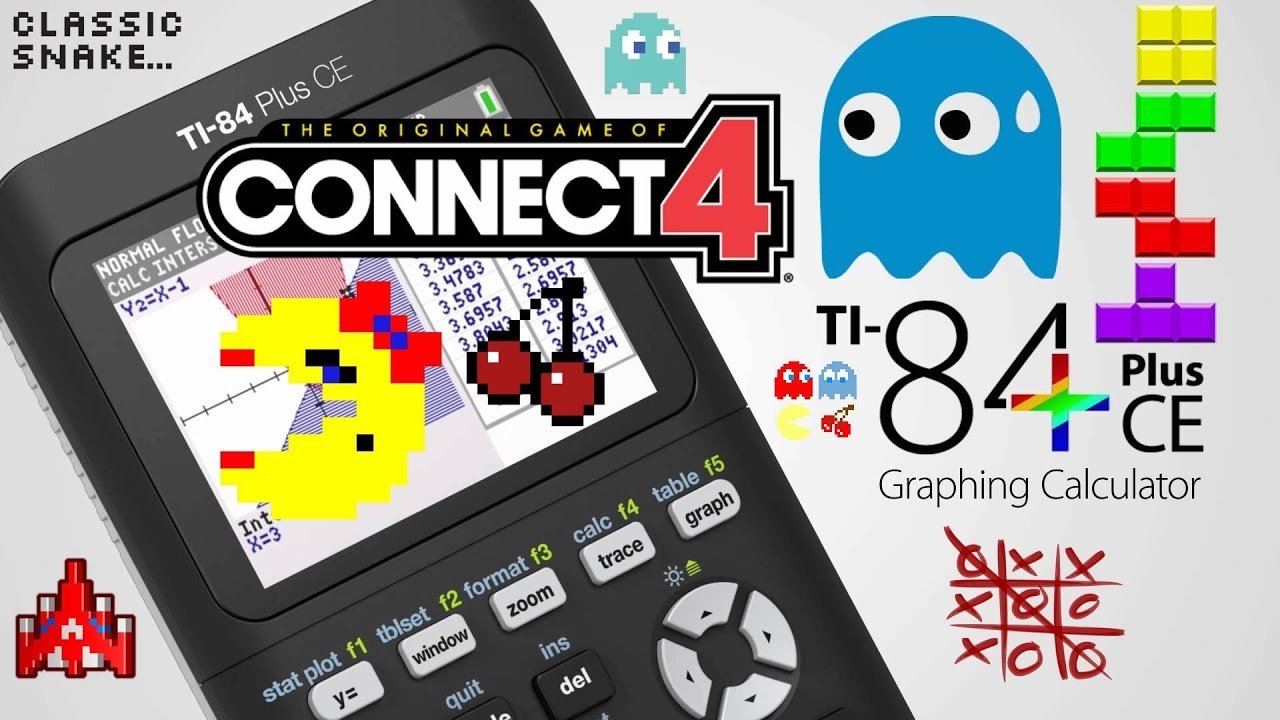
To get games on a TI 84 Plus CE, you need to transfer compatible game files from your computer using TI Connect CE software and a USB cable.
Ever wondered how to get games on a TI 84 Plus CE? It’s a common question for students wanting a bit of fun during breaks or even slow class periods. The good news is that it’s definitely possible.
The process involves a computer, some specific software from Texas Instruments, and the game files themselves. It’s a fairly straightforward method that, once done, opens up your calculator to more than just math.

How to Get Games on a TI 84 Plus CE
Want to play fun games on your TI-84 Plus CE calculator? You’ve come to the right place! While it’s made for math, your calculator can also be a source of entertainment. Many students are surprised that it’s possible to load and play games. It’s a great way to pass the time between classes or during study breaks. This article will guide you step-by-step, making it easy to get your game on.
Understanding Compatibility and Requirements
Before we dive into how to get games, it’s important to understand what the TI-84 Plus CE can handle. Not all games will work! The TI-84 Plus CE uses a specific operating system, and the games must be made to work with it. Think of it like how a video game console only plays games made for that console. This means that you will need to find games that are specifically designed for the TI-84 Plus CE or its earlier models, which are mostly compatible.
File Formats
TI-84 Plus CE games usually come in a couple of specific file formats. Here’s a look at what you’ll often see:
- .8xp: This is the most common format. It’s an executable file that your calculator can directly run. Think of it as the main program file for a game.
- .8xv: This is another common file format, and it contains a game that your calculator can recognize.
- .zip or .rar: Sometimes, game files are packed into these compressed formats. You’ll need to extract the actual .8xp or .8xv files before transferring them to your calculator.
You need to make sure that your calculator’s operating system is updated to a recent version. An updated system makes sure that you will have fewer issues while running a game on your TI 84 Plus CE, and it will support the latest games. You can usually do this from the Texas Instruments website. If your calculator is not updated, some games might not run properly.
Finding Games for Your TI-84 Plus CE
Okay, now for the fun part! Finding games for your calculator is easier than you might think. Many websites specialize in offering TI-84 Plus CE compatible games. Here are a few ways to find them.
Online Communities and Forums
Websites and online forums dedicated to TI calculators are great resources. People often share games they’ve made or found. Here’s where you might start:
- TI-Calculator Fan Sites: These websites often have dedicated sections for games. Search for things like “TI-84 Plus CE games” to find lists of places to look.
- Reddit: Subreddits like r/TI_Calculators are popular places to ask for game recommendations and find download links shared by other users.
- Online Forums: Look for online forums that focus on calculator programming or technology, they often have a section where people post TI calculator games.
Game Download Repositories
Some websites act like libraries for TI calculator games. These sites collect and categorize games, making it easier to find ones you like. Here are a few places to check:
- ticalc.org: This is a classic and well-known source for all things TI calculator related. It has a large game section to explore.
- Cemetech: This site is another well known source for TI calculator resources, including many games.
- Planet-TI: A good place to start exploring different games for the TI series.
When downloading games from online sources, always be cautious. Make sure you download files from trusted websites. Scan any downloaded files with your antivirus software to ensure they’re safe. Be aware of the file extensions, as you do not want to download a malicious file. Usually, .8xp or .8xv files are safe, but it is good to double check.
Connecting Your TI-84 Plus CE to Your Computer
To get games onto your calculator, you’ll need to connect it to your computer. The TI-84 Plus CE uses a USB cable for this connection.
Required Hardware and Software
Before you start, make sure you have:
- TI-84 Plus CE Calculator: Obviously, you’ll need the calculator itself.
- USB Cable: The cable that came with your calculator. This cable will connect your calculator to your computer.
- TI Connect CE Software: This is the official software from Texas Instruments needed to transfer files between your computer and the calculator. You can get it from the Texas Instruments website.
Installing TI Connect CE
Here’s how to get TI Connect CE set up:
- Visit the Texas Instruments Website: Go to the Texas Instruments website and find the downloads section. Look for the TI Connect CE software.
- Download the Software: Select the correct version for your computer’s operating system (Windows or Mac) and download the installer.
- Run the Installer: After the download is complete, run the installer and follow the on-screen instructions. It usually involves a few simple steps.
- Connect Your Calculator: Use the USB cable to connect your calculator to your computer. Ensure that your calculator is powered on.
- Launch TI Connect CE: Open the TI Connect CE software on your computer. It should recognize your connected calculator. If not, try unplugging and replugging the cable.
Transferring Games to Your TI-84 Plus CE
Now that your calculator is connected and the software is installed, you can start transferring games.
Using TI Connect CE to Transfer Files
Here are the steps to move game files from your computer to your calculator:
- Open TI Connect CE: Make sure the software is open and that it recognizes your connected calculator.
- Locate Game Files: Find where you saved the downloaded game files on your computer (usually .8xp or .8xv files).
- Drag and Drop (or Send Files): You can usually drag and drop the game files from a window to TI Connect CE’s “Connected Calculators” area. Alternatively, you can use the “Send Files” option within the software to select the game files.
- Wait for Transfer: Once you start the transfer, the software will send the games to your calculator. Wait for the process to finish. It will usually show you a progress bar.
- Disconnect Your Calculator: After the transfer, you can safely disconnect your calculator from the computer.
Troubleshooting Transfer Issues
Sometimes, things might not go perfectly the first time. If you encounter issues while transferring files, here are a few things to check:
- Check the Cable Connection: Make sure the USB cable is securely plugged into both your computer and your calculator. Try a different USB port on your computer if needed.
- Restart TI Connect CE: Sometimes, closing and reopening the TI Connect CE software can fix connection issues.
- Restart Your Calculator: Turning your calculator off and then on again might help.
- Update TI Connect CE: If your software is outdated, it might cause problems. Go to the Texas Instruments website and check if there is a newer version available.
- Check File Compatibility: Ensure the game files you are trying to transfer are the correct format for the TI-84 Plus CE (.8xp or .8xv).
- Calculator Memory: Make sure you have enough space on your calculator to install games. If the memory is almost full, consider removing older files.
Running Games on Your TI-84 Plus CE
You have successfully transferred games to your calculator. Now, it is time to play! Here is how to run the games you’ve transferred:
Accessing the Program Menu
The first step is to find the program menu on your calculator:
- Press the [PRGM] Key: On your calculator, find and press the “PRGM” key (it’s usually near the top of the keyboard).
- Select the Game: Use the arrow keys to browse through the list of programs. The names of the games you transferred will be in this list.
- Press [ENTER] to Run: Once you’ve selected the game, press the “ENTER” key to run it.
Navigating the Games
Each game will have its own way of controlling it. Here are some common controls:
- Arrow Keys: The up, down, left, and right arrow keys are often used for movement and selection in games.
- [ENTER] Key: The enter key might be used to select options or start a game.
- Number Keys: Some games might use number keys for different actions or menu options.
- [2nd] and [ALPHA]: Occasionally, the [2nd] or [ALPHA] keys are used for special functions in some games.
Some games may come with instructions either within the game itself or on the website you downloaded it from. Always check for specific instructions if you have trouble figuring out the controls.
Managing Games on Your TI-84 Plus CE
After installing some games, you may need to manage them.
Deleting Games from Your Calculator
If you need to free up space on your calculator, or you just want to remove some games, here is how to delete them:
- Press the [2nd] Key and Then the [MEM] Key: Press the [2nd] key, which will activate the secondary function of the keys, and then press the [MEM] key (which usually has a “+” symbol on it). It will take you to the memory menu.
- Select “Mem Management/Del”: Use the arrow keys to select “Mem Management/Del” from the menu and press [ENTER].
- Select “Program”: Use the arrow keys to select “Program” and press [ENTER].
- Select the Program to Delete: Select the game you want to delete and then press [DELETE].
- Confirm Deletion: The calculator may ask you to confirm that you want to delete the program. Press [ENTER] again to confirm.
- Exit the Menu: Once you delete the game, press [2nd] and [QUIT] to return to the home screen.
Organizing Your Programs
As your collection of games grows, you might want to think about keeping them organized. Sadly, your TI-84 Plus CE does not support folders or renaming program files. So it is hard to organize them. The names you see are usually the names assigned by the game developer.
Types of Games Available
There are many types of games that can be played on a TI 84 Plus CE. Here are a few common types:
Text Based Games
These games are similar to choose-your-own adventure books. They usually display text and prompts, and you make choices by entering numbers or pressing keys. They are easy to make and do not require complex graphics, which is ideal for the calculator.
Simple Graphics Games
These games are not as detailed as modern games but still can be fun. Games like Tetris clones or simple platformers can be played on the calculator.
Puzzle Games
Puzzle games like Sudoku, sliding tile puzzles or other similar games can be found for your calculator. These are great for practicing your brain.
Clones of Classic Games
Many classic arcade games and computer games have been remade to work on TI calculators, including versions of Super Mario or Pac-man.
Tips for a Smooth Gaming Experience
Here are a few tips to make your game time more enjoyable on your TI-84 Plus CE:
- Charge Your Calculator: Always make sure your calculator’s battery is well-charged, so the game is not interrupted.
- Read Game Instructions: Some games have controls that are not obvious. Check for README files or instructions on the websites.
- Take Breaks: Staring at the calculator screen for long periods of time is not good for you. Make sure to take breaks.
- Be Patient: Some games can be tricky or complex, it might take a few tries to master them.
- Share the Fun: Show your friends your new calculator games. Maybe they want to try some too.
Playing games on your TI-84 Plus CE is a great way to have fun with a device that was mainly designed for academics. With a little bit of effort and patience, you can change your calculator into a portable retro gaming system. Remember to always be careful when downloading files and have fun while gaming.
How to Put Games on the TI 84 Plus CE
Final Thoughts
In summary, transferring games to your TI-84 Plus CE involves using a computer and specific software, often a program like TI Connect. You will connect the calculator with a USB cable, and send the game files which are typically in the .8xg format.
The key process for how to get games on a ti 84 plus ce is downloading them from a reputable website and moving those files through the computer and then onto your device. Always ensure that the game files you get are compatible with your calculator model to avoid errors.

