
You obtain games for the Dolphin emulator by acquiring ISO or ROM files of GameCube and Wii titles from legal sources.
Ready to relive some classic Nintendo moments? You want to know how to get games on Dolphin emulator, and it’s simpler than you might think. This emulator allows you to play your favorite GameCube and Wii games on your computer.
You’ll need to find the game files, usually in ISO or ROM format. Remember to only get these files from sources where you legally own the original game, as this is crucial for respecting copyright. Once you have the games, you’re ready to start playing.

How to Get Games on Dolphin Emulator
So, you’ve got Dolphin Emulator all set up and ready to go. That’s awesome! Now comes the fun part: playing all those amazing GameCube and Wii games you remember (or maybe never got to play before!). But, where do you actually get the games from? It’s not like you can just download them from the app store like you do with phone games. Getting games to work on Dolphin involves a bit more than that, and that’s what we’re here to explain. Don’t worry, it’s not super complicated, and by the end of this article, you’ll know everything you need to get your favorite games running smoothly. We will guide you through the entire process in easy to follow steps.
Understanding Game ROMs and ISOs
First things first, let’s talk about what these game files actually are. You won’t be finding files named “Super Mario Sunshine.game” or “Zelda.exe.” Instead, you will be looking for files that are called ROMs or ISOs.
What is a ROM?
A ROM (Read-Only Memory) file is basically a copy of the game’s data from the original cartridge or disc. It contains all the information that the game needs to run, like the game code, the graphics, the sound, and everything else. Think of it like taking a picture of the entire game disc or cartridge and saving it as a digital file.
What is an ISO?
An ISO file is a type of file that’s very similar to a ROM, but it is specifically used for games that are stored on CDs or DVDs. GameCube and Wii games are stored on mini-discs. When you create an ISO, it’s like making an exact copy of the entire disc, including all the data. This includes everything that a ROM has, along with some other data that is disc-specific. You will see that game file extensions are often .iso or .gcm.
ROM vs. ISO: What’s the Difference for Dolphin?
For Dolphin, both ROMs and ISOs can be used. It really depends on how the game was originally stored. GameCube games are more likely to be in ISO format, but can be found as ROMs too. It’s not critical to know the technical difference, but what’s important is that Dolphin can understand and play both types of files. Sometimes, these game files are compressed into formats such as .zip or .7z. You need to extract them first to get a .iso file before using them in Dolphin.
Finding Game ROMs and ISOs
Now, here comes the part most people are curious about: where do you get these game files? It is important to understand that downloading or distributing ROMs and ISOs for games you don’t own is typically illegal and is considered a type of copyright infringement. It’s like copying a movie or book without permission. We are here to tell you how to get these files, but always remember to respect the law. Here are a few ways you might come across these files, and we’ll go over them carefully:
Ripping Games from Your Own Discs
The most legal and ethical way to get game files for Dolphin is by creating them yourself from game discs that you own. This process is called “ripping.” Here is how to do it:
- What you will need: A Wii or GameCube console, a computer with a DVD drive that is able to read GameCube or Wii discs, and special software that can be used to copy the data from these discs into ISO files.
- Ripping Process:
- Insert the GameCube or Wii disc into your console.
- Connect your console to your computer.
- Use the disc ripping software to extract the game disc data into an ISO file. This usually takes several minutes.
- Transfer the ISO file to a place on your computer where you can easily find it.
This method is the most ethical because you own the original game. You are simply making a digital copy for use on your emulator.
Using Online Search
Sometimes you may find websites that offer downloadable game ROMs and ISOs online. Be very careful of these websites. Some websites may contain viruses or malware that could harm your computer. Some might also trick you into downloading fake files. When using the search option, use the word “rom” or “iso” followed by the name of the game. Here are some tips on using the search function safely:
- Check Website Security: Look for “https” in the URL and a padlock icon which means that the website is secure and that your personal information is more likely to be protected.
- Read Reviews and Comments: Check what other people have to say about the websites before you download anything. It’s useful to see how good and safe the websites are.
- Use an Antivirus: Always have good antivirus software running and updated to scan all downloads before opening them. This will help protect your computer from harmful software.
- Avoid Sketchy Websites: If the website has a lot of pop-up ads or looks poorly made, it’s probably not a good idea to download from it.
- Use Multiple Sources: If you can, use multiple sources of ROMs and ISOs, to check for any possible inconsistencies or errors.
You should also know that downloading games that you don’t own is often a violation of copyright laws, and it can lead to legal consequences.
Organizing Your Game Files
Once you have some game files, you’ll want to keep them organized, so they are easy to find for the emulator. Here are some tips to keep your virtual game library tidy:
- Create a Dedicated Folder: Make a new folder on your computer just for your game files. Name it something like “GameCube Games” or “Wii ROMs”. This keeps them separate from other files.
- Use Subfolders for each game: Inside your main games folder, create separate subfolders for each game. Name the subfolders the name of the games, like “Super Mario Galaxy” or “The Legend of Zelda: Twilight Princess”. This way you can keep all the game’s files in one place.
- Name the files clearly: Make sure the game file itself has the full game name. For instance, “SuperMarioSunshine.iso” instead of just “sms.iso”. This makes it easier to find and manage your games in Dolphin.
- Backup your Files: You can make a copy of your game files on a separate hard drive or cloud. This will protect your work in case something happens to your computer.
Keeping your game files organized makes using Dolphin much easier and more fun. You will not have to spend time looking for games later on if you organize them well.
Loading Games into Dolphin Emulator
Now that you have your game files all ready to go, let’s load them up into Dolphin and start playing! Here is how you do it:
Setting the Game Path
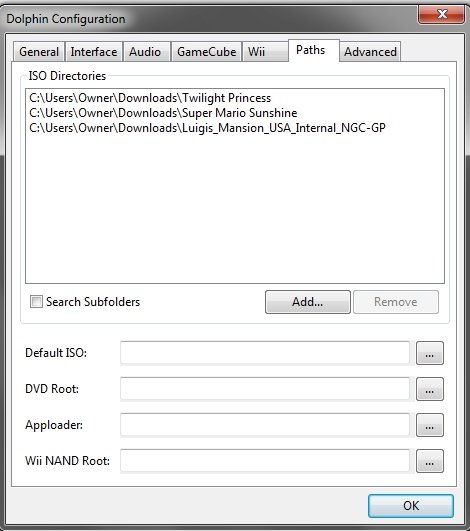
Dolphin needs to know where your game files are stored, so you need to tell Dolphin where that main folder is you made previously. Here are the steps to set the game path:
- Open Dolphin Emulator on your computer.
- Click on the “Config” button at the top of the window.
- In the new window, click on the “Paths” tab.
- Click the “Add” button and then find and choose the main folder where your games are stored (e.g. “GameCube Games”)
- Click “OK”.
Dolphin should now be able to see the games in that folder. If not, click the “Refresh” button in the main window.
Loading a Game
With the game path set, loading a game is very simple:
- In the main Dolphin window, you’ll see all the game files in the folder you chose.
- Click on the game you want to play, then click the “Play” button.
- The game should start running right away. If it doesn’t, check that your game settings are correct.
If a game is not running correctly, we have the following troubleshooting steps that you can use.
Troubleshooting Game Issues
Sometimes things don’t go as planned. Here are some common issues you may run into, and how you can fix them:
Game not starting
- Check the game path: Make sure you have selected the correct folder in Dolphin’s config settings. If not, set the folder again using the steps above.
- Check file formats: Make sure that the game file is an .iso file. If your game file is compressed, make sure that you extract it first.
- Try a different game: If some games are not starting up, try loading a game that is known to work well. If that works, then it might be a problem with the game file itself and not with the emulator.
Game running too slow
- Adjust graphics settings: Try lowering the graphics settings in Dolphin. Go to the graphics setting and try changing the resolution or use lower-level settings for a faster experience.
- Update your graphics drivers: Outdated drivers can cause poor performance. Make sure your graphics card drivers are updated.
- Close other programs: Running too many programs at the same time will make games run slower. Close programs you aren’t using when playing.
Sound Issues
- Check the audio settings: Make sure the audio settings in Dolphin are correct. Go to the Audio settings and try changing the settings.
- Try a different audio backend: If your sound isn’t working properly, try switching to different audio backend.
A Few More Important Tips
- Stay Updated: Make sure you’re using the latest version of Dolphin. Updates usually contain important bug fixes and performance enhancements. Check the Dolphin Emulator website regularly for updates.
- Read online forums and wikis: Dolphin has a large community of people that are willing to help. You can get help from the Dolphin Wiki or discussion forums.
- Use game specific settings: Dolphin allows you to set certain configurations for individual games. Look online for specific settings that people use for different games. These settings can make your games work better.
Having game files for the Dolphin emulator opens a whole new world of fun and retro gaming. It may seem like a lot at first, but with just a little practice you will be playing your favorite games with no problem at all. Just remember to be ethical and safe when finding game files, and you are ready to go!
How to Add Games to Dolphin (Updated)
Final Thoughts
To get games for Dolphin emulator, you must obtain game ROM files from a safe source. These files, usually in ISO or GCM format, contain the game data. Remember, acquiring ROMs for games you do not own is illegal.
After getting your ROM files, you can then point the Dolphin emulator to the directory. The emulator will then read the files, making the games playable. This is how to get games on dolphin emulator. Always be responsible with your gaming files.

