
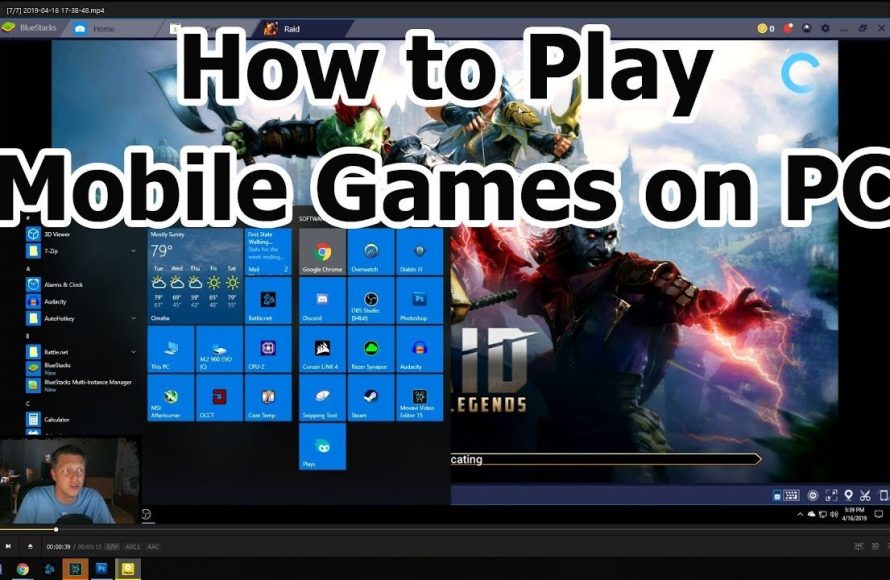
Using an Android emulator, like BlueStacks or LDPlayer, allows you to download and play phone games on your PC.
Ever wanted to play your favorite mobile games on a larger screen with keyboard and mouse controls? Many people wonder how to get phone games on pc and it is easier than you might think. You don’t need complicated setups or coding knowledge.
The trick involves using software that mimics a phone’s operating system. These emulators make it simple to install and run your favorite games directly on your personal computer. With this method you can experience mobile gaming on a new level.

How to Get Phone Games on PC
Have you ever wished you could play your favorite phone games on a bigger screen? Maybe you love building a town in a simulation game, or battling opponents in a fast-paced action title, but your phone’s display feels a little cramped. Well, good news! Playing mobile games on your PC is totally possible, and it opens up a whole new way to enjoy them. This section will show you exactly how you can bring your phone games to your computer. Get ready to learn everything from using emulators to mirroring your device.
Understanding Why You’d Want to Play Phone Games on PC
Before diving into the “how,” let’s quickly talk about the “why.” Why would you even want to play games designed for phones on your computer? There are lots of great reasons:
- Bigger Screen: A larger monitor or TV gives you more room to see the action, making games more immersive and enjoyable.
- Better Controls: Playing with a keyboard and mouse, or a gamepad, can often be more precise and comfortable than using touch controls, especially in fast-paced games.
- Improved Performance: Many PCs have more processing power than phones, meaning games might run smoother and load faster.
- Longer Play Sessions: You don’t have to worry about your phone battery dying mid-game when playing on your PC.
- Recording and Streaming: It is much easier to record your gameplay or stream it live on a computer.
- Comfort: Some people find it more comfortable to play games sitting at a desk rather than holding a phone for extended periods.
Ways to Play Phone Games on PC
Now, let’s get into the different ways you can play mobile games on your PC. There are two main methods that people use:
Using Android Emulators
The most popular way to play phone games on PC is by using an Android emulator. Think of an emulator like a pretend Android phone living inside your computer. It creates a virtual Android device, allowing you to download and play Android apps, including games. Here are some details to consider:
What are Android Emulators?
Android emulators are software programs that mimic the Android operating system. They create a virtual Android environment on your computer, letting you run mobile apps, games, and even other Android applications. These programs allow you to download games from the Google Play Store (or sometimes third-party sources) and play them as you would on your phone, but with all the advantages of a PC.
Popular Android Emulators
Several excellent emulators are available, each offering slightly different features and performance. Here are some of the most commonly used ones:
- BlueStacks: BlueStacks is one of the most popular emulators. It is known for its ease of use and good performance, it is compatible with many games, and has a large game library. It’s easy to set up, supports keyboard and mouse controls, and often has optimized game settings.
- Nox Player: Nox Player is another great option. It’s generally smooth to run, offers customizable controls, and can handle more demanding games. Like BlueStacks, it’s widely compatible.
- LDPlayer: LDPlayer is an emulator focusing on gaming. It’s generally lightweight and has tools specifically designed for playing games such as keyboard mapping, multi-instance support, and higher frame rate.
- Gameloop: Gameloop is an official emulator from Tencent, the creators of games like PUBG Mobile and Call of Duty Mobile. It’s optimized specifically for these types of games and often provides the best possible performance.
- Android Studio Emulator: This emulator is primarily for developers. It is powerful but complex, and it is not very user-friendly to the average user.
How to Use an Android Emulator
Here’s a simple step-by-step guide on how to use an Android emulator:
- Choose an Emulator: Select an emulator that best suits your needs. (Refer to list above).
- Download the Emulator: Go to the emulator’s official website and download the appropriate version for your operating system (Windows or macOS).
- Install the Emulator: Run the installer and follow the on-screen instructions to install the emulator on your computer.
- Set Up Your Google Account: When you launch the emulator for the first time, it will likely ask you to sign in with your Google account. This will give you access to the Google Play Store.
- Download Games: Go to the Google Play Store within the emulator and search for the game you want to play. Click install and wait for it to download.
- Start Playing: Once the game is installed, you can launch it from the emulator and start playing.
When using an emulator, it’s important to understand a few key points. Many emulators come with built-in keyboard mapping, which allows you to play games with your keyboard and mouse. You also might want to adjust the emulator settings, like allocated RAM or graphics settings, to ensure the best performance. You can use multiple instance options to play multiple games at the same time.
Mirroring Your Phone Screen to Your PC
Another way to get mobile games on PC is by mirroring your phone screen. Instead of running a separate virtual Android device, this method displays your phone screen on your computer. You control the games from your phone, but you get the advantage of a larger display. Here’s a breakdown:
What is Screen Mirroring?
Screen mirroring involves sending a copy of your phone’s display to another device. In this case, you’re sending it to your PC. Essentially, you see exactly what’s on your phone screen on your computer monitor. Your controls are still input on the phone, the PC screen just becomes a larger display.
Methods for Mirroring
There are several ways to mirror your phone to your PC. Here are the most common methods:
- USB Cable: Many screen mirroring apps allow you to connect using a USB cable. This provides a stable and reliable connection.
- Wi-Fi: If you do not want to use the USB cable, a Wi-Fi connection is also possible. Both devices need to be on the same Wi-Fi network.
- Third-Party Software: There are third party software programs that provide mirroring. These are sometimes more feature rich than mirroring built-in methods.
- Built-in PC Features (for Android): Windows 10/11 has a “Your Phone” feature (renamed “Phone Link”) that offers mirroring capabilities for some Android devices.
How to Mirror Your Phone Screen
Here’s a general guide on how to mirror your phone screen, please note that this may vary based on the app or method you are using:
- Download an App or Software: Choose a mirroring app or install the mirroring software on your PC and install the app on your phone.
- Connect Your Devices: Connect your phone to your PC, follow the on-screen instructions on your phone to connect.
- Initiate Mirroring: Start the screen mirroring session. The app will send your phone screen to the computer screen.
- Start Playing: Once mirroring is started you can begin playing your phone games on your computer screen. The controls still come from your phone screen.
Please note that screen mirroring uses resources from both devices. Some games may feel a little less responsive when mirroring. Keep your devices connected to chargers for longer gaming sessions.
Using Cloud Gaming Services
Cloud gaming is an alternative way to play mobile games on PC. With Cloud gaming, your games run on a powerful remote server and the video is streamed to your computer. Your game commands are then sent to the server. This requires a strong and stable internet connection, but can offer good performance without the need for powerful computer hardware.
How Cloud Gaming Works
When you play a game through cloud gaming, the game is not running on your computer. Instead, the game runs on a powerful computer located in a data center. The game’s video is then streamed to your device, while the controls you input are sent to the cloud. This allows you to play advanced games even if your PC does not have the hardware.
Cloud Gaming Platforms
Some cloud gaming services do offer mobile games:
- Xbox Cloud Gaming (with Game Pass Ultimate): While primarily used for Xbox games, some mobile titles are available and can be played through the Xbox app on your PC.
- NVIDIA GeForce NOW: Similar to Xbox Cloud Gaming, GeForce Now streams a selection of mobile-capable games to your PC, offering good performance if your internet is stable.
- Amazon Luna: This platform also streams some games which can be played on PC, but the game catalog is more limited.
How to use Cloud Gaming
The method for using cloud gaming is similar across platforms:
- Subscribe to a service: Sign up for the cloud gaming service you would like to use.
- Install the App: Download the application for your PC from the service provider website.
- Log in to your account: Log in using the subscription account you created in the first step.
- Select and Play: From the library choose the game you wish to play and start the stream.
Cloud gaming is an excellent option for devices that do not have the hardware to run games. This may not be the ideal solution for all mobile games, but cloud gaming is an alternative worth consideration.
Things to Consider
Before you jump into playing mobile games on PC, there are a few things to keep in mind for the best possible experience.
System Requirements
Make sure your computer meets the minimum system requirements for the method you choose. Emulators can be more demanding and some may require a relatively good PC.
- Operating System: Most emulators are compatible with the latest versions of Windows. Some can be run on MacOS.
- RAM: Android emulators generally benefit from a large amount of RAM, 8GB or more is a good idea.
- Processor: A modern processor with multiple cores is preferable for emulators.
- Graphics: Make sure your graphics card is capable of running the games you wish to play.
- Hard Drive Space: Emulators require storage space for the program and the downloaded games.
Internet Connection
A stable internet connection is critical for cloud gaming and screen mirroring through Wi-Fi. If your internet is not stable, you will not have a good experience.
Game Compatibility
Some games might not work perfectly with all emulators, cloud gaming, or mirroring. Always check the compatibility of a specific game before starting.
Controls
Consider how you prefer to control your games. If you prefer using your keyboard and mouse then playing using an emulator may be the best choice. Screen mirroring keeps the controls on the phone, but you can get a bigger display.
Playing phone games on your PC is a great way to have fun. Whether you decide to use an emulator, mirroring or the cloud, playing games on a large screen is an enjoyable experience. Each has its advantages and disadvantages. The best method depends on the game you plan to play, your hardware and your specific preferences.
How To Play Mobile Games On PC – Full Guide
Final Thoughts
Playing mobile games on your computer is simple. You can use Android emulators like BlueStacks or LDPlayer. These programs create a virtual Android environment on your PC.
Another method is using mirroring apps. These apps project your phone screen onto your PC, enabling gameplay. Choose the best option based on your needs.
In short, ‘how to get phone games on pc’ involves using emulators or mirroring apps. Both offer convenient ways to enjoy your favorite mobile games on a bigger screen.

