
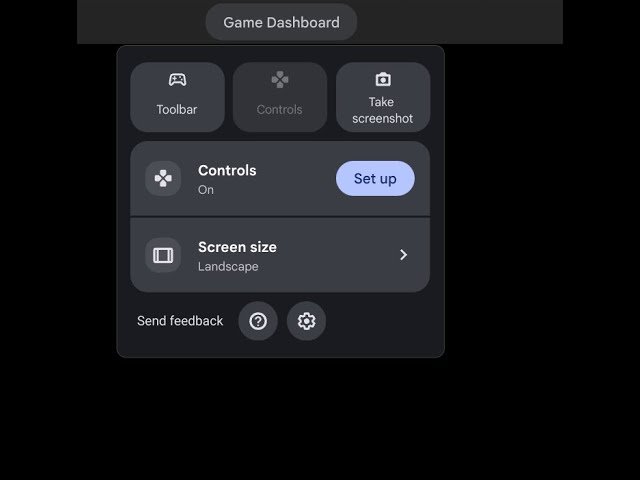
To disable the game dashboard on your Chromebook, navigate to chrome://flags, search for “Game Dashboard,” and disable the flag. Then, restart your Chromebook.
Is that annoying game dashboard popping up on your Chromebook? Many users find it distracting, especially when focusing on work or school tasks. Thankfully, there’s a simple way for you to get rid of the game dashboard on Chromebook. It involves just a few steps within the Chrome browser settings. Let’s show you how it’s done.

How to Get Rid of Game Dashboard on Chromebook
Okay, so you’ve got a Chromebook and you’ve seen this thing called the “Game Dashboard” pop up while you’re trying to work or maybe just watch videos. It’s supposed to be for playing games, but sometimes, it just gets in the way. It can show up at the wrong times, maybe you accidentally click it, or perhaps you just don’t use it and it’s taking up space. If you’re thinking, “How do I make this thing go away?”, you’re in the right place. We’re going to explore all the ways you can get rid of that game dashboard on your Chromebook, and we’ll make it easy to understand, step by step.
Understanding the Chromebook Game Dashboard
First, let’s talk about what this Game Dashboard actually is. Google added it to Chromebooks to make it easier to record, take screenshots, and generally manage gameplay. It usually appears when you launch a game, either from the Google Play Store or a web-based game. Think of it like a little toolbox that sits on top of your game, offering quick access to various game related options. It’s handy for some, but if you’re not a big gamer, it might just seem like a distraction. This dashboard offers a bunch of tools, but not all of them might be useful for every user.
Key Features of the Game Dashboard
- Screen Recording: The Game Dashboard lets you easily record your gameplay, so you can share your amazing gaming skills with friends.
- Screenshot Capture: Got a high score you want to brag about? Capture that in a snap with the screenshot tool.
- FPS Counter: Some game dashboard display a frame per second (FPS) counter, allowing to see how smoothly your game is running.
- Do Not Disturb Mode: Game Dashboard allow users to turn on do not disturb mode to avoid notifications during gameplay.
- Game Controls: You may be able to customize game-related control and shortcuts right from the dashboard.
While these features are beneficial for gaming enthusiasts, it can be unnecessary for users who primarily use their Chromebook for other tasks.
Why You Might Want to Remove the Game Dashboard
There are several reasons why you might want to get rid of the Game Dashboard. For starters, it can be accidentally activated, popping up when you’re trying to focus on something else, which is very annoying. It might also feel like clutter on your screen, if you just want a clean, simple view. Additionally, if you do not engage in gaming on your Chromebook, then the game dashboard is essentially an unused feature, taking up valuable screen space. Finally, for Chromebooks with older hardware, the dashboard might cause additional overhead, leading to slightly slower performance. So, it’s completely understandable if you’d prefer to get rid of it.
Methods to Get Rid of the Game Dashboard
Okay, now let’s get to the good stuff. There isn’t a single “turn off” switch for the Game Dashboard (yet!), but thankfully, there are several ways to minimize its appearance and get it out of your way. We’ll explore each method in detail.
Method 1: Hiding the Game Dashboard Temporarily
The simplest way to make the Game Dashboard disappear is to close it. This doesn’t permanently remove it, but it will make it go away until you start a new game. This method is great for those times when you just need it out of sight for a while, without changing any settings.
Steps to Temporarily Hide the Game Dashboard:
- Open the Game: Start your game where the dashboard appears.
- Locate the Close Button: Look for the small “X” button or close icon on the dashboard itself. It’s typically located in a corner or a side of the panel.
- Click the Close Button: Click that “X”, and the dashboard will disappear from your screen.
That’s it. The dashboard will be hidden. Remember this is temporary, and it will reappear when the next time you play a game.
Method 2: Minimizing the Game Dashboard
If you don’t want to close the entire dashboard but want to reduce its footprint, you can try minimizing it. This usually shrinks the dashboard down to a small icon or bar, and this helps to keep it out of your way, while still keeping it readily available if you need it.
Steps to Minimize the Game Dashboard:
- Launch the Game: Start a game on your Chromebook.
- Look for Minimize Option: Instead of looking for close button, try to find the minimize icon on the game dashboard, this looks like small dash or a short line.
- Click the Minimize Icon: Click this icon to minimize the dashboard. It should shrink to a small icon or a thin bar on the edge of the screen.
The exact appearance can vary depending on the game, but this method is quick and easy and it allows you to bring back the dashboard, if you need it later on.
Method 3: Disabling Play Games Settings
This method involves tweaking some settings within the Google Play Games app. By adjusting these settings, you might reduce the likelihood of the game dashboard appearing frequently. Remember that this will not disable dashboard completely, but might prevent auto launch and you may need to manually open it if you want to use it.
Steps to Adjust Play Games Settings:
- Open Play Games App: Look for the Play Games icon in your app launcher and click to open.
- Access Settings: Find the settings or menu icon (usually three dots or a gear).
- Navigate to Dashboard settings: Check in the settings if there is any toggle for Game dashboard or in app overlay option, if found disable it. Note: The exact wording and steps may slightly vary depending on the version.
- Apply changes: Save the changes.
By playing with the settings, you can get better control on when and how the Game Dashboard appears.
Method 4: Using Chrome Flags for Advanced Control (Use With Caution)
Chrome Flags are experimental settings that Google uses for testing new features. These flags allow access to some hidden options and you may get some additional level of control, including options related to Game Dashboard. But it is very important to note that the flags section is for advanced users and modifying things there might have some negative effect on the system. So if you’re not very familiar with it, it is better to avoid this method. Also, flags can change or disappear with future updates of chrome. So use it very carefully, this is why we suggest it to be the last option, and don’t try it if you are not comfortable or confident with what are you doing.
Steps to Access and Change Chrome Flags:
- Open Chrome Browser: Open your Chrome Browser
- Type chrome://flags: Type this address in your browser address bar and hit enter.
- Search for Game Dashboard: Use the search box at top to find flags related to Game Dashboard.
- Disable the flags: If any flag found related to Game Dashboard or its in app overlay, you can disable it, by using the dropdown box.
- Restart Your Chrome Browser: After making changes, you will be asked to restart your chrome. Please restart the browser.
Again, be very careful with flags. Only change flags that you are sure about and remember that this is for advanced users. Misuse can lead to instability of the browser and chromebook. If you are not comfortable with these changes, its better to skip this option.
Tips to Manage Game Dashboard Effectively
While we’ve focused on ways to remove or minimize the dashboard, sometimes a bit of effective management can make all the difference. Here are some extra tips to keep it under control:
- Close it Immediately: If you accidentally activate the Game Dashboard, make it a habit to close it right away. Quick action can prevent it from getting in your way.
- Minimize When Needed: If you know you might use the recording or screenshot features later, minimize it instead of closing it completely. This gives you quick access when you need it.
- Be Mindful of Game Launches: Pay attention to when the dashboard appears. Once you notice the pattern, you can become more efficient in managing it.
- Check for Updates: Keep your Chromebook and ChromeOS updated. Sometimes, updates may come with new settings or changes to the Game Dashboard behavior.
Common Problems and Their Solutions
Sometimes, things don’t go as smoothly as planned. Here are some typical issues you might encounter and how to handle them:
Problem: Game Dashboard Keeps Popping Up
Even after closing, the Game Dashboard might keep reappearing. Try closing the game completely, then restart it. If the problem persists, double check the play game settings, and then try Chrome flags if you feel confident enough.
Problem: Can’t Find the Close Button
Sometimes, the close button might be hidden behind other elements or could be very small and difficult to spot. Look very carefully around the edges of the dashboard or look for a very small “X” or minimize sign. Try moving your mouse cursor to find any option to close the dashboard.
Problem: No Option to Minimize or Close
In some games, the developer may have customized the Game Dashboard’s look, so the options for closing or minimizing may not be obvious. In such a case, you might try hitting “ESC” key, this might close the dashboard or force the focus away. If nothing else works, try completely restarting the game.
Problem: Chrome Flags Not Working
Chrome flags are subject to changes and may not work after a ChromeOS or Chrome browser update. So if you disabled any chrome flag and it is not working, it may be because Google has removed or changed that flag, it is advised to check again and if the flag is removed, then there is no other option except waiting for next update.
Why You Might Want to Keep the Game Dashboard
Before we end, it is important to mention that the Game Dashboard can be a useful feature for some users. If you are a gamer, and you enjoy taking screenshots, recording gameplay, or using other features of the dashboard, you might find it extremely helpful. It’s designed to give gamers quick access to all their tools. So it is important to consider your needs before making any changes. It all comes down to how you use your Chromebook and your personal preferences.
And that’s a wrap! While the Game Dashboard on Chromebooks doesn’t have a simple on/off switch, you now have several ways to manage it. You can hide it temporarily, minimize it, adjust some Play Games settings, and even try Chrome flags (carefully!). Remember, the best approach depends on your needs. Try the different options and pick the one that helps you the best.
How to OPTIMISE Your Chromebook For GAMING in 2024
Final Thoughts
To remove the game dashboard on your Chromebook, disable the gaming features in settings. Navigate to the ‘Gaming’ section within the system settings. Then simply toggle the game dashboard option off.
This prevents the overlay from appearing during gameplay. With these steps, you successfully get rid of game dashboard on chromebook. This straightforward method allows you to customize your Chromebook experience.

