
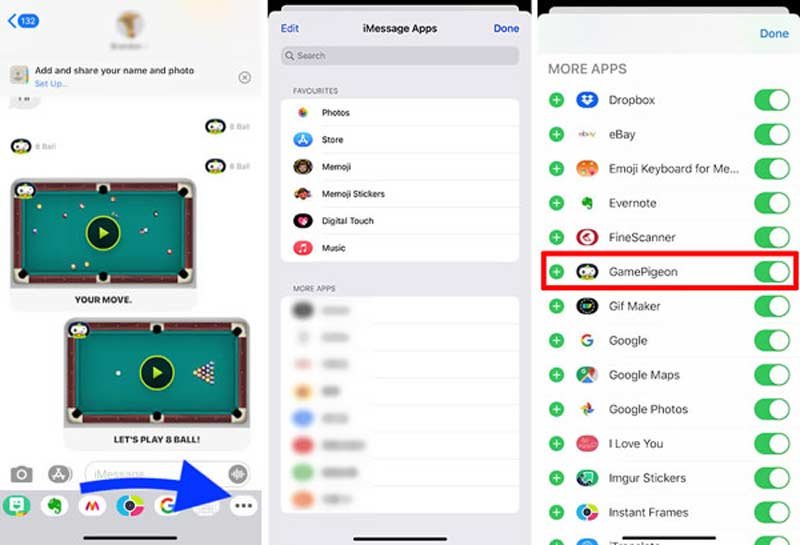
To get rid of Game Pigeon, you can uninstall the iMessage app by deleting it directly from your app drawer or disabling it within the iMessage app settings.
Annoyed by constant Game Pigeon requests? Maybe you’re simply done with the app and its mini-games. Whatever the reason, figuring out how to get rid of Game Pigeon can feel like a little puzzle. You don’t need to put up with unwanted notifications.
This article provides a clear and concise method to remove the app. It’s easier than you might expect and frees up valuable space on your phone. We will show you how to get rid of game pigeon in just a few simple steps.

How to Get Rid of Game Pigeon
Game Pigeon can be a lot of fun, especially when you want to challenge your friends to a quick game. But what happens when you’re tired of those constant notifications or just want to declutter your iMessage apps? It’s totally understandable to want to remove Game Pigeon. The good news is, it’s pretty easy to do. Let’s explore different ways to get rid of it and regain some peace on your phone.
Understanding Game Pigeon
Before we jump into removal, let’s quickly talk about what Game Pigeon actually is. It’s an iMessage app that lets you play games with your contacts. Think of it as a little arcade right inside your messages! It offers a bunch of different games, like 8-ball pool, word games, and even mini golf. It’s popular because it’s so easy to start a game with a friend. However, sometimes those fun games can become a bit much, and that’s when you need to know how to get rid of game pigeon.
Why You Might Want to Remove Game Pigeon
There are several reasons why you might want to say goodbye to Game Pigeon:
- Too Many Notifications: The constant alerts when a friend challenges you can be distracting. It’s hard to concentrate when your phone keeps buzzing.
- Decluttering iMessage: You might want a cleaner iMessage interface without the clutter of extra apps.
- Not Playing Anymore: If you no longer play, it’s just taking up space and isn’t useful.
- Avoiding Distraction: It’s easy to get sucked into playing, and you may want to avoid the temptation.
- Storage Space: Though the app itself does not take up a huge space, every little saving matters.
Removing Game Pigeon: The Simple Steps
Removing Game Pigeon is a straightforward process. Here’s how you do it, with different ways to achieve your goal, so that you can use the method that suits you the best. Let’s go through it step by step.
Method 1: Removing Game Pigeon from the iMessage App Drawer
This is the most common method, and it removes the app from your iMessage apps drawer. Here’s what you need to do:
- Open Messages: Start by opening your Messages app on your iPhone or iPad.
- Select a Conversation: Pick any conversation. It doesn’t matter which one.
- Access the App Drawer: Look for the gray App Store icon (it looks like an ‘A’ inside a square) that’s on the same line as where you type messages. Tap on it. This opens the app drawer.
- Find Game Pigeon: Scroll through the apps until you see Game Pigeon. It usually has a little pigeon icon.
- Long Press on Game Pigeon: Instead of tapping on it normally, press and hold your finger down on the Game Pigeon icon for a second or two.
- Tap “Delete”: A menu will pop up. Tap on the “Delete” or “Remove” option. It may vary a little depending on the iOS version.
- Confirm the Removal: Your device may ask you to confirm that you want to remove Game Pigeon. Tap to confirm, and it will disappear from the app drawer.
Important Note: Removing Game Pigeon this way means it will no longer appear in your iMessage app drawer. However, it’s still technically on your device (like other iMessage apps). You can always add it back later if you want to play again.
Method 2: Removing Game Pigeon Through iMessage App Management
There’s another way to get rid of Game Pigeon, using the iMessage app settings. This method allows you to manage all your iMessage apps in one place.
- Open Messages: Again, start by opening the Messages app.
- Start a Conversation: Select any conversation.
- Open the App Drawer: Tap on the gray App Store icon again to show the iMessage apps.
- Tap on the More Button: Usually there is a 3 dots button, usually at the end of the apps list. Press it. You may see it as ‘More’, ‘Manage’, or 3 dots …
- See List of Apps: This will show you a list of all iMessage apps you have.
- Find Game Pigeon: Scroll down until you find Game Pigeon in the list.
- Disable/Remove Game Pigeon: You’ll see a switch next to Game Pigeon. Toggle it off to disable it from appearing in the iMessage app drawer. In some versions of iOS, you might see a ‘Remove’ button, use it to completely remove game pigeon.
- Tap Done: Once you’ve disabled it, tap on “Done” at the top right of your screen.
Note: Disabling Game Pigeon this way hides it from your app drawer but does not fully remove it from your device. If you use the ‘Remove’ button it does completely remove game pigeon from your device. It’s similar to the first method, but provides a more centralized way to control all your iMessage apps.
Method 3: Completely Deleting Game Pigeon (If Available)
In certain versions of iOS, you may have the option to completely delete the Game Pigeon app from your device. This isn’t always available, but if you see a “Delete” option, here’s what it looks like:
- Open Messages: Open the Messages app.
- Start a Conversation: Select any conversation.
- Open the App Drawer: Tap the App Store icon to show the apps.
- Long Press the Game Pigeon icon: Press and hold on the Game Pigeon icon until a pop-up appears.
- Check for Delete Option: If you have the delete option you will see it with a delete icon.
- Tap Delete: If you see it tap the delete button and then confirm.
Important Note: If you choose to completely delete Game Pigeon this way, you will have to download it again from the App Store if you wish to use it in the future. This is the most complete way to remove it, so it may be the right option if you are certain you no longer wish to use it. After following these steps, you will have completely deleted game pigeon from your iPhone/iPad.
What Happens After You Remove Game Pigeon?
Once you’ve removed Game Pigeon, you won’t see it in your iMessage app drawer anymore. You will no longer get those pesky game notifications from the app. Your conversations will also look a bit cleaner, without the extra app icon. But here are some additional things to consider:
Impact on Existing Game Conversations
Removing Game Pigeon doesn’t delete past game conversations you’ve had. Those messages will still be there. However, you won’t be able to play those games again unless you add Game Pigeon back.
Reinstalling Game Pigeon
If you decide you miss the fun, reinstalling Game Pigeon is simple. Just follow these steps:
- Open Messages: Open the Messages app.
- Go to the App Drawer: Tap on the App Store icon.
- Tap the + Button: Tap on the plus icon to open the iMessage App Store.
- Search for Game Pigeon: Use the search bar and type “Game Pigeon.”
- Download Game Pigeon: Find the Game Pigeon app and tap the download button to add it back to your apps.
That’s it! Game Pigeon is back in your iMessage and you can resume your games.
Avoiding Future Game Pigeon Invitations
If you’re not trying to completely get rid of Game Pigeon, but simply want to avoid new game invitations, here are some tips:
- Mute Conversation: You can mute a specific message thread if you’re only bothered by the messages from one particular person. This way you will not get notified of new messages from them, but they can still send you messages.
- Ask Friends: You can politely ask your friends to not send you invites for games, if you want to avoid it completely.
Troubleshooting
Sometimes, things don’t go as smoothly as we’d like. If you’re having trouble getting rid of Game Pigeon, here are some things to try:
Restarting Your Device
Sometimes, a simple restart can fix minor issues. Try restarting your iPhone or iPad and see if that helps.
Updating Your iOS
Make sure your device is running the latest version of iOS. Sometimes outdated software can cause issues with apps. Go to Settings, tap General, then tap Software Update to check if there are any updates available.
Checking iMessage Settings
Verify that iMessage is turned on. Go to Settings, tap on Messages, and make sure the iMessage switch is turned on. If not, switch it on. It may help in certain situations.
Contacting Apple Support
If you’ve tried all the troubleshooting tips and you’re still having trouble, consider contacting Apple Support. They can provide additional help and guidance.
Removing Game Pigeon is a simple task that can help you have a more organized and distraction-free iMessage experience. Whether you choose to hide it, disable it, or completely remove it, you have multiple ways to manage this iMessage app. So if you are tired of games and looking for peace, now you know how to get rid of Game Pigeon.
How to Delete Game Pigeon on iPhone – Uninstall Game Pigeon in iPhone
Final Thoughts
To remove Game Pigeon, you must first find it within your iMessage app list. Then, swipe left on the Game Pigeon app icon, and select “Delete”. This removes it entirely from your messaging apps.
Alternatively, you can manage your iMessage apps in the settings. Navigate to settings, then messages, and tap on “iMessage Apps.” From this screen, you can disable or delete Game Pigeon as you desire.
These steps should successfully accomplish how to get rid of game pigeon. This process effectively removes it from your iMessage setup.

