
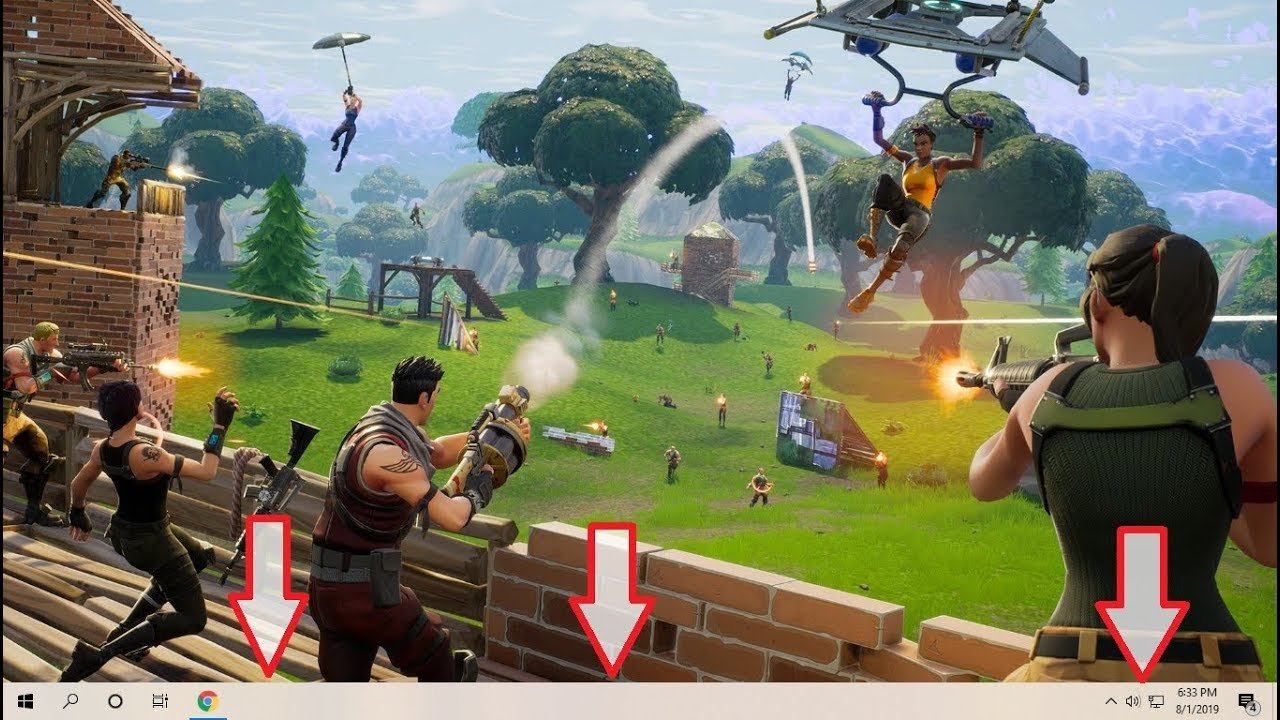
To get rid of the taskbar in game, switch to fullscreen mode within the game settings. Some games also require you to use the Alt+Enter shortcut for this purpose.
Is that annoying taskbar ruining your immersive gaming experience? It pops up at the most inconvenient times, doesn’t it? Many players wonder how to get rid of taskbar in game and regain that uninterrupted view. Thankfully, it is a simple fix. This article will guide you through the methods to hide the taskbar while you’re gaming.

How to Get Rid of Taskbar in Game
How to Get Rid of Taskbar in Game
Okay, you’re all set to dive into your favorite game, but wait! There’s that pesky taskbar sitting right at the bottom of your screen, ruining the immersion. It’s like trying to enjoy a movie while someone keeps shining a flashlight in your face. Annoying, right? The good news is, you absolutely can make that taskbar disappear while you’re gaming. It’s all about getting your computer to understand that, during game time, full screen means full screen. Let’s explore the different ways you can make the taskbar vanish and get back to enjoying your game.
Understanding Why the Taskbar Appears
Before we jump into solutions, it’s helpful to know why the taskbar shows up in the first place. It usually happens because of the way your game is running – specifically, it might not be truly running in exclusive full-screen mode. Instead, it might be running in a “borderless windowed” or “windowed” mode that overlaps the desktop. Think of it like this: Your game is trying to share the space with your normal computer screen instead of taking it all over. This can cause your taskbar to pop up, leading to unwanted distractions and sometimes performance issues. Another reason could be that some other application or notification is trying to get your attention, which can pull your game out of focus and thus showing the taskbar.
The Classic Full-Screen Approach
The first and often the simplest thing to try is to force your game into proper, exclusive full-screen mode. This mode tells your computer that the game is the only thing that should be displayed, pushing the taskbar out of the way. Here’s how to do this:
Finding the Full-Screen Setting in Game
Most games have settings that let you choose the display mode. This is usually in the graphics or video settings of the game.
- Look for Keywords: When you look through the game settings, try to find options such as “Display Mode,” “Screen Mode,” or “Graphics Settings”.
- The Options You Will See:
You might see options like “Windowed,” “Borderless Windowed,” “Full Screen” or “Exclusive Fullscreen.” Make sure to pick “Full Screen” or “Exclusive Fullscreen” when it’s available. - Restart if needed: Some games need a restart for these kinds of changes to take effect, so be ready to restart the game, if that’s what it asks.
By selecting “Full Screen,” the game should take over your entire screen and hide the taskbar. This is often the most reliable method to remove the taskbar while gaming.
Using Keyboard Shortcuts
Sometimes, even if the game is technically in full-screen, the taskbar can still peek through. Here are a few keyboard shortcuts that might help you quickly get rid of it.
Windows Key + Shift + Enter
This combination will often force the current window into full screen, which might not be the case of every game, but is worth trying. This may help you to get rid of the taskbar. Press these three keys together and see if the taskbar hides.
Alt + Enter
This is another popular shortcut for toggling between windowed and full-screen mode. Try pressing these keys together while in your game. If you are in a windowed mode, pressing Alt+Enter should move the game to the fullscreen mode, thus removing the taskbar from being displayed.
The F11 Key
Many applications, including some games, will go into full screen when the F11 key is pressed. While not all games will support this feature, it is still something that you can try when the other steps are not working.
Dealing with Persistent Taskbar Issues
Sometimes, despite all the tricks above, the taskbar still stubbornly remains visible. This can happen because of certain settings on your computer. Let’s look into some more ways to deal with these persistent taskbar problems.
Auto-Hide the Taskbar
If nothing else works, you can tell the taskbar to automatically hide itself when not in use. This way, it won’t constantly bother you during your gaming sessions. Here’s how to set it up:
- Right click on a blank area of the taskbar.
- Choose “Taskbar settings” from the menu that appears.
- Look for “Taskbar behaviors” in the settings menu, and click on it.
- Check the box next to “Automatically hide the taskbar.”
With this setting enabled, the taskbar will retreat to the bottom of the screen, and only pops up when you move your mouse over that area. While not ideal, it’s often a great compromise.
Disable Third-Party Taskbar Enhancers
If you use programs that change how your taskbar looks or acts, these programs might interfere with full-screen mode. Try temporarily disabling them to see if that fixes your issue. Sometimes, this is a case that many users overlook, as they don’t know they have an application that modifies the functionality of the taskbar. When trying to disable such application, please make sure to do it properly to avoid any problems.
Check for Windows Updates
Outdated software can cause all sorts of weird issues, including the taskbar not behaving correctly. Keep your Windows system updated. Here is how you can check for updates:
- Click on the Windows start button, and then click on the “Settings” icon.
- Click on “Windows update” on the left side of the Settings window.
- Click on “Check for Updates”, this will check for and download any updates your computer requires.
Ensure Your Graphics Drivers are up to date
Outdated or incorrect graphics drivers can also cause display issues, including the taskbar appearing when it shouldn’t. Update your graphics drivers to the latest version. Here is how you can do it.
- Right-click on the Windows start button, and then click on “Device Manager”.
- Click on the arrow next to “Display adapters”.
- Right click on your graphics card, and then click on “Update driver”.
- Click on “Search automatically for drivers”. Windows will now look for and install any needed drivers.
You may be required to restart your computer for changes to take effect.
Troubleshooting Specific Game Issues
Sometimes, certain games have their own quirks when it comes to the taskbar. Here’s how to tackle some common issues:
Older Games
Old games sometimes weren’t designed to run in the same way as modern ones, and might struggle with full-screen settings. You might need to try different compatibility modes. Here’s how:
- Right-click on the game’s shortcut or executable file.
- Go to “Properties”.
- Click on the “Compatibility” tab.
- Try different compatibility settings like “Run this program in compatibility mode for” and “Run this program as an administrator”
Experiment with different settings to see if it helps fix the taskbar issue.
Games with Launchers
Some games are launched through a separate program called a “launcher.” Make sure both the launcher and the game are set to run in full screen.
Multiple Monitors
If you have multiple monitors, the taskbar might sometimes misbehave. Try setting your main gaming monitor to be the primary display.
- Right-click on an empty space on your desktop.
- Click on “Display settings”.
- Scroll to the section that shows your display, and click on the display that you want to be the primary one.
- Under the “Multiple displays” section, click on the “Make this my main display” check box.
Also, consider turning off other displays while you are gaming to make sure the game uses the correct settings.
Using Dedicated Software
If all else fails, you can look at using dedicated software that is made to help with this specific type of issue, though this is usually a last resort for most users.
Borderless Gaming
There is a tool called “Borderless Gaming” which is made to force any game into a full screen windowed mode that removes borders and covers the taskbar. This can help some stubborn games behave. However, third party software should be used cautiously.
Game Mode in Windows
Windows 10 and 11 have a built-in “Game Mode”, which is designed to optimize your computer for gaming. It can sometimes help with the taskbar issue, and can help with the game performance.
- Click on the Windows start button, and then click on the “Settings” icon.
- Click on “Gaming” on the left side of the Settings window.
- Make sure “Game Mode” is turned on.
Common Mistakes to Avoid
Before we finish, here are some common mistakes that can cause the taskbar to appear, make sure that you are not doing these when you are trying to get rid of the taskbar while gaming.
Accidentally pressing the Windows Key
This will cause the taskbar to appear. Take care to not press the Windows key while in game, or disable the key through a third-party application, if you know that this might be the case.
Using Alt+Tab In Windowed Mode
Switching between apps using Alt+Tab when a game is not in full-screen mode can sometimes lead to the taskbar appearing. The simplest way to avoid this problem is by going into full screen, or using keyboard shortcuts to get out of a game to go back to desktop, this can help you avoid the taskbar popping up.
Getting rid of the taskbar while gaming is usually a simple task if the steps are followed correctly, and most games should comply with the settings that the user has selected. With the tips and tricks provided above, you can usually resolve the issue with the taskbar being visible, and thus giving you more time to focus on your gameplay. While sometimes it will require more troubleshooting, with a little patience, and care it is possible to hide that annoying taskbar while you game. Remember to always explore the setting in the game first, before trying the other solutions. Most importantly, enjoy your gaming time without pesky taskbar getting in the way!
How to get invisible taskbar on Windows
Final Thoughts
To summarize, you can achieve a fullscreen gaming experience and hide the taskbar using specific settings or keyboard shortcuts. Alt + Enter toggles most games to fullscreen, often eliminating the taskbar.
If that doesn’t work, explore game graphics settings or use third-party applications to force fullscreen behavior. These methods demonstrate effectively how to get rid of taskbar in game. You need to ensure your game runs in true fullscreen mode.

