
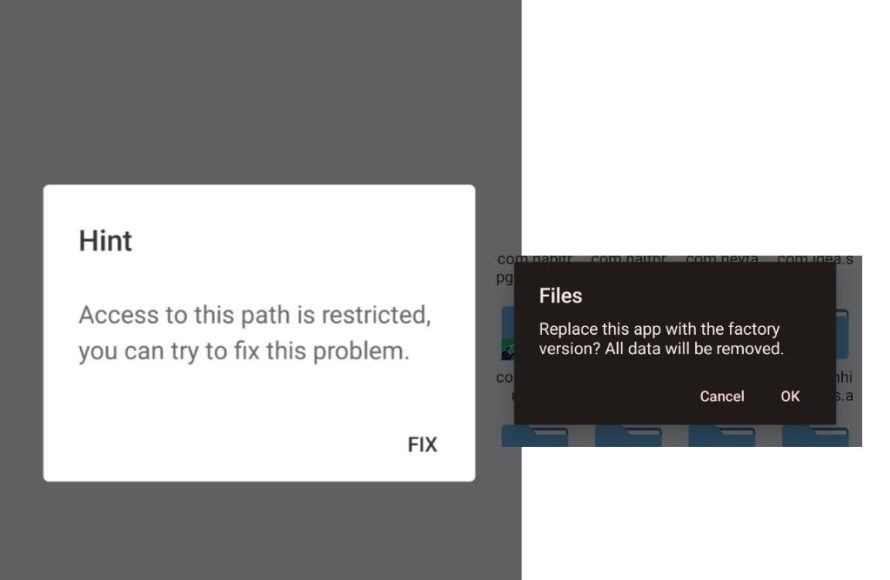
To get the files of an Android game, you generally need a file manager app that allows access to Android’s internal storage, often requiring root access for system files.
Ever wondered what’s hidden behind the scenes of your favorite mobile game? Maybe you’re curious about the textures or sounds, and asking yourself ‘how to get the files of an Android game’. Well, it’s not always straightforward. You see, Android’s security is designed to prevent casual browsing of a game’s internal data.
Many games store their files in protected areas of your phone’s storage. This is done for safety and to keep the game fair. However, there are methods, often involving file manager apps, and sometimes even root permissions, to access the game’s data.

How to Get the Files of an Android Game
Ever wondered what’s hiding inside your favorite Android game? Maybe you’re curious about the game’s sounds, images, or even how it’s put together. Well, you’re in the right place! Getting the files from an Android game isn’t like opening a folder on your computer. It involves a few extra steps, and it’s important to know what you’re doing. We’ll explore the different ways to do this, making it easy to understand, even if you’re not a tech expert.
Why Would You Want to Access Game Files?
Before we dive into the ‘how,’ let’s consider the ‘why.’ Why would someone want to look at the files of an Android game? There are several reasons, some perfectly okay and others that might not be. Here are a few common ones:
- Modding: Some people enjoy changing how games look or behave. This involves modifying the game’s files. Modding can include changing character skins, adding new features, or even creating entirely new levels.
- Learning: Understanding how a game is built can be educational for aspiring game developers. Looking at the code, art, and sounds can help them learn about game design principles and techniques.
- Extracting Resources: You might want to grab a specific sound effect or an image from a game for a personal project. For example, maybe you want to use the game’s music as your phone’s ringtone.
- Creating Fan Content: Artists might want to access game assets like character models for making fan art, animations or fan made stories. This use is generally accepted when shared without gaining any commercial profit.
It’s crucial to remember that while looking at game files can be fun and educational, altering them, especially for commercial purposes, or sharing modified game files online is usually a violation of the game’s terms of service and can lead to legal problems or account bans. Be respectful of the game developers’ hard work and always check if your actions are allowed.
Understanding Android Game File Types
Android games store their data in various types of files. Getting familiar with these file types can help you understand what you’re looking at. Here’s a quick guide:
- APK (Android Package Kit): This is the main file that contains the entire game app. Think of it as a compressed folder with all the necessary game information.
- OBB (Opaque Binary Blob): Large games often use OBB files to store extra data, like high-quality graphics, music, and other bulky content that doesn’t fit in the main APK. These are often stored separately.
- Image Files (.png, .jpg): These contain the game’s visual assets, such as character portraits, backgrounds, and icons.
- Audio Files (.mp3, .wav, .ogg): These are the game’s sounds and music.
- XML and JSON Files: These files are used for storing game configuration data like settings, menus, and text. They can be read and changed with a text editor.
- Lua or other Script Files: Some games store their game logic using script files. Understanding these might require some technical knowledge.
These are the common file types, but you might encounter others depending on the specific game you are looking at.
Methods to Access Android Game Files
Now, let’s get to the exciting part: how to actually access these files. We will go through different methods, from the simplest to the more technical ones. Here are a few ways you can try:
Using a File Manager App
The most basic method involves using a file manager app on your Android device. Many file manager apps are available on the Google Play Store. Here is how it is done:
- Download a File Manager App: Go to the Google Play Store and download a file manager application like “File Manager by Xiaomi” or “Astro File Manager”. Install the application after download.
- Open the File Manager: Open the file manager app you just downloaded. You may need to grant permission to access your device storage. This is usually a simple process with a pop-up asking for your permission.
- Navigate to Android/data: This folder is where most game files are stored. Inside the “Android” folder, you will see several subfolders. Go to the “data” folder.
- Find Your Game’s Folder: Each game typically has its folder with a name that starts with “com.” followed by the game’s identifier (package name). For example, the game “Candy Crush Saga” might have a folder named “com.king.candycrushsaga”.
- Explore the Folder: Inside your game’s folder, you will see a file and folder hierarchy. The actual game files are usually found in a subfolder called “files.” For large games, you will find the OBB files in Android/obb.
- Copy the files: After you have located the files, you can simply copy them to another location, such as your download folder. Then you can access them through a computer.
While this method works for many games, it can be limited, especially if the game uses obb files. The game files are sometimes placed in folders with obscure names which can be difficult to locate manually.
Using an Android Emulator
If you want to avoid accessing the files on your phone directly or need more control, an Android emulator on your computer might be a good option. Android emulators, like Bluestacks or NoxPlayer, let you run Android apps on your PC. Here’s how to use them to get game files:
- Install an Android Emulator: Download and install an Android emulator on your computer. Choose one that is compatible with your system.
- Install the Game: Open the emulator, and go to Google Play store within the emulator. Download and install the Android game you are targeting.
- Install a File Manager: Install a file manager app within the emulator, just like on your phone. The process is almost identical to what we previously covered.
- Access the Files: Use the file manager within the emulator to navigate to the game’s folder, located in “Android/data”. Then copy the game files to your computer.
- Copy Files to Your PC: You can usually drag and drop files from the emulator to your computer or use an option to share them via cloud storage.
Using an emulator can be more convenient for some users, as it allows you to use your computer’s file system and processing power. It also provides a safe environment for experimenting without any risk to your mobile device. Additionally, the emulators usually come with the root access enabled which makes it easier to navigate the files.
Using ADB (Android Debug Bridge)
ADB is a powerful command-line tool that allows you to communicate with an Android device. It’s a bit more technical but offers more control and access. Here is how to use it:
- Download ADB: Download the Android SDK Platform Tools from the official Google Developers website. This package includes the ADB utility.
- Enable Developer Options: On your Android device, enable Developer Options by going to Settings > About Phone and tap on the Build Number several times. Then, go to the Developer Options and enable USB debugging.
- Connect Your Device: Connect your Android device to your computer using a USB cable.
- Open Command Prompt/Terminal: On your computer, open a command prompt (Windows) or terminal (macOS/Linux).
- Navigate to ADB: Use the command prompt to navigate to the directory where you extracted the ADB files. This is usually the folder where you saved the Platform Tools package you just downloaded.
- Verify Device Connection: Type the command
adb devicesand press Enter. If your device is connected, you should see it listed. - Pull the Game Files: Use the command
adb pull /sdcard/Android/data/com.game.package ./gamefilesto copy game files to your computer. Replace “com.game.package” with the actual package name of your game. Change the directory after the dot to the location where you want to save the files.
ADB is more advanced method and provides complete access to files and folders that can not be accessed through a traditional file manager. This is a more powerful method but can be a little tricky for the beginners. If you are a more technical person, ADB is a good option.
Rooting your Device
Rooting your android device grants administrative privileges and more control over your system. This will allow you to access all folders and files, including the game files, without any restrictions. However, rooting an Android device is an involved process, and should only be done if you know what you are doing.
Here are the general steps to root an Android device. Keep in mind that these can vary based on the model of your device:
- Unlock your Bootloader: Before you can root your device, you will need to unlock the bootloader. This usually involves enabling the OEM unlocking option in the developer options and using fastboot commands through ADB.
- Download Rooting Files: Find the files required for rooting your specific device. These files often include a custom recovery image and a root binary. You can often find these files on online forums and communities for the specific device you have.
- Flash the Custom Recovery: Use fastboot to flash the custom recovery to your device. This replaces the default recovery on the device.
- Flash the Root Binary: Boot into the custom recovery mode and flash the root binary, such as Magisk or SuperSU.
- Verify Root Access: Once the process is complete, reboot your device. You will be able to verify the root status through a root checker application available on Google Play store.
Please note that rooting your Android device can void your warranty and has certain security risks. If you do not have the technical knowledge and skills, then it is not advisable to root your device. However, if you manage to root your device, accessing the game files becomes very easy, and you can also explore other features of the device and access the entire file system.
Ethical Considerations
As fun as it can be to explore game files, it’s important to keep ethical boundaries in mind. Here’s a quick rundown:
- Respect Copyright: Game developers put a lot of hard work into their creations. Respect their copyright by not using their assets without permission for your own commercial gain.
- Terms of Service: Most games have terms of service that prohibit modifying or distributing game files. Reading those terms is very important before trying to extract files.
- Modding Responsibly: Modding games is fun, but do not share modified files online or use them to gain any unfair advantage.
Tools for Working with Game Files
Once you have extracted the game files, you may need some tools to view or edit them. Here are some common tools you may need:
- Text Editors: To open and change text-based files like XML and JSON files.
- Image Editors: To open and edit images such as Photoshop, GIMP or Paint.NET.
- Audio Editors: To view and edit audio files like Audacity or WavePad.
- APK Editors: For directly editing APK files, for more advanced users.
Having the correct tools makes the process of working with game files much easier. The tools also allow you to have a better understanding of the game assets.
Finding the Package Name of the Game
As we previously mentioned, each game has a unique package name. Here are the steps on how to locate the package name.
- Google Play Store: Go to the game’s page on the Google Play Store. Copy the link to the page. The package name is usually embedded within the link. For example, in the URL
https://play.google.com/store/apps/details?id=com.king.candycrushsaga, “com.king.candycrushsaga” is the package name. - Third-Party Websites: There are various websites that can display the package name of an Android game when you search by its name.
- Using File Manager: As mentioned before, the game’s folder in the “Android/data” directory usually contains the package name in the folder name.
You can use any of these ways to find the package name of the Android game you are looking to access.
Accessing Android game files can be educational and fun if done responsibly. Whether you’re curious about game mechanics, interested in modding, or simply want to see what’s “under the hood,” understanding these methods can be very useful. Remember to always respect the work of game developers and follow ethical guidelines.
How To Find Game Files On Android
Final Thoughts
In short, obtaining game files involves accessing your device’s storage using a file manager app or connecting to a computer. You might need root access for some locations. Remember that directly accessing and modifying files can sometimes violate game terms.
Consider using a backup tool to extract game data. This method can be safer than directly modifying data. Be cautious when you change or copy data.
Remember, how to get the files of an andriod game has associated risks, always keep a backup and proceed carefully.

