
To get to iMessage games, open the Messages app, select a conversation, tap the app icon (looks like an ‘A’) next to the text box, and scroll or tap the grid icon to view game options.
Want a quick way to have some fun with your friends right in your messages? It’s easier than you might think! You can play games directly within your conversations, making for some spontaneous entertainment.
You’re probably wondering exactly how to get to iMessage games. It’s a simple process of navigating within your Messages app. We’ll guide you through each step to easily access these fun diversions.

How to Get to iMessage Games
Ready to have some fun with your friends right in your text messages? iMessage games are a super cool way to challenge your buddies, laugh together, and even get a little competitive without ever leaving the Messages app. It’s like having a mini game console inside your phone! But how do you actually get to these games? Don’t worry, it’s easier than you think. Let’s walk through the steps, and soon you’ll be playing all sorts of awesome iMessage games.
Finding the App Drawer in iMessage
The first thing you need to know is where the iMessage app drawer is located. This is where all the fun stuff, including games, lives. Think of it like a secret door to a whole bunch of cool things you can do within your text messages.
Where is the iMessage App Drawer?
The app drawer isn’t always super obvious, but it’s always in the same spot. Here’s how you find it:
- Open the Messages App: Go to the Messages app on your iPhone or iPad. You know, the green speech bubble icon.
- Select a Conversation: Pick any text message conversation with one of your friends or a group. It doesn’t matter which one, just select any conversation.
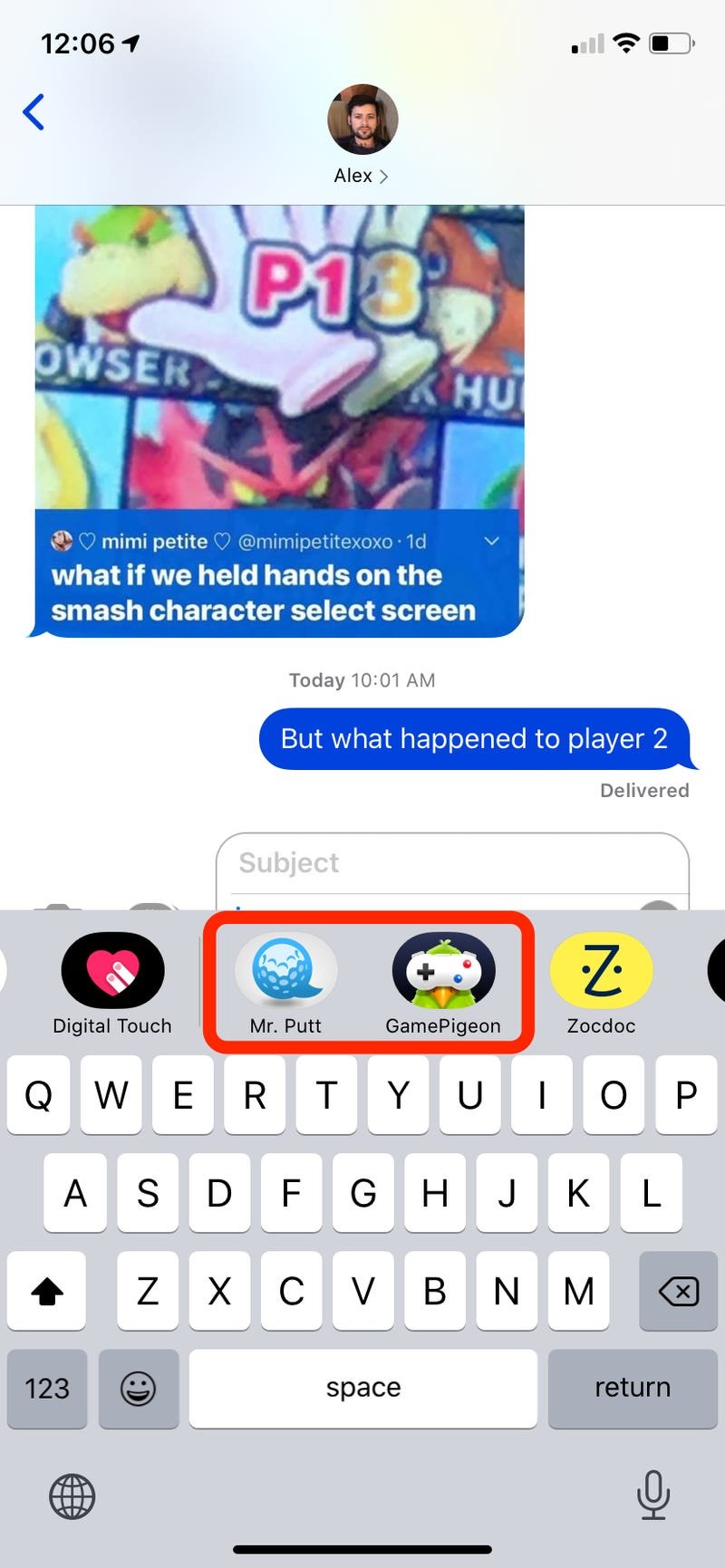
- Look Above the Keyboard: Do you see a grey bar just above where you type your messages? That’s the app drawer! It has different app icons in it.
If you don’t see any app icons, it’s likely that the app drawer is collapsed (hidden). Look for a little grey arrow or a small app store icon on the left side of the bar. Tap it to open up the full app drawer.
Locating iMessage Games
Now that you’ve found the app drawer, let’s find the games! Games aren’t always displayed right away, they’re often hiding inside other apps. Here’s how to go about finding them:
Exploring the App Icons
When you open the app drawer, you might see a bunch of icons, each representing different apps. Some of these apps have games inside them, which may or may not appear on the initial set of apps in the drawer.
Look for these kinds of apps that frequently offer games:
- GamePigeon: This is a very popular app that is specifically designed for iMessage games. It has a bunch of different games like 8-ball, chess, and more.
- Apple’s App Store Icon: Sometimes you need to use the App Store icon within iMessage to find and install new game apps.
- Other Third-Party Apps: Some other apps might have games within them. These vary depending on what you or your friends have installed. Keep an eye out for apps that have game-like icons.
Using the More Apps Button
If you don’t see a game app you’re looking for, there is a “More” (usually three dots or an ellipsis ‘…’) icon that brings up an extended list. If you don’t see GamePigeon or other dedicated game apps, it’s likely hiding here.
- Find the Three Dots: Look for the “More” icon that appears as three horizontal dots, at the right end of your app drawer.
- Tap the Icon: Tap on the “More” icon and it will display all available iMessage apps, including those offering games.
Checking for GamePigeon
GamePigeon is one of the most popular apps for iMessage games, so let’s focus on it a bit.
- Look for the GamePigeon Icon: Its icon is typically a white bird in a speech bubble on a blue background.
- Tap the Icon: Tap on the GamePigeon icon. The games that the app provides will appear above the message text box.
Adding New Game Apps
If you don’t see any fun games, it is very easy to add more. You can download iMessage apps the same way you download other apps from the Apple App Store.
- Open the App Store in iMessage: Tap on the app store icon (an “A” within a circle made of pencil tools) from the app drawer to open iMessage’s App Store.
- Search for Games: Use the search bar at the top to type in “iMessage games” or a specific game you’re looking for, such as “GamePigeon,” or other games you can play within the iMessage app.
- Download Games: Once you find a game you like, tap the “Get” button or the cloud icon to download and install it. The game will then show up in your app drawer and will be available to use.
Starting a Game
Now you have the games at your fingertips, it’s time to start playing! Starting a game with your friend is usually quick and simple.
Selecting a Game
After finding the game app in the drawer, the next step is choosing the specific game you want to play:
- Tap on the Game App: Click the icon of the game app you want to use. For example, GamePigeon.
- Choose a Game: Scroll through and find a game you want to play. There are usually a variety of choices within apps like GamePigeon, such as 8-ball, checkers, or word games.
- Tap to Select: Click on the icon or image of the game you want to start playing.
Inviting a Friend
Once you’ve picked the game, you need to invite someone to play with. This happens directly within your text conversation.
- Prepare the Game Invitation: After selecting a game, a preview of the game will be visible in the text box, with a “send” button or a small arrow pointing to the right.
- Tap “Send”: Tap on the send button and it will send the game invite to your friend.
- Wait for Your Friend: Your friend will receive the game invite and will need to tap on it to join the game.
Playing the Game
After your friend accepts the invite and taps on it, it’s time to start playing the game. The process varies slightly depending on the game itself but is usually straightforward:
- Taking Turns: Many games are turn-based, so you’ll get a message when it’s your turn and when your friend has taken a turn.
- Following Game Instructions: Make sure to pay attention to any instructions displayed on the screen. Some games will have written instructions, while other games will have visual prompts to guide you.
- Enjoying the Game: Have fun! Play to win, but always remember to enjoy the time spent playing with your friend.
Troubleshooting Common iMessage Game Issues
Sometimes, even with the best technology, things might not work exactly as they should. Here are some common problems people face and how to fix them.
No Games Appearing
If you can’t find any games in your iMessage app drawer, here’s what you can do:
- Check for Updates: Make sure your iPhone or iPad is running the latest version of iOS. Outdated software can sometimes cause problems. You can check for an update by going to Settings > General > Software Update.
- Restart Your Device: Sometimes a simple restart can fix little bugs. Turn off your iPhone or iPad, wait a bit, and turn it back on.
- Reinstall App: If you have a specific game app you can try uninstalling it and then reinstalling it again.
Game Doesn’t Start or Respond
If you’re having trouble starting a game or if the game isn’t responding:
- Close and Reopen the App: Try closing the Messages app completely (swipe up from the bottom of your screen and swipe the app away) and then reopen it.
- Check your internet Connection: Many iMessage games require a stable internet connection to work correctly. Make sure your wi-fi or cellular data is working.
- Make Sure App is Up to Date: Ensure that the game app you are trying to use is up-to-date by going to the App Store.
Friend Can’t See the Game
If your friend isn’t able to see the game invite:
- Make Sure They Are Updated: Ensure they have the latest version of iOS, just like you.
- Check Both Devices: Make sure both you and your friend are connected to the internet and have iMessage enabled.
- Try Resending the Invite: Sometimes, simply resending the game invite can make the game appear on your friend’s device.
Tips for Having More Fun with iMessage Games
Now that you are getting the hang of it, let’s cover some additional tips to help make your gaming experiences even more exciting!
Explore Different Games
Don’t just stick to one game! There are lots of different games available, so take some time to try them out.
- Try New Apps: Download different iMessage games to discover the wide range of game styles.
- Play with Different Friends: Challenge different friends to different games and compare your scores!
Join Group Games
Some iMessage games let you play with groups of friends. This is a great way to include more people in the fun.
- Start Group Chats: Create a group chat with several friends and start a group game.
- Collaborate and Compete: See how you can help each other, or compete against each other, in group-based games.
Use GamePigeon
GamePigeon is known to be a very popular app with lots of different options and is a good place to start your iMessage game experience. If you need a good starting point, this would be a good option.
- Check out a variety of games: GamePigeon includes many different types of games from word games, to pool, to mini golf.
- Update GamePigeon: When there are updates, make sure you update GamePigeon through the App Store.
Be a Good Sport
Whether you win or lose, always be a good sport and have fun. It’s just a game after all.
- Encourage your friends: Don’t get too upset if you lose, and compliment your friend on a good game.
- Have Fun: Remember that the most important thing is to spend quality time with your friends!
With iMessage games, your texting is not just about sending messages, but it’s a place to share fun and laughter with your friends. So, go ahead, start playing and see just how much fun you can have with the great selection of games available to you.
How To Play Games On iMessage!
Final Thoughts
To access iMessage games, open a conversation in the Messages app. Tap the App Store icon next to the text field. A menu with available apps appears; select the Games category.
You will see a list of games to choose from. Tap the desired game, and it will be ready for playing. Remember, ‘how to get to imessage games’ is a simple process once you know where to find the App Store icon. You must be patient and follow simple instructions to enjoy this feature.

