
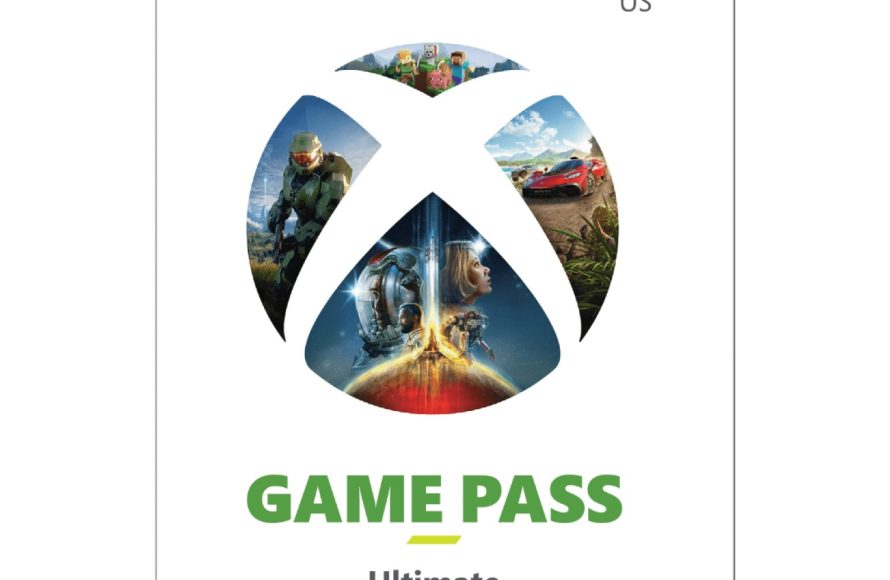
To gift 1 month Xbox Game Pass, you can purchase a digital code from retailers like Amazon, Best Buy, or the Microsoft Store and send the code to the recipient. Alternatively, some retailers sell physical gift cards for Xbox Game Pass that can be given as a present.
Here’s the requested response:
Want to give the gift of gaming? Giving someone an Xbox Game Pass subscription is a great way to do it. Let’s explore how to gift 1 month xbox game pass.
It’s actually quite simple to set up a friend with access to a huge library of games. We will guide you through the process step-by-step.

How to Gift 1 Month Xbox Game Pass
Gifting an Xbox Game Pass subscription is a great way to share the joy of gaming with friends and family. It unlocks a vast library of games for them to enjoy on their Xbox console or PC. Let’s explore the various methods to gift a 1-month Xbox Game Pass.
Gifting Through the Microsoft Store
One of the most straightforward methods is directly through the Microsoft Store. This allows for a digital gifting experience. It is convenient and instantaneous.
Steps to Gift via the Microsoft Store
Here’s a breakdown of the process:
- Access the Microsoft Store: Open the Microsoft Store app on your Windows PC or visit the Microsoft Store website.
- Search for Xbox Game Pass: In the search bar, type “Xbox Game Pass” and press Enter.
- Select the Desired Subscription: Choose the “Xbox Game Pass” option, making sure it specifies a 1-month duration.
- Click “Buy as Gift”: On the product page, you should see a “Buy as Gift” button. Click on it.
- Enter Recipient’s Email: Enter the email address of the person you want to gift the Game Pass to. Double-check the address for accuracy.
- Add a Personal Message (Optional): You can add a personal message to your gift. This will be included in the email sent to the recipient.
- Review and Confirm: Review your order and confirm that the recipient’s email and subscription details are correct.
- Complete the Purchase: Proceed with the payment process using your preferred payment method.
- Confirmation Email: Once the purchase is complete, both you and the recipient will receive confirmation emails. The recipient’s email will contain a redemption code and instructions on how to activate the Game Pass.
Understanding Regional Restrictions
It’s important to be aware of regional restrictions when gifting Xbox Game Pass. The recipient’s Microsoft account region must match the region where you purchased the gift. This prevents issues with redeeming the code.
Consider the geographical locations of the giver and recipient. Game Pass codes are not always cross-region compatible.
Gifting a Physical Gift Card
Another option is purchasing a physical Xbox Game Pass gift card. These are available at many retailers, both online and in brick-and-mortar stores. This method offers a tangible gift to present.
Where to Buy Physical Gift Cards
You can find Xbox Game Pass gift cards at retailers like:
- Amazon: A wide selection of gift cards, including digital and physical options.
- Best Buy: A popular electronics retailer that carries Xbox Game Pass gift cards.
- Walmart: Another major retailer with physical and digital gift cards available.
- Target: A general merchandise retailer that offers Xbox Game Pass gift cards.
- GameStop: A dedicated video game retailer with a variety of gaming-related products.
Redeeming a Physical Gift Card
The recipient will need to redeem the code on the gift card through their Xbox console or the Microsoft website. The redemption process is simple and usually takes only a few minutes.
Here’s how they can redeem the gift card:
- Xbox Console: On the Xbox console, go to the Store, select “Redeem,” and enter the 25-character code.
- Microsoft Website: On the Microsoft website, sign in to their account, go to “Redeem a code,” and enter the 25-character code.
Xbox Game Pass Editions: Core vs. Ultimate
There are two primary Xbox Game Pass editions to consider when gifting: Game Pass Core and Game Pass Ultimate. Understanding the differences will help you choose the best option for the recipient. Let’s compare them.
Xbox Game Pass Core
This is the entry-level subscription. It provides access to a curated library of games.
- Access to a Library of Games: Includes a select library of games that members can play.
- Online Console Multiplayer: Enables online multiplayer gaming on Xbox consoles.
- Deals and Discounts: Offers exclusive deals and discounts on games and add-ons.
Xbox Game Pass Ultimate
This is the premium subscription tier. It offers the most comprehensive gaming experience.
- All Core Benefits: Includes all the benefits of Game Pass Core.
- Game Pass Library on Console and PC: Access to the full Game Pass library on both Xbox consoles and PCs.
- Xbox Cloud Gaming: Play games on supported devices via the cloud.
- EA Play Membership: Includes an EA Play membership, providing access to a library of EA games.
The crucial difference is Game Pass Ultimate includes both console and PC access, along with cloud gaming and EA Play. If the recipient enjoys gaming on both Xbox and PC, or wants access to cloud gaming, Ultimate is the better choice.
Checking for Promotions and Bundles
Before purchasing, it’s worth checking for any ongoing promotions or bundles. Microsoft and retailers often offer deals that can save you money on Xbox Game Pass subscriptions.
Look for deals on websites like:
- Microsoft Store: Check the official Microsoft Store for any active promotions.
- Retailer Websites: Visit the websites of major retailers like Amazon, Best Buy, and Walmart to see if they have any special offers.
Bundles might include additional content, such as in-game items or other subscriptions. These can enhance the value of your gift.
Understanding Subscription Auto-Renewal
Xbox Game Pass subscriptions typically have auto-renewal enabled by default. This means that the subscription will automatically renew at the end of the 1-month period.
It’s important to inform the recipient about this. They can manage their subscription settings and disable auto-renewal if they prefer.
How to Disable Auto-Renewal
The recipient can disable auto-renewal through their Microsoft account settings:
- Sign In: Sign in to their Microsoft account on the Microsoft website.
- Services & Subscriptions: Go to the “Services & Subscriptions” page.
- Manage Subscription: Find the Xbox Game Pass subscription and click “Manage.”
- Turn Off Recurring Billing: Turn off the “Recurring billing” option.
Disabling auto-renewal ensures that the subscription will not automatically renew. It gives the recipient more control over their subscription.
Troubleshooting Gift Redemption Issues
Occasionally, recipients may encounter issues when trying to redeem an Xbox Game Pass gift. Common problems include invalid codes or region restrictions. Here are some troubleshooting steps:
Invalid Code
If the recipient receives an error message indicating that the code is invalid, try these steps:
- Double-Check the Code: Ensure that the code is entered correctly, paying attention to capitalization and avoiding common mistakes like confusing 0 (zero) with O (letter O).
- Check Expiration Date: Verify that the code has not expired. Some gift cards have expiration dates.
- Contact Support: If the code is still invalid after double-checking, contact Xbox Support for assistance.
Region Restrictions
If the recipient receives an error message related to region restrictions, try these steps:
- Verify Account Region: Ensure that the recipient’s Microsoft account region matches the region where the gift card was purchased.
- Use a VPN (Not Recommended): While using a VPN to bypass region restrictions is possible, it’s generally not recommended as it may violate Microsoft’s terms of service.
- Contact Support: If the region settings are correct and the issue persists, contact Xbox Support for assistance.
Contacting Xbox Support is often the best course of action for resolving persistent redemption issues. They can provide personalized assistance and resolve any underlying problems.
Alternatives to Gifting a Full Month
Sometimes, gifting a full month might not be the perfect fit. Consider alternative options like gifting a smaller denomination gift card or a specific game.
Smaller Denomination Gift Cards
You can purchase smaller denomination Microsoft gift cards that the recipient can use towards an Xbox Game Pass subscription or other games and content. This provides more flexibility.
Gifting Specific Games
Instead of gifting a Game Pass subscription, you could gift a specific game that you know the recipient will enjoy. This can be a more personalized gift.
Gifting a specific game is a great option if you know the recipient has a particular title in mind. It shows you’ve considered their preferences.
Communicating the Gift Thoughtfully
The way you present the gift can significantly enhance the recipient’s experience. Consider adding a personal touch to make the gift more meaningful.
Adding a Personal Note
Whether you’re gifting digitally or physically, include a personal note. Express your well wishes and explain why you chose to gift Xbox Game Pass.
Presenting the Gift Creatively
For physical gift cards, consider presenting them in a creative way. You could include them in a gaming-themed gift basket or wrap them in a unique package.
Maximizing the Value of Xbox Game Pass
Once the recipient has redeemed their Xbox Game Pass, encourage them to maximize its value. Here are some tips:
- Explore the Game Library: Browse the Game Pass library and try out different games. There’s a wide variety of genres and titles to discover.
- Take Advantage of EA Play: If the recipient has Game Pass Ultimate, they can also access the EA Play library. This includes popular EA titles.
- Use Xbox Cloud Gaming: With Game Pass Ultimate, they can play games on supported devices via the cloud. This allows them to play games on the go.
- Check for Game Pass Quests: Complete Game Pass Quests to earn rewards and unlock new content.
Encourage the recipient to explore all the features and benefits of Xbox Game Pass to get the most out of their subscription. There’s plenty of content to discover.
How To Get Xbox Gamepass Ultimate For Free!
Final Thoughts
To gift 1 month Xbox Game Pass, you have a few options. Purchase a digital code from retailers like Amazon or directly from the Microsoft Store. This provides flexibility in how your recipient receives the gift.
Alternatively, if you are an Xbox owner, you must directly gift it through the Xbox console’s store by searching and selecting the 1-month Game Pass option. This ensures immediate delivery to their account.

