
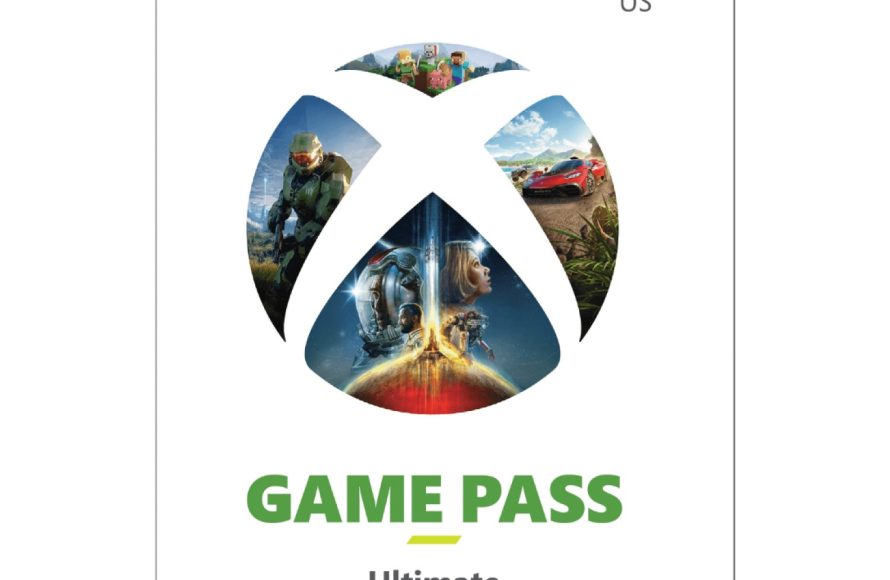
You can gift 1 month Xbox Game Pass by purchasing a digital code from the Microsoft Store or other retailers, then sharing that code with your recipient.
Want to share the joy of gaming with a friend but unsure how to gift 1 month Xbox Game Pass? It’s actually simpler than you might think. This guide will walk you through the easy process, making someone’s gaming experience even more fun.
Imagine the excitement when your friend receives a month of countless games. The process of gifting provides direct access to a huge library without any fuss. You can brighten someone’s day with a small, thoughtful gift.

How to Gift 1 Month Xbox Game Pass
Want to give the gift of endless gaming fun? Xbox Game Pass is like a treasure chest overflowing with awesome games, and a one-month subscription is a fantastic present for any gamer. It lets them try out new titles, revisit old favorites, and explore a whole world of interactive adventures. But how exactly do you gift a 1-month Xbox Game Pass? Don’t worry, it’s easier than you think! This guide will walk you through all the steps, explaining different ways to share the joy of gaming with your friends and family.
Understanding Xbox Game Pass
Before we dive into gifting, let’s quickly talk about what Xbox Game Pass actually is. Think of it like a Netflix, but for video games! With a subscription, you get access to a huge library of games that you can download and play on your Xbox console or your PC. The library is constantly updated with new games, so there’s always something fresh to try. There are two main types of Game Pass:
- Xbox Game Pass for Console: This allows access to a library of games that can be played on the Xbox consoles such as Xbox Series X and Xbox Series S and Xbox One.
- Xbox Game Pass Ultimate: This is the premium option, which includes all the benefits of Xbox Game Pass for Console as well as PC Game Pass, along with Xbox Live Gold (which you need to play most games online) and cloud gaming.
For gifting a 1-month subscription, you can focus on either of these two, depending on the recipient’s needs. The key thing is that a gift is tied to a code that needs to be redeemed on a microsoft account.
Different Ways to Gift Xbox Game Pass
There are a few main ways you can gift an Xbox Game Pass subscription. We will go through each of these so you can choose the best fit for you and the person receiving the gift.
Purchasing a Digital Code
This is often the easiest and most popular method. You buy a digital code for a 1-month Xbox Game Pass, and you can then send this code to the lucky recipient. Here’s how it works:
- Go to a trusted retailer: You can buy codes from places like the Microsoft Store, Amazon, Best Buy, or other major retailers that sell gaming products.
- Choose the correct option: Make sure you are buying a code for the correct subscription (Xbox Game Pass for Console or Xbox Game Pass Ultimate) and duration (in this case, 1-month).
- Complete the purchase: You’ll likely receive the code via email or see it on the order confirmation page after you pay.
- Send the code: Copy the code and share it with the person you want to give the Game Pass to. You can send it through email, text message, or any other way that’s convenient.
Tip: Always double-check that you’ve bought the correct code and that you’re buying from a trustworthy source to avoid any scams.
Gifting through the Microsoft Store
Microsoft provides a direct gifting option. Here are the steps you can follow for gifting directly from the Microsoft Store:
- Open the Microsoft Store: Either via a web browser or the application on your Windows PC, navigate to the Microsoft Store.
- Search for Xbox Game Pass: In the search bar type in Xbox Game Pass, and then press enter.
- Select your choice: Select the Xbox Game Pass for console or Ultimate subscription.
- Select ‘Buy as Gift’: Instead of ‘Buy’, you will see an option for ‘Buy as gift’. Choose that option.
- Enter email: Enter the email address of the person who you are gifting the subscription to.
- Complete Purchase: Complete the purchase and the gift will be sent to the person as a code in their email.
Physical Gift Cards
While less common for specific 1-month subscriptions, you might find physical Xbox Game Pass gift cards at stores. These work similarly to digital codes, but you get a physical card with a code printed on it. These are great for those who enjoy receiving something they can physically unwrap. Here’s how it works:
- Buy a gift card: Head to a store that sells Xbox products, like Target, Walmart or GameStop.
- Look for Game Pass options: Check for the Game Pass gift card that you want, making sure it is for the 1-month option or for a value which can be used to buy the 1-month subscription.
- Hand over the gift card: Once purchased, give the gift card to your friend or family member.
Using Third-Party Gift Services
Some third-party websites and apps also sell digital gift cards or codes for various subscriptions, including Xbox Game Pass. If you explore this option, make sure you always use a reputable site or seller.
Gift Through the Xbox Console
If you are on your Xbox console you can directly gift game pass to another player. Follow these steps:
- Turn on your Xbox Console: Power up your Xbox console and sign in with your Microsoft account.
- Go to Store: Head to the Xbox Store on your console.
- Find the Gift Option: Find the Xbox Game Pass subscription you want to gift, and then click on ‘Buy as gift’.
- Select the recipient: Select the person who you want to send it to from your friends list.
- Confirm and Complete Purchase: Confirm the purchase, and it will be delivered to the recipient in their Xbox messages.
Redeeming an Xbox Game Pass Gift Code
Once you’ve gifted an Xbox Game Pass, the person receiving it will need to redeem the code to start using their new subscription. Here’s a simple guide for them:
On an Xbox Console
- Turn on the Console: Start your Xbox console and make sure you are signed into the Microsoft account where you want to use the Game Pass.
- Navigate to the Store: Go to the Xbox Store.
- Find the Redeem Option: Look for the option that says something like “Redeem a code,” which you can usually find in the menu on the left.
- Enter the Code: Enter the 25-character code you have received.
- Confirm: Follow the prompts on the screen to redeem your Game Pass subscription.
- Enjoy! You should now see that your Game Pass subscription is active, and you can start downloading and playing all of the available games.
On a PC
- Open the Microsoft Store: Launch the Microsoft Store app or open it on your browser.
- Sign In: Make sure you are signed in to the Microsoft account where you want to use the Game Pass.
- Find the Redeem Option: Click on your profile icon and choose “Redeem a code”.
- Enter the Code: Enter the 25-character code you have received.
- Confirm: Follow the prompts on the screen to redeem your Game Pass subscription.
- Enjoy! You should now see that your Game Pass subscription is active, and you can start downloading and playing all of the available games.
Mobile Devices
While you can’t directly play console games on your mobile device, you can manage your subscription and redeem codes using the Xbox app. Here’s how:
- Download the Xbox App: Make sure you have the official Xbox app on your phone or tablet.
- Sign In: Sign into the Microsoft account where you want to use your Game Pass subscription.
- Navigate to the Menu: Go to the menu option and find ‘Redeem a code’ option.
- Enter the Code: Enter the 25-character code you have received.
- Confirm: Follow the prompts on the screen to redeem your Game Pass subscription.
- Enjoy! You are all set. You can now play PC and cloud games, and also manage your console games through the app.
Things to Consider Before Gifting
Before you purchase a 1-month Xbox Game Pass as a gift, here are a few points you might want to think about:
- Type of Game Pass: Decide whether to gift a regular Xbox Game Pass for consoles or a Game Pass Ultimate subscription. If the person plays on both PC and console or uses Xbox cloud gaming, Ultimate is the better option.
- Their Existing Subscription: Check if the person already has an active Game Pass subscription. If they do, gifting might add to their existing subscription time, or convert if the subscription types are different. It may be best to wait until the existing subscription expires to gift the new code.
- Where They Play: Consider where they will mostly play games, be it PC, console, or both. This will help you pick the right Game Pass subscription.
- Their Preferred Games: While Game Pass has a huge library of games, make sure the recipient actually likes some of the games that are offered. If they prefer very specific game genres, it might be better to gift a specific game, if you are unsure whether they will make use of the Game Pass service.
Troubleshooting Common Problems
Sometimes, things might not go as smoothly as we planned. Here are a few common issues that people might run into when gifting Xbox Game Pass, and how to fix them:
- Code Already Redeemed: If a code shows as already redeemed, you will need to double-check that the code was used on the correct account. Check with the person who you sent it to. Otherwise, contact customer support of the retailer from where you purchased the code from.
- Code is Invalid: Double-check that the code was entered exactly as it appears. Codes can contain numbers and letters, so it is easy to mistake them. If the code still does not work, contact customer support of the retailer from where you purchased the code from.
- Region Restrictions: Some codes might be region locked. Make sure the code was purchased for the region where the account is registered.
- Subscription Conflicts: If the person already has another subscription, it might cause a conflict when trying to redeem the gift code. You can find the steps required for solving this type of issues in the help section of the xbox website.
Making it More Special
Gifting an Xbox Game Pass is a great present in itself, but you can make it even better! Here are some ideas:
- Create a Custom Card: Write a personal note with the digital code, making it a little more special.
- Recommend Games: If you play Xbox games yourself, give them some recommendations for games to try when they receive the pass.
- Include Other Gaming Gifts: Combine the subscription with another gaming related present, such as new headphones, or controllers.
- Help Them Setup: If they are new to Game Pass, offer to help them navigate the interface and download their first games.
Gifting a 1-month Xbox Game Pass is a super way to share the fun of gaming. With a bit of preparation, you can ensure that the person receiving the gift enjoys all the games the pass has to offer. Whether you opt for a digital code, a physical gift card or using the gifting option, the excitement of a new world of games is only a few clicks away.
How to get 1 month Xbox game pass free (Bethefirst)
Final Thoughts
To gift 1 month Xbox Game Pass, purchase a digital code from retailers or the Microsoft Store. You then send this code to your recipient. The process is straightforward, offering access to a vast library of games.
Recipients redeem the code on their Xbox or PC. This simple method makes gifting convenient. You should know the recipient’s region matches the code for smooth activation.
The gift of game pass grants access to top titles. Therefore, knowing how to gift 1 month xbox game pass provides a quick way to give entertainment. It’s a fantastic present for any gamer.

