
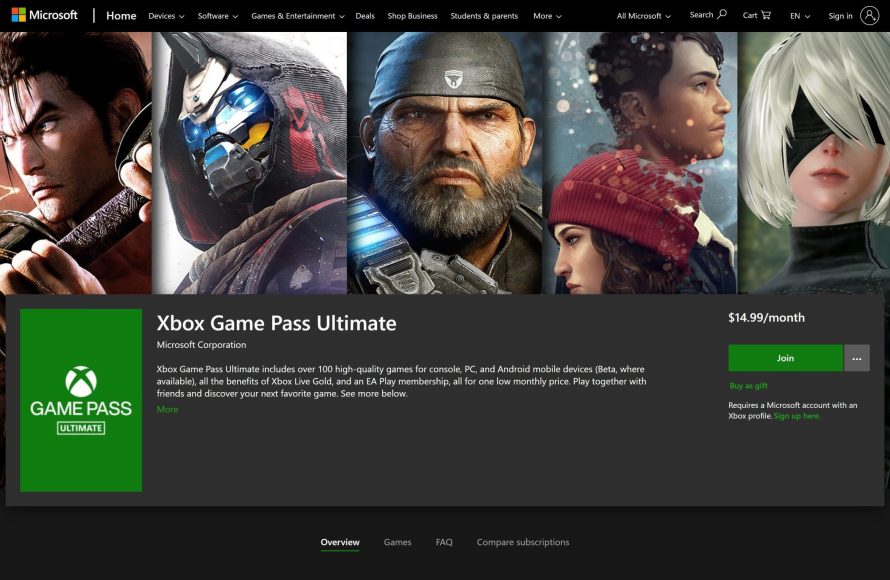
To gift Game Pass, purchase a digital code from the Microsoft Store or a participating retailer and send that code to your recipient.
Want to share the joy of endless games with a friend or family member? It’s easier than you might think! You can easily learn how to gift game pass and give the gift of entertainment.
Giving a subscription allows your friends to explore countless titles. This is a great way to connect over new gaming experiences. It’s quick and your loved ones can enjoy games instantly.

How to Gift Game Pass: A Complete Guide
Want to give the gift of endless gaming fun? Xbox Game Pass is a fantastic present for any video game lover, offering a huge library of games for both Xbox consoles and PCs. But how exactly do you gift it? It’s not as simple as handing someone a physical gift card, although that’s one way! This guide breaks down all the different ways you can share the joy of Game Pass, making sure your friend or family member can start playing their favorite games right away.
Understanding the Different Game Pass Options
Before you start gifting, it’s important to know that there are a few different types of Game Pass. Knowing the differences will help you choose the best option for your recipient.
Xbox Game Pass for Console
This is the most basic version of Game Pass. It lets you play a huge catalog of games on your Xbox console. If the person you are gifting only plays on their Xbox, this is the version you want.
PC Game Pass
This Game Pass option is for people who mostly play games on their computer. It gives them access to a big selection of games that can be downloaded and played on Windows PCs.
Xbox Game Pass Ultimate
Game Pass Ultimate is the top-tier option. It includes everything in both the Console and PC Game Pass options. Plus, it has some added benefits: Xbox Live Gold for online multiplayer and cloud gaming so you can play games on many different devices, even on your phones or tablets. This is the best pick if you want to provide the most complete gaming experience.
Methods for Gifting Game Pass
Okay, you have decided what type of Game Pass you want to give. Now, let’s look at the ways you can gift it to someone. Here are the methods you can use:
Digital Codes from the Microsoft Store
This is the most common method and often the easiest. You can buy a digital code for Game Pass from the Microsoft Store or other online retailers. The code is then sent to you, and you can forward it to the recipient for redemption. Here’s how it works:
- Go to the Xbox Game Pass website or the Microsoft Store.
- Choose the Game Pass version you want (Console, PC, or Ultimate).
- Select the ‘Buy as a Gift’ option (if available), which is usually located beneath the buy button. If there’s no gift option, you’ll need to buy the code for yourself first.
- Complete your purchase. You’ll receive a digital code via email.
- Share the code with your gift recipient. They can then redeem the code on their Xbox console, the Xbox app on PC, or their Microsoft account online.
Important Tip: Make sure you are purchasing the correct code for their region. Game codes might be region locked so make sure your gift will work for them.
How to Redeem a Digital Code:
After giving the code, tell the person how to redeem it. Here’s a quick guide for them:
- On Xbox: Go to the Store, find the ‘Redeem’ option, and type in the code.
- On PC: Open the Xbox app, click on their profile, find ‘Redeem,’ and type in the code.
- Online: Go to the Microsoft Account redemption page and enter the code.
Physical Gift Cards
If you want to give something physical, you can purchase a physical gift card for Xbox Game Pass. These cards are available at many retailers, such as electronics stores, supermarkets, and online marketplaces. The recipient scratches off the back of the card to reveal a code and then uses that code to redeem their Game Pass.
- Go to a store that sells video games or electronics, or an online retailer.
- Find the Xbox Game Pass gift card, make sure it is for the correct game pass version.
- Purchase the gift card.
- Give the card to the person you are gifting.
- They will need to scratch off the back and redeem the code from their Xbox or PC.
Keep in Mind: Physical gift cards sometimes run out of stock, especially during holidays, so if you want to give a physical gift card, it’s a good idea to buy it ahead of time.
Gifting directly Through the Microsoft Store (if available)
The Microsoft Store sometimes gives you the option to directly send a gift to someone’s Microsoft account. This method removes the step of sharing a code. Instead, the recipient will be notified that they received a Game Pass gift.
How to do it:
- Go to the Microsoft Store online or on your Xbox console.
- Search for the Game Pass you want to gift.
- Look for a ‘Buy as gift’ option, and then provide the email address of the person you want to gift.
- Complete the purchase and your gift will be sent to them.
Gifting a Game Pass Subscription through the Xbox Console
If you’re both using Xbox consoles, you can gift Game Pass subscriptions directly through the console itself. Here’s how:
- Sign in to your Xbox account on your console.
- Press the Xbox button on your controller to open the guide.
- Go to ‘Store,’ then ‘Gift.’
- Select ‘Xbox Game Pass,’ then choose the version you want to gift.
- You’ll need to select a recipient from your friends list or enter their Gamertag.
- Complete your purchase, and the gift will be sent to them.
Third-Party Retailers and Promotions
Sometimes third-party retailers, like Amazon or Best Buy, have promotions that include Xbox Game Pass subscriptions. These can be a nice way to gift Game Pass, especially when bundled with other items. Be sure to watch for these deals, especially around holidays or big game releases.
Note: Always check the retailer’s reputation and the terms of the offer to make sure you’re getting a legitimate code and not being scammed.
Things to Consider When Gifting Game Pass
Before you make your purchase, here are a few important things to think about.
Existing Subscriptions
If the person you are gifting already has an active Game Pass subscription, gifting them more of the same type won’t extend their current subscription. For example, if they have Xbox Game Pass Ultimate and you gift them another Ultimate subscription, it will not extend the period. However, they can choose to ‘stack’ the subscription. This means that the code you give them won’t be used right away, but it will be in their Microsoft account and used as soon as their present subscription expires. If they are unsure about how to do this, you can tell them to go to the subscription section in their account, and there will be an option to redeem it, where they will see the stacked codes.
Keep in mind, stacking limits exist, and they can vary based on the Game Pass version. It is a good idea to check these limits before you buy, to avoid problems with codes not redeeming.
The Recipient’s Gaming Platform
Make sure you choose the right Game Pass type for where the person you are gifting usually plays. Don’t buy them an Xbox Game Pass for console if they only play games on their PC and vice versa.
Geographic Location
As previously stated, Xbox Game Pass codes can be region-locked. This means a code purchased in one country may not be valid in another. Make sure to purchase the code in the same region where the recipient has their Microsoft account. This is crucial to ensure the code is redeemed without issues.
Your Budget
Xbox Game Pass comes with different pricing for different options, with Game Pass Ultimate being the most expensive. Consider how much you want to spend and pick a Game Pass option that fits your budget. You could also consider gifting a shorter time duration like one month or three months to test the waters.
The Recipient’s Preferences
Do they like playing a variety of different types of games, or are they more into specific genres? If they like to play many different kinds of games, Game Pass will be a very exciting gift. Also, ensure that their internet connection is reliable. Game Pass needs a steady connection to download and play games. Game Pass also has a cloud gaming feature, which gives the option to play some games on a mobile phone, tablets, and smart TVs. This can be an attractive option for some players.
Gift Messaging
Consider making a personalized card along with the code you gift. Adding a handwritten note or some small gift that connects to the games they play will make the experience of receiving the gift a lot more fun.
Tips for a Smooth Gifting Process
Here are some tips to ensure the gifting process goes as smoothly as possible:
- Double-Check the Code: Make sure you write the code correctly if you’re sharing it manually.
- Send Clear Instructions: Tell the person how to redeem the code, especially if they haven’t done it before.
- Inform Them About Stacking: If they already have Game Pass, explain that they might need to stack their subscription.
- Buy from Trusted Sources: Get your codes from official retailers to avoid being scammed.
- Check for Deals: Look for deals or promotions that could get you a better price on Game Pass.
Gifting Game Pass is a great way to share the joy of video games with your friends and family. By using these tips, you can choose the right option, give the gift in the easiest way, and ensure a good experience for the person receiving it.
With a little planning, you can give the gift of gaming fun and make someone very happy.
How To Share Game Pass On Your Xbox Series X/S (Best Method)
Final Thoughts
Gifting Game Pass is straightforward. You can buy a digital code from retailers or the Xbox website. Simply send the code to your recipient, and they can redeem it on their account. This makes it a great gift.
Alternatively, gift through the Microsoft Store. Select the Game Pass option, click “Buy as gift,” and input the email of the person. They’ll get a notification about how to gift game pass. This method ensures ease.

