
To gift Meta Quest games, you must purchase them directly from the Meta Quest store as a gift during checkout, and then the recipient will receive a redemption code.
Want to surprise a friend with a fantastic VR experience? Gifting a game on Meta Quest is actually quite simple. It’s a great way to share the joy of virtual reality with others. Let’s explore how to gift Meta Quest games.
It involves a few easy steps, all done within the Meta Quest ecosystem. It’s a convenient process that anyone can do, letting you share the VR excitement quickly.

How to Gift Meta Quest Games: A Simple Guide
Want to share the joy of virtual reality with your friends or family? Gifting Meta Quest games is a fantastic way to introduce someone to the wonders of VR or to simply give a loved one a game they’ve been wanting. It’s not quite as straightforward as buying a physical gift card, but it’s still pretty easy once you know the steps. Let’s walk through how you can gift those awesome VR experiences.
Understanding the Gifting Process
Before we dive into the specifics, it’s helpful to understand how gifting Meta Quest games actually works. Unlike physical games, you don’t buy a copy to hand over. Instead, you’re essentially purchasing a digital code or sending a notification that allows the recipient to download the game directly onto their Meta Quest headset. This means the recipient must have their own Meta account and a Meta Quest device (either a Quest, Quest 2, or Quest 3) to redeem the gift.
There are two primary ways to gift Meta Quest games:
- Through the Meta Quest Store (Web or App): This method involves browsing the store, selecting a game, and choosing the “gift” option at checkout. It’s the most common way to gift.
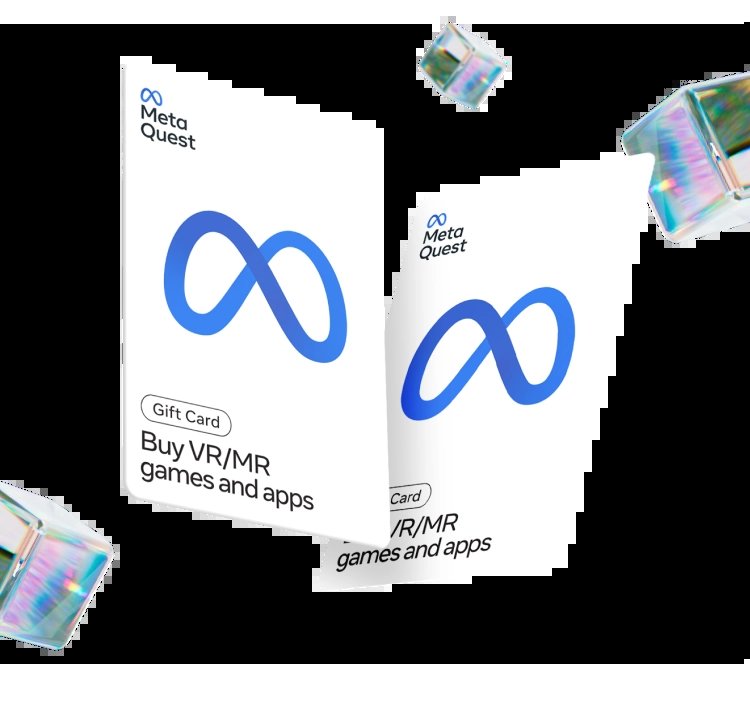
- Using a Gift Card: While not gifting a specific game directly, a Meta Quest gift card allows the recipient to choose whatever they like. It’s like a digital shopping spree for VR experiences!
Gifting a Game Directly Through the Meta Quest Store
This is the most common method, and it lets you give a particular game to someone you know will enjoy it. Here’s a step-by-step guide on how to do it:
Gifting via the Web Browser
If you prefer using your computer, here’s how to gift via the web.
- Go to the Meta Quest Store Website: Open your favorite web browser and go to the official Meta Quest Store website. Make sure you’re logged into your Meta account.
- Find the Game: Browse or search for the game you wish to gift. You can use the search bar or explore by category.
- Select the Game: Click on the game’s page to open it.
- Look for the “Buy for a Friend” Option: Usually, you will see a button that says “Buy for Myself,” right next to it you will see another button that says “Buy for a Friend” or “Gift.” Click on this “Buy for a Friend” or “Gift” button.
- Enter the Recipient’s Information: A new window will appear. Here, you’ll need to enter the email address associated with the recipient’s Meta account. Make very sure that the email address is correct to avoid complications. You will also be able to add a personalized message.
- Proceed to Checkout: Click “Next” and then proceed to checkout. You will be asked to enter your payment details and complete your order.
- Confirm and Send: Once the purchase is complete, Meta sends an email to the recipient. The email contains instructions on how to redeem the game to their Meta Quest account.
Gifting via the Meta Quest Mobile App
If you’re always on the go, you can gift games directly from your mobile app. Here’s the method:
- Open the Meta Quest App: Launch the Meta Quest app on your smartphone or tablet. Make sure you are logged into your Meta Account.
- Navigate to the Store: Tap the “Store” tab located at the bottom.
- Find the Game: Browse through the store or use the search bar to find the game you want to gift.
- Select the Game: Tap the game’s icon to open its page.
- Tap the “Gift” Icon: Look for a gift icon or the text saying “Gift” – usually placed next to the price. Tap on this option.
- Enter the Recipient’s Details: Enter the email address linked to your friend’s or family member’s Meta account. Add a personal message.
- Complete the Purchase: Tap “Next”, review your selection, and complete the transaction.
- Confirmation: Meta sends an email to the recipient with a redemption link.
Important Considerations When Gifting Directly
- Recipient’s Email Address: Double-check the recipient’s email address. A typo could send the gift to the wrong person.
- Recipient’s Meta Account: The recipient needs a Meta account to redeem the game. Make sure they have one before you purchase the gift.
- Game Compatibility: Ensure the game you’re gifting is compatible with the recipient’s Meta Quest device (Quest, Quest 2, or Quest 3). Some games may have different compatibility across the different models.
- Regional Restrictions: Some games might have regional restrictions. Verify the game is available in the recipient’s country.
Using Meta Quest Gift Cards
Sometimes, you might not know exactly which game to give, or you prefer to give the recipient a choice. In those cases, a Meta Quest gift card is the perfect solution. It’s like giving them a VR shopping spree!
Where to Buy Meta Quest Gift Cards
You can find Meta Quest Gift cards at various retailers, both online and in physical stores. Here are some common places to purchase them:
- Online Retailers: Look for gift cards on the Meta Quest Store website, Amazon, and Best Buy, amongst other online stores.
- Physical Stores: Many big-box stores such as Target, Walmart, and Best Buy carry Meta Quest gift cards, usually in their electronics or gaming sections.
Redeeming a Meta Quest Gift Card
Redeeming a Meta Quest gift card is usually a simple process. The specific steps can vary slightly, but here’s a general guide:
- Find the Code: Scratch off the protective layer on a physical gift card, or find the code in the email if you bought it online.
- Go to the Meta Quest Store: Visit the Meta Quest Store through your web browser, or open the Meta Quest App.
- Navigate to Redeem Option: In your account settings, or in the settings section, look for an option like “Redeem Gift Code” or similar.
- Enter the Code: Type or paste the gift card code into the provided space.
- Confirm: Click “Confirm” or “Redeem”. Your Meta account balance will be updated with the gift card’s value.
- Start Shopping: You can now browse and buy games or apps using your updated balance.
Benefits of Using Gift Cards
- Flexibility: Gift cards allow the recipient to choose whatever they want. This is perfect when you are not sure what they like or already own.
- Convenience: They are easy to purchase and send, and it’s easy for the recipient to redeem them.
- Suitable for Any Occasion: Gift cards are perfect for birthdays, holidays, or any time you want to give a little VR fun.
Tips for a Smooth Gifting Experience
Gifting Meta Quest games is pretty simple, but a few extra tips will help you make the process even smoother:
Double-Check Everything
Before completing any purchase, take a moment to review:
- Email Addresses: Triple-check the email address of the recipient to avoid sending the gift to the wrong person.
- Game Choice: Make sure the game is compatible with the recipient’s headset and that it’s something they’d enjoy.
- Payment Details: Ensure your payment information is correct.
Add a Personal Touch
When gifting a game, take the opportunity to add a personal message. This is a nice touch, and the recipient will know you really thought of them when selecting this gift.
Communicate With the Recipient
If you’re unsure of what to gift, you can subtly ask what kind of games the recipient likes or see if there’s anything on their wishlist. A little conversation goes a long way.
Be Aware of Sales and Promotions
Meta Quest Store often has sales. Try to time your gift around these sales and promotions to get more value for your money.
Check for Bundles
Sometimes the Meta Quest Store offers game bundles. If the recipient likes multiple games in a bundle, this might be a better deal than buying single games.
Keep an Eye on the Recipient’s Library
Avoid gifting a game the recipient already owns by checking with them subtly before you make a selection.
Troubleshooting Common Gifting Issues
While the gifting process is usually very easy, sometimes, you might run into a few issues. Here are some common problems and how to resolve them:
The Recipient Didn’t Receive the Email
First, have them check their spam folder. Sometimes, emails can get misplaced there. If it’s not in spam, double-check that you entered the correct email address. If everything seems fine, you may need to contact Meta support.
The Recipient Can’t Redeem the Game
Ensure they’re logged into the correct Meta account. Sometimes people have multiple accounts. Also, make sure that the gift is being redeemed in the same region where the recipient’s Meta account is registered. If the problem persists, Meta support can help.
Gift Code Is Invalid
If a gift card code is invalid, double-check that you’ve entered it correctly, paying close attention to the numbers and letters. If the problem continues, contact the retailer where you bought the gift card or contact Meta’s support team. There might be a slight possibility of the card not being activated by the retailer.
Game Compatibility Issues
If a game isn’t compatible with the recipient’s headset, or they do not have any headset, they won’t be able to redeem the gift. You’ll have to get help with Meta’s support team, or, If they don’t have a headset, you will have to get them the headset first.
Making the Most of Your Gift
Once you’ve successfully gifted a Meta Quest game, encourage the recipient to enjoy it! Some of the best moments in VR are sharing a game with friends, and your gift is a fantastic way to bring a loved one into the immersive world of virtual reality. Gifting is a great way to foster community and create shared experiences. Consider playing multiplayer games together, so that you can all enjoy the VR experience. This can also help them learn the game or get started quicker.
Remember that gifting VR games is more than just a transaction; it’s a way to share the joy, excitement, and sometimes even the wonder, of virtual reality. With these tips, you’re all set to give the gift of a great VR experience!
Gifting Meta Quest games is a simple and rewarding way to share the magic of VR with your friends and family. Whether you choose to gift a specific game or a gift card, the ability to bring joy and entertainment through VR is easily available to everyone. With a little planning and attention to detail, you can make their VR experience a happy one! This article aims to help you along the way, so that when you next think about gifting VR, you won’t have any questions in mind.
How to Gift Games on Meta Quest 2
Final Thoughts
Gifting Meta Quest games is simple. You can purchase a game as a gift during checkout. The recipient receives a redemption code through email they must use to claim the game on their account.
Remember, you cannot directly transfer existing games between accounts. The recipient must not own the game already. This process ensures a smooth and easy way to gift your favorite VR experiences.
Therefore, the main key takeaway is ‘how to gift meta quest games’; go through the checkout process and select ‘buy as gift’. Then simply give the gift code, they redeem. It’s easy!

