
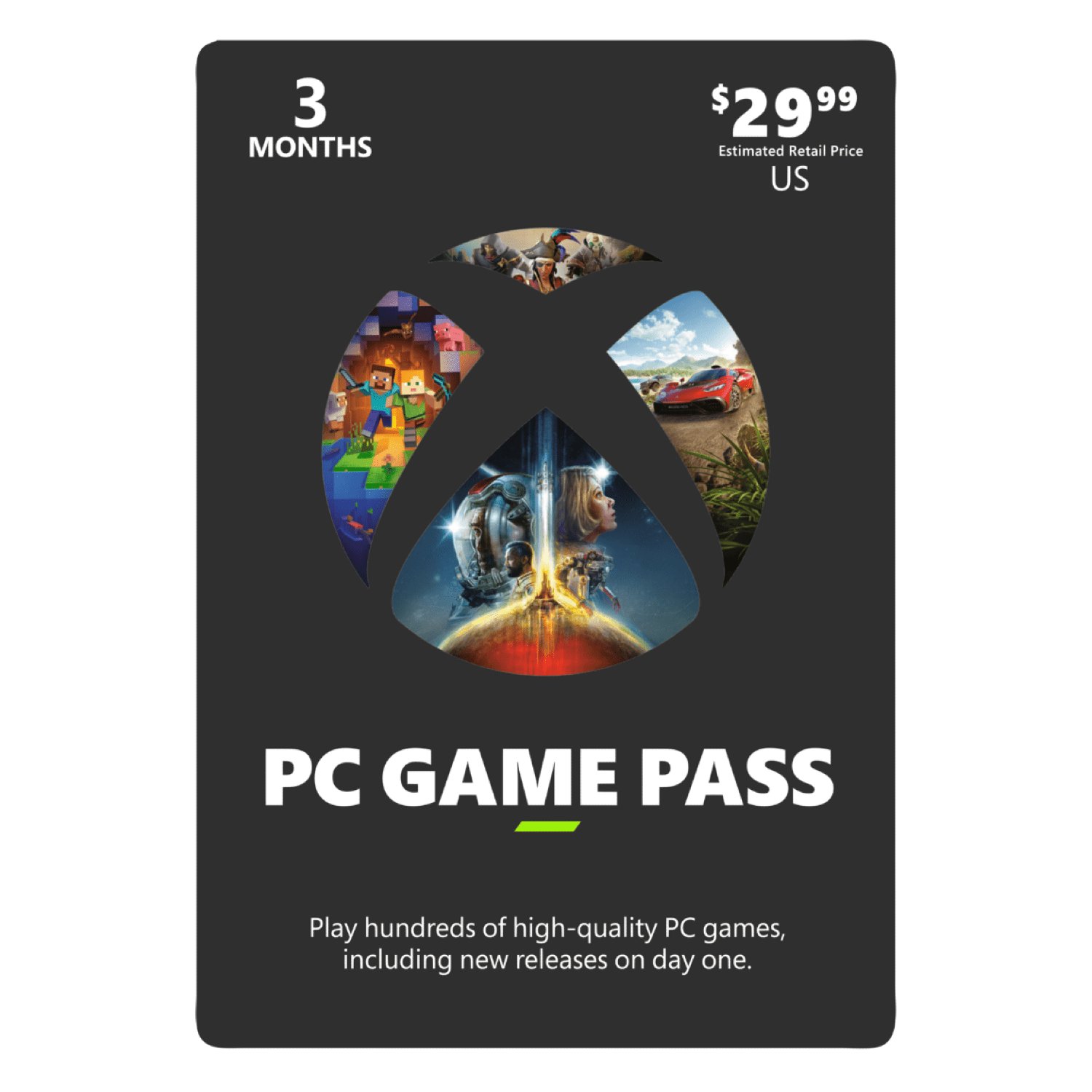
To gift PC Game Pass, purchase a digital code from the Microsoft Store or a participating retailer, then share that code with your recipient.
Want to share the joy of endless games with a friend? Thinking about how to gift pc game pass? It’s a fantastic way to introduce someone to a huge library of titles.
You can easily purchase a digital code as a gift. This gift code can then be sent to your gaming buddy. They will then redeem it on their account.

How to Gift PC Game Pass: A Complete Guide
Want to give the gift of gaming? PC Game Pass is a fantastic option, offering access to a huge library of games for PC. But how exactly do you gift it? It’s not always as straightforward as buying a physical present. This guide will walk you through everything you need to know about gifting PC Game Pass, ensuring your friend or family member can jump right into playing their favorite games.
Understanding PC Game Pass
Before we dive into the how-to, let’s quickly cover what PC Game Pass actually is. Think of it like a Netflix for video games. Instead of buying each game individually, subscribers get to play a whole bunch of games for a monthly or yearly fee. These games include new releases, popular titles, and indie gems. It’s a great way to try out many games without breaking the bank. There are usually two types of PC Game Pass: the regular one and PC Game Pass Ultimate (which includes console games and other perks). When gifting, knowing which type to give is important.
PC Game Pass vs. PC Game Pass Ultimate
It’s important to know the difference between PC Game Pass and PC Game Pass Ultimate. Both offer access to PC games, but Ultimate adds benefits:
- PC Game Pass: Gives access to a library of PC games only.
- PC Game Pass Ultimate: Includes everything from PC Game Pass, plus access to console games on Xbox, cloud gaming, and Xbox Live Gold (which lets people play online with others).
Choosing between the two depends on your recipient’s needs. Do they play on Xbox consoles? Then Ultimate is better. If they only use a PC, the regular PC Game Pass will be just right.
Methods for Gifting PC Game Pass
Now, let’s get to the actual gifting. There are a few different ways you can send the gift of PC Game Pass:
1. Gifting Through the Microsoft Store
The easiest and most direct way is through the Microsoft Store. You can purchase a digital code for PC Game Pass and send it to someone. Here’s how:
- Visit the Microsoft Store: Go to the official Microsoft Store website. You can do this on your computer or through the Microsoft Store app on your PC.
- Search for PC Game Pass: In the search bar, type “PC Game Pass” or “Xbox Game Pass for PC.”
- Choose the Correct Subscription: Select the type of PC Game Pass you want to gift (either regular or Ultimate). Make sure you select the correct one!
- Select “Buy as Gift”: On the product page, there should be an option that says “Buy as Gift.” Click on this. (Note, the button may say Gift Now on the page).
- Enter Recipient Information: You’ll be asked to provide the email address of the person you’re gifting the Game Pass to. Be very careful with this, as this is how they will receive the code.
- Add a Message (Optional): You can write a personal message to go with the gift.
- Complete the Purchase: Follow the prompts to finalize your purchase. You will likely use credit card or other payment method.
- The Recipient Receives the Code: Once you complete the purchase, the recipient will get an email with the digital code and your message.
2. Buying a Physical Gift Card
If you prefer a physical gift, you can also purchase PC Game Pass gift cards at various stores. Here’s how this process works:
- Purchase the Gift Card: Visit retailers like Best Buy, Target, or Walmart, or purchase a gift card online via places like Amazon. Look for the specific PC Game Pass or Xbox Game Pass gift cards.
- Present the Gift Card: Give the card to your friend or family member. This can be in person or sent by mail.
- Redeem the Code: The recipient will need to scratch off or reveal the code and then go to the Microsoft Store (or via Xbox app or Microsoft.com/redeem). They can then enter the code on their account to activate the subscription.
Important Tip: Make sure to buy the correct card for PC Game Pass, not the Xbox Game Pass card. Sometimes the cards can look similar.
3. Using Third-Party Retailers
Besides the Microsoft Store, you can also buy PC Game Pass digital codes from authorized third-party retailers like Amazon, Newegg, and others. Here’s how that generally works:
- Visit the Retailer’s Website: Go to the website of the third-party retailer.
- Search for PC Game Pass: Type “PC Game Pass” into their search bar.
- Select the Correct Subscription: Again, make sure you’re selecting the correct version (PC Game Pass or Ultimate) and duration.
- Purchase the Code: Complete the purchase by following the website’s prompts.
- Get the Code: You will usually receive a digital code via email or on the website’s “order history” page.
- Send the Code: You can then forward the code to the person you are gifting it to, or you can print it and physically give it to them.
- Redeem the Code: The recipient will then need to redeem the code in the Microsoft Store or through the Xbox app, just like a code from a physical gift card.
Important Note: Ensure that the retailer is authorized. Buying from unauthorized sellers may result in a code that doesn’t work.
Things to Keep in Mind When Gifting
Before you make your purchase, there are a few important things you should consider:
1. Region Compatibility
PC Game Pass codes are usually region-locked. This means a code bought in the United States might not work in Europe or Asia. Make sure the code is for the correct region of the recipient. You may see things like “US only” or “EU only” printed on the gift code’s product page. If you aren’t sure of the region of your recipient, it may be a good idea to purchase an electronic gift code directly from the Microsoft Store, because you will select the person’s Microsoft account and thus it will apply to their region directly.
2. Subscription Duration
PC Game Pass codes come in different durations, such as one month, three months, six months, or twelve months. Choose the length that best suits your budget and the recipient. Some retailers also offer subscription plans that will automatically renew, and the recipient may have to manage this if you buy that type of gift.
3. Check for Active Subscriptions
If the person you are giving to already has an active PC Game Pass subscription, adding another code can extend their current membership. However, the timing of the extension may vary, and they may want to save the code to add at the end of their current term. Check with the recipient to see if they have a current subscription.
4. Activation Instructions
Make sure to give the recipient clear activation instructions along with the code. Tell them to go to the Microsoft Store or the Xbox App (depending on the version of Windows they have) and select “Redeem a Code” and follow the on-screen prompts. This will make sure they don’t have trouble activating their gift. It is a good idea for you to check these steps out yourself and also be familiar with the process in case you have to offer help.
5. Budget Considerations
PC Game Pass pricing can vary. Set a budget for how much you want to spend. You may be able to find some deals if you look around on places like Amazon or Newegg, but watch for limited-time promotions. Consider a shorter subscription if budget is a concern. As a general rule of thumb, the longer subscription terms cost less per month.
Troubleshooting Common Issues
Sometimes, things don’t go smoothly. Here are a few common issues and how to fix them:
Code Not Working
If the code is not working, it can be frustrating. Here’s what to do:
- Double-Check the Code: Carefully check that the code was entered correctly, looking for mistakes in letter case or numbers.
- Check Region Compatibility: See if you have the right region as the previous section said, the region must match.
- Contact Support: Reach out to Microsoft Support or the retailer’s customer service for assistance.
Gift Sent to the Wrong Email
If you sent the gift to the wrong email address by mistake, you need to try to fix that as soon as possible. Here’s what to try to do:
- Contact Support: Contact the Microsoft store or the retailer’s customer support as soon as you can to explain the problem. They might be able to help.
- Ask the Other Person: If you know the person you mistakenly sent the gift to, ask them to forward it or if they do not mind redeeming the code and then giving you the equivalent amount of money (or just giving it back to you.)
Recipient Can’t Find the Email
If your recipient can’t find the gift email:
- Check Spam/Junk Folder: The email might have landed in their spam or junk folder, so have them check there.
- Confirm Email Address: Double-check the email you used is correct.
- Ask Sender to Resend: The sender can ask the retailer to resend the email if they can.
Making the Gift Extra Special
Gifting PC Game Pass is great, but you can make it even better. Here are some ideas:
1. Add a Personal Touch
Write a handwritten card or create a small video message to accompany the gift. A little extra effort goes a long way.
2. Suggest Games to Play
If you know the recipient’s taste in games, suggest a few titles they might enjoy from the PC Game Pass library. This can help them get started and make the experience better.
3. Offer to Play Together
If you also have PC Game Pass, offer to play games together. It’s a great way to bond and make the most of the gift.
4. Create a Gaming Night
Plan a special night or weekend to play through games together and enjoy the fun. This makes the gift an experience rather than just a subscription.
Gifting PC Game Pass is a great idea for anyone who enjoys PC games. With the variety of ways to purchase, any person can find a method that suits their situation. Remember to follow the steps for each gifting method correctly, keeping in mind considerations like the recipient’s region and what sort of PC Game Pass option they need. When you encounter any problems, you can seek assistance from customer support or Microsoft directly. Make sure to add a personal touch and you’ll have made a really great gift!
How to Game Share Game Pass on Microsoft Store Windows 10 and 11
Final Thoughts
To gift PC Game Pass, purchase a digital code from the Microsoft Store or participating retailers. You then share this code with the recipient, who can redeem it on their Microsoft account. This grants them access to the expansive game library.
Remember, ensure the code is valid for the recipient’s region. This straightforward method lets you share the joy of PC gaming with friends. gifting PC game pass is that easy.

