
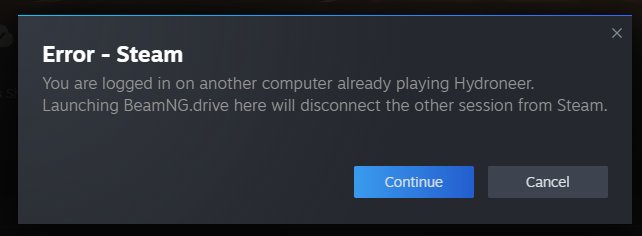
To have 2 Steam games open at once, use a sandbox program or run a second Steam instance in a virtual machine.
Ever found yourself wanting to play two different Steam games simultaneously? Maybe you want to manage a farm while raiding dungeons, or perhaps you’re simply curious if it’s even possible. The question of how to have 2 steam games open at once often pops up for gamers. It certainly is an intriguing thought to have more than one game running, isn’t it?
While Steam itself doesn’t officially allow multiple games running at the same time, there are a few neat workarounds that allow you to enjoy such a setup. This way you can quickly switch between the two games at will, provided your system can handle the resources required.

How to Have 2 Steam Games Open at Once
Ever wanted to play two of your favorite Steam games at the same time? Maybe you want to farm resources in one game while building in another, or just have a casual game going while you’re waiting in a queue for a competitive match. It seems like a magical wish, doesn’t it? Well, it is possible, though Steam doesn’t exactly make it easy. It’s not a built-in feature, so we need to get a little creative, but don’t worry, it’s nothing too complicated! This guide will show you all the ways to get two (or even more!) Steam games running together. Keep in mind, though, that running two games at once can put a strain on your computer, so it is good to make sure your computer is ready for this, before you do.
Understanding the Limitations
Before we jump into the “how,” let’s understand “why” this isn’t a standard Steam feature. Steam is designed to manage one game session at a time, primarily to prevent account sharing and to simplify resource management. When you launch a game through Steam, it typically locks the game to your account, preventing another launch. This is to protect the game and your data within the game. But, there are ways around it, using what is basically loopholes and workarounds!
Think of it like this: Steam is a gatekeeper, and your game is a specific person who can only go through the gate one at a time. We’re going to find ways to create more gates, allowing two of those game “people” to get through. It isn’t the most direct approach, but it does work. This usually involves techniques that bypass the way steam manages game launches.
Method 1: Using Sandboxie
Sandboxie is a tool that allows you to run applications in a separated environment, a “sandbox,” on your computer. Think of it as creating a separate little room for your games to live in. This means that the sandbox games don’t recognize each other, or even know that the main steam program is running the main game. This method is very good for running two instances of the same game or different games. Here’s how to use it:
Step 1: Download and Install Sandboxie Plus
Sandboxie Plus is a free and improved version of the original Sandboxie. Download it from their official website. The website is very easy to find using any search engine, and the installation process is easy as well. Once downloaded, run the installer and follow the on-screen instructions. It is a pretty straightforward process. Be sure to make a note of the install location as you may need to find this location later.
Step 2: Create a New Sandbox
After the installation, launch Sandboxie Plus. You will see a window. There, look for the “Sandbox” menu and select “Create New Sandbox”. Give your sandbox a name like “Steam Game 2” and hit ok. This name isn’t really important, so you can use any name you want. Remember that any game you open in this sandbox will run in its own separate world from the rest of your computer.
Step 3: Run Steam in the Sandbox
Now, you have to run Steam from inside the sandbox. To do this, right click on the sandbox you made (Steam Game 2) and choose “Run Sandboxed” then find “Run From Start Menu”. A window will open with all the programs that are on your computer. Simply find the steam program and select it. Steam will now launch within the sandbox environment. Log in to your Steam account.
Step 4: Launch Your Second Game
Now, with the sandboxed Steam running, you can open the second game you want to play. It might require you to sign in, if you haven’t done this in the sandboxed steam before, but once you do, the game will be ready to play. It will operate within its sandbox, separate from the original steam game.
Step 5: Play Both Games!
With one game running in your normal steam and another in the sandbox, you will be able to play them both at the same time! You can freely use both at the same time. This is very useful if you want to run an idle game while you play something else.
Important Considerations with Sandboxie
- Resource Usage: Running two instances of Steam and two games will certainly use up computer power (CPU, RAM). Be aware of your computer’s specifications. Ensure your PC can handle running multiple games concurrently to avoid lagging or crashes.
- Compatibility: Some games might not work well within a sandbox. If this happens, you might have to use a different method.
- Updates: Keep Sandboxie Plus updated to the latest version for the best results and to ensure any new fixes are implemented to improve compatibility.
Method 2: Using Steam Family Sharing
This method allows you to play a game on another steam account you have without having to buy the game twice. You can play a different game on each account. This method requires that you own the game and that you have another steam account. If you don’t have another steam account, it is free to make one. Here’s how to set up and use this method:
Step 1: Set Up Family Sharing
Log in to your main Steam account. In the top left corner, click on “Steam” then select “Settings”. Find the “Family” tab on the left and select it. Check the box that says, “Authorize Library Sharing on this computer”. Steam will display your family accounts and who is able to use your games. You will need to have the steam account you want to use already added to the friends list of your main steam account.
Step 2: Log into your Alt Account
Sign in to your secondary Steam account. You will need to be on the same PC that your main account used to authorize family sharing. This alt account now has access to all the games in your main account’s library. This account can be on the same pc at the same time. If you haven’t installed the game you want to play, then install it now.
Step 3: Launch Both Games
Now, sign into the main account on the main steam program, and launch a game there. Next, you will need to log into the alt account on a separate steam program. Here, launch the second game you want to play. You will now have the two games open at the same time. Be sure to remember which account each game is running on.
Important Considerations with Family Sharing
- Account Requirement: This method requires two Steam accounts. If you don’t have a second one, you’ll need to create one.
- Game Availability: Family sharing might not work for all games. Some games have developer restrictions that prevent sharing.
- Game Ownership: One of the accounts must own the games that both accounts are trying to play. You can’t use an alt account with a library that is empty.
- Interruptions: If the main account starts playing another game, the second account’s game will be interrupted and forced to close down. So, make sure the main account is only doing one game at a time.
Method 3: Using a Virtual Machine
A virtual machine (VM) is like having a computer inside your computer. It’s a software emulation of a separate machine. This is the most technical method, but it offers the most independence. This allows your games to act as though they were on a different computer and not part of the main one.
Step 1: Install Virtual Machine Software
Download and install a VM software, like Oracle VM VirtualBox (free) or VMware Workstation Player (free for personal use). Virtualbox is a very popular and effective program, and easy to find using any search engine. Install the program, and remember where you saved it as you may need it later.
Step 2: Create a New Virtual Machine
Run the virtual machine program you installed, and follow the instructions to create a new virtual machine. You will need to select which operating system you want to install, and give it a name. The vm program will guide you through the installation of the virtual machine. This may take a while as you will need to install all the necessary files.
Step 3: Install Steam in the VM
Once the VM is ready, launch it. It should look like a regular computer running within its window. Download and install Steam inside the VM just as you normally would on any computer. Log in to your steam account. Now you can launch the game you want inside the vm.
Step 4: Launch Your Second Game
On your main computer, launch the normal Steam program and log in. Then, you can launch the first game you want to play on your main computer. With one game running in your normal steam and another in the vm, you will be able to play them both at the same time! You can freely use both at the same time. This is very useful if you want to run an idle game while you play something else.
Important Considerations with Virtual Machines
- System Resources: Running a VM requires a significant amount of your PC’s resources (CPU, RAM, disk space). Your computer needs to be strong enough to run a virtual computer, and two games at once.
- Setup Complexity: Setting up a VM can be more complex than other methods. It is a more technical method, so be sure you have a good understanding of computers before using this one.
- Performance: Games might not run as well inside a VM, especially if your computer is not powerful. If a vm is taking too much power from the main computer, the game can become laggy.
- Operating System: You will need an OS install file for the VM. This can cost money and might require a good computer to install.
Method 4: Using Third-Party Tools (Caution Advised)
There are some third-party programs that claim to allow you to launch multiple instances of games. These can be useful, but be warned they often come with risks. Always do some research, and read reviews before you use a program you are unfamiliar with. Some less reputable programs can carry viruses, or break the game.
Potential Risks with Third-Party Tools
- Malware: Some tools might contain viruses or other harmful software. Always download from trusted sources and scan for viruses.
- Game Instability: Tools might not be fully compatible with all games, causing crashes or bugs.
- Account Security: Be very careful with tools that ask for your Steam login details. They could be trying to steal your account.
- Violation of Steam’s Terms: Some tools may break Steam’s terms of service, which could result in your account getting banned.
Because of the risk associated with these third party tools, they are not recommended. It is better to use the other more trusted methods to play two steam games at once.
Tips for Optimal Performance
No matter which method you choose, here are some tips to make sure you get the most out of your games without any issues:
- Close Unnecessary Programs: Close other programs on your computer when playing two games, to free up more computer power.
- Monitor Resource Usage: Keep an eye on your CPU, RAM, and GPU usage using the task manager. If any of these are at 100% then you may need to stop the second game or close other programs.
- Adjust Game Settings: Lower the graphics settings on both games to reduce the load on your computer.
- Ensure Adequate Cooling: Be sure your computer isn’t getting too hot. Make sure fans are working properly and that the computer can vent heat.
Playing two Steam games at once can be very useful for many different reasons. It allows for things like multitasking and farming while waiting in a lobby. Although Steam doesn’t have a built-in function for this, there are other methods for doing this. Using tools like Sandboxie, steam sharing, and virtual machines allows you to play two games at once. Just make sure you have a computer that is able to handle this and that you know the risks involved. With these methods, you will be able to double your game time and get the most out of your steam library!
How To… | Run Multiple Steam & Game Accounts At ONCE!
Final Thoughts
To have two Steam games running simultaneously, utilize Sandboxie or a virtual machine. These methods essentially create separate environments. This allows each game to function without interfering with the other.
You must remember that system resources impact performance. Running two games at once can strain your computer. Adjust settings as needed.
With these tools, knowing how to have 2 steam games open at once becomes practical. Consider your hardware limitations before proceeding.

