
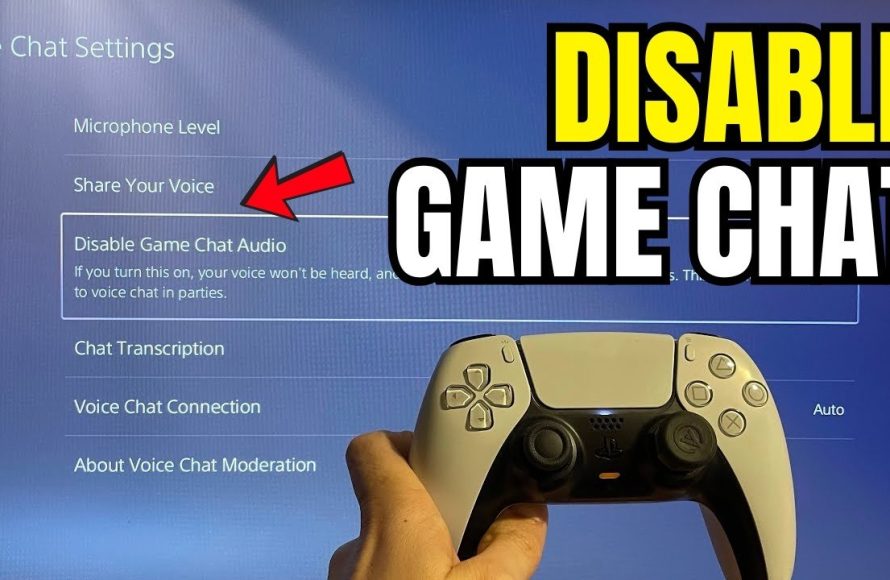
To hear game chat while in a party on your PS5, you need to prioritize game chat over party chat in your audio settings. You can also adjust individual chat volumes.
Have you ever been in a PlayStation party with friends and missed key in-game communications? It’s frustrating when you can’t hear your teammates in the game because of the party chat. Many players struggle with exactly that, figuring out how to hear game chat while in a party PS5 can often cause confusion.
This guide will show you simple steps to fix this. We’ll walk through the audio settings, making sure you don’t miss crucial calls. So, let’s jump into getting your audio just right!

How to Hear Game Chat While in a Party PS5
Alright, gamers! You’re in a PlayStation Party, chatting away with your friends, ready to take on the virtual world. But wait a minute, can you hear the other players in the game you’re playing? Sometimes it feels like you have to choose – talk to your party pals or hear what’s going on in the game. It doesn’t have to be this way! This can be frustrating, but we’re here to help you navigate these settings and make sure you can hear everyone, both in your party and the game, loud and clear. Let’s dive into how to fix this common problem on your PS5.
Understanding Audio Channels on Your PS5
First, let’s break down how the audio system works on your PS5. There are basically two main audio channels we need to think about: party chat and game chat. Party chat is when you use the built-in voice chat feature to talk with your PlayStation friends in a group. Game chat is the voice communication within the game you’re playing, where you’re talking to other players who might or might not be in your party.
The PS5 is very good at managing both these channels but sometimes, the settings might not be quite right. This can result in either you only hearing your party or you only hearing the in-game players. The good news is that the PS5 allows you to tweak these settings so you can hear everyone at the same time.
Why Might I Not Hear Game Chat?
Several reasons can cause you to not hear game chat when in a party. Here are some of the most frequent culprits:
- Party Chat Priority: Your PS5 may be set to prioritize party chat, reducing the volume or muting game chat completely.
- Game Chat Settings: The game itself might have specific voice chat settings that are not configured correctly.
- Hardware Issues: Problems with your headset, microphone, or controller can sometimes lead to audio problems.
- Software Glitches: Occasional software bugs can mess with audio settings, requiring a reset.
- Wrong Output Device: You might be using the wrong audio output device, that may not be compatible with dual audio channels.
Adjusting Your PS5 Audio Settings
The key to hearing everyone lies in adjusting your PS5’s audio settings. We’ll go step-by-step through what you need to do.
Accessing the Sound Settings
First, you need to navigate to the sound settings. Here’s how:
- Turn on your PS5 and go to the main menu (the one with all the games and apps).
- Use your controller to move over to the settings icon (it looks like a gear) and select it.
- Scroll down to “Sound” and select it.
Adjusting the Audio Output
The first thing to look at is the audio output. You want to make sure that the correct device is selected to output all the audio channels. Here’s what to do:
- In the sound settings menu, find “Audio Output.”
- Select “Output Device.”
- Choose the correct audio device, usually your headset if you’re using one, or your TV speakers. If using a headset, make sure it is detected and not the generic “Controller” option.
Checking Microphone Status
Make sure your microphone is set up correctly as well. This isn’t just about speaking, it also impacts whether you hear others:
- In the sound settings, find “Microphone.”
- Select “Input Device.”
- Choose your microphone, likely the one built into your headset or controller.
- Check “Adjust Microphone Level” to make sure your mic is working correctly.
The Crucial “Voice Chat Audio” Settings
This is where you’ll find the settings that directly affect how you hear game and party chat:
- In the Sound settings, find “Voice Chat Audio”
- In here, find “Output to Headphones” and ensure it’s set to “All Audio”. This makes sure both party and game audio come through your headphones.
- If it’s set to “Chat Audio” you only will be hearing the party chat audio and not the game audio.
- Also, look for “Balance” in this menu. You can adjust the balance between Game and Party audio using the slider. If Game audio is all the way to one side, you will not be able to hear the game audio while chatting with the party and vice versa.
Game-Specific Voice Chat Settings
Sometimes, the issue isn’t with the PS5 settings at all, but rather the voice chat settings within the specific game you are playing. Here’s how to check:
Finding the Game’s Audio Options
Each game can have a different method of accessing its audio settings, but usually, you will find the option in the main menu or in the pause menu while you are playing.
- Start the game and look for a settings menu or options menu.
- Within the menu look for an audio section.
- Within the audio section, there should be options for volume levels for various sounds in the game and then voice chat settings
Adjusting In-Game Chat Options
Look for anything related to voice chat, team chat, or communication settings. These may be named differently in each game.
- Make sure the voice chat is enabled. Sometimes it is disabled by default or you may have accidentally turned it off.
- You may be able to change the volume of other players or adjust your own voice level in the game. Be sure these settings are at appropriate levels.
- See if there is an option to choose “voice output devices” this should match with the settings you adjusted in the PS5 settings
- Check for any “mute” or “squelch” settings that may be blocking other players voices.
Hardware Troubleshooting
Sometimes, the problem isn’t software; it’s your equipment. Here are a few things you can check.
Headset and Controller Issues
Your headset or controller could be the source of the issue. Double-check these things:
- Make sure your headset is properly plugged in and connected if wired, or connected via Bluetooth if wireless.
- Try turning the headset off and back on or switching it to another device to test if it’s working properly.
- If you’re using the controller audio output, make sure the controller is fully charged. Sometimes a low battery can mess with the audio.
- Try using a different controller and see if that fixes the problem.
- If you are using a USB headset, ensure the USB ports on the PS5 are working properly, and try to use a different port.
Checking Connections
Loose connections can cause all sorts of problems:
- Make sure all cables are properly connected if you are using a wired headset.
- Check if any of your cables are damaged.
- Try a different headset, if available, to eliminate the possibility of a faulty headset.
Restarting Your PS5 and Resetting Settings
When things get glitchy, a simple restart can do the trick. If that doesn’t work, you might need to reset your audio settings.
Restarting the Console
Sometimes, the simplest solution is the best. Try restarting your PS5:
- Hold down the PlayStation button on your controller to bring up the quick menu.
- Choose “Power”.
- Select “Restart PS5.”
- Wait for your PS5 to turn back on and see if the problem is fixed.
Resetting Audio Settings
If restarting didn’t work, try resetting your audio settings:
- Go to settings again.
- Go to “Sound” then “Voice Chat Audio”.
- Set the “Output to Headphones” back to default.
- Make sure to readjust to “All Audio”.
- Go to the “Audio Output” menu again and change the output devices to your desired settings.
Additional Tips for Hearing Game Chat and Party Chat
Here are a few extra tips that might help you hear both game and party chat:
- Update Your System Software: Make sure your PS5 is up to date with the latest system software. Updates often include fixes for audio glitches and bugs. You can do this in the settings menu.
- Check Game Updates: Games also have updates that sometimes fix audio problems. Make sure your game is also updated to the latest version.
- Test Different Games: Try playing a different game to see if the problem persists. This can help determine if the issue is specific to one game or is a problem with your PS5 settings.
- Try Different Headsets: If you are having problems, try using different headsets and see if this can fix your problem.
- Use the PlayStation App: Sometimes, it is easier to manage party chat using the PlayStation app on your phone. This might be more stable if you are having audio problems.
- Adjust the Audio Balance: Try adjusting the in-game audio and the chat volume to see if it helps. There is often a setting that will allow you to prioritize one over the other.
- Test with a Different Account: Try using another account to see if the settings have been adjusted differently there. This may help find out the root cause of the problem.
By carefully checking your PS5’s audio settings, the game’s audio settings, and your hardware, you should be able to get back to enjoying both your party chat and the in-game communication. Remember to go through each section carefully and try each suggested tip to ensure you are getting the full audio experience you want. It might seem a little bit complicated but once you get the hang of it, you will be able to quickly adjust your settings without any problems. Happy gaming!
How to get ALL AUDIO Through Headset on PS5 (Game Chat & Party Chat)
Final Thoughts
To hear game chat while in a party PS5, you must first adjust your party settings. Go to the “Party” menu, then change your voice chat setting to “Game Chat.” This action allows you to hear both party and game audio.
Ensure your in-game voice chat settings are configured correctly as well. Often, a setting will disable your ability to hear non-party members and therefore you must check it.
Finally, remember that some games might have unique voice chat systems. Checking each game’s specific audio options is a must for optimal communication and to hear game chat while in a party ps5.

