
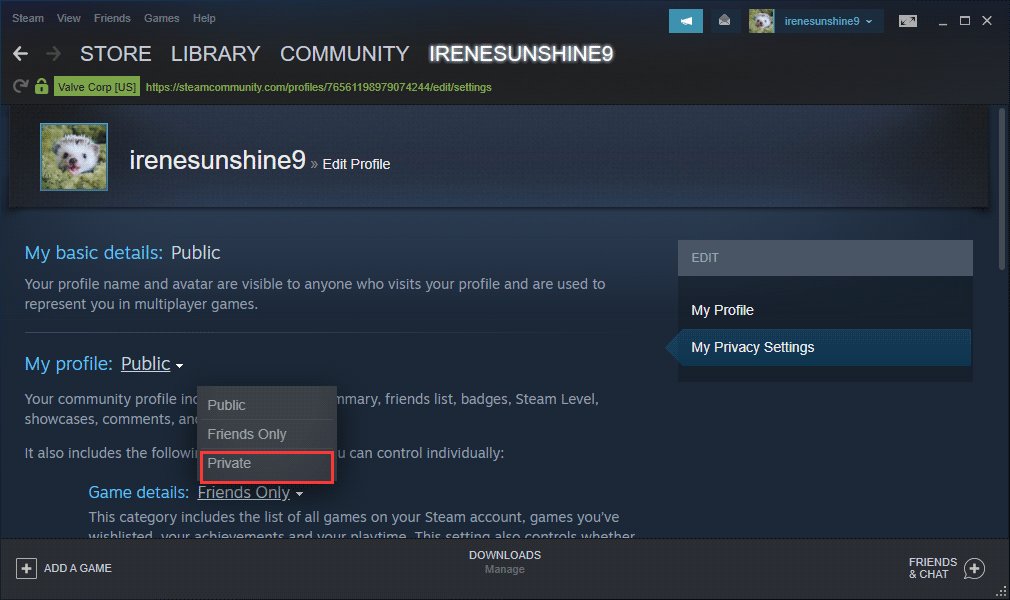
To hide a game from friends on Steam, you must set its visibility to private in your game library.
Ever wanted to enjoy a game without your friends knowing? Maybe it’s a guilty pleasure or a title you’re exploring privately. Understanding how to hide a game from friends on Steam is simpler than you might think.
This article will guide you through the quick steps. You can keep your gaming choices personal. Let’s dive into how you can manage your Steam library’s visibility.

How to Hide a Game From Friends on Steam
Okay, let’s talk about something we’ve all probably felt at some point: wanting a little privacy in our gaming life! Sometimes, you just want to play a game without your friends knowing, maybe because it’s a bit embarrassing, or you need some solo time. Steam, being the awesome platform it is, gives you a few ways to do this. Let’s explore these methods, so you can game in peace, whenever you want. We’ll go through each method step-by-step, making it easy to understand for everyone.
The Invisible Mode: Going Offline
The first, and perhaps the easiest, way to hide your game activity is by going completely offline on Steam. Think of it as putting on an invisibility cloak, but for your digital gaming. When you’re offline, your friends won’t see what game you’re playing, or even that you are online. It’s like you’ve completely disappeared from the Steam world. Here’s how to do it:
How to Go Offline on Steam
Going offline is straightforward. It works the same way on both the Steam desktop app and the website.
- Open the Steam client on your computer.
- Look at the top-left corner of the Steam window. You’ll see the word “Steam” next to the Steam logo.
- Click on “Steam”. A menu will pop up.
- In the menu, click on “Go Offline…”.
- A message will appear, asking if you really want to go offline. Click on “RESTART IN OFFLINE MODE”.
That’s it! Now you’re offline. Your friends won’t see you playing anything. It’s important to know that when you’re offline, you won’t have access to multiplayer games or any Steam features that need internet connection. This method makes you completely invisible to your friend list while playing your favorite games.
Coming Back Online
When you’re ready to be seen again, just follow these simple steps:
- Click on “Steam” at the top-left of your Steam window again.
- This time, click on “Go Online…”.
- Steam will connect back to the internet, and you will be visible again.
Appear Offline, Game Online: The “Invisible” Status
Sometimes, you want to play online games with your friends, but without them knowing what you are currently playing. That’s where the “Invisible” status comes into play. This option allows you to enjoy multiplayer sessions while hiding your current game activity from your friend list. It’s a great way to keep your gaming habits to yourself, while still enjoying online gameplay.
How to Set Your Status to Invisible
Changing your online status to “Invisible” is pretty easy and works the same across desktop and website:
- Open the Steam client or the Steam website.
- Look at the bottom right of the Steam client, or the top-right corner of the steam website. you’ll see your username and next to it, your current status like “online”.
- Click on the small arrow or click on your username to open the status menu.
- From the menu, select “Invisible”.
Now, you’ll appear offline to your friends, even though you’re still online and able to play with them. They won’t know which game you’re playing or if you’re even in a game at all. You’re playing, but your activity is completely hidden from your friends.
Game Library Privacy: Setting Games to Private
Steam allows you to control the visibility of your game library. This means you can set specific games to be hidden from others. This is an excellent method for keeping games you’re embarrassed about, or simply don’t want others knowing about, under wraps. This setting will affect what others can see, even when you are online and visible.
How to Set a Game to Private
Setting a game to private is done directly from your Steam library. Here’s how:
- Open the Steam client.
- Go to your Library. This is where all of your games are listed.
- Find the game you want to hide from your friends.
- Right-click on the game’s title.
- In the menu that appears, click on “Manage,” then select “Mark as private”.
The game will now be private. Your friends won’t see it listed in your library or in your recently played games. It is like you don’t even own that game in your steam account when others are looking at your profile.
What Happens When a Game is Private?
- Game List: The game won’t appear in your Steam profile’s game list.
- Recently Played: Your friends won’t see the game listed as recently played.
- Achievements: Your friends won’t see your achievements for that game on their feed, this means no notifications when you get new achievement.
- Playtime: Friends will not see how long you have played a private game.
Making a Private Game Visible Again
When you’re ready to share your love for that game again, or you no longer want to keep it hidden. Here’s how you can make it visible again to your friends:
- Go to your Steam Library again.
- Find the game that you previously marked as private.
- Right-click on the game’s title.
- In the menu, click on “Manage,” then select “Remove from Private”.
Customizing Your Steam Profile: Privacy Settings
Steam has some awesome privacy settings that you can use to control who sees what on your profile. These settings are very powerful and let you fine-tune how much information your friends or anyone can view. It’s not just about hiding games; it’s about managing your overall privacy on the platform.
Accessing Your Steam Privacy Settings
You can customize your privacy settings through Steam client. Here’s how:
- Open the Steam client.
- Click on “Steam” in the top left corner of your screen.
- Then, click on “Settings”.
- A new window will open. Click on “Privacy Settings” in the menu on the left.
Here, you’ll see all sorts of privacy options. You can change things like who can see your game details, your friend list, and your profile.
Key Privacy Settings and How to Use Them
- Profile Status: You can set your profile to “Public,” “Friends Only,” or “Private.” “Friends Only” will hide your profile from those who are not on your friend list. “Private” will hide your profile from anyone who is not you.
- Game Details: This setting controls who can see your game list, playtime, achievements, and wish list. Again, you can select “Public,” “Friends Only,” or “Private.” Setting this to “Private” will hide all game information except if the game is individually set to public.
- Friends List: This allows you to decide who sees your friend list. You can hide it from everyone, show it only to friends, or keep it public.
Remember, any of these options you select, can always be changed back if you change your mind.
Why Hide a Game? Common Scenarios
There are many valid reasons why someone might want to hide their game activity. Here are a few common scenarios:
- Embarrassing Games: Maybe you like a game that your friends might tease you about. It’s all good; gaming should be fun, no matter what others think!
- Surprise Gaming: Perhaps you’re enjoying a new game secretly before revealing it to your friends.
- Solo Time: Sometimes, you want to immerse yourself in a game without any interruptions or invitations.
- Avoiding Spoilers: Maybe you’re playing a story-driven game, and you want to avoid spoilers from friends.
- Secret Practice: Maybe you’re getting ready for a competition or just trying to improve in private before showing off.
The Benefits of Privacy
Having privacy in the gaming world can be beneficial in different ways:
- Freedom to Choose: You get to decide what games you want to share and with whom.
- Less Distraction: Without friends seeing your activity, you can focus on playing the games.
- More Personal Space: Having privacy gives you the freedom to explore your gaming interests without external pressures.
- Enjoyment Without Judgment: You are free to enjoy any game without fear of being teased or judged by your friends.
Being able to control your privacy on Steam lets you enjoy your gaming time how you want it. You can choose to play solo in private, or play multiplayer with friends while staying invisible, or share your favorite games. Steam gives you all the necessary tools to do so.
By using the methods above, you can keep your game activity private whenever you need. This helps ensure that your gaming time is fun, relaxing, and exactly how you want it. Whether you’re going offline completely, or just hiding specific games, Steam gives you lots of ways to manage your digital privacy.
How to Hide Embarrassing Steam Games from Friends (Full 2024 Guide)
Final Thoughts
You can easily hide specific games from your Steam friends using the private setting. This setting makes your game activity invisible. Your friends won’t see what you are playing when you use it.
To achieve this, navigate to the game’s settings, often found under “Manage.” Then, set the game’s visibility to private. This setting ensures privacy for your gaming.
Remember, knowing how to hide a game from friends on steam offers control over your profile. It is a helpful feature to manage visibility and your privacy preferences.

