
To hide a game on Steam from friends, set its visibility to “private” in the game’s properties, accessible through right-clicking on the game in your library.
Ever feel like keeping your gaming choices a bit more to yourself? Sometimes you just want to enjoy a title without your friends knowing what you’re playing. It’s totally understandable. This can be helpful when you are trying to surprise someone or just don’t want any opinions on your latest guilty pleasure game.
We’re diving into exactly how to hide a game on steam from friends, giving you more control over your gaming privacy. Steam provides simple options to manage who sees what you’re playing, and we are about to show how to use it. Let’s get started!

How to Hide a Game on Steam From Friends
Sometimes, you want to play a game in peace without your friends seeing what you’re up to. Maybe you’re trying out a new game you’re not sure about, or perhaps you just want some quiet solo gaming time. Whatever the reason, Steam gives you a few ways to hide your gaming activity from your friend list. Let’s dive into all the ways you can become a stealthy gamer!
The Invisible Mode: Appearing Offline on Steam
The easiest and most straightforward method to hide your activity is to appear offline. When you’re offline, your friends won’t see that you’re playing any games, or even that you’re logged into Steam at all. Think of it like putting on an invisibility cloak—perfect for those moments when you want some uninterrupted gameplay.
How to Appear Offline: Step-by-Step
Here’s a simple guide to make yourself invisible:
- Open the Steam client on your computer.
- Look at the top menu and click on “Steam”. It’s on the far left corner.
- A drop-down menu will appear, find “Go Offline…” and click it.
- Steam will ask if you’re sure. Click “Restart in Offline Mode”.
- Once Steam restarts, your online status will now display “Offline”. Your friends won’t see you online or what game you’re playing.
To go back to being online, simply click “Steam” and select “Go Online…”. Remember, while you’re offline, you might not get updates for your games, and some games might need to be online to play. But it’s a quick and effective way to get some privacy.
Controlling Game Visibility on Your Profile
Appearing offline is great for overall privacy, but what if you want to be online, but still want to hide specific games? Steam lets you control what your friends can see on your profile. This means you can choose which games show up, and which remain hidden, while still appearing online and chatting with friends.
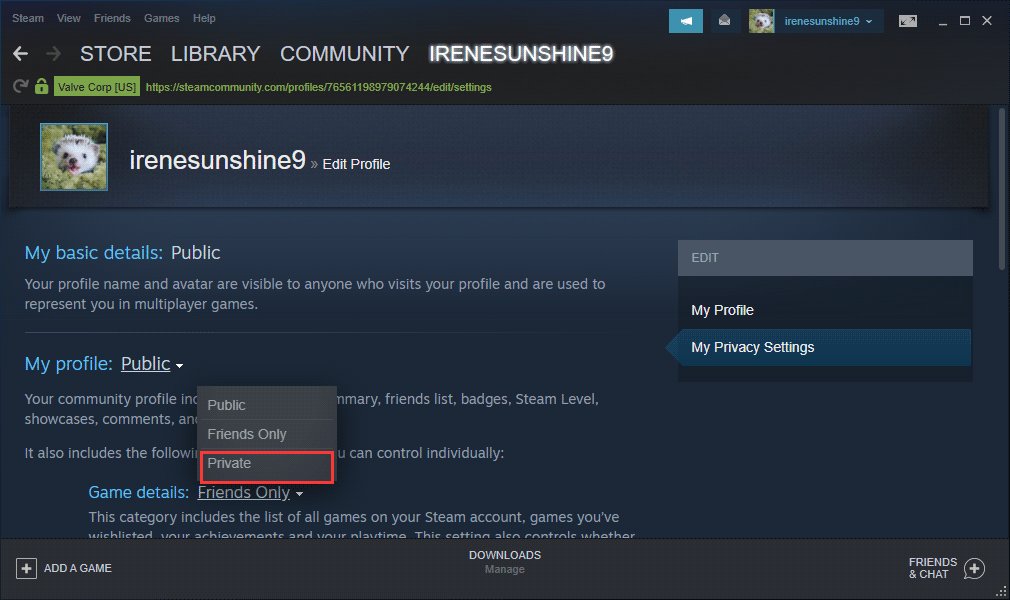
Setting Game Details to Private
Here’s how to hide a specific game from your profile:
- Launch Steam and click on your username.
- A menu will appear, click on “Profile”.
- On your profile page, click the “Edit Profile” button on the right-hand side.
- Next, go to the “Privacy Settings” tab.
- Look for “Game Details” and change it to “Private.”
- When “Game Details” is set to “Private,” your friends can’t see the list of games you own, the games you’ve played, the time you’ve played them, or your achievements.
If you want to selectively hide just certain games while still showing others, you can’t do that directly using this setting. This setting makes your entire game library hidden. If you want a bit more granularity over what is visible, the other options in this guide will help.
Hiding Game Activity: The “Currently Playing” Feature
Even if your game details are private, Steam often shows when you’re playing a game at that moment. This can be an issue if you’re trying to be discreet. Luckily, there is a way to hide this status as well.
Making Your Activity Invisible
To prevent friends from seeing what you’re playing right now:
- Open your Steam client.
- Click “Steam” at the top left corner of the window.
- From the drop-down menu, select “Settings”.
- A window will open, choose “Friends” from the options.
- Look for the check box labelled “Automatically show online friends when you start playing a game”.
- Uncheck this box.
By unchecking this box, your friends won’t see a notification when you start playing a game. This offers another layer of privacy, especially if you are online, but want to play a particular game quietly.
Using Steam’s “Invisible” Status
There’s another option that lies between appearing fully offline and fully online: the “Invisible” status. When you set your status to invisible, you appear offline to your friends but remain fully functional within Steam. This means that you can still participate in chats, receive notifications, and use community features, all while keeping your playing status concealed.
How to Use Invisible Status
To set your status to invisible, follow these simple steps:
- Open your Steam client.
- Look at the bottom right side of the Steam client.
- Click on the small arrow next to your username, by default it shows “Friends Online”.
- A menu will appear, showing online, offline, and busy options. Select “Invisible”
When you’re invisible, your friends will see you as offline, so they won’t know that you’re actively online or playing a game. However, remember that certain games can still show your status to other players within the game’s server. It mostly depends on the game itself and its settings. It is important to check each game’s in-game settings regarding visibility.
Limitations of Hiding Game Activity
While these methods offer strong ways to control your visibility on Steam, it’s good to know their limits. For example, some multiplayer games might have their own visibility systems that override your Steam settings. Also, if you’re in a voice chat or in a game with a friend, your in-game status might become visible to them.
Game-Specific Visibility
Some games will display your in-game status regardless of your Steam settings. For example, if you join a multiplayer server in a game and another player on that server is your friend, they may be able to see that you’re playing that specific game, even if your Steam profile shows that you are offline or invisible. These instances are dependent on the specific game’s architecture.
Direct Interactions
If you are actively playing a multiplayer game with a friend, your status might still be visible to them in-game or through chat features integrated with the game. While you can hide overall activity from your friend list, direct interaction in a game might sometimes reveal your presence. For example, if your friend sees you in a game lobby, you can’t really hide from them.
Why Hide Your Steam Game Activity?
There are many reasons why you may want to hide your game activity from your friends. Here are some of the most common:
- Trying New Games: Sometimes you want to try a new game without your friends knowing. Maybe you want to get a feel for a game before they see you playing it and ask about it. This gives you some breathing room to make your own opinions before getting into group play.
- Avoiding Spoilers: If you’re playing a story-heavy game, you might not want your friends to see what parts you’re playing. You may want to avoid accidental spoilers that can ruin the experience.
- Peace and Quiet: Sometimes you simply want to enjoy some gaming in peace. Hiding your activity lets you focus without feeling the pressure of interacting with friends or getting invites to play multiplayer games.
- Playing Secretly: Maybe you’re planning a big game reveal and want to surprise your friends. Keeping it quiet until you’re ready can make that reveal more fun.
- Avoiding Embarrassment: Maybe you enjoy playing a game that you don’t necessarily want your friends to know about. There’s nothing wrong with liking things privately, and you have the right to keep it a secret.
- Solo Gaming Focus: When you want to concentrate on a game, knowing your friends don’t see you online can help minimize distractions.
These are just some of the reasons. At the end of the day, whatever your reason is, Steam gives you some control over your privacy.
Troubleshooting Common Issues
Sometimes, even with these settings, you might feel like your friends still see your activity. Here are a couple of common issues and ways to solve them:
Checking Privacy Settings Again
It’s always a good idea to double-check your privacy settings. Sometimes you might have accidentally switched them back, or Steam may have changed settings with an update. To make sure your settings are correct:
- Go to your Steam profile
- Click “Edit Profile”.
- Choose “Privacy Settings.”
- Verify that “Game Details” is set to “Private” or whatever level you want.
Double-checking can often fix those situations where you thought you’d made the change but didn’t.
Game-Specific Settings
Remember that in-game settings can also affect visibility. Take the time to explore the game’s settings. Some games have options to show your profile or gameplay status to others. Check for anything that might show your activity despite your Steam settings. Look under game settings, and privacy in particular.
Steam Client Bugs
Sometimes, there are glitches with the Steam client itself. If you’ve done everything, and you still think your status isn’t being hidden correctly, try restarting Steam. The restart can often refresh these settings and make sure that your privacy preferences are correctly applied. If the issue continues, make sure that you have the latest version of the Steam client installed.
Staying Safe While Gaming
Hiding your game status is a useful feature to manage your privacy, it’s also a good reminder about safety when gaming. When you are playing online, it’s essential to stay aware of who you are interacting with. Here are a few points to consider:
- Don’t share personal information with strangers in online chats.
- Be wary of any links or files sent to you by people you don’t know.
- If you’re being harassed, don’t be afraid to block and report people to Steam.
- Keep your account information private, and don’t share your password with anyone.
Staying safe while gaming is not just about privacy, it’s about protecting yourself. If you ever feel unsafe, take appropriate action.
In conclusion, hiding a game on Steam from friends is a simple yet valuable skill to learn. Whether you want to try a new game without pressure, avoid spoilers, or just enjoy some quiet solo gaming time, Steam offers multiple options to control your visibility. By understanding how to use “Appear Offline” mode, manage your profile privacy, and utilize the “Invisible” status, you can tailor your gaming experience to your preferences. Remember to check your settings, respect game-specific nuances, and stay safe while you game.
How to Hide Embarrassing Steam Games from Friends (Full 2024 Guide)
Final Thoughts
In conclusion, you can easily hide a game on Steam from friends using the privacy settings. Navigate to your game library, right-click the game, and select “Manage.”
Then, choose the “Privacy” tab. From there, you can set the visibility to “Private.” This simple method lets you control what your friends see. Now you know how to hide a game on steam from friends.

