
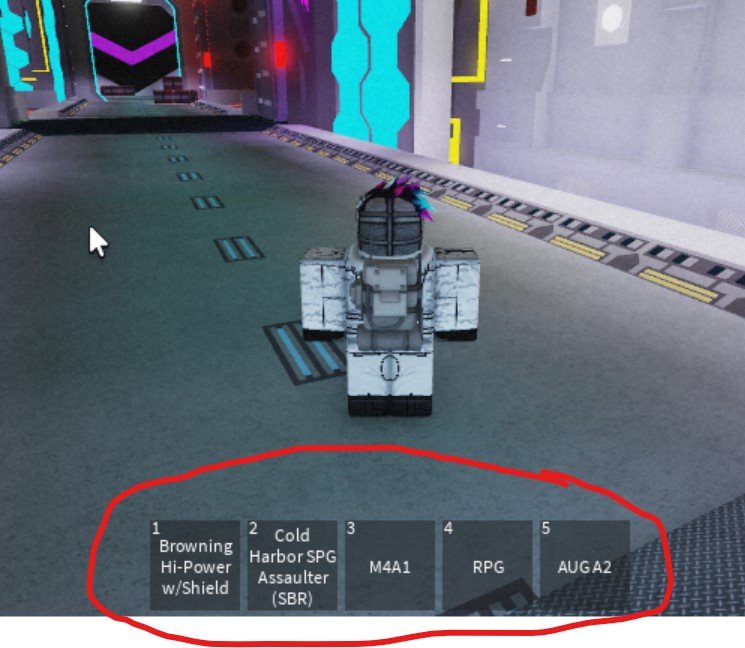
To hide GUI in Roblox in-game, you must set the Enabled property of the ScreenGui object to false through a script.
Have you ever been playing a Roblox game and wished you could temporarily get rid of that on-screen interface clutter? Many players desire a cleaner view, and fortunately, it’s quite simple to learn how to hide GUI in Roblox in-game.
This short guide will show you exactly what script you need to use. By just making small adjustments to the GUI’s properties, you gain full control over when elements are visible or invisible.

How to Hide GUI in Roblox In-Game
Have you ever been playing a Roblox game and wished you could make some of the buttons and menus disappear? Maybe you want to take a cool screenshot without all the extra stuff on the screen, or perhaps you’re building a game and want players to have a more immersive experience by only showing the user interface (UI) when they need it. Well, guess what? You can totally do that! Hiding the graphical user interface (GUI) in Roblox games is a neat trick that can make a big difference in how you play and build. Let’s dive into how you can achieve this.
Understanding the Basics of Roblox GUI
Before we start hiding things, it’s good to know what we’re working with. In Roblox, the GUI is made up of different elements like buttons, text labels, images, and frames. These elements are all children of what’s called the ‘ScreenGui’. Think of it like a window that sits on top of everything else in the game. When you add a button, it goes inside this ScreenGui. Each button, text, frame, and image is considered a ‘GuiObject’.
The primary ways to control visibility of GUI elements are through their ‘Visible’ property or by controlling the visibility of their parent ScreenGui. Each element can be made visible or invisible through a script which allows for many different ways to control the display of your game’s interface.
Key Properties for Hiding GUI
- Visible: This property is like a switch. If it’s set to ‘true’, the GUI element is visible. If it’s set to ‘false’, it disappears. It’s a simple on-off button for individual elements.
- ScreenGui.Enabled: This is like a master switch for all the GUI elements inside a ScreenGui. If you set the ‘Enabled’ property of the ScreenGui to ‘false’, everything inside it will disappear. This is useful for toggling entire interfaces at once.
- Transparency: While not strictly hiding a GUI, changing the ‘BackgroundTransparency’ or ‘TextTransparency’ of a GUI element can make it appear invisible. It will still be there and may still be clickable if click events are connected, but visually it will seem gone.
Methods to Hide GUI Elements
Now for the exciting part! Let’s explore the different ways you can make those buttons and menus vanish.
Hiding Individual GUI Elements with ‘Visible’
The most straightforward method to hide a single GUI object is by setting its ‘Visible’ property to ‘false’. Here’s how you do it with a script:
- Locate the GUI Element: First, you need to know the path to your element within your Roblox game’s explorer panel. You usually navigate from ‘StarterGui’ to the ScreenGui and then to the particular element.
- Write the Script: Use a script, typically a local script inside the player’s character or inside the particular gui itself to access the element and change its properties. Here’s a basic example of a script to hide a button:
local button = script.Parent.ScreenGui.YourButtonName --Replace 'YourButtonName' with the actual name of your button button.Visible = false - Explanation:
- script.Parent.ScreenGui: This tells the script to go to the parent of the script and then look for a ScreenGui named ‘ScreenGui’ this is usually the name of the default ScreenGui that you create in Studio.
- .YourButtonName: This tells the script to find an object within ScreenGui called YourButtonName. Make sure you use correct names.
- button.Visible = false: This line sets the Visible property of the YourButtonName GuiObject to false, which makes it disappear.
- Test it Out: Run your game and see your button magically disappear!
Tip: You can use the same script structure to make it reappear by changing button.Visible = true. You can also make a variable to toggle the value as needed.
You can also hide images, text labels, frames, or any other GuiObject in the same way by changing the “YourButtonName” part of the code to the desired name of the gui object that you want to hide.
Hiding Entire GUIs with ‘ScreenGui.Enabled’
What if you want to hide a whole set of buttons and menus at once? This is where disabling the entire ScreenGui comes in handy. It’s like turning off the entire window of elements with one switch. This is usually used to hide multiple elements in the GUI or if you want to load an interface only when the player needs it.
- Locate the ScreenGui: Just like before, you’ll need to locate your ScreenGui in the Explorer.
- Write the Script: Here’s an example script:
local screenGui = script.Parent.ScreenGui -- Replace 'ScreenGui' if named something else screenGui.Enabled = false - Explanation:
- script.Parent.ScreenGui: This points the script to the ScreenGui object within the hierarchy of objects in explorer.
- screenGui.Enabled = false: This line turns off the ScreenGui, making all its child elements disappear.
- Test it Out: Run your game, and the entire GUI should vanish!
Important Note: Disabling the ScreenGui also stops any scripts inside it. This means any scripts waiting for button clicks inside a ScreenGui will stop working when the ScreenGui is disabled. This is useful if you don’t want the elements in GUI to interact. To make it appear again, you can set screenGui.Enabled = true at some point using a script.
Using the ‘Transparency’ Property
Sometimes you don’t want the element to be completely gone but invisible. This is when changing transparency comes in useful. It makes the element visually disappear while still being there. You can set it’s ‘BackgroundTransparency’ or ‘TextTransparency’ to change the transparency of the background or the text in the gui object.
Here’s how to achieve this with a script:
- Locate the GUI Element: Locate the object using the Explorer as usual.
- Write the Script: Use the following script to change the transparency.
local button = script.Parent.ScreenGui.YourButtonName --Replace 'YourButtonName' with the actual name of your button button.BackgroundTransparency = 1 --This will make the background invisible button.TextTransparency = 1 --this will make text invisible - Explanation:
- button.BackgroundTransparency = 1: This sets the background of your gui object to completely transparent.
- button.TextTransparency = 1: This sets the text within the gui object to completely transparent. If it does not have text or the type of object doesn’t support text this line will not work.
Important Note: Setting the ‘Transparency’ to 0 will make the object appear fully visible while 1 will make it invisible. You can choose transparency between 0 and 1 to have different effects.
Advanced Techniques
Let’s explore some more advanced ways to control your UI visibility which adds complexity and flexibility to your UI interaction.
Toggling GUI Visibility with a Button Click
Now, let’s put it all together. Instead of just hiding the button, what if you want to hide or show the button with another button. Here’s how you can do that:
- Create the Toggling Button: Make a button in your GUI that will be used to hide/show another button, label, or a whole screenGui. Name it something like ‘ToggleButton’.
- Write the Script: Add a LocalScript inside the ‘ToggleButton’ or a local script that can access the toggling button to add the functionality
local toggleButton = script.Parent local targetGui = script.Parent.Parent.ScreenGui.YourButtonName --Replace 'YourButtonName' with the gui object to hide/show local isVisible = true --This variable keeps track if gui element is visible toggleButton.MouseButton1Click:Connect(function() isVisible = not isVisible --Toggle the value targetGui.Visible = isVisible end) - Explanation:
- local toggleButton = script.Parent: This refers to the ToggleButton.
- local targetGui: This is a reference to the gui element that you want to hide/show.
- local isVisible = true: This creates a variable that will hold the boolean value of whether the gui object is visible or not. The default is true means that is visible.
- toggleButton.MouseButton1Click:Connect(function()): This code makes the function execute when the ToggleButton is clicked.
- isVisible = not isVisible: This changes the isVisible variable to the opposite of what it currently is. If its true, it sets it to false and if it is false, it sets it to true. This is called toggling the value.
- targetGui.Visible = isVisible: This line sets the gui object’s visibility to what the isVisible variable has. If its true, then it will make it visible and if it’s false, it will make it disappear.
- Test it Out: Click the ‘ToggleButton’, and it will hide or show the target gui!
Hiding GUI Based on Game Conditions
You can make the visibility of your GUI elements dynamic. For instance, a GUI element might only show up after a player reaches a certain score or completes a specific task.
Here’s how you would do this:
- Set up the Condition: You need a variable or a game state that determines when the GUI should appear. This could be a player’s score, a boolean value, or the result of an event.
- Write the Script: Here’s an example to hide a gui element initially and to show it after player scores more than 50 score.
local targetGui = script.Parent.ScreenGui.YourGuiElement --Replace with the actual name of your GUI element local score = 0 --Initialize the score targetGui.Visible = false --Hide the GUI element initially -- Assume a function increases score function increaseScore(amount) score = score + amount if score > 50 then targetGui.Visible = true end end -- Example of using the function, you should replace this with your score incrementing code increaseScore(100) - Explanation:
- local targetGui: This is a reference to the gui element you want to show.
- local score = 0: This creates a variable that will hold the player’s score which is initially 0.
- targetGui.Visible = false: This sets the visibility of the gui element to false which will make it invisible initially.
- function increaseScore(amount): This sets up a function to increase the player’s score.
- if score > 50 then: This checks if the player’s score is more than 50.
- targetGui.Visible = true: This sets the gui element’s visibility to true and shows the gui object.
- Test it Out: Now, whenever the player’s score goes over 50, your hidden gui object will appear!
Important Note: You can use this method for any game condition. Adapt the code to check for any change in the game you want to use for displaying or hiding GUI objects.
Common Pitfalls and How to Avoid Them
While hiding GUIs is useful, it’s easy to run into problems. Here are some common issues and how to deal with them:
- Typos in Scripting: The most common issue is spelling mistakes when referencing your GUI objects in the script. Make sure your naming in your script matches your naming in Roblox Studio. Double check the names of your gui objects, and make sure that YourButtonName in code matches with actual names in Roblox Studio.
- Incorrect Path to GUI Object: If your script doesn’t find the gui object, you may have incorrect script. Make sure the location in the script is correct and matches the hierarchy of objects in explorer view.
- Local Scripts vs. Server Scripts: Remember that LocalScripts only run on the client’s side and ServerScripts run on the server’s side. If you need to control the GUI of a single player, use local scripts. Use server scripts if you want to hide it for all players in the game.
- Forgetting to Re-Enable: If you disable a ScreenGui, don’t forget to enable it again if you want to make it appear.
- Overusing Transparency: While transparency is helpful, making an entire UI transparent can make it difficult for users to use, if there are other elements that overlap the invisible element, and it is still clickable. You can hide them if they don’t interact with other objects.
- Not Organizing GUI: Messy GUI setups in Roblox are hard to manage when they have many child objects. Make sure you are organized and have unique, self explanatory names.
Tips for Better GUI Management
Here are a few extra tips to help you control the visibility of your GUIs more effectively:
- Use Variables: Instead of repeating the same code over and over, create variables that store frequently used gui objects. It makes the code easier to read and faster to change if you need to rename an object.
- Create Functions: Make a function to toggle or manage the visibility of different GUI elements. It makes the code reusable and cleaner.
- Start Simple: Start with a basic test to see if you are able to access and modify the gui objects, and then move to complex logic.
- Test Often: Make sure to test each small change, and make sure your hiding logic works as expected and no elements are overlapping, causing confusing UI experience.
- Use Comments: Add comments to your script, explaining what different parts of your code do. This will help you understand the code later and others will be able to understand it.
By keeping your code clean, organized, and easy to follow, you will be more productive and quickly add any complex logic that you want.
With these techniques, you’re well-equipped to make your Roblox GUIs vanish and reappear as you please. Now go ahead and create cool UI effects that make your games more interesting and your screenshots clutter-free! You have all the tips and techniques that you need to hide and display GUI elements in Roblox Studio. Have fun creating amazing things!
A Roblox setting 99.8% don't know about…
Final Thoughts
To quickly hide a Roblox GUI, you can toggle the Visible property of the ScreenGui or specific frames within it. Simply setting this property to false will remove the GUI from player view. This is a straightforward way for ‘how to hide gui in roblox in-game’ during gameplay.
You can achieve this through scripting using the gui.Visible = false; statement. Similarly, setting gui.Visible = true; will make it reappear. Remember to target the correct GUI element.
In summary, using the Visible property is the primary method when figuring out ‘how to hide gui in roblox in-game’. This gives you great control over the presentation of your interface for the user experience.

