
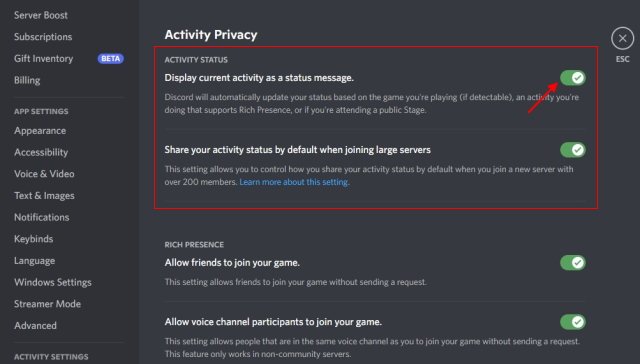
To hide what game you’re playing on Discord, go to User Settings, then Activity Privacy, and toggle off “Display current activity as a status message”.
Ever felt the need for a little more privacy while gaming on Discord? Maybe you want to keep your current obsession a secret, or you’re just not feeling chatty about your gameplay. Learning how to hide what game you’re playing on Discord is simpler than you might think. This small tweak can give you that much needed quiet time online.
With just a few clicks in your settings, you gain full control over what your friends can see about your in-game status. Its really straightforward process, and you can revert it anytime you want. So, let’s get into how to do this.

How to Hide What Game You’re Playing on Discord
Have you ever wanted to keep your gaming activities a little bit more private on Discord? Maybe you’re playing a game you’re not quite ready to share, or perhaps you simply prefer to keep your online life separate. Luckily, Discord provides several easy ways to control what others see about your game activity. Let’s dive into all the methods you can use to hide your game status on Discord and why you might want to do so.
Why Hide Your Game Activity on Discord?
Before we get into the “how,” let’s consider the “why.” There are many valid reasons why you might want to make your game activity invisible to your Discord friends. Here are some common scenarios:
- Privacy Concerns: You might not want everyone on your server knowing what you’re playing at all times. Sometimes, you just want to game without announcing it to the world.
- Avoiding Spoilers: If you’re playing a brand-new game or one with a lot of story twists, you might want to keep it secret to avoid spoilers or unwanted comments.
- Focus and Concentration: Seeing your friends’ activity might distract you or make you feel pressured to join them. Hiding your activity lets you focus on your game without feeling obliged to interact.
- Trying New Games: Maybe you’re exploring a new game and you don’t want to receive questions or invitations just yet, until you are comfortable with the game.
These reasons are completely understandable, and thankfully, Discord provides a number of ways to adjust your activity visibility. Now, let’s get to the practical steps.
Method 1: Disabling Game Activity Entirely
The easiest way to completely stop Discord from showing what you’re playing is to disable game activity detection altogether. This option makes you invisible for all games. Here’s how to do it:
Steps to Disable Game Activity Detection
- Open Discord: Start by opening the Discord application on your computer.
- Access User Settings: Look for the little gear icon, typically in the lower-left corner next to your username. Click on it to open your user settings.
- Navigate to Activity Privacy Settings: On the left-hand menu, find and click on “Activity Privacy” under “App Settings.”
- Toggle Off Game Activity: In the Activity Privacy settings, you will see a toggle that says “Display current activity as a status message.” Switch it off. It should turn grey to show that it is disabled.
By doing this, Discord will no longer automatically detect and display what you’re playing. This is a blanket solution, which means it will work for every game you play, until you turn it back on. If you want a bit more control and want to show activity for some games but hide for others, continue to read on.
Method 2: Hiding Specific Games Individually
If you don’t want to disable game activity entirely, but just want to hide certain games, Discord also provides a way to do so. This lets you choose which game activities are visible.
Steps to Hide Specific Games
This process involves making sure the game you want to hide isn’t “recognized” by Discord. Discord generally uses information it gets from its servers or your computer to figure out what you’re playing. This method requires a few extra steps, but provides more granular control.
- Open Discord and go to “Registered Games” Section: As before, open Discord and head to user settings (the gear icon). Then, on the left hand menu, click on “Registered Games” (also found under “App Settings”)
- Check for Games Automatically Recognized: You will see a list of all games that Discord has automatically detected that you have played before. If the game you want to hide is here, we can proceed.
- “Add it!” Button: If you see the game that you’re trying to hide not listed in the “Registered Games” list, Discord cannot detect it to hide it. But, if you really want to hide it and it is not being detected by Discord already, you need to add it first. Below all the games in the Registered Games list you’ll see a “Add it!” button. Click that, and select the application. If its a standalone game application, select that, or if it’s a browser based game, make sure to select the correct browser.
- Disable Display of the Specific Game: Once the game is added, click on the “eye” icon next to the game on the “Registered Games” List. When the eye icon has a line crossed through it, the visibility of that game is disabled. If this “eye” icon shows with no line crossing it, then the activity of that specific game is visible.
Using this method, you can choose which games are seen and which are hidden, giving you more customization over your game status.
Method 3: Using “Invisible” Status
A simple way to hide most of your online presence, including game activity, is to set your Discord status to “Invisible.” While this doesn’t specifically prevent Discord from detecting your game, it does make it look like you are completely offline.
How to Set Your Status to “Invisible”
- Click Your Profile Picture: In the bottom-left corner of the Discord application, click on your profile picture.
- Select “Invisible”: A menu will appear with various status options. Choose “Invisible.”
When you’re set to “Invisible,” your friends will see a gray circle with no status indication next to your name. This makes it less obvious that you’re online and playing games. However, if your friends happen to also be playing a game together, they will be able to see that, and they will see that you are also playing the same game.
Method 4: Utilizing a Custom Status (Creative Solution)
While it’s not a direct way to hide your game activity, using a custom status can be a clever workaround. Instead of seeing your game, friends will see a custom message that you set.
Setting Up a Custom Status
- Click on Your Profile Picture: Just like when changing to “Invisible,” click on your profile picture at the bottom-left of the Discord app.
- Select “Set a custom status”: Click on “Set a custom status” in the menu.
- Type in Your Custom Message: A window will open up with a text box. In this text box, you can type any message that you’d like. This message will appear next to your name.
- Optional: Select an Emoji: You can also add an emoji to your status for a bit of extra flair.
- Choose How Long the Status Lasts: You can also select how long the custom status will last for from a drop down menu. By default, this is “Don’t clear”, but you can set it to clear after 30 minutes, 1 hour, 4 hours or 1 day.
- Click “Save”: Once you’re happy with your message and duration, click on “Save”
By setting a custom status, you distract from any game that you are playing, as users will only be focused on your custom status. This method doesn’t technically hide your game, but it serves to divert attention from your actual game activity.
Method 5: Third-Party Applications (Use with Caution)
There are various third-party applications and Discord extensions that claim to help you manage your game activity. While some might offer more advanced features, it’s important to use them with extreme caution. These types of applications often require access to your Discord account information, which can pose security risks. It’s generally recommended to stick with Discord’s native settings for managing your privacy.
Risks of Third-Party Applications:
- Security Risks: They might contain malware or steal your account information.
- Discord’s Terms of Service Violations: Using unauthorized third-party tools might violate Discord’s terms of service and could result in a temporary or permanent ban.
While the idea of having extra features might seem nice, remember that official ways of managing game activity are the safest options.
Understanding Discord’s Game Detection
Discord is designed to be social, which is why it has built-in game detection. It uses several methods to identify what game you are playing. Most often, it identifies a game based on the following:
- Running Applications: Discord scans for open applications to determine what program is actively being used on your computer.
- Game Executables: Discord looks for executable files (.exe) that have been classified as games.
- Game Server Data: For some online games, Discord can detect what server you’re connected to.
Knowing how Discord detects games can help you better understand why and when it displays your activity, and therefore, how to best hide that activity.
Troubleshooting Common Issues
Even after adjusting settings, sometimes Discord might still show your game activity. Here are a few common issues and how to deal with them:
Discord Still Showing My Game Activity
- Restart Discord: Sometimes, the simplest fix is to close and reopen Discord. This can help refresh the application and apply the changes you have made.
- Restart Your Computer: If restarting Discord does not work, a computer restart might be needed. This can be useful when there are temporary glitches.
- Check Activity Privacy Settings: Double-check that your activity privacy settings are correct and you have not accidentally enabled game activity.
- Verify “Registered Games” List: Make sure you have not unintentionally left visibility enabled for the specific game you are trying to hide in the “Registered Games” list.
Game Not Being Detected by Discord
- Make sure the Game Is Open: Discord can only detect a game if it is open and running. Make sure the game is actually running and not minimized or closed.
- “Add it!” Button: If the game is open and still not being detected, make sure to add it in the Registered Games section, by clicking on the “Add it!” button. This helps discord detect it.
- Check Game Settings: Certain games may have settings that need to be adjusted in order to allow Discord to detect it. This is rare, but some games have specific configurations that may cause issues.
If you continue to experience issues, consulting the official Discord help pages or online communities can also provide additional help.
Taking control of your Discord game activity is simple with the available settings. Whether you want to hide everything or just certain games, you have the tools to manage your privacy and focus on your gaming. There are many valid reasons for keeping your gaming activity private, and Discord has made it very easy to do so. By using these methods we have talked about, you can now control how your game activity is displayed. Whether you opt for complete invisibility, hiding specific games, or use a custom status to hide it, you can now play on your own terms.
How To Hide Game Activity On Discord | Turn Off Game Activity Discord
Final Thoughts
To hide your game, use the ‘Activity Privacy’ setting in Discord. Toggle the ‘Display currently running game as a status message’ off. This prevents others from seeing what you’re playing.
Alternatively, you can go to Discord settings > Game Activity. Disable “Display game activity” here for specific games. This grants more control.
These options offer simple ways to control your Discord game display. Therefore, know ‘how to hide what game youre playing on discord’ gives you the privacy you must require.

