
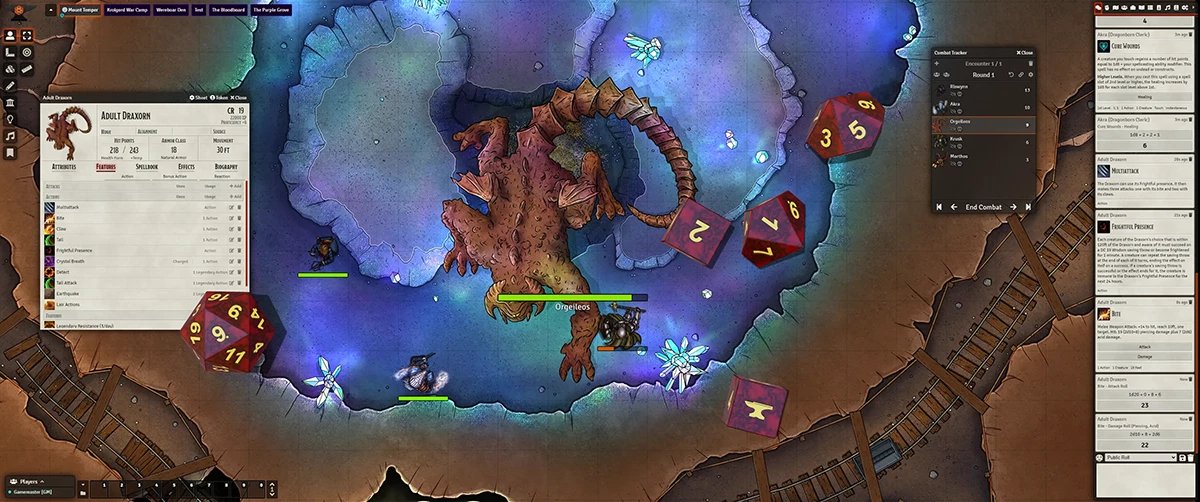
To host a game on Foundry VTT, you need to set up a server, either locally or using a hosting service, and then invite your players to connect.
Ready to dive into the world of virtual tabletop gaming? You’ve chosen Foundry VTT, a powerful and versatile platform. Many beginners wonder about how to host a game on foundry vtt, and it’s a valid question.
The process might seem a little daunting initially, but it’s simpler than you think. This guide will help you get started quickly and easily. We’ll explore the key steps involved so you can start your campaign as soon as possible.

How to Host a Game on Foundry VTT
So, you’re ready to take your tabletop roleplaying games online with Foundry Virtual Tabletop (VTT)! That’s fantastic. Foundry VTT is an amazing tool, but setting up your first game can feel a little like navigating a maze. Don’t worry; it’s much easier than it looks. This guide will walk you through everything you need to know to get your game running smoothly, from choosing the right hosting method to prepping your world for adventure. Let’s get started!
Choosing Your Hosting Method
The first big decision is how you’ll host your Foundry VTT game. Think of it like deciding where to hold a party. Will it be at your place, someone else’s, or somewhere online? There are three main ways to host: on your own computer (self-hosting), using a cloud hosting service, or utilizing a dedicated server.
Self-Hosting: Your Computer as the Game Server
Self-hosting means your own computer acts as the game server. This is usually the simplest and cheapest option when you’re beginning. Here’s what you need to know:
- Pros: It’s free (after you’ve bought the Foundry VTT license), gives you full control, and you don’t have to worry about monthly fees.
- Cons: Your internet connection needs to be strong, and your computer needs enough power to run the game for everyone at the same time. If your internet cuts out, everyone’s game is over. Also, you need to leave your computer running while everyone’s playing.
- Good for: Small groups of players, testing things out, or if you have a really good internet connection and a powerful computer.
To Self-host, you simply start the Foundry VTT application on your PC and then invite players to connect via your IP address and port number.
Setting up Self-Hosting
Before you dive in, let’s make sure your computer is ready. This is the most common way people get started with Foundry VTT.
- Check Your Internet Speed: You’ll need a good upload speed. Think of it like sending out lots of data to your players. A speed of at least 5 Mbps is a good starting point. You can use online speed test websites to check your speeds, type “speed test” on google search, and you will see one.
- Firewall Considerations: Your firewall might block Foundry VTT. You might need to allow the application, or the specific port (which defaults to 30000) through your firewall.
- Port Forwarding (Sometimes Necessary): If your players can’t connect, you may need to set up port forwarding on your router. This tells your router to send data from the internet to your computer. This can be a bit tricky, so search online for guides on how to do this for your specific router model. You will need your private IP to do this as well. Go to your windows settings, click on “Network and Internet” and then click on “Wifi” then click “Hardware Properties” then you will see IPv4 Address, this is your private IP.
Cloud Hosting: Letting Someone Else Do the Heavy Lifting
Cloud hosting takes the responsibility of running the server and moves it to a provider. Here’s what to expect:
- Pros: You don’t need to leave your computer on, your game stays up even if your internet dies. Cloud servers have good internet connections.
- Cons: You need to pay a monthly fee, and you can lose some control over things, depending on your server provider.
- Good For: larger groups, when you don’t want to leave your computer on 24/7, or if your internet or computer is not that great.
Popular Cloud Hosting Services
Here are some common cloud services people use with Foundry VTT:
- The Forge: The Forge is created specifically for Foundry VTT. They give you an easy way to set up, import your game, and use lots of modules. This makes it very straightforward, but it’s a little more expensive.
- Molten Hosting: This is another popular choice, that offers good prices, good support and a good user interface.
- AWS/Google Cloud/Azure : These services are powerful and offer great customisation for people who want more control over their server. However, setting up a server with these options can be more difficult.
- Other VPS providers: Some people will use a normal Virtual Private Server to host foundry VTT. This is the cheapest option for hosting a Foundry VTT server, but setting this up is very difficult.
Each of these services has different prices and ways to work, so it’s a good idea to visit their websites and compare which is the best choice for your needs.
Dedicated Server: Your Own Powerful Machine
A dedicated server is like having a computer solely for running your game server. You pay for the server but you have more control, it’s your own machine, and it works very similar to self hosting. Here’s a quick overview:
- Pros: You have complete control over everything, this could be an old PC at home, or a virtual machine from a hosting provider, and you might get the lowest latency with this method, as the hardware is under your control.
- Cons: Can be expensive, requires technical knowledge to set up and manage, and requires you to maintain the server.
- Good for: People who are comfortable managing servers, or large communities.
Setting up your Foundry VTT Game World
Once you’ve picked your hosting method, you need to create or import a game world. Think of it as setting up the stage for your players.
Creating a New World
If you’re starting from scratch, creating a new world is simple:
- Launch Foundry VTT and click “Create World.”
- Give your world a name and choose the game system (like D&D 5e, Pathfinder 2e, or whatever you are playing).
- Click “Create Game World” and Foundry will make a new world for you.
You can then click on the new world to open it up.
Importing a World
If you’re using a module that has a pre-made world you like, you can easily import it:
- Launch Foundry VTT and click “Import World.”
- Find the zip file that contains the world data and select it.
- Foundry will then install the world for you.
- After the import is complete, you will have a new world you can click on to open.
Configuring Your World
Now, it’s time to set up how the game works for your players. This is where you’ll add content and get everything in place for a great gaming experience.
Choosing the Right Game System
When you create a world, you will choose the game system you want to use. This is a very important step. The game system does everything. It sets all the dice rolls, it creates the character sheets, and everything in between, therefore it’s very important to choose the right one for your game.
Managing Modules
Modules are add-ons that change or improve Foundry VTT. They can add new features, special effects, or even whole new game systems! Here’s what you need to know about modules:
- Installing Modules: Click the “Add-on Modules” button in the settings menu, then find the module you want. Click the install button to install it.
- Enabling Modules: You can turn on or off the modules in your game, in the settings menu, there is also a “Manage Modules” button, click this and tick the box for each module that you want to use.
- Finding Good Modules: There are many modules. Some very popular ones include: Combat Enhancements, Dice So Nice, and Monk’s Enhanced Journal. There are thousands of more modules though, and you can find them by searching online and browsing the official Foundry VTT modules page.
Setting up Scenes
Scenes are where the action happens. Think of them like the different rooms in a video game.
- Creating Scenes: Click the “Create Scene” button in the top left menu. Give it a name and set its dimensions.
- Adding Backgrounds: Upload your battlemaps as background images. You can drag them from your computer to the scene.
- Adding Tokens: Drag character and monster tokens to the scene from the sidebar. Make sure each token is linked to a player or character!
- Walls, Lights and Sounds: Use the tools in Foundry to create walls, add lighting and sound effects for a dynamic map.
Setting up Characters and Actors
Characters are the people in your game. Here is how to set them up in Foundry VTT:
- Creating Actors: Click on the “Actors” tab in the left sidebar, and click on the “Create Actor” button. You will need to select what kind of actor you want, such as “Character” or “NPC”.
- Adding Details: Fill in the character sheet with information like stats, equipment, and abilities.
- Linking to Players: Give players control over their characters. Go to “Configure Token” to set player permissions and link the token to a player.
Creating and Managing Items
Items can be equipment, spells, consumables or anything else that has a mechanical effect in game. Here’s how to use them:
- Adding Items: Create items from the “Items” tab on the left sidebar, and fill in their details.
- Linking to Actors: Drag and drop items to characters to give them equipment.
- Consumables and Spells: These items can be used directly by the players from their character sheets, and will even play animations, or other effects, depending on the module that you use.
Journaling and World Lore
The journal is where you can keep notes, write stories, and keep track of the lore of your game world. Here is how to use the journal:
- Creating Journal Entries: Create a new journal entry, like a document, and fill it with all the information your players may need.
- Sharing Journal Entries: You can control who is able to see each journal entry, so only share the information that needs to be available to specific players.
- Links and Organisation: Use links in journal entries to quickly jump to other entries, this makes it a great way to build a wiki style lore page for your game.
Running Your Game
Now you have everything set up, here are a few basic things to know for running your games in Foundry VTT:
Initiating a Game Session
Once you are all ready, you can open your world, and ask your players to join.
- Invite Your Players: Send them your server address (and port if needed).
- Welcome Them: After the players have joined, help them with the basics, show them how to use their character sheet.
It’s good to run a small test session to let everyone get used to the controls before you start playing the main game.
Managing Combat
Foundry VTT handles combat easily. Let’s see the basics:
- Starting Combat: Start combat, by clicking the button in the top right, and selecting the characters and enemies to start the turn order.
- Rolling Dice: Players can click buttons on their character sheets to roll dice.
- Applying Effects: Use the effects system to add or remove conditions.
- Moving Characters: Drag tokens to move them around the scene.
Using the Chat System
The chat system is your main way of speaking to the players and sharing information in game, you can use it for:
- Rolling Dice: Type “/roll 1d20” (or whatever die you need) to make a die roll and show it in chat.
- Sending Private Messages: Use private messages for secrets, thoughts or any other information you don’t want all players to see.
- Roleplaying: Type your speech as your character, to fully immerse your players in the game.
Keeping Things Organised
As the game master, it is important that you keep things organised:
- Use Folders: Organise your scenes, actors and journal entries using folders. This helps keep things tidy.
- Take Breaks: Make sure everyone has breaks to rest during long sessions.
- Be Patient: Don’t worry if you make mistakes! Everyone does when they’re beginning, and it’s a learning process for everyone.
Hosting a game on Foundry VTT might seem complicated, but as long as you go through each of these steps one at a time, you will be hosting games in no time. It might take some time to get used to, but Foundry VTT is incredibly powerful and offers so many amazing ways to play online. Remember to have fun and enjoy the ride!
Get Foundry Virtual Tabletop Up and Running Fast | Port Forwarding Guide
Final Thoughts
To summarize, hosting a game on Foundry VTT involves setting up a server, either locally or through a hosting service. Then, you install the system and modules you prefer for your game. You need to configure port forwarding on your router, if not using a hosted option.
Finally, give your players the server address and password. That is, this how to host a game on foundry vtt. Following these steps allows others to join your games easily.

