
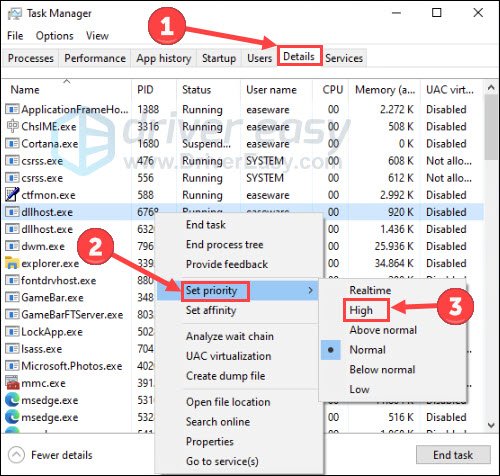
The main reason your games keep stuttering is often due to insufficient hardware performance, outdated drivers, or background processes consuming resources.
That frustrating moment when your game freezes, skips, or hitches – it’s a real immersion killer. You’re not alone if you’re asking ‘why do my games keep stuttering’. Many gamers experience these annoying interruptions. There are a few common causes that can lead to choppy gameplay.
We’ll explore these issues and offer some straightforward solutions to help you achieve smoother, more enjoyable gaming sessions. Getting to the bottom of your stuttering problem can often involve some simple checks and adjustments.

Why Do My Games Keep Stuttering?
Game stuttering, that annoying hiccup in your gameplay, can be a real buzzkill. One moment you’re immersed in a fantastic world, the next, everything freezes for a split second, ruining your perfect shot or a crucial moment in the story. It’s frustrating, right? Let’s break down why this happens and how you can make your games run smoother.
Understanding Stuttering: What’s Really Happening?
Stuttering in games is essentially a temporary pause or a series of short pauses in the continuous flow of the game. Think of it like a movie that keeps skipping frames. Instead of a smooth motion, you see a series of jumps. This happens when your computer struggles to keep up with the game’s demands. When your hardware has trouble processing information fast enough, it can create these pauses. The game itself doesn’t simply stop processing entirely; it’s more like it’s having a hard time keeping up, resulting in these small but noticeable delays.
Frame Rates and Frame Time
To better grasp stuttering, it’s helpful to think about frame rates. Games show you a rapid succession of images, called frames, to create the illusion of motion. The number of these frames that your computer can produce every second is called the frame rate (measured in frames per second, or FPS). If your computer can’t make enough frames quickly enough, you experience lower frame rates. Lower FPS by itself doesn’t always mean stuttering; it’s the inconsistency in frame delivery that usually causes it.
Frame time is the duration it takes your computer to render a single frame. Imagine it as the time between two frames appearing on your screen. Stuttering occurs when frame times vary wildly. Some frames are rendered quickly, while others take much longer, creating that jerky experience.
For example, imagine a game running at 60 FPS. Each frame should, ideally, take about 16.7 milliseconds to render. If frame times jump from 10ms to 30ms to 12ms in a short period, you’ll feel that inconsistency as stuttering. The game won’t feel smooth, it will feel jerky. This variation in frame times is a common reason for stuttering problems.
The Usual Suspects: Hardware Issues
Often, stuttering stems from your computer’s hardware struggling to keep up with the game’s requirements. Here are the main culprits:
The Power of Your Graphics Card (GPU)
The graphics card, or GPU, is responsible for rendering the visuals in your games. It’s like the artist of your computer, drawing all the characters, environments, and special effects you see on your screen. If your GPU is old or not powerful enough for the game you’re trying to play, it can cause stuttering. When the GPU gets overloaded, it can lead to uneven frame times and cause that irritating stutter. A less powerful GPU might work fine for older, less demanding games, but it will struggle with the latest ones.
Think of it like this: If you have an old crayon and try to draw something super detailed, it will be slow and you may not get the results you expect. You need a better tool, like a good set of colored pencils, to get a better picture. Likewise, you need an appropriate GPU for your games.
CPU Bottlenecks
The Central Processing Unit, or CPU, is like the brain of your computer. It handles many tasks behind the scenes, including processing game logic, physics calculations, and AI behaviors. If your CPU is not fast enough or is overloaded, it can become a bottleneck, slowing down the whole system and causing stuttering. When the CPU can’t keep up with the information the game requires, it can’t send data to the GPU fast enough, creating a bottleneck. This bottleneck manifests as uneven frame times and a stuttering experience.
It’s like having a traffic jam on a highway. Even if the cars (GPU) are fast, they can’t move if the road (CPU) is clogged. A more powerful CPU allows your computer to handle game calculations and data transfer more smoothly.
RAM Limitations
Random Access Memory, or RAM, is like your computer’s short-term memory. It’s where the computer stores information that it’s actively using. If you don’t have enough RAM, your computer will have to start using your slower hard drive or SSD as a form of temporary memory called virtual memory. This can make your games stutter because accessing the hard drive is much slower than accessing RAM.
Imagine your computer is a student, and RAM is the desk space the student uses. If the student has a lot of information to work with but very little desk space (not enough RAM), they’ll spend a lot of time shuffling papers around, slowing down their work. The same happens with a computer with insufficient RAM, when it’s trying to run a demanding game.
Storage Devices: Hard Drives vs. SSDs
The storage device, whether it’s a Hard Disk Drive (HDD) or a Solid State Drive (SSD), is where the game is stored. Hard drives have moving parts and are generally slower than SSDs. If your game is installed on a hard drive, it might cause stuttering, especially during level loading or when the game needs to access data quickly. On the other hand, SSDs, being much faster, generally result in faster load times and smoother gameplay, reducing stuttering. SSDs do not have moving parts and can access data much faster. They’re like having a super-fast delivery service for the game’s data, which helps reduce loading times and stuttering during gameplay.
When a game needs to load new textures, character models, or other data, the storage device has to read the necessary information. An HDD will usually take longer to perform this operation compared to an SSD, and you’ll likely experience a noticeable stutter when this happens.
Here’s a simple comparison table:
| Feature | HDD (Hard Disk Drive) | SSD (Solid State Drive) |
|---|---|---|
| Speed | Slower | Faster |
| Moving Parts | Yes | No |
| Noise | May generate noise | Silent operation |
| Impact on Stuttering | Can contribute to stuttering | Reduces stuttering |
| Price | Generally Cheaper | Generally more expensive |
Overheating
When your computer gets too hot, components like your CPU and GPU might slow themselves down to prevent damage, and this process is called thermal throttling. This can also cause the game to stutter. Overheating usually happens when your computer doesn’t have proper ventilation. If the airflow inside your computer case is poor, the hot air can get trapped and cause the temperature to increase. Make sure the fans and heatsinks of your computer are working properly, and ensure that the computer is well ventilated.
Software Issues
Stuttering isn’t always about hardware. Sometimes software can cause problems too.
Outdated Drivers
Drivers are small software programs that help your hardware communicate with the operating system. If your graphics card or other hardware drivers are outdated, they might not be optimized for the game you are playing, causing stuttering and other issues. Always update to the latest drivers from the manufacturer website of your graphics card and other components. Driver updates often contain bug fixes and performance improvements that can significantly impact your gaming experience.
Background Applications
Too many background applications running on your computer can consume CPU and RAM resources, leaving fewer resources for your game. Applications like web browsers, video editors, or multiple background processes can negatively impact game performance. Close any applications you don’t need before playing the game to free up system resources. It is better to start the game from a freshly started computer.
Operating System Problems
Issues with your operating system can cause games to stutter. Windows updates are sometimes necessary, as they often include stability fixes. If your computer is infected by viruses or malware, it can cause all kinds of issues including game stuttering. Keep your operating system up to date and perform regular virus scans to ensure your computer is running smoothly.
Game Settings
Sometimes the game’s settings can cause the game to stutter. Some game settings may be set too high for your hardware. Lowering the graphics settings can improve performance and reduce stuttering. It’s a balancing act between graphical fidelity and performance. If your PC is struggling, try to reduce graphics settings, like the textures or shadows, in the game’s settings menu. Consider lowering the resolution too.
Other Factors
Sometimes, stuttering might be caused by other less obvious factors.
Network Connection
If you are playing an online game, problems with your internet connection can cause stuttering. High latency or packet loss can result in the game pausing or skipping. Check your internet connection and try connecting through an Ethernet cable, instead of a wireless connection, to see if this resolves the issue. Also ensure that other devices in your network are not using too much bandwidth, as this might impact your internet connection speed when playing online games.
Monitor Refresh Rate
The refresh rate of your monitor is the number of times per second that your monitor updates the picture displayed on the screen, usually measured in Hertz (Hz). If your monitor’s refresh rate is not in sync with your game’s frame rate, it can also cause stuttering. Check your monitor refresh rate settings in your OS settings and match it with the in-game frame rate. Enabling VSync, can synchronize the refresh rate of your monitor with the frame rate of your game to help prevent screen tearing. Try using variable refresh rate technologies like Nvidia’s G-Sync or AMD’s FreeSync if your hardware supports it.
Troubleshooting Steps: How to Fix Stuttering
Now that we understand the possible reasons for stuttering, let’s walk through how to solve these problems. Here’s a practical approach:
- Check the Game’s System Requirements: Make sure your computer meets the minimum and recommended system requirements for the game. If your system is below these, you may have to play with reduced settings or upgrade your computer.
- Update Your Drivers: Download and install the latest graphics card drivers from the manufacturer’s website (NVIDIA, AMD, or Intel). Do this for other hardware devices such as the motherboard, sound card etc.
- Close Unnecessary Background Applications: Close any programs running in the background that you’re not using.
- Adjust Game Graphics Settings: Reduce the graphics settings in your game menu, this can significantly improve performance. Start with the highest setting and gradually lower it until you get acceptable performance.
- Monitor Temperatures: Use monitoring software to keep track of your CPU and GPU temperatures. If they get too high, ensure good ventilation. You may have to clean the dust and replace the thermal paste on the heatsinks of your CPU and GPU.
- Check Disk Space and Usage: Ensure your hard drive or SSD has sufficient free space. The more space, the smoother your computer will run. Also consider defragmenting a hard drive to keep data in a continuous sequence for faster reading, this can help with stuttering.
- Upgrade Hardware: If your hardware is outdated, consider upgrading components like your graphics card, CPU, or RAM. This can significantly improve gaming performance.
- Check Network Connection: If you’re having issues in online games, perform a speed test and make sure you have stable internet connection. Wired connections are usually better than wireless connections.
- Scan for Malware: Perform a thorough scan to detect and remove any viruses or malware that could cause stuttering.
- Consider Reinstalling: Consider reinstalling the game or even the operating system to remove any potentially corrupted files or settings.
By systematically checking these components, you should be able to pinpoint the main cause of the stuttering. Remember that sometimes it can be a combination of factors. It might also help to look for other user’s settings online to see if people with similar PC hardware have optimized game settings for better performance.
Solving stuttering can sometimes be tricky but by systematically going through all the different potential causes and applying solutions you’ll be able to enjoy smooth, stutter free gaming sessions. Remember to always keep your software and drivers updated and your PC running in good condition. With these steps, you’ll be back in the game without those annoying interruptions.
Fix Games Stuttering In 15 Seconds
Final Thoughts
In short, many issues can cause game stuttering. Outdated drivers, system resource limitations, and even in-game settings contribute greatly. Check your PC’s specs against game requirements.
Another key reason could be background applications consuming resources. Also, overheating will absolutely cause performance issues. Addressing these, often fixes the frustrating stuttering.
Ultimately, ‘why do my games keep stuttering’ boils down to system bottlenecks or conflicts. Identifying and resolving these is must for smooth gameplay.

