
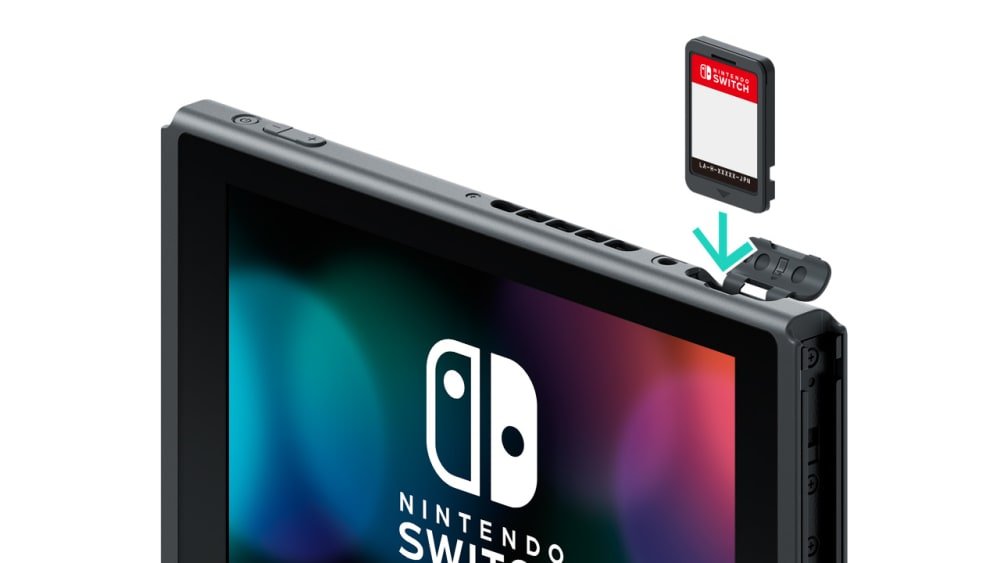
To insert a Switch game, gently push the game card into the game card slot on top of the console until it clicks into place.
Have you ever found yourself staring blankly at your Nintendo Switch, wondering how to insert a switch game? It can feel confusing at first, but it’s actually a very simple process. This short guide will show you exactly what to do to get your game ready to play. Let’s dive right into it.

How to Insert a Switch Game: A Simple Guide
Getting a new Nintendo Switch game is exciting! But before you can jump into the action, you need to know how to correctly insert the game card. Don’t worry, it’s super easy. This guide will walk you through the process for both physical game cards and digital downloads, covering everything you need to know so you can start playing your favorite games without any trouble.
Understanding the Nintendo Switch Game Card Slot
First things first, let’s talk about where your game cards go. The Nintendo Switch has a special slot for physical game cartridges. This slot is located at the top of your Nintendo Switch console. It’s a small, rectangular opening on the right side, just next to the volume buttons. You can find it on all versions of the Switch: the standard Switch, the Switch Lite, and the Switch OLED model.
It’s important to treat this slot with care, as forcing a game card in the wrong way can cause damage to your system or the game card itself. The game card slot is designed to only accept the card in one specific orientation. We’ll explore this in the next section.
Identifying the Game Card Correct Orientation
Nintendo Switch game cards aren’t square. They have a notch on one of the short sides that helps you insert them correctly. Here’s how to identify the right way to put it in:
- The Label Side: The side of the game card with the picture and name of the game should face towards the front of the Switch, towards you.
- The Notch: The small notch on the game card will go in first, this notch will be on the bottom when the label side is facing you.
- The Metal Contacts: These golden strips on the other side of the game card should be facing down towards the console.
Looking at these three points before inserting your game card will help prevent any issues.
Inserting a Physical Game Card into the Switch
Now that you know how to hold the card, let’s get to the main step. Here’s a step-by-step guide on how to insert a physical game card into your Nintendo Switch:
- Power On Your Switch: Make sure your Nintendo Switch is powered on. This will allow the console to properly recognize and read the game card.
- Locate the Game Card Slot: Find the small rectangular slot on the top right of your Nintendo Switch.
- Hold the Game Card Correctly: Position the game card so that the label is facing you and the notch is on the bottom. Make sure the metal contacts are facing down towards the console.
- Gently Insert the Card: Slowly slide the game card into the slot. You shouldn’t have to force it. If it doesn’t go in smoothly, don’t push hard. Check the orientation of the card and try again.
- Feel a Click: As the game card goes in, you’ll feel a gentle click sound. This click tells you that the card is correctly inserted and that the console recognizes it.
- Check Your Switch Screen: After the click, your Nintendo Switch screen should update with the game’s icon. This means that the game has been correctly installed and is ready to play.
What to Do if the Game Card Doesn’t Go In
Sometimes, inserting a game card may be tricky. Here are some common issues and how to fix them:
- Card Is Jammed: Never force a game card. If it feels stuck, pull it out gently. Check if the card is correctly oriented. If it still doesn’t work, check the game card and the console slot for dust or debris.
- Card Not Recognized: If your game card is inserted correctly but your Switch doesn’t recognize it, try taking out the card and re-inserting it. Make sure the card is clean and has no visible damage. If it still doesn’t work, the game card may have an issue.
- The Notch Doesn’t Line Up: You have the card upside down, rotate the game card 180 degrees to ensure that the notch is on the bottom when you are looking at the label and metal contacts are facing down towards the console, then insert the card again.
If none of these work, consider reaching out to Nintendo support or a local game store for assistance.
Removing a Physical Game Card
When you’re finished playing, removing a game card is simple too. Here’s how:
- Power Off Your Switch: It’s best to power off your Nintendo Switch before removing a game card. This helps prevent data errors.
- Locate the Game Card Slot: Just as before, find the game card slot at the top of your console.
- Push and Release the Card: Gently push the game card in a little bit, this will make it click, and then let it pop out. There is a small spring mechanism in the slot, so it should come out a bit.
- Pull the Game Card Out: Grab the exposed edge of the card and gently pull it out from the slot. It will come out smoothly.
- Store Safely: Place your game card back in its case or a safe place to prevent damage or loss.
Remember to handle game cards with care. Scratches or damage to the metal contacts on the back of the card can prevent the console from reading the game correctly.
Understanding Digital Game Downloads
Not all Nintendo Switch games come on physical cards. You can also purchase and download games digitally from the Nintendo eShop. This section will guide you through the basics of how to play a digital game.
How to Purchase and Download Digital Games
Digital game downloads are a popular option since they don’t require game cards. Here’s how to purchase and download them:
- Turn on your Nintendo Switch and connect to the internet.
- Go to the eShop: On your console’s main menu, locate the orange shopping bag icon labeled “Nintendo eShop” and click it.
- Browse for Games: Use the search bar or look through the various categories to find your game.
- Select Your Game: Once you’ve found the game, click on it to view details, such as price and download size.
- Buy and Download: Click the purchase button. You may need to enter your Nintendo Account password. If you don’t have sufficient funds, you will be prompted to add funds to your account. After purchase the game will download automatically.
- Start Playing: Once the download is complete, a game icon will show up on your home screen. Simply click it to play.
Managing Digital Games
Digital games do not need game cards, they are stored on your console. Here are some things to consider about managing digital games:
- Storage Space: Digital games take up storage space on your console. The Nintendo Switch has limited internal storage, so you may need to purchase an additional microSD card for more space.
- Re-download: If you delete a downloaded game, you can always re-download it from the eShop without having to repurchase it.
- Automatic Updates: Most digital games automatically update when your console is connected to the internet.
- No Physical Card Needed: With digital games, you don’t have to worry about losing or damaging game cards, and you can switch games on your console without inserting or removing cards, making it very convenient.
Game Card Storage and Care
Physical game cards are small and can be easily lost or damaged. Proper storage and care are important to keep them working. Here are some basic tips:
- Use the Game Case: Each game card should come with its own plastic case. Store the cards in their cases when not in use.
- Keep Away From Water and Heat: Water and excessive heat can damage the game cards. Keep them away from drinks and direct sunlight.
- Keep Away From Dust and Grime: Game cards have metal contacts that are sensitive to dust and dirt. Avoid exposing them to these elements. Clean a game card if necessary, using a microfiber cloth.
- Avoid Bending: Game cards are delicate. Do not bend them. Keep them away from heavy objects that might put pressure on them.
- Travel Safely: If you’re traveling, get a hard-shell game card case to keep them secure.
Troubleshooting Common Issues
Sometimes, you might run into some issues while using your game cards or downloading games. Here are a few common problems and how to address them:
Game Card Not Reading
If your Nintendo Switch is not reading a game card, try these:
- Remove and Re-Insert: Take the game card out and carefully put it back in.
- Check the Game Card: Make sure the card is clean. Gently wipe it with a dry, soft cloth.
- Check the Slot: Make sure there is no dust or debris in the slot. You can use a can of compressed air to carefully blow away any dust.
- Try Another Game: See if the Switch reads other game cards. This helps you know if the problem is with the card or the console.
Digital Game Not Downloading
If a digital game download is not starting or is stuck, try these:
- Check Internet Connection: Make sure your Nintendo Switch is connected to the internet. You can do this by going into system settings.
- Restart the Download: Cancel the download, and then start it again from the eShop.
- Check Storage Space: Ensure you have enough free space on your console. If not, remove some games or data from the console.
- Restart Your Switch: Sometimes, restarting the Switch can fix the issue.
Error Messages
If you get an error message during game installation or play, try the following steps:
- Read the Message Carefully: The error message will often give you hints on what went wrong. Pay close attention to the instructions.
- Restart the Switch: A simple restart can fix many errors.
- Check Nintendo Support: Visit Nintendo’s website to see if they have any information on your error. They might have solutions.
- Contact Customer Service: If you still have a problem after trying all the troubleshooting tips, contacting Nintendo Support will be helpful for you.
By carefully following these tips and troubleshooting steps, you’ll be well on your way to enjoying your Nintendo Switch games without any problems.
Now you have a great understanding of how to insert a Nintendo Switch game, whether you’re using a physical game card or opting for a digital download. Remember to handle your game cards with care, follow the insertion steps closely, and take the time to troubleshoot any problems that might arise. With this knowledge, you can jump into the worlds of your favorite Switch games quickly and easily, and start playing right away. Happy gaming!
Nintendo Switch OLED: How to Insert Game Card
Final Thoughts
To insert a Nintendo Switch game, locate the game card slot on the top right of your console. Gently push the game card into the slot until you feel a click. The game icon will then appear on the home screen.
Remember to always handle your game cards with care. If you are having trouble, consult the manual. Now, you know exactly how to insert switch game. This simple action lets you access a lot of entertainment.

