
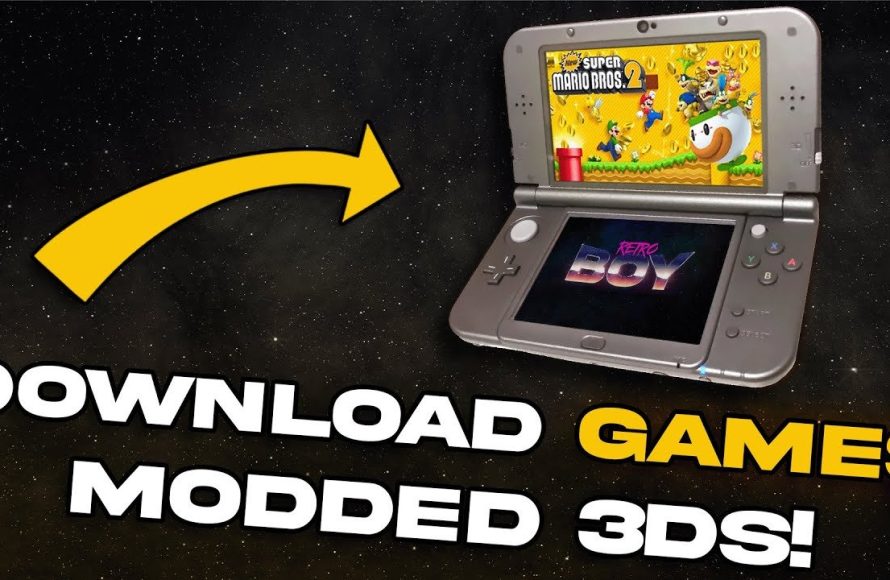
To install 3DS games on a modded 3DS, you generally need to use a tool like FBI to install .cia files after placing them on your SD card.
Ready to get more games onto your modded Nintendo 3DS? It’s a common desire for those who have ventured into the realm of custom firmware. Learning how to install 3ds games on modded 3ds can seem daunting, but it is simpler than you might think.
The process primarily involves transferring game files onto your device’s SD card. Then, you utilize a specific homebrew application to complete the installation. This allows you to experience a wider variety of games beyond the standard retail offerings.

How to Install 3DS Games on a Modded 3DS
So, you’ve got a modded 3DS and you’re itching to play some games, huh? That’s awesome! Installing games on a modded 3DS opens up a whole new world of fun. It might seem a bit tricky at first, but don’t worry, it’s not as hard as it looks. This guide will walk you through everything step-by-step, like we’re doing it together. We’ll talk about getting your games, putting them on your 3DS, and getting them ready to play. It’s like getting a special key to your 3DS’s hidden potential!
Understanding Modded 3DS and Game Formats
Before we dive into installing games, let’s quickly talk about what “modded” means for your 3DS and the different kinds of game files you’ll encounter. When we say a 3DS is modded, it means that it has special software added to it that lets it do more than a regular 3DS. This often includes the ability to play games not officially purchased through the eShop, and also called homebrew. think of it as giving your 3DS a superpower. it’s like you’re giving your 3DS the ability to read a different language. Now, let’s talk about game file formats. There are mainly two types you’ll see:
- .cia files: These are like special packages. They’re ready to be installed directly onto your 3DS. Think of it like installing an app on your phone.
- .3ds files: These are like game cartridges on your computer. They can be used by special applications called emulators, or also in some cases, they can be converted to CIA for installation on your 3DS.
For our purposes of installing games on your modded 3DS, we will focus mainly on .cia files. .3ds files are often used in 3DS emulators that are run on PC and other devices. CIA files are for actual hardware installation onto your 3DS.
Essential Tools and Preparation Before Installation
Okay, so what do you need before you start installing games? It’s like getting all your ingredients together before cooking a meal. Here’s what you need:
- A Modded 3DS: This is the most important part! We assume you have a modded 3DS with custom firmware already installed (like Luma3DS).
- An SD Card: You’ll need a good SD card with enough space to hold your games. A 32GB or 64GB SD card works great for many games, but if you plan to have lots of titles then bigger is better.
- A Computer: You’ll need a computer (Windows, Mac, or Linux) to move files to your SD card.
- A way to transfer files to SD card from computer: it can be sd card reader, or USB cable connected to computer.
- FBI application on your 3DS: This is the app that will install the game files on your 3DS. Normally it is installed on the modded 3DS itself, you may have to install it if it is not present.
- Game Files (.cia): You need the game files in .cia format. Remember, downloading games from unverified sources can be risky. Ensure you are sourcing from reliable sources.
Preparing Your SD Card
Now that you have everything, we need to prepare your SD card. This is like making sure your kitchen is clean before you start cooking. Here’s how:
- Turn off your 3DS completely.
- Take the SD card out of your 3DS.
- Put the SD card into your computer using a card reader.
- Create a folder on your SD card called “cias”. This folder will hold your game files.
- Put all the game files (.cia) you have into the “cias” folder that you just created.
- Safely remove the SD card from your computer and put it back into your 3DS.
Installing Games on Your 3DS Using FBI
Alright, time for the main event! You’ve done all the prep work. Now we’re going to install the game files using the FBI app on your 3DS. It is the special key to your game files. Here’s how to do it:
- Turn on your modded 3DS.
- Find the FBI app on your home menu. It usually looks like a folder or a present icon.
- Open the FBI application.
- You’ll see a list of options. Navigate to “SD” or “SDMC”. This shows you the contents of your SD card.
- Look for the “cias” folder. Remember, this is where you put all your game files.
- Open the “cias” folder. You will see all the .cia files you placed there.
- Select the game file you want to install. A menu will appear.
- Select the “Install CIA” option.
- The installation will begin. Wait for it to finish. It might take a few minutes, depending on the size of the game.
- When the installation is done, you’ll see a “Successful” message on the bottom screen.
- Press the home button to return to the home menu.
- You should see the game’s icon on the home menu, like any other installed game.
- Repeat for any other games you want to install.
Troubleshooting Common Installation Problems
Sometimes, things don’t go as planned. Don’t worry, problems are part of the learning process! Here are some common issues and how to solve them.
- Error During Installation: If you see an error during installation, it might be that the game file is corrupted or not correctly downloaded. Try re-downloading the game file from a trusted source or another source, and try installing again, make sure the “cias” folder is in the main directory of the SD card, so FBI application can easily find the folder and its contents.
- Game Icon Not Appearing: If the game doesn’t appear on the home menu after installation, try restarting your 3DS and refreshing the home menu. If it still doesn’t appear, check the settings and ensure that “Enable Game Patching” is checked and also “Show NAND titles” is also checked, in some cases it can help to display the installed games.
- SD Card Problems: If you have issues reading the SD card, ensure it is correctly inserted. Also, you may check to ensure that the SD card is correctly formatted, using the correct format type. A corrupted SD card may need formatting or a new SD card may be required.
- FBI application is not appearing: if the FBI application is not available, then you may need to install the FBI application first using the same steps described to install a game, but this time you will be installing the cia file of the FBI application. you can find the CIA files of the FBI application online from trusted sources.
Keeping Your 3DS and Games Up to Date
Once you’ve installed your games, you might wonder about updates. Here’s the scoop on keeping everything current.
Updating Games
Updating your games that are installed through custom firmware can be tricky. You cannot usually update through the eShop, but usually there are update patches available from the same source you obtained the game files. You have to re-download the update CIA file and install through FBI. Just ensure that these update files are safe and trusted from reliable source, to prevent any accidental problems.
Keeping Your 3DS Software Updated
It is crucial to keep your 3DS software up to date. To keep your 3DS up to date with latest system software is very important, as it provides better stability, newer features and also security. When your 3DS shows an update available message, it will first check for installed custom firmware, and notify you with a warning message, to not install a system software update, as it may remove the custom firmware, so you must use a special application to bypass this check and update with the correct method.
It is recommended to update the custom firmware, and then update the system software for latest stability and functions. You may have to use special guides depending on your custom firmware. Please refer to the custom firmware guides for proper updating process.
Additional Tips and Tricks for Modded 3DS
Alright, you’re almost a pro now! Here are some bonus tips to make your modded 3DS experience even better:
- Organize Your Games: With lots of games, you may want to use folders to organize them on your home menu. It keeps things tidy and easy to find, you can create folders by using the home menu options.
- Battery Life: Modded 3DS systems sometimes use more power, so make sure to charge your 3DS when you’re not playing. You don’t want your fun to end with low battery, keep a charger handy!
- Exploring Homebrew Apps: Besides games, there are many cool apps made by other people (called homebrew). Apps like custom themes, emulators, game editors and other utilities can make your gaming experience better. You can explore these apps on your modded 3DS.
- Be Safe: Always download games from trusted sources and be careful with the files you install. Getting games from unverified sources can be dangerous, and can even introduce harmful programs to your 3DS.
Installing games on a modded 3DS might seem like a lot at first, but it’s definitely something you can do with a little patience and careful following of the steps. It adds so much to your 3DS experience. Now that you know how to do it, you can have hours of gaming fun!
How to install games on your modded 3DS!
Final Thoughts
You install 3DS games on your modded 3DS through a custom firmware like Luma. You use a program like FBI to install the game files (.cia). Place the files on your SD card.
Then, navigate using FBI to the location of the game and start the installation process. This is how to install 3ds games on modded 3ds, enabling you to play backups and homebrew.

