
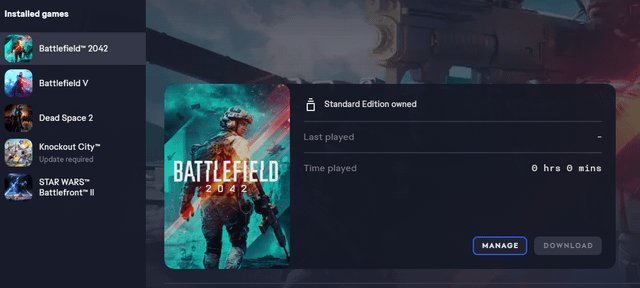
To install Battlefield V with PC Game Pass, open the Xbox app on your PC, find Battlefield V in the game library, and click the install button.
Ready to jump into the intense World War II action of Battlefield V? This guide shows you exactly how to install Battlefield V with PC Game Pass. The process is straightforward, letting you get into the game quickly.
We’ll walk you through the steps in detail, ensuring a smooth install experience. So, get ready to join your squad and dominate the battlefield with your PC Game Pass subscription.

How to Install Battlefield V with PC Game Pass
Alright, let’s dive into getting Battlefield V onto your computer using PC Game Pass! It’s a pretty exciting process, and we’re going to make it super easy for you to follow along. Think of it like getting a new toy – you want to know how to set it up so you can start having fun right away. We’ll walk through each step, making sure you don’t miss anything. We will cover everything from verifying your PC Game Pass subscription to launching the game for the first time.
Making Sure You Have PC Game Pass
Before we even think about downloading Battlefield V, let’s make sure you’ve got PC Game Pass. This is like having the key to the toy box. PC Game Pass is a service from Microsoft that lets you play lots of different games for a monthly fee. It’s like a library, but for video games! If you’re not sure if you have it, here’s how you can check:
Checking Your Subscription
The first thing you will want to do is check your PC Game Pass subscription status. Usually, the easiest place to do this is in the Xbox app, or the Microsoft Store. Here’s how:
- Open the Xbox App: If you have it installed, open the Xbox app on your computer. It looks like a green square with a white ‘X’ inside. If you don’t have it, you can get it from the Microsoft Store.
- Log In: Make sure you’re logged in with the same Microsoft account you used to buy PC Game Pass.
- Check Your Status: Look for a section that says something like “My Subscription,” “Game Pass,” or a similar option. Here you should see if your PC Game Pass is active. If you see a “Join” or “Subscribe” button instead, it means you don’t have it or it’s expired. If it says active, you are good to go!
- Microsoft Store Verification: You can also check via Microsoft Store, log in the same way, click on the three dots (usually ‘…’) at the top right corner, and click ‘My Library’. Here, check if your Game Pass subscription is listed under ‘Subscriptions’.
If you don’t have PC Game Pass, you’ll need to sign up for it. Head to the Microsoft website or the Xbox app and follow the prompts to subscribe. It’s usually a quick process, and once you’re done, you’ll have access to lots of cool games, including Battlefield V!
Getting the Xbox App
The Xbox app is important for installing and playing PC Game Pass games. It’s like a control center for your games. If you already have it, great! If not, let’s get it installed:
Installing the Xbox App
- Open the Microsoft Store: Click on the Windows Start button (usually in the bottom-left corner) and search for “Microsoft Store.” Then, open it.
- Search for the Xbox App: In the search bar at the top of the Microsoft Store, type “Xbox.” The Xbox app should pop up. It looks like a green square with a white ‘X’.
- Install It: Click the “Get” or “Install” button. The app will begin downloading and installing on your computer.
- Launch the App: Once the install is done, open the Xbox App, log in with the same Microsoft account you used for PC Game Pass, and you’re ready for the next step!
Finding Battlefield V in the Xbox App
Now that you have the Xbox App, let’s find Battlefield V! It’s like looking for your favorite book in a library, but way cooler.
How to Search for Battlefield V
- Open the Xbox App: Make sure the app is open and you’re logged in.
- Use the Search Bar: At the top of the app, there’s a search bar. Click on it and type “Battlefield V”.
- Select the Game: The game should appear in the search results. Click on it. This will take you to the game’s page.
You should now see all the details about Battlefield V, including pictures, videos, and the all-important install button. Now that we’ve found our game, let’s move on to actually downloading it.
Downloading and Installing Battlefield V
This is the part where the game actually gets onto your computer! It’s like waiting for your new toy to arrive in the mail.
Starting the Download
Now is the important time, when you will start the download of the game. Here’s how:
- Click Install: On the game page, you’ll see a big “Install” button. Click it.
- Choose Where to Install: The app may ask where you want to install the game. You can select the location or just leave it as the default. Usually the default location works great. Make sure you have enough space on the drive that you choose! Battlefield V is a large game and requires lots of storage, so if you have a smaller hard drive, you may need to make room for it.
- Start the Download: Once you’ve picked where to install it, the download will start. You can see its progress on the bottom left of the Xbox app, or you can view it under your ‘Downloads’ menu.
Understanding the Download Process
Downloading games can take some time, it’s not like copying a small file. Here’s a few things to know:
- Size of the Game: Battlefield V is a big game, so it can take a while to download. The time it takes will depend on how fast your internet is.
- Progress Updates: The Xbox app will show you how much of the game is downloaded. The bar will go from 0% to 100%. You may also see how much time is left to download.
- Don’t Close the App: While the game is downloading, leave the Xbox app open. This way, the process won’t stop.
- Pausing and Resuming: If you need to stop the download, you can usually pause it and resume it later.
Launching Battlefield V
Once the download is done, it’s time to play! This is the best part, when you can see all your hard work paying off!
Starting the Game
Here’s how to get the game running:
- Find the Play Button: Once the installation is complete, the “Install” button will change to a “Play” button. Click it.
- Wait for it to Start: The game will take a little while to launch for the first time. Have patience, it’s worth it!
- Login If Needed: Sometimes you might need to log into an EA account, which is linked to Battlefield V. If prompted, use the same account you would use on other EA games.
Initial Game Setup
The first time you launch Battlefield V, there might be a few things it needs to do:
- First-Time Setup: It might need to install some software, usually this is a quick process. Follow any on-screen instructions carefully.
- Graphics Settings: It will often ask you to choose graphics settings. If you are not sure, you can use the automatic settings or try selecting medium settings. You can always go back to the graphics settings and change them again.
- Tutorial: Some games start with a tutorial to teach you the basics. It’s a good idea to try this out even if you’ve played the game before.
Troubleshooting Common Installation Issues
Sometimes, things don’t go quite as planned. Here are a few common issues and how to solve them.
Not Enough Disk Space
If you don’t have enough space on your hard drive, the game won’t install. Make sure you have enough space. Here’s how:
- Check Your Drive Space: You can check this by going to “This PC” and looking at your hard drive details.
- Make Room: If needed, you can delete old files or programs to free up space.
- Use a Different Drive: If you have more than one hard drive, try installing the game on a different one.
Download Errors
Sometimes, downloads get stuck. Here’s what you can do:
- Restart the App: Close the Xbox app and then open it again, which often fixes minor problems.
- Check Your Internet: Make sure you have a stable internet connection. Try restarting your internet modem or router.
- Pause and Resume: Pause the download and start it again.
- Contact Support: If the download is still failing, you might need to contact Xbox support.
Game Won’t Launch
If the game downloads, but won’t launch, here are things to try:
- Restart Your Computer: A simple computer restart can fix many problems.
- Update Graphics Drivers: Make sure you have the latest graphics drivers installed. You can get them from your graphics card manufacturer’s website (like Nvidia or AMD).
- Check for Windows Updates: Make sure your Windows operating system is updated. Go to Settings > Update & Security > Windows Update and check for updates.
- Reinstall: Try uninstalling the game and then installing it again.
Keeping Battlefield V Updated
Games often get updates with new features or to fix bugs. Here is how to make sure you keep your game updated.
Automatic Updates
The Xbox app usually updates games automatically when they become available. Here’s how it works:
- Background Downloads: Most of the time, the app will download the updates in the background.
- Notifications: You might get a notification that a game needs to be updated.
Manual Updates
If you think there’s an update available, but the game hasn’t updated automatically, you can check manually:
- Open the Xbox App: Go to the Xbox app
- Go to your Library: Look for your installed games.
- Check for Updates: Click the three dots (usually ‘…’) next to the game and select “Manage”. Here you can see if there are any updates and install them.
Installing Battlefield V using PC Game Pass is a really easy process. By following these steps, you should have it installed and running without any problems. Remember to take your time, and if you run into any issues, try the tips we went over. After that, you’ll be ready to play Battlefield V. Now it’s time to get into the game and have some fun!
How To Download/Install Battlefield V On PC For Xbox Game Pass Users
Final Thoughts
To install Battlefield V with PC Game Pass, first ensure you have an active subscription. Then, locate the game within the Xbox app on your PC. Click install, and the download will begin.
Once the game finishes downloading, you can launch and play Battlefield V. Enjoy intense battles with your friends. Remember to have sufficient space and decent internet to install Battlefield V with PC Game Pass.

