
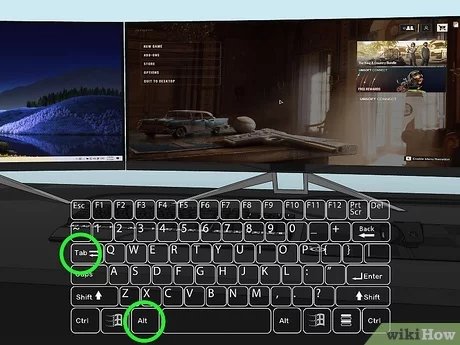
To move a full screen game to another monitor, use the Windows key + Shift + Left/Right arrow keys. This will quickly shift the game window between your displays.
Frustration mounts when your intense game suddenly appears on the wrong screen. You want to play on that bigger, better display, right? Learning how to move full screen game to another monitor quickly saves time and aggravation. This simple keyboard shortcut gets your game where you want it. Enjoy gaming on your preferred monitor effortlessly.

How to Move Full Screen Game to Another Monitor
Ever been in the middle of an epic game, only to realize you’d rather play it on a different screen? Maybe your big TV is calling your name, or perhaps you want to keep an eye on something else on your main monitor while you game. Moving a full-screen game to another monitor might seem tricky, but it’s actually quite easy once you know the steps. This guide breaks down all the different ways you can do it, so you can switch screens without any hassle.
Understanding Full-Screen Mode and Multiple Monitors
Before we dive into moving games, let’s understand a bit about how full-screen mode works with multiple monitors. When a game runs in full-screen, it takes over your entire screen. This means it’s not just a maximized window; it’s directly interacting with your graphics card to give you the best possible performance. With multiple monitors, Windows usually has a primary display. Full-screen games usually default to this primary display.
Why Moving a Full-Screen Game Can Be Tricky
The primary reason moving full-screen games can be challenging is because that mode locks the game to the current display. Unlike a windowed application, a full-screen game doesn’t have those usual window borders that allow dragging. This is why we need some specific methods to switch the game over to another screen.
Simple Methods for Shifting Your Game
Alright, let’s get to the good stuff – how to actually move that game! We’ll start with the easiest methods that work for many games.
Using the Windows Key + Shift + Arrow Keys
This is often the quickest and simplest solution. It uses keyboard shortcuts to move windows between monitors, and it works beautifully for most games. Here’s how:
- Make sure your game is running in full-screen mode.
- Press and hold the Windows key and the Shift key.
- Now, while still holding those keys, press either the left or right arrow key. The arrow you use will depend on the physical location of the screen you want to move the game to.
For example, if your second monitor is on the right side of your main monitor, you’ll use the right arrow key. If your second monitor is to the left, you’ll use the left arrow key. This shortcut effectively tells Windows to move the currently focused window (your game) to the next or previous display.
Changing the Game’s Display Setting
Many games allow you to specify which monitor they will use in the game’s settings menu. This is generally a reliable and effective way to control where the game is displayed.
Finding the Display Setting
Here is the process you will go through to locate the setting:
- First, you’ll need to exit full-screen mode. You can usually do this by pressing Alt + Enter. This switches your game to a windowed mode.
- Once your game is in windowed mode, find your game’s settings or options menu.
- Look for a graphics or display section within the settings.
- Inside that display menu, you should find an option to select which monitor your game will use. It will often be labeled as “Display,” “Monitor,” or something similar.
- Select the monitor you want to play on and apply the changes.
- Now, you should be able to return to full-screen mode and enjoy your game on the chosen screen.
Troubleshooting: Game Doesn’t Have a Display Setting
Sometimes you might encounter a game that doesn’t offer the option to select a monitor in its settings. In that case, we need to resort to a few workarounds.
Workarounds for Stubborn Games
Not every game is the same. Some are more difficult than others when it comes to multiple monitor setups. Here are a few methods you can try when the above solutions don’t work.
Switching to Windowed Mode and Dragging
Even if a game doesn’t have a setting to directly choose a monitor, it usually allows you to switch between full-screen and windowed or borderless windowed modes. Here’s a good method to move a game to another monitor. This works because windowed mode lets you drag the game like any other open app. Here’s how:
- First, press Alt + Enter. This should switch the game out of full-screen and into windowed mode.
- You can now click and drag the window to the monitor where you want to play the game.
- Once the window is on the correct screen, you can switch back to full-screen. Some players prefer to use Borderless Windowed mode instead of full-screen, which does not lock the game to a specific monitor. This is especially useful when switching between different apps and screens, since windowed borderless still fills the screen, but doesn’t have the limitations of true full-screen.
Changing Your Primary Display in Windows Settings
This method is more of a workaround, but it can be effective if other techniques don’t work. This method involves making your desired gaming monitor the primary display. When a game launches in full-screen, it defaults to the primary display, so you can use this to your advantage. Here’s the steps involved:
- Right-click on your desktop and select “Display settings”.
- In the display settings window, you’ll see representations of your monitors. Click the one you want to use for gaming.
- Scroll down and check the box that says “Make this my main display”.
- Apply the changes.
- Now, launch your game again. It should appear on the screen you just set as your main display.
- After the game is launched, you can return to your display settings and change back your main display to its previous setting.
This method can be a bit disruptive if you’re in the middle of using other applications on your main monitor. Therefore, it is good practice to change the main monitor back to its original setting as soon as you’ve launched your game.
Using Third-Party Tools
If all else fails, there are some third-party applications that you can use to manage your screen setup, and sometimes these offer extra options for moving games between monitors.
DisplayFusion
One example of a third-party application is DisplayFusion. DisplayFusion is a popular choice that offers a wide array of functions and settings, including the ability to customize monitor arrangements, move windows between screens quickly, and even manage wallpaper on multiple screens.
This software can be a great tool to have for anyone using multiple monitors, as it streamlines the management of your display configurations and can assist in making sure that games appear on your monitor of choice. However, you will have to purchase this software to take advantage of its full functionality.
Nvidia Control Panel and AMD Radeon Settings
If you have an Nvidia or AMD graphics card, then you might be able to use their respective control panels to help you manage your displays. Each control panel will provide you with different options, but it can sometimes help you in situations where other methods have failed. Here’s an overview:
- Nvidia Control Panel: Nvidia’s control panel allows you to set which display is connected to your Nvidia graphics card. You can usually find this setting under “Display” then “Set up multiple displays”. Then you can choose which of your displays you want to be treated as primary and change the arrangement of your displays.
- AMD Radeon Settings: Similar to Nvidia, AMD offers its own control panel called Radeon settings. Under the Display tab, you will be able to change the monitor configuration in “Display Settings”. You can also set the primary display from this screen.
Both of these control panels can help you in certain situations, such as when the game doesn’t recognize the display settings of your multiple monitors correctly. By configuring the displays in your graphics card settings, you can sometimes override this behavior, and the game will launch on the display of your choice.
Tips for a Smooth Transition
Moving games to different monitors doesn’t have to be a frustrating experience. Here are some final tips to make the process smoother.
- Check for Updates: Always make sure your graphics drivers are up-to-date. Outdated drivers can cause all sorts of display issues and make it harder to move games between screens.
- Test Different Modes: Sometimes, borderless windowed mode can be better than full-screen. Try out different modes to see what works best for your setup and particular game.
- Learn Keyboard Shortcuts: The Windows Key + Shift + Arrow keys shortcut is your friend. Memorize it and save yourself the hassle of opening up menus.
- Restart When Necessary: If you make significant display changes, sometimes restarting your computer or the game can be the easiest solution.
Moving a full-screen game to another monitor can seem daunting at first, but with the right knowledge and a bit of practice, it’s a simple process. Using keyboard shortcuts, adjusting in-game display settings, changing your primary monitor, or trying out third-party solutions like DisplayFusion will allow you to play games on your monitor of choice. By experimenting and trying out a few of these techniques, you can find a process that works best for you, allowing you to enjoy gaming on your preferred screen with ease and comfort. Remember, each game might react differently, so it’s helpful to have a variety of methods available.
How To Move Full Screen Game To Other Monitor – Full Guide
Final Thoughts
To move a full screen game, use Windows key + Shift + arrow keys. This command directly shifts the game window between displays. The method avoids the need to switch to windowed mode first.
Remember some games may require in-game display settings changes for correct monitor usage. If the shortcut does not work, check game graphic configurations. Knowing ‘how to move full screen game to another monitor’ makes multi-monitor gaming much easier.

