
Unfortunately, Steam generally does not offer a direct way to revert a game update. You often need to rely on methods like using Steam console commands (for some games) or potentially finding older game files from third-party sources, which can be risky.
Ever felt that sinking feeling when a game update breaks everything you loved? Perhaps a new patch introduces bugs, changes gameplay, or ruins a favorite mod. Many players ask, “how to revert steam game update” when faced with such situations. Thankfully, options exist, although they aren’t always straightforward, or officially supported.
This post will explore the possible methods you can try to go back to previous game versions. These can range from using command-line tools within Steam itself, to methods involving file replacements from other resources. Keep in mind, some ways can be complex and might not work for all games.

How to Revert a Steam Game Update
Ever felt that sinking feeling when a game you love gets a new update, and suddenly, it’s not as fun? Maybe the changes are buggy, the graphics are weird, or your favorite mod doesn’t work anymore. It’s a common problem for many gamers, and thankfully, there are ways to sometimes go back to the previous version of your Steam games. This isn’t always easy, and it’s not a feature Steam directly offers, but we will explore some methods in this guide. Let’s dive in and learn how you might be able to revert a Steam game update.
Why Reverting a Steam Update Might Be Necessary
Before we get to the “how,” let’s consider why you might want to revert a game update in the first place. There are several valid reasons:
- Buggy Updates: Sometimes, updates can introduce new bugs or issues that make the game unplayable or less enjoyable. These bugs can be graphical glitches, crashes, or even problems with core gameplay mechanics.
- Performance Problems: An update may actually make the game run worse on your computer. This can mean lower frame rates, lag, or overall poorer performance.
- Loss of Mod Compatibility: Many players enjoy using mods to customize their games. Updates can break compatibility with these mods, making them unusable. If a game update breaks your favorite mod, you might prefer to go back to the previous game version so you can continue using your mods.
- Gameplay Changes You Dislike: Sometimes game developers make changes that significantly alter the way a game is played. If you preferred the previous mechanics, reverting the update could bring you back to that familiar play style.
- Personal Preference: Simply put, you might just like the old version better! Maybe you liked how the game looked or felt before, and want to play that version again.
Understanding Steam’s Update System
Steam automatically updates games when a new update is available. This is usually convenient, as it ensures you always have the latest version with bug fixes and new content. However, this also means that older versions of games are often overwritten. This automatic update system is great most of the time, but sometimes, as we’ve discussed, it’s not ideal.
Official Methods: Steam’s Built-In Tools
Steam doesn’t have a straightforward “revert” button for game updates, unfortunately. It’s designed to keep everyone on the latest version, mainly for reasons like multiplayer compatibility. However, there are a few things you can try that might help you revert to an older game build using Steam’s built in tools, though they have limited scope of being helpful.
Checking for Beta Branches
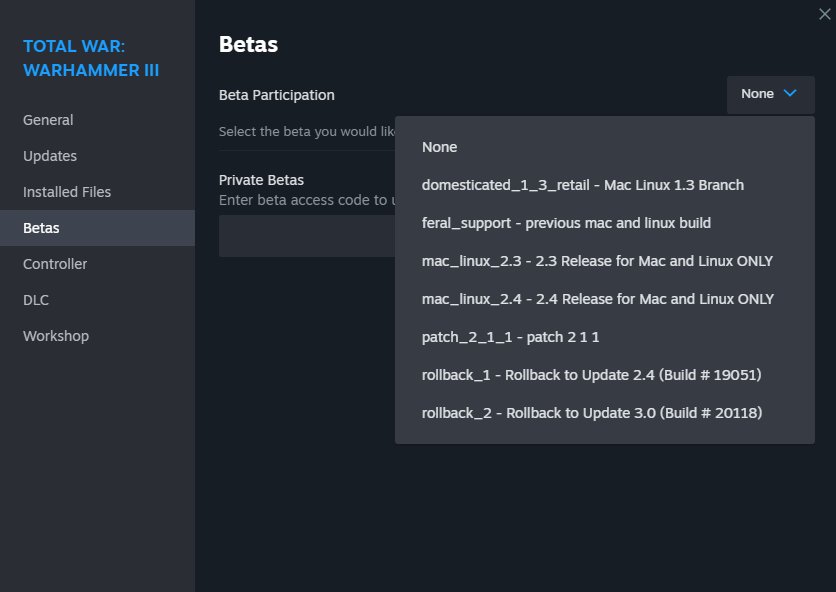
Some game developers provide access to “beta” branches on Steam. These beta branches often contain older versions of the game for testing purposes. Here’s how to check:
- Open your Steam client and go to your Library.
- Right-click on the game you want to revert and select Properties.
- Click on the Betas tab.
- Click the drop-down menu under “Select the beta you would like to opt into:”
- If available, you’ll see a list of beta branches.
- These might have names like “previous_version” or “old_build”.
- Select a beta branch that seems like an older version of the game.
- Steam will download the files for that branch.
Important Note: Not all games have beta branches available, and the versions available might not be the specific one you’re looking for. Also, some older beta branches might not be compatible with saved games or multiplayer. So, always use caution when choosing and loading beta branches, also sometimes older branches might have the bugs that are already fixed in newer versions.
Unofficial Methods: Exploring Other Options
Since Steam doesn’t provide an easy way to revert updates directly, gamers have developed various unofficial methods that you might try. These methods can range from simple to more technically involved, and it’s important to know that using these unofficial methods can sometimes have risks and might not always work.
Using Steam Console Commands
Steam has a console that can be used for various tasks, including downloading specific versions of games, which are known as “depots”. However, this method is more technical and you need the specific “manifest IDs” of the older builds. Getting these IDs can be difficult. Here is the basic process:
- Open Steam and go to your Library.
- Press Win+R on your keyboard to open the Run dialog box.
- Type steam://open/console and press Enter. This opens the Steam console.
- In the console, you’ll use the command:
download_depot <appID> <depotID> <manifestID> - You’ll need the AppID, DepotID and manifestID.
- The AppID is the unique identifier for the game on Steam. You can find this on the Steam Store page for the game.
- The DepotID is the identifier of the specific files for the game. Often this is just the game appid.
- The ManifestID is a specific version number for a build of the game. This ID is very difficult to obtain. It is not shown publically on steam.
- After typing in the correct ids, Steam will download the files of that specific version to a particular folder on your computer.
- You’ll need to replace the current game files with the downloaded version files. This involves a bit of file management.
- You will need to navigate to the game installation folder and replace the files there with the ones downloaded through the console command.
Important Note: Getting the correct depot and manifest IDs is difficult. You will need to obtain these from sources that sometimes aren’t publically available. Be careful when using these console commands and doing the file management process. If you overwrite the wrong files or use the wrong command, you might have to redownload the entire game again.
Using Community Made Tools or Mods
Some dedicated players and communities have created tools and mods that can help you with reverting to an earlier version of a game. These tools are usually specific to certain games and can only be used for those games and are not universal solution for reverting any game.
- Search online for tools or mods specific to the game you want to revert.
- Always be sure to download these from trusted source, and take a backup of your game files before using any kind of tools to revert to earlier versions of game.
- Follow the instructions carefully for each specific tool to avoid issues.
Important Note: Be careful with downloading files from untrusted sources. Always scan files with your antivirus and only use tools that you are comfortable with, and make a backup of your files before doing such processes.
Using Backups
If you are someone that keeps backups of the games, this is your best chance of reverting back to the previous versions. You can restore your game from a backup if you have created a backup prior to the update.
- If you’ve created a backup before, make sure to close the game and steam before starting to restore your backup.
- Find the backup files of your game that you saved in prior dates before the update.
- Navigate to the location where the game is installed.
- Overwrite or remove the current version and replace it with the backup files.
- Start steam and the game, and you should be in the version of the game that you had backed up.
Important Note: This is the safest way to revert a game version, but you need to have a backup of the older version to do this. Also, you will lose all the progress you made after you took the backup, so this is not an ideal solution, but it will help you in going back to the game version before an update.
Risks and Precautions When Reverting
Reverting a game update is not always simple and can sometimes come with risks:
- Game Instability: Older versions of games might be less stable, or have bugs that are fixed in the new versions.
- Compatibility Issues: Reverting to a previous version can cause issues with online play if the servers are running the latest version.
- Save Game Problems: Sometimes, save games created in a newer version might not work with an older version, or vice versa.
- File Corruption: Using unofficial methods might lead to file corruption if you aren’t careful with your system.
- Security Risks: Some tools and methods downloaded from unofficial sources could contain malware.
It’s important to always take the necessary precautions to minimize these risks.
Safety Tips
- Back Up Your Game Files: Before you try any method, make a backup of your game’s installation folder. This way, you can always restore the game to its current state if something goes wrong.
- Use Trusted Sources: Only download files, tools and mods from sources that you trust. Always check reviews and comments before downloading.
- Scan for Viruses: Run a virus scan on any downloaded file.
- Understand the Process: Before you try to revert a game update, make sure you understand each step and what might go wrong.
- Start Small: Don’t start with the most complicated methods first. Try simple solutions first.
When Reverting Isn’t Possible
Sometimes, despite your best efforts, reverting a game update might not be possible. This can happen for several reasons:
- No Beta Branches: The game might not have beta branches with older versions.
- No Community Tools: No community tools or mods might be available for reverting the game.
- Lack of Manifest IDs: You might be unable to find the necessary manifest IDs to use with the Steam console.
- Developer Restrictions: Some games are designed to be updated only.
In these cases, you may have to wait for the developers to fix the issues, or try other community options like switching to different mods, or just playing other games. It is very important to understand the limitations and when you just simply cannot revert back to older versions of game.
Reverting a Steam game update can be tricky, but sometimes it is very necessary to improve your gaming experience. While Steam doesn’t offer an easy revert button, there are several methods you can try, each with their own levels of difficulty. Always be careful, and make sure you have a backup of your files before attempting anything. By being informed and cautious, you can navigate these situations and get back to enjoying your game. Remember to follow the safety tips, and try to be patient, eventually the developers will fix issues in new updates. Sometimes you will just have to wait it out.
How to Revert Back to an Older Version of a Game on Steam
Final Thoughts
Reverting a Steam game update is possible through several methods like using the Steam console or downloading older game files, this depends on game’s developer support. Many players find this useful for modding or resolving compatibility issues.
You can try using Steam depots to access previous versions, but this approach is not always guaranteed. Remember the success of ‘how to revert steam game update’ depends on the developer allowing access to older versions.

