
You install games on the Switch Lite by purchasing them digitally through the Nintendo eShop or by inserting a physical game cartridge into the console’s slot.
Got a new Nintendo Switch Lite and eager to jump into some gaming? You’re in the right place! Figuring out how to install games on Switch Lite is simpler than you might think. The console offers both digital and physical options for getting your game library going.
We will guide you through the straightforward process. Whether you are downloading games from the eShop or using physical cartridges, it is a piece of cake! You will be gaming in no time.

How to Install Games on Switch Lite
So, you’ve got a Nintendo Switch Lite and you’re ready to dive into some awesome games! That’s fantastic! But maybe you’re wondering exactly how to get those games onto your little handheld buddy. It’s not like popping a cartridge into an old console; it’s a bit different. Don’t worry, it’s actually pretty easy. This guide will walk you through all the steps, whether you want to download games from the internet or use physical game cards.
Understanding Your Options: Digital vs. Physical
Before we get into the “how-to,” let’s talk about the two main ways you can get games for your Switch Lite. There’s the digital way, where you download games straight to your console, and the physical way, using game cards you buy in stores.
Digital Downloads: The Nintendo eShop
Think of the Nintendo eShop as a giant online store for Switch games. You can find lots of different games here, big and small, new and old. Downloading means you don’t need to keep track of any game cards, and your games are always right there on your Switch Lite. It’s a convenient way to build your game library. You’ll need a Nintendo Account and an internet connection for this. Here’s the good part about digital downloads:
- Convenience: No need to swap out game cards.
- Instant access: Download games directly to your console, ready to play right away.
- Sales and deals: The eShop often has sales, so you can get games at a lower price.
- Pre-loading: Some games let you download them before they even come out, so you can play them the second they launch.
Physical Game Cards
Physical game cards are just like the cartridges of older gaming systems, but smaller! You buy these at stores, and they come in a small box. They’re great because you can lend them to friends, trade them, or sell them when you’re done playing. They don’t need internet to play after they are installed. Here’s a breakdown of the advantages of using physical game cards:
- Collectability: Many people like having a physical collection of their favorite games.
- Trading and sharing: You can share games with friends or trade them with others.
- No download time: Pop in the card and you’re almost ready to play.
- Resale value: You can sell or trade game cards when you are finished with them.
How to Install Digital Games from the Nintendo eShop
Alright, let’s get to the nitty-gritty and talk about how you actually install those games! Here’s how to get started with downloading digital games:
Step-by-Step Guide to Downloading
Follow these steps closely for a smooth game-downloading experience:
- Connect to the Internet: First, make sure your Switch Lite is connected to a Wi-Fi network. Go to System Settings (the gear icon on your home screen), then Internet, then connect to your Wi-Fi.
- Open the Nintendo eShop: From the HOME Menu, tap the orange shopping bag icon. This is the eShop. You’ll need a Nintendo Account. If you don’t have one, the system will help you make one.
- Browse or Search: You can scroll through the eShop to find games you like, or search for a specific game by name using the search bar at the top.
- Select the Game: Tap on the game you want. It’ll show you details about the game like screenshots, price, and the space it will use up.
- Purchase and Download: Tap the “Purchase” or “Proceed to Purchase” button. You can use a credit card, debit card, or Nintendo eShop gift cards to pay. Once the payment is done, the game will start downloading to your console.
- Wait for the Download: Depending on the size of the game and your internet speed, the download might take some time. You can see the progress on your home screen. Once it’s finished, you can play!
Managing Digital Game Downloads
Sometimes, downloads might be paused or you might want to see the progress of a download. Here’s how you can manage them:
- Check download status: On the Home Menu, look at the game icon, you will see a progress bar when the download is in progress.
- Pause/Resume: You can tap a download on the home screen to pause or resume the download if you need to use the internet for something else.
- Freeing up space: If your console runs out of space, you can archive games you aren’t currently playing. This deletes the game from the Switch but not from your Nintendo account. You can re-download it again later.
How to Install Games Using Physical Game Cards
Using physical game cards is super straightforward. No internet needed for installation, just a little bit of care.
Step-by-Step Guide to Using Game Cards
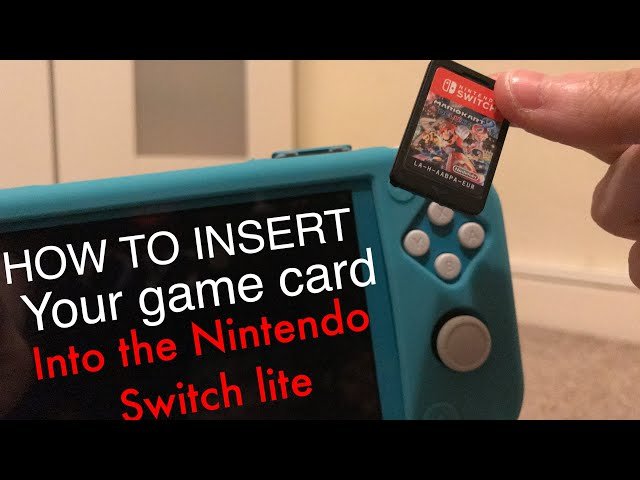
- Find the Game Card Slot: On the top of your Switch Lite, there is a small slot with a cover where the game card goes.
- Insert the Game Card: Make sure the label on the game card is facing the front. Carefully insert the game card into the slot until you feel it click into place.
- Start the Game: Your Switch Lite should automatically recognize the game. Tap on the game’s icon on the home screen to start playing. If the game is new, it might require a small update, so make sure you are connected to the internet.
- Remove the Game Card: When you want to take the game card out, turn off your Switch Lite first. Then, gently push the game card further into the slot until you hear a click. It will then pop out a little bit, and you can pull it out completely.
Important Considerations When Using Game Cards
- Handle with care: Game cards are small, so don’t lose them. Keep them in their cases when not using them, and avoid bending or scratching them.
- Keep away from liquids: Don’t let game cards get wet, as they can be damaged.
- Storage: Have a safe place to store your game cards when not in use. A carrying case or a game card storage box are very helpful!
Memory and Storage
Both digital and physical games take up space on your Switch Lite. It’s important to understand how to manage your memory. Let’s explore how you can keep on top of it.
Understanding Internal Storage
The Switch Lite has internal memory that it uses to store downloaded games and updates. You only get a certain amount of internal storage, which fills up with games pretty quickly if you are using digital downloads. Here’s what you should know:
- Limited space: The Switch Lite comes with a limited amount of internal storage for game downloads.
- System software: Remember, part of that storage is used for the Switch Lite system software itself.
- Updates and DLC: Game updates and Downloadable Content (DLC) also take up space.
Using a microSD Card for More Storage
The good news is that you can expand the storage on your Switch Lite with a microSD card! This is very helpful, especially if you prefer digital games. Here’s how to get more space:
- Buy a compatible microSD card: You need a microSDHC or microSDXC card. They can be found in many electronics stores and online. Choose one that has enough space for the games you plan to buy.
- Insert the microSD card: Turn off your Switch Lite. There is a small slot underneath the kickstand, carefully place the microSD card with the golden contact area facing down inside the slot.
- Format the microSD card: Turn on your Switch Lite. The system will prompt you to format the microSD card so it can be used to store your downloaded games.
Tips for Managing Storage
- Archive games: If you run out of space, you can archive games you are not currently playing. Archiving removes the game data from the console, but you can re-download it again at any time.
- Check storage: You can check how much space you have left in System Settings, under Data Management. This helps you know when you might need more storage or need to archive games.
- Prioritize games: Think about which games you play the most and keep them downloaded. You can keep physical game cards for the games you don’t play that often.
Troubleshooting Common Installation Issues
Sometimes, things might not go exactly as planned, and you could run into a few problems. Let’s look at some common issues and how to deal with them.
Common Issues and Solutions
- Slow download speeds: Sometimes your internet might be slow. Try moving your Switch Lite closer to your router or try restarting it. Also, check if other devices are using the same internet.
- Not enough storage: If you don’t have enough space to download a game, archive games you are not playing, use a microSD card, or delete demo and other downloads you don’t need.
- Game card not recognized: Remove the card and then place it back in. Try cleaning the contacts on the game card using a soft dry cloth. Sometimes, the issue could be with the game card itself.
- Download errors: Restart your console. Check the internet connection and try downloading again. If you continue to face issues, contact Nintendo Support.
Keeping Your Switch Lite Updated
Keeping your console and games updated is important. Game updates include bug fixes and can sometimes add new features. Here’s why keeping up to date is so important:
Why Updates Matter
- Bug fixes: Updates fix any problems or glitches in the games.
- New features: Updates can sometimes add new features or content to games.
- Performance improvements: Updates can make games run smoother.
How to Update
Your Switch Lite usually updates automatically, but here’s how to check manually:
- Check for system updates: Go to System Settings, then System. Click on “System Update” and the system will check for any available updates. If there’s one, follow the prompts to download and install it.
- Check for game updates: For games, hover over their icon from the Home Menu, press the + or – button and select “Software Update” then “Via the Internet”.
Extra Tips for a Great Gaming Experience
Okay, before you go, here are some extra tips that will make your Switch Lite gaming even better:
- Protect your console: Use a screen protector and a carrying case to keep it safe.
- Use headphones: For a better experience, especially when in public areas.
- Adjust screen brightness: For the most enjoyable game viewing, you may need to adjust the brightness in the display settings.
- Join gaming communities: Connect with other Switch Lite players online to make new friends and learn about games.
So, there you have it! Installing games on your Nintendo Switch Lite is actually very simple. Whether you like digital downloads or prefer physical game cards, you now know how to get those awesome games onto your system. Have lots of fun playing games!
How to Download Any Free Games on Nintendo Switch Lite
Final Thoughts
To install games on Switch Lite, you will primarily use the Nintendo eShop. Access it via the home menu and browse available titles. Select your game, purchase, and download it directly to the device.
Physical game cards also work. Insert the card into the designated slot. The console will read the data, and you can then play. Remember, how to install games on switch lite primarily involves digital downloads or physical cards.

