
To invite someone to a game on PS4, go to the game’s menu or the PS4 party screen, select the friend you want to invite, and then choose the ‘Invite to Game’ option.
Ready to jump into your favorite PS4 game with a friend? It’s super easy to get a gaming session going. This short guide will walk you through exactly how to invite someone to a game on ps4. No more waiting around for friends to join, let’s get started now.
It’s very straightforward, whether you’re navigating a game’s internal invite system or using the PlayStation’s built-in party features. You will be playing together in minutes.

How to Invite Someone to a Game on PS4
So, you’re ready to play some awesome games with your friends on your PlayStation 4? That’s fantastic! Getting your buddies into your game is actually pretty simple, once you know how. This guide will walk you through all the different ways you can send out those game invites, making sure you don’t miss out on any multiplayer fun. Let’s jump in and explore all the options you have to get your friends playing with you!
Inviting Friends Through the Quick Menu
The Quick Menu is your best friend when you need to do something fast on your PS4. It pops up over whatever you’re doing, which means you don’t need to leave your game to send an invite. How cool is that?
Accessing the Quick Menu
To bring up the Quick Menu, just press and hold the PlayStation button on your controller for a second or two. It’s that button in the middle with the PlayStation logo on it. A small menu will slide up on the left side of your screen. You can easily navigate this menu using your controller’s directional pad or the left analog stick.
Finding the Party Option
Once you’re in the Quick Menu, look for the option labeled “Party.” It’s usually represented by a little headset icon. Scroll down to it using your controller and press the “X” button to select it.
Starting a New Party or Joining an Existing One
You’ll now see a menu about parties. If you’ve already got a party going, you’ll see it listed here. If you don’t, you will have the option to “Start a New Party.” If you’re already in a party and want to invite someone to join you, just select the party you’re in.
To start a new party:
- Select “Start a New Party”
- Choose “Create Party” on the next screen
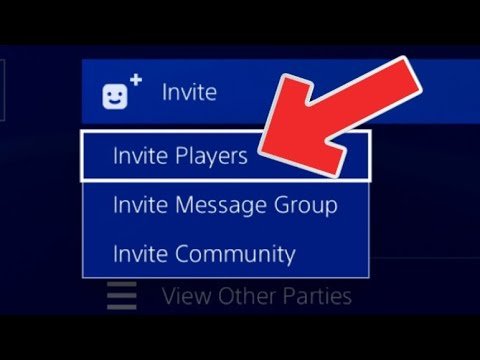
- Now you can see the option “Invite Players”
- Select “Invite Players,” and then you’ll see your friend list appear.
To invite someone to an existing party:
- Select your existing party.
- Select “Invite Players”
- From the friend list, select the friend you want to invite.
Selecting Your Friends to Invite
Your friends list will now appear. This shows everyone you’re friends with on PlayStation Network. Use the directional pad or left analog stick to move up and down, and press the “X” button on the controller to select the friend(s) you would like to invite to the party. Once you’ve selected the friend, they’ll get an invitation. The message usually includes the option to join both the party and the game you’re playing if it supports multiplayer.
Sending the Game Invite
With your friend(s) selected for the party, there will typically be an option to “Send invite”. Select this option, and they will get the party invite on their ps4. The invite often appears as a notification that they will need to click on to join.
Inviting Friends from the Game Itself
Many games on the PS4 have their own built-in invite systems. This can be a more direct way to invite your friends, especially if the game has specific lobby or match settings that need to be coordinated.
Accessing the Game’s Menu
Each game is a little different. Usually, you’ll need to press the “Options” button on your controller to get to the in-game menu. This button is the one next to the touchpad on your controller. Look for options related to multiplayer, online play, or invites. These are sometimes also found on the pause menu of a game.
Finding the Invite Option
Once you’re in the game’s menu, look for the words “Invite”, “Invite Friends”, or something similar. Sometimes it might be under a “Multiplayer” or “Online” tab. Every game has their own menu, so it’s best to read the options on your game menu to find the right one.
Selecting Friends to Invite
The game will often present a friends list similar to the PlayStation Network friend list. Select the friend(s) you want to invite using your controller and then send out the invites. The game will handle everything for you, sending your friends an invitation to join.
Some games allow for the use of “Squad” and “Party” settings, which helps you play with your friends in a group or team. You can often invite to a squad or party from this menu, too.
Waiting for Your Friends to Join
After you send the invite, it is up to your friend to accept it and join. Games will usually let you know when your friend has accepted the invite. If they are having trouble connecting, make sure everyone is online. It is best if you all try the same connection type, either wireless or wired.
Inviting Through the PlayStation Home Screen
You can also invite your friends to a game straight from the PS4’s home screen. This is a handy method when you’re not already in a game or if you just want to send out a quick invite while browsing. This method is useful for when your friend list is online and you’d like to invite them while you plan out what to play together.
Going to the Friends Tab
From the PlayStation home screen, look for the friends icon. It’s usually on the top menu bar, marked by two little people silhouettes, with one overlapping the other, in the shape of friends, or a single person icon with a (+) sign. Click on this using your controller.
Viewing Your Friend List
Once you are in the friends tab, you will see your friend list. Scroll through your list to find the friend you want to invite using your controller. You will usually see if they are online or not.
Selecting the Friend
Click on the friend’s name or profile by pressing the “X” button on your controller. This will open their profile page.
Choosing the “Invite to Game” Option
On their profile, there should be options like “Start Chat”, or “View Profile”. Look for a button that says “Invite to Game”. It will usually be a button with an icon of a controller with a (+) on it. Click this to invite them to your game.
If you’re not in a game yet, or your friend’s profile is on the screen, the option may show “Start a Game Together” this will typically invite the other player when a game is started.
Game Specific Options
Sometimes, if the friend you’re trying to invite is already playing a game, you might get the option to “Join Session” or “Join Game” this is often the quickest way to join a friend already playing. If they have a party going, you will see the option to join the party, and from there you can join the game in the party.
Managing Your Invites
Sending invites is just the start. Sometimes you need to see who’s invited, or what invites are waiting for you. It’s important to know how to manage these things, too.
Viewing Sent Invites
If you’re waiting for your friends to join, you can usually see the status of your invites. Go back to the “Party” section of the Quick Menu. In the party menu, you should be able to see who you invited, who has accepted, and who hasn’t responded yet. If your friends are having trouble, you can send another invite to them, in this menu.
Accepting an Invite
When someone invites you to a game, you’ll usually get a notification on your PS4. It’s often represented by a pop-up message on the upper-left side of your screen or a notification in the “Notifications” tab. This tab is found on the main menu. If you miss the initial notification, you can always go to this tab to see pending invites. Click on the notification, and then “Accept” or “Join” to join the game. You may have to wait for the game to load, depending on how large it is.
Troubleshooting Invite Issues
Sometimes, invites just don’t work the way we want them to. Here are a few common issues and how to deal with them:
- Network Issues: If either you or your friend has a bad internet connection, invites might not go through. Make sure everyone’s connected to the internet. Sometimes restarting your router and modem can help. Also, make sure you are online in Playstation Network.
- Game Compatibility: Make sure the game supports multiplayer, and that you’re all on the same version of the game. Some games have different server regions, so you might need to change region.
- Privacy Settings: Check your privacy settings, or have your friend check theirs. Sometimes these settings can block game invites. This setting is often found in the PS4 settings menu under “Account Management”.
- PlayStation Network Status: If PlayStation Network is down, invites won’t work. Check the status of the network to see if it is experiencing problems.
Tips for a Smooth Gaming Session
Inviting friends is just the beginning! Here are some extra tips to make your gaming time even more fun:
- Communicate: Use party chat to talk to your friends. It’s much easier to plan and strategize when you can hear each other. You can access this in the party menu on the Quick Menu.
- Check Game Requirements: Before you start, make sure everyone has the right game, game updates, and downloadable content (DLC). Some games will not let you play together if one player has an update that another one doesn’t.
- Be Patient: Sometimes connections take time. Don’t get frustrated if it doesn’t work perfectly at first. If it’s taking too long, try restarting your ps4 or game.
- Have Fun: The most important thing is to enjoy your time playing with friends. Don’t get hung up on the little things. Just have a good time!
Inviting friends on PS4 is not too hard, once you know the steps. Whether you use the Quick Menu, the game’s own invite options, or the PS4 home screen, you have many ways to bring your friends into your games for endless amounts of fun. Remember to communicate, be patient, and most importantly, have a great time with your friends.
How To Send Game Invite On PS4 – Full Guide
Final Thoughts
Inviting friends on PS4 is simple. Use the PlayStation button to open the quick menu. Select ‘Game Base’, then choose the friend you want.
Next, pick the game and select ‘Invite to Game’. They will receive a notification. Make sure they are online and ready to play.
Finally, that covers how to invite someone to a game on ps4. This process ensures quick and easy invites for any multiplayer session. It is must to check friend availability before sending invitation.

