
To link a different Epic Games account to your PS5, you must first unlink the currently connected account through your PlayStation Network settings or the Epic Games website, then link the new account during a game launch.
Want to switch your gaming profile on your PlayStation? Maybe you have a new Epic Games account you prefer to use. Figuring out how to link a different Epic Games account to PS5 can seem tricky, but the process is quite straightforward. We will show you the exact steps.
It involves a bit of unlinking, followed by linking again with the desired account. This ensures that all your game data is connected correctly. This way, you can enjoy your games with your chosen profile.

How to Link a Different Epic Games Account to PS5
Okay, so you’ve got your PlayStation 5 all set up, ready to dive into some awesome games, but there’s a little hiccup. You’re trying to play a game that uses your Epic Games account, but it’s linked to the wrong one! Maybe you have a new account, or you accidentally linked the wrong one way back when. It’s a common problem, and thankfully, it’s totally fixable. Let’s walk through how to switch things up and get your desired Epic Games account linked to your PS5.
Understanding the Link
Before we jump into the “how,” let’s talk about what’s happening when you link your accounts. When you connect your PlayStation Network (PSN) ID to an Epic Games account, they become tied together. This allows you to play games like Fortnite, Rocket League, Fall Guys, and others that use the Epic Games platform. It also lets you keep your progress, skins, and other game stuff when moving between your PS5 and other devices.
It is important to note that if you have already linked a PSN account to an Epic Games account, you cannot simply link it to another account without first unlinking the existing connection. The process can seem a bit confusing, so we’ll take it step-by-step.
Why You Might Need to Change Your Linked Account
There are many reasons why you might want to link a new Epic Games account to your PS5. Here are a few common ones:
- Starting Fresh: Maybe you wanted to start over on a new Epic Games account.
- Using a Different Account: Perhaps a family member linked their account, and now you want to use your own.
- Accidental Link: Maybe you made a mistake when you first linked your accounts.
- Account Security: You might be switching to an account with better security measures.
The Unlinking Process: Step-by-Step
First, you can’t simply link a new Epic account until you have broken the bond with the old one. This step is crucial. You need to unlink your current Epic Games account from your PSN account via the Epic Games website. Here is how to do it:
Step 1: Access the Epic Games Website
Open a web browser on your computer, phone, or tablet. Go to the official Epic Games website: www.epicgames.com.
Step 2: Log in to Your Epic Games Account
Click the “Sign In” button. Make sure to log in with the Epic Games account that is currently linked to your PSN account, the one you want to unlink.
Step 3: Navigate to Account Settings
After logging in, click on your username (usually in the top right corner of the screen). A drop-down menu will appear. Click on “Account.”
Step 4: Go to “Connections”
On the left-hand side of the screen, you will see a list of options. Click on “Connections.” Then, click on “Accounts.”
Step 5: Find Your PlayStation Network Connection
You should see a list of linked accounts including a PlayStation icon. Find the PlayStation Network connection you want to unlink.
Step 6: Unlink the Accounts
Click on the “Remove” button next to the PlayStation Network connection. A warning will pop up to confirm that you want to unlink. Carefully read this warning because there is a chance you might lose some progress, especially if that is your main account.
If you’re certain, click “Unlink” or “Confirm” to proceed.
Important Note: Unlinking your accounts can have consequences. Your game progress and content may become inaccessible on the PlayStation 5 if the game was heavily tied to your PSN account. Usually, it is all stored on the Epic Games account, but some games might have some data stored on the PSN side. Make sure you understand the implications before doing this. Always try to ensure that you have properly logged into the correct account, or have access to it, just in case.
Linking Your New Epic Games Account
Now that you have unlinked your old Epic Games account, you are ready to connect your new account to your PS5. Here’s how to do that:
Step 1: Start a Game That Requires an Epic Games Account
Turn on your PlayStation 5 and launch a game that requires an Epic Games account to play online. For example, try Fortnite, Rocket League or Fall Guys. The game will notice that you are no longer logged into an Epic Games account.
Step 2: Sign In or Link
When the game starts, you’ll be asked to sign into an Epic Games account. You will see a message with a prompt to “Link Account” or “Sign In” to an Epic Games account.
Step 3: Follow the Instructions On Screen
A web page should open or a code will be provided. Follow the steps given on the screen and on the web page to sign in to the correct Epic Games account. There will be an option for logging in to an existing account with the “Sign In with Email” or other options, or you can choose to use the “Sign in with PlayStation” option if the chosen Epic account is new and was made via your PSN. Make sure to use the “Sign In” options if you want to link to a pre-existing Epic account. In addition, you can just go straight to the website www.epicgames.com/activate on your phone, computer, or tablet, and enter the code. This method is generally recommended to avoid any PS5 web browsing issues.
Step 4: Verify the Link
Once you are logged in, your Epic Games account will be linked to your PSN ID. The game will refresh, and your account details should now reflect your linked Epic Games account.
Troubleshooting Common Issues
Sometimes, linking accounts doesn’t go as smoothly as we’d like. Here are a few issues you might encounter and how to deal with them:
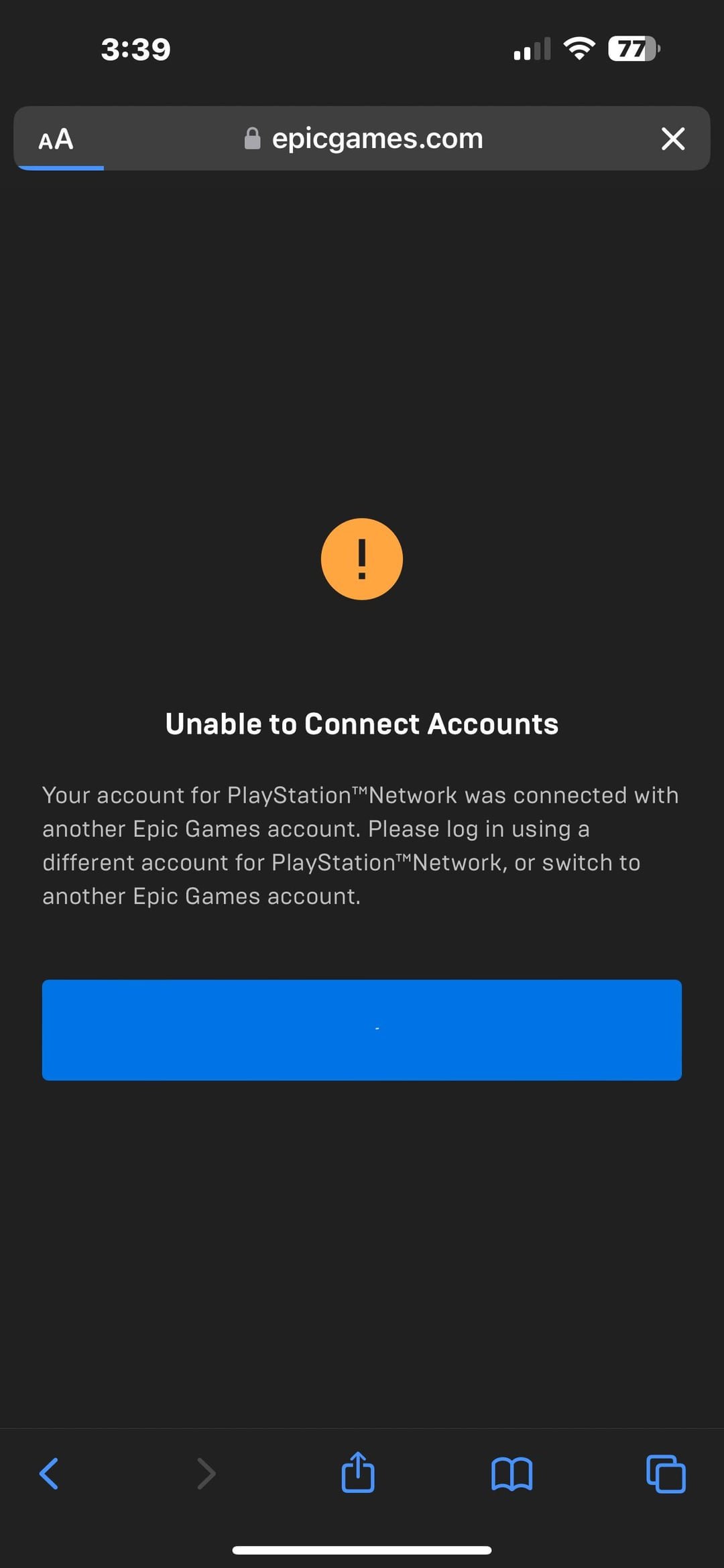
Issue 1: “This PSN Account Is Already Linked to Another Epic Games Account”
This is the most common issue. If you see this error, it means your PSN account is still linked to another Epic Games account. You must unlink your old account by following the steps from the section “The Unlinking Process: Step-by-Step,” and then try the linking process again. Make sure you have correctly logged into the correct Epic Games account, to unlink the correct PlayStation account.
Issue 2: Unable to Unlink From The Website
If the “remove” button is not working or is missing, then you need to directly contact Epic Games support. They can help you with unlinking an account, which is not possible from the front end user interface. They can also help if you forgot the email and password to access the Epic Account you wish to unlink.
Issue 3: Game Progress Not Showing Up
If you switch to a new Epic Games account, your previous game progress might not automatically transfer. Usually, all the game progress and data is stored on the Epic Games account, so all progress, skins, and cosmetics should transfer over without an issue. If you’re still having trouble, first ensure that you have linked the correct account, and if that doesn’t work, then contact support for both the game you are playing and Epic Games support for further assistance.
Issue 4: Login Issues
If you’re having trouble logging into your Epic Games account, try resetting your password. Go to the Epic Games website and click “Forgot Password?” Enter the email address associated with your account and follow the instructions to reset it. Make sure you have full access to your email address associated with your Epic Games account.
Issue 5: Problems with the PS5 Web Browser
The PS5 web browser is quite basic and sometimes the activation screen may have issues, such as a loading screen or other errors. To bypass this, just use your phone or computer to access www.epicgames.com/activate and follow the on-screen instructions.
Tips for Avoiding Future Issues
To help keep things smooth in the future, here are some tips:
- Write it Down: Keep a record of which email address you use for your Epic Games account. This helps prevent you from forgetting in the future, and is especially useful if you have multiple accounts.
- Double-Check: Make sure to double-check which Epic Games account you’re logged into before linking. A slight mistake with a username or email address can be a pain to fix.
- Account Security: Set up two-factor authentication (2FA) on your Epic Games account for added security. This can prevent others from accessing your account.
- Parental Control: If children are using the PS5, ensure the correct accounts are used and make sure you set up appropriate parental controls.
Switching your Epic Games account on your PS5 might seem tricky at first, but with a bit of patience and the steps outlined above, it’s definitely manageable. Remember to be careful with the unlinking process, and if any issues arise, both Epic Games support and the support for your game are there to help. With the right account linked, you’ll be able to enjoy your favorite games on your PS5 without any more headaches!
How to Link Epic Games Account to PS5 – 2025 (Fortnite, Fall Guys, Rocket League)
Final Thoughts
To link a different Epic Games account to PS5, you must first unlink the existing account. You can do this through the Epic Games website, within your connected accounts section. After that, you can link your desired Epic Games account to your Playstation Network account on the same Epic Games site.
This process is crucial if you need to switch game progress or access content associated with another Epic Games ID. Properly following these steps ensures you know how to link a different epic games account to ps5 seamlessly and avoids complications.

