
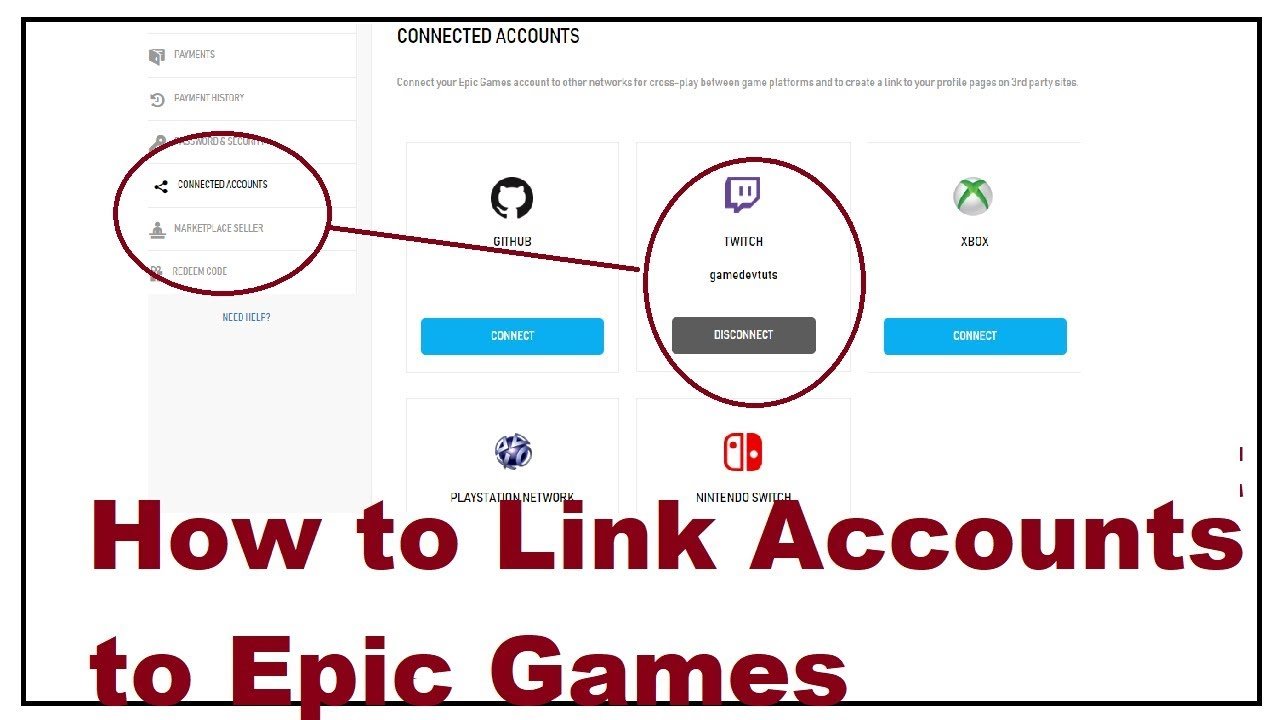
To link your Epic Games account to Fortnite, you must log into your Epic Games account on the Epic Games website, and then connect the game platform you use for Fortnite within your account settings.
Ever wondered how to link epic games account to fortnite? It’s a common question for new players, and the process is actually quite simple. This connection is essential for carrying your progress, skins, and other goodies across different devices.
This article provides a clear and quick guide, to get you playing smoothly. You’ll learn exactly where to find the settings and connect your gaming platforms correctly.

How to Link Your Epic Games Account to Fortnite
So, you’re ready to dive into the awesome world of Fortnite and want to make sure your progress and cool skins are all connected to your Epic Games account? Great! Linking your accounts is super important, and it’s actually quite easy. Think of it like making sure all your toys are kept in the same toy box – you want everything together and safe. This article will guide you through every step, making the process simple and fun, just like playing Fortnite itself!
Why Link Your Epic Games Account to Fortnite?
Before we jump into the “how-to,” let’s talk about why linking your accounts is crucial. It’s more than just a step; it’s the key to a better gaming experience. Here’s why it matters:
- Keeping Your Progress Safe: Imagine building the coolest base ever, unlocking awesome characters, and then losing it all! Linking your Epic Games account makes sure all your hard work and progress in Fortnite are saved securely. You won’t have to worry about losing anything if you change devices or need to reinstall the game.
- Playing on Different Devices: Do you have Fortnite on your computer, your gaming console, or your phone? Linking your accounts allows you to play the same game and keep the same progress no matter what device you are using. You can start a match on your PC and finish it later on your phone!
- Access to Cross-Platform Features: Want to play with your friends who use different consoles? Linking your account enables cross-platform play, meaning you can team up with (or compete against!) anyone, no matter what device they have. It’s all about having fun with everyone!
- Accessing Special Events and Rewards: Sometimes, Fortnite has special events that require you to have your account linked to participate or receive rewards. Linking ensures you don’t miss out on any cool opportunities.
- Managing Account Security: Your Epic Games account keeps track of your game data, purchases, and payment information. By linking it to Fortnite, you have one place to manage and protect your information.
In short, linking your account isn’t just a good idea; it’s the best way to fully enjoy all that Fortnite offers. Now, let’s learn how to do it!
How to Link Your Account: Step-by-Step Guide
Linking your Epic Games account to Fortnite is straightforward, and the process varies slightly depending on how you’re playing the game. Here are the most common scenarios:
Linking When You First Start Fortnite
This is often the easiest way to link accounts. When you launch Fortnite for the very first time on a new device, the game will prompt you to either sign in with an existing Epic Games account or create a new one. Here’s what you need to do:
- Launch Fortnite: Open the game on your device (computer, console, or mobile).
- Select Your Sign-In Method: You’ll see different options, like signing in with Epic Games, PlayStation Network, Xbox Live, Nintendo Account, or Apple ID/Google. Choose the ‘Epic Games’ option if you already have an account.
- Sign In or Create Account:
- If You Have an Account: Enter your Epic Games account email address and password and log in.
- If You Don’t Have an Account: Click “Sign Up” and follow the instructions to create a new Epic Games account. This usually involves giving them your email, a display name, and a secure password.
- Verify Your Connection: Once you’ve signed in, Fortnite will link your current gaming profile on the console or device to your Epic Games account. The game will then verify that everything is connected.
- Start Playing: After that, you are ready to start having fun in the Fortnite world!
Linking an Existing Fortnite Account to a New Epic Games Account
Sometimes, you might start playing Fortnite without linking an Epic Games account right away (maybe you used your console login). If that is the case, here is how to link it to your Epic Games Account:
- Visit the Epic Games Website: Open a web browser on your computer or mobile device, and go to the official Epic Games website.
- Log In to Your Epic Games Account: If you already have an Epic Games account, click on ‘Sign In’ and use your username and password. If you don’t have one yet, create one first.
- Access the ‘Connections’ Section: Once you have logged in, click on your profile name on the top of the page. Then, go to ‘Account’ page settings. Find the ‘Connections’ tab.
- Connect Your Accounts:
- You will see a list of platforms such as Playstation, Xbox, Nintendo, and other options that you can connect to your Epic Games Account.
- Click on ‘Connect’ for the platform your Fortnite account is connected to.
- You will be taken to the platform’s website to sign in. You must sign in to the platform account that you are using to play Fortnite.
- If you do not have the platform’s account, you need to create one first and link it to your Fortnite.
- Follow the prompts to complete the link.
- Verify the Link: Once linked, you should see the connected accounts under the ‘Connections’ section of your Epic Games account. It will also appear in Fortnite when you launch the game.
What if you have Fortnite progress on a console, but no Epic Games Account yet?
Let’s say you played a lot of Fortnite on your PlayStation, Xbox, or Nintendo Switch, but you have never made an Epic Games account before. Don’t worry, Epic Games can still link your console account to a new Epic Games account. Here’s how:
- Go to the Epic Games Website: Open the Epic Games Website in your web browser.
- Click Sign In: In the upper right-hand corner, click on the ‘Sign In’ button.
- Choose Your Console: Below the Epic Games login, you’ll find logos for the consoles. Click on the logo that matches the console you are using to play Fortnite.
- Sign In to Your Console Account: You will be redirected to your console’s sign-in page. Enter your console account credentials.
- Create a New Epic Games Account: If you don’t have an Epic Games account associated with that console account, it will prompt you to create one.
- Enter Your Details: Follow the prompts to enter the necessary details like your email, username, and password.
- Verify the Connection: After successfully creating an Epic Games account, Epic Games automatically connects the console account to the new Epic Games account.
- Play with Your Linked Account: Launch Fortnite on your console or any other platform. Your Epic Games account is now connected, and all of your progress should appear on your account.
Troubleshooting Common Linking Problems
Sometimes, things don’t go as smoothly as we hope, and linking your account can hit a snag. Here are some common issues and how to fix them:
“Already Linked to Another Account”
This message means that the Fortnite account you’re trying to link is already associated with a different Epic Games account. This usually happens if you have multiple Epic Games accounts or if you have previously linked a console account to a different Epic Account.
- Solution: Figure out which Epic Games account is linked to your Fortnite profile. Try to log in with all of your Epic Games accounts. Once you find it, you can use that account. If you don’t know the password, try to reset it.
- If you cannot find it: Contact Epic Games Support. They can guide you through steps to recover the account or unlink it, if possible. However, this might be difficult.
“Error Connecting to Epic Games Servers”
If you see this error message, it indicates a problem with the Epic Games servers. Usually, the problem is not on your end, and there is a problem on their end.
- Solution: Check the Epic Games Server Status page. If the servers are down, wait for Epic to resolve the issue. You can try again later. Make sure your internet connection is stable, try restarting your device or router.
“Account Connection Request Failed”
This error can occur if there is a problem verifying the link. Often, this means there is a problem with the website connection or the game’s connection.
- Solution: Try to close out and restart Fortnite or restart your web browser. If that doesn’t work, try restarting your device or console. If the problem continues, check the Epic Games support website to see if there are any reported issues.
Wrong Account Connected
It’s possible that you might accidentally connect the wrong Epic Games account to Fortnite. It happens!
- Solution: If you have multiple Epic Games accounts, make sure you are signed into the correct account that you want to link to Fortnite. If you have connected the wrong account, you may have to contact Epic Games support for assistance.
Still Having Trouble?
If you’ve tried all these solutions and are still having problems linking your account, there is always more help available. Epic Games offers some amazing customer support for such situations. Contacting them directly can help you resolve any complex issues that you may encounter.
Tips for Smooth Account Linking
Here are a few tips to help you keep the account-linking process smooth and hassle-free:
- Use a Strong Password: Make sure your Epic Games account password is safe. A strong password helps protect your game data and your account.
- Keep Your Email Secure: Make sure you have access to the email you used to create your Epic Games account. If you forget your password, you will need the email account to reset it.
- Double-Check Account Details: Always double-check the Epic Games account and the connected console account details before confirming any connection.
- Don’t Share Your Login Details: Protect your account by not sharing your account login information with anyone.
By following these steps and tips, you should easily connect your Epic Games account with Fortnite. Having a linked account provides a lot of benefits, and it ensures your progress and achievements are safe and accessible across all of your devices. Now go have some fun with your account linked!
Linking your Epic Games account to Fortnite is a simple but important step that will improve your overall gaming experience. By keeping your progress safe, allowing for cross-platform play, and providing access to special events, it is a must for any serious Fortnite player. The steps listed above should be easy to follow and can get you on your way to playing with all the benefits of a linked account. Now go get that Victory Royale!
How To Link Epic Games Account To Fortnite Account – Xbox, Playstation, Switch
Final Thoughts
Linking your accounts allows cross-progression. This lets you use your cosmetics and progress across different platforms. You need to connect your Epic Games account with your console or device account.
To do this, go to the Epic Games website. Sign in, then navigate to the ‘Connections’ area of your account settings. Choose your platform and follow the instructions given.
Following these steps shows you how to link Epic Games account to Fortnite. This process is simple, ensuring you enjoy Fortnite content across devices. Connecting provides seamless gameplay experience.

