
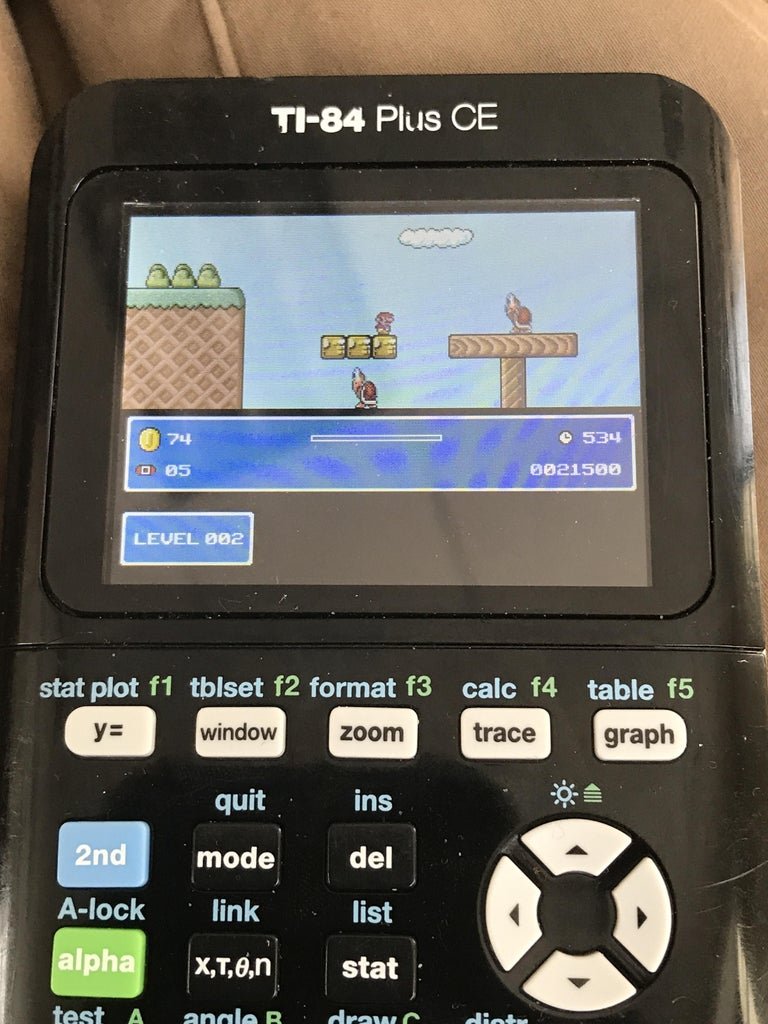
To play games on a TI-84 calculator, you generally need to transfer game files (.8xg or .8xp) from a computer using a link cable or software, then access them through the calculator’s program menu.
Ever wondered if that trusty TI-84 calculator could do more than just crunch numbers? You’re not alone! Many students ask about how to play games on ti 84 during those long study sessions. It turns out, your calculator can be a decent little gaming device when you know how.
These calculators can hold basic games. With a few steps, you can start having fun during breaks. Let’s explore how to get those games onto your TI-84.

How to Play Games on TI-84
So, you’ve got a TI-84 calculator and you’re ready for some fun beyond math problems? Great! While these calculators are mainly designed for schoolwork, they can also be surprisingly good for playing simple games. It’s not like having a PlayStation or an Xbox, but for a little bit of entertainment during a boring class or a long car ride, it’s perfect. Let’s dive into how you can get some gaming action going on your TI-84.
Understanding TI-84 Games
Before we jump into playing, it’s good to know what kind of games we’re talking about. These aren’t the fancy, graphics-heavy games you see on your phone or computer. TI-84 games are usually simple, text-based, or have basic graphics using the calculator’s screen. They’re typically small programs written in the calculator’s programming language. Think of them as mini-games, like classic arcade titles, but even simpler. They often involve simple movements, number guessing, or puzzles.
What Kind of Games Can You Expect?
You might find:
- Text-based adventures: These games are all about reading the text on the screen and making choices. Think of choose-your-own-adventure books, but on a calculator!
- Simple arcade clones: Games like Tetris or Snake, but with very simple graphics made from lines and dots.
- Puzzle games: Number puzzles, memory games, or simple logic games.
- Number guessing games: The calculator picks a number, and you try to guess it!
Finding TI-84 Games
The first step is getting games onto your calculator. You won’t find them in a regular app store; you’ll need to find them online and transfer them to your TI-84. Here are some popular ways to do this:
Websites and Online Communities
There are lots of websites and online forums where people share TI-84 games. You can find games shared as files you need to download to your computer. Some of the popular places include:
- TI-Planet: A big online community for TI calculator users. You can find games, programs, and information here.
- Cemetech: Another great place to find calculator software, including games, tools and utilities.
- YouTube Channels: Some YouTubers upload videos showing off games or provide download links in their video descriptions. Search for “TI-84 games” and see what comes up.
- Reddit: Search for subreddits like r/TI_Calculators to find communities that share games and helpful advice.
Types of Game Files
When you download games, you’ll usually see files with specific extensions, like:
- .8xp: This is the most common type of file for TI-84 programs and games.
- .8xg: Sometimes, games come with extra data files using this extension.
These files are how games get transferred to your calculator.
Transferring Games to Your TI-84
Now that you have your game files, you need to get them onto your calculator. This is where a special program and a cable come into play. Here’s how to do it:
What You’ll Need
- TI-84 Calculator: Obviously!
- USB cable: This connects your calculator to your computer. It’s usually the same cable that you use to charge some older digital cameras.
- TI Connect CE software: This is a free program from Texas Instruments that lets you transfer files between your computer and your calculator. Download it from the Texas Instruments website. Make sure you get the right version for your calculator model.
Step-by-Step Transfer Guide
- Install TI Connect CE: Download and install the TI Connect CE software on your computer. Follow the instructions in the installer.
- Connect your calculator: Use the USB cable to connect your TI-84 to your computer. Make sure your calculator is turned on.
- Open TI Connect CE: Launch the TI Connect CE program on your computer.
- Find your calculator: TI Connect CE should automatically find your calculator. If it does not find your calculator, try re-connecting it, or ensure the cable is working correctly.
- Select “Send to Calculator”: Look for the “Send to Calculator” or similar option within the TI Connect CE software. This option is used to transfer files to your calculator.
- Browse for the game files: A window will pop up where you can find the .8xp and .8xg game files that you downloaded. Select them.
- Send the game files: Click the “Send” or “Transfer” button to send the game files to your calculator. TI Connect CE will show a progress bar as it transfers files.
- Disconnect: Once the transfer is complete, you can safely disconnect your calculator from your computer.
Troubleshooting Transfer Problems
Sometimes things don’t go smoothly. If you’re having trouble, here are a few things to try:
- Check the cable connection: Make sure the USB cable is properly connected to both your computer and your calculator.
- Try a different USB port: Sometimes a different USB port on your computer can fix the issue.
- Restart your computer and calculator: Sometimes, a simple restart can solve the problem.
- Make sure you have the correct TI Connect CE version: Check the TI Connect software page to ensure you have the correct version, as some software versions don’t work correctly with some TI models.
- Check calculator storage: If your calculator is full, you may need to remove some files to make space for games.
Playing Games on Your TI-84
Now that you’ve successfully transferred your games, it’s time to play! It may seem a little different than playing games on other devices, but you’ll get used to it quickly.
Accessing Games on the Calculator
Here’s how to find and start your games:
- Press the PRGM button: This button opens up the calculator’s program menu.
- Select a game: A list of program names will appear. Use the arrow keys to scroll through the list and find your game. Game names will be the file name you downloaded, without the .8xp part.
- Press ENTER: Select the game name by pressing the ENTER button.
- Run the game: You’ll now see the program name again at the bottom of the screen. Press ENTER again to start the game.
Understanding Game Controls
TI-84 game controls are very simple because you don’t have joysticks or touch screens. They rely on the calculator’s buttons:
- Arrow keys: The up, down, left, and right arrows are used for movement or to navigate menus.
- ENTER: This button usually selects options or confirms an action.
- Clear/QUIT: Use this button to exit a game or go back to the previous menu.
- Number keys: Some games may use the number keys for specific actions, especially number-based puzzles.
- 2nd button and various other keys: Some advanced games might require use of other buttons for different action sets.
Each game is different, so experiment with the keys to see how they work in a specific game.
Gameplay Tips
Here are some things to keep in mind while playing:
- Be patient: TI-84 games are very basic. Don’t expect high-end graphics or complex gameplay.
- Read the instructions: Some games might have a simple start-up screen with brief instructions. Read them carefully before starting to play.
- Experiment with controls: If you are not sure how to play, try different keys. Most games respond to one or two types of buttons.
- Have fun! Playing games on a calculator is a bit of a novelty. Don’t take it too seriously, just enjoy the simple entertainment it offers.
Managing Games on Your TI-84
After you have played games for a while, you may need to add or remove some games to free up memory or add new ones.
Deleting Games
Here’s how to remove games from your calculator:
- Press 2nd then MEM button: this will bring the MEM menu.
- Navigate to Mem Management/Del: Use the arrow keys to navigate and enter the Mem Management/Del option.
- Select Program: In the Mem Management/Del menu, scroll down until you get to the Programs entry. Press Enter.
- Select the game you want to remove: A list of programs will appear on the screen. Use the arrow keys to navigate and select the program you want to remove.
- Press the DEL button: This button will delete the selected game. Confirm if necessary.
Organizing Games
Because the calculator has limited memory, it’s good to manage what games are on there to make space for new games. Periodically, you may need to delete some older, less played, or completed games.
Game Recommendations
To get you started, here are some popular game titles you might want to look for:
- Block Dude: A classic puzzle platformer where you move blocks to reach the end of the level.
- Tetris: A very simple version of the classic block game.
- Snake: Control a snake as it eats pellets and grows longer.
- Drug Wars: A text-based adventure game where you trade drugs and try to make a profit.
- Phoenix: A space shooter where you control a ship and shoot down enemies.
These are just a few suggestions. There are many more games out there to explore!
Playing games on your TI-84 calculator is a fun way to pass the time and experience a different kind of gaming. It’s not about high-end graphics or complex controls. It’s about enjoying simple fun and the satisfaction of getting a game running on a device primarily meant for math. So, explore online communities, transfer some games, and have fun!
How to Put Games on the TI 84 Plus CE
Final Thoughts
To play games, first you must transfer compatible game files to your TI-84 calculator using a computer. Then, access the program menu on your calculator. Select the game program file you want to play.
Once selected, the game will launch, and you can use the calculator’s buttons to control the game. Learning how to play games on ti 84 offers a fun way to utilize your calculator beyond math.

