
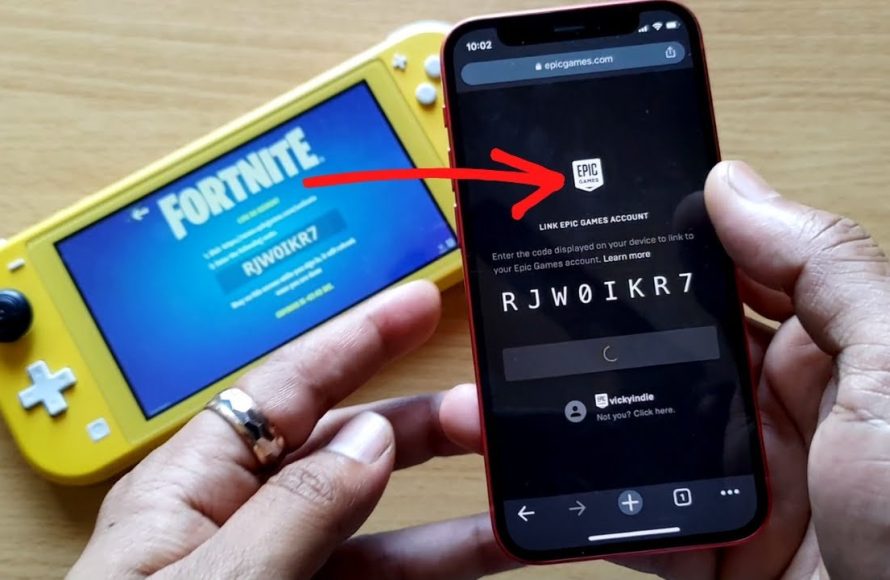
To link your Epic Games account to your Nintendo Switch, you need to start a game that uses your Epic account on the Switch, then follow the prompts on screen to log in or create a new account.
Want to share your progress and skins across platforms? Figuring out how to link your Epic Games account to Nintendo Switch is essential for many players. It’s a straightforward process but can be confusing at first.
The process basically revolves around starting a game that needs your epic account on the switch itself. Then, you’ll be guided through the necessary sign-in or account creation steps. Follow this simple guide to get connected and enjoy your games seamlessly.

How to Link Epic Games Account to Nintendo Switch
Want to play your favorite games like Fortnite, Fall Guys, or Rocket League on your Nintendo Switch using your Epic Games account? It’s a great way to keep all your progress, skins, and items in one place, no matter what device you’re playing on. Linking your accounts might sound a little tricky, but it’s actually quite simple. This guide will walk you through each step, making the process super easy for everyone.
Why Link Your Epic Games Account to Your Nintendo Switch?
Before we jump into the how-to, let’s talk about why you should link your accounts. Linking your Epic Games account with your Nintendo Switch account provides several awesome advantages.
- Carry Your Progress: One of the biggest reasons is carrying your game progress from other platforms. If you’ve been playing Fortnite on your computer or PlayStation, you can keep all your levels, challenges, and accomplishments on your Switch.
- Keep Your Skins and Items: No one wants to start with a bare character! By linking, all your cool skins, dances, and other goodies will move over to your Nintendo Switch. It’s like taking your favorite toys with you.
- Play with Friends: Linking accounts lets you play with your friends no matter what device they’re using. Cross-platform play is super fun and keeps everyone connected.
- Easy Access: Having your accounts linked makes accessing all your games and purchases much simpler. You don’t need to create a new account for your Switch.
Things You’ll Need Before You Start
Before we start the linking process, make sure you have these ready:
- A Nintendo Switch: This one is pretty obvious! Make sure your console is charged and ready to go.
- An Epic Games Account: You’ll need an existing Epic Games account or be prepared to make one.
- A Nintendo Account: Make sure you also have a Nintendo Account. If you don’t, you’ll need to create one.
- Internet Connection: Both your Nintendo Switch and the device you’re using to access the Epic Games website need a stable internet connection.
- A device to visit the Epic Games website: A computer, smartphone, or tablet will be perfect for this.
Step-by-Step Guide: How to Link Your Accounts
Step 1: Launch a Game that Uses an Epic Games Account
First, turn on your Nintendo Switch and launch a game that uses an Epic Games account. Games like Fortnite, Rocket League, or Fall Guys work great for this. For example, we will use Fortnite for this step, but the process will be very similar for any Epic Games title on your Switch.
- Navigate to the game on the home screen of your Nintendo Switch.
- Click to open the game.
- Allow the game to load up completely.
Step 2: Starting the Link
When the game starts, it will prompt you to log in or create an account. Don’t worry – you won’t be making a new account. The game will give you an option to link an existing account, or to create a new one if you don’t have one. You must select the option to “link an existing account”. The game will then display a code on your screen, and display a link to the Epic Games website. This screen will have a link like this: “epicgames.com/activate”.
Important Note: This code and the link will be unique to your game and your device. You need to use this specific code and link, because it will be the only code that will link your Nintendo Switch to your Epic Games Account. Please ensure that you use the official website link displayed on your screen, and don’t use random web links found online to login to avoid any malicious activity.
Step 3: Go to the Epic Games Activate Website
On a different device (like a computer, phone or tablet), open a web browser and go to the website: epicgames.com/activate. Make sure the link you’re entering is exactly as shown on your Nintendo Switch screen.
Step 4: Log In to Your Epic Games Account
You will see a login screen on the epicgames.com/activate website. Now, log in using your Epic Games account details (email address and password). If you have previously logged into your Epic Games account using Google, Facebook, PlayStation, or Xbox, use the corresponding login option.
Step 5: Enter the Code
On this page, you will see an area where you can enter a code, you will see a specific space to write the code. Type in the code that the game showed you on your Nintendo Switch screen. Remember, codes are case-sensitive, so be extra careful when entering it and don’t include any spaces or other unwanted symbols, and make sure all the letters you input are correct.
Double-check the code before clicking the “Continue” button, as wrong code will lead to issues and prevent you from correctly linking your account.
Step 6: Confirm the Account Link
After entering the code, the Epic Games website will ask you to confirm that you want to link your Nintendo Switch account to your Epic Games account. Read the information carefully and if you are happy, confirm the link.
Step 7: The Confirmation Screen
Once you have confirmed, a confirmation screen will display, telling you that your accounts are linked, now you can close the web browser, and return to your Nintendo Switch.
Step 8: Go Back to Your Nintendo Switch
Head back to your Nintendo Switch, and return to the game. Close the game you launched to perform the link. Launch the game again.
Step 9: Account Confirmation on Nintendo Switch
This time, you will no longer have to log in, because your Epic Games account is now linked to your Nintendo Switch. You will be automatically logged in to the game, and all your progress, skins, and items should be available. If you played on another console or PC with the same account, you should see all your stuff there now.
Step 10: Start Playing
That’s it! Your Epic Games account is now linked to your Nintendo Switch. You can start playing your favorite games and enjoy all your progress, skins and items. Have a great gaming session!
Troubleshooting: What to Do if Things Go Wrong
Sometimes, things don’t go as smoothly as we’d like. If you run into any trouble while linking your accounts, here are a few things you can try:
Problem: The Code Doesn’t Work
Sometimes the code provided by the game does not work. Here’s what to check:
- Double-Check the Code: Make sure you’ve entered the code correctly. Pay attention to capital letters, numbers, and any special characters. Sometimes it is easy to confuse similar looking characters like an 1 (one) and an I (i), or a 0 (zero) and an O (oh).
- Get a New Code: If you keep getting an error, try closing the game and restarting it. You should see a new code generated for you, as the old one might have expired or it could be a glitch. Use the new code in the epicgames.com/activate website.
Problem: Already Linked Error
If you see an error message saying that your account is already linked, it means your Epic Games account is already linked to another Nintendo Switch account or to a different platform.
- Check Your Other Accounts: Think about if you might have accidentally linked your Epic Games account to a different Nintendo Account, or maybe another PlayStation or Xbox. Try linking again, but with your primary account details.
- Epic Games Support: If you are still having issues, you may need to contact the Epic Games support team for further help. They will help you unlink or figure out your problem.
Problem: Website Issues
If the Epic Games website isn’t loading correctly or isn’t working, here’s what you should do:
- Check Your Internet: Make sure your internet connection is working properly and you’re connected to a stable network.
- Clear Browser Cache: Try clearing your web browser’s cache and cookies, or try a different web browser.
- Try Again Later: Sometimes websites experience technical issues. Wait a little while, and then try again.
Problem: Not Seeing My Stuff
If you’ve linked your account successfully but aren’t seeing your skins and items, try these steps:
- Restart the Game: Close and restart the game completely on your Nintendo Switch. This can sometimes force the game to recognize your linked account correctly.
- Restart Your Console: If restarting the game doesn’t help, try restarting your entire Nintendo Switch console.
- Check Account Details: Log in to your Epic Games account on the website to make sure all your items are present. if you have all your items on Epic Games, the problem might be on your Nintendo Switch.
Tips for a Smooth Linking Process
Here are a few extra tips to make sure the linking process is a breeze:
- Double-Check Everything: Always double-check your login details and codes. Make sure everything is correct before you submit information.
- Use an Official Website: Make sure you are using the official Epic Games website and not a suspicious third-party website. Look for a locked padlock symbol on the top left corner of the URL, which indicates that you are using a secure website.
- Be Patient: Sometimes the linking process might take a few minutes. Don’t panic if it doesn’t happen instantly.
- Keep Your Accounts Safe: Keep your passwords and other account information safe, and never share them with anyone.
Managing Linked Accounts
After you’ve successfully linked your Epic Games account to your Nintendo Switch, you might need to manage the connection in the future. Here’s how to do it:
Checking Linked Accounts
To see which accounts are linked to your Epic Games account, follow these steps:
- Log in to the Epic Games Website: Open a web browser and go to epicgames.com, then log in to your Epic Games account.
- Go to Account Settings: Click on your profile name in the top right corner and select “Account.”
- Connections: In your account settings, navigate to the “Connections” tab or section. This area will display all the accounts you’ve linked to your Epic Games account.
- View Linked Accounts: Here, you’ll find a list of linked accounts, including your Nintendo Switch account. You should see your Nintendo Switch nickname in the section of linked accounts.
Unlinking Your Accounts
If you ever need to unlink your Epic Games account from your Nintendo Switch, you can do it from your Epic Games account page.
- Go to Account Settings: Again, log in to the Epic Games website, go to your account settings, and select “Connections.”
- Unlink: Find the Nintendo Switch account you want to unlink, and click the “Unlink” button next to it.
- Confirmation: You will need to confirm that you want to unlink the accounts. Confirm the change.
- Important Note: Be aware that unlinking your accounts will remove the game progress and items from your Nintendo Switch. You’ll have to link your account again to get your stuff back.
Linking Again
After you’ve unlinked your accounts, you can always link them again by following the steps listed in this guide.
Linking your Epic Games account to your Nintendo Switch is a great way to carry over your progress, skins, and items to a portable device, and also play with your friends no matter what devices they are using. With this guide, you can complete the link easily without issues, and enjoy playing your favorite games anywhere! Remember, patience and careful checks can help you make sure everything goes well. Have a fantastic time gaming!
How to Connect Nintendo Switch with Epic Games Account
Final Thoughts
Linking your accounts requires navigating to the Epic Games website and going to the connected accounts section. Then, choose Nintendo Switch and sign in using your Nintendo account credentials. This action will merge game progress and purchases.
Remember, using the correct linked accounts avoids future problems. Make sure you are signing into the right accounts. It makes sure your purchases and game progress remain accessible.
Successfully linking your accounts is essential for gaming. This easy process shows you how to link epic games account to nintendo switch. Enjoy your games on both platforms with all content available.

