
To link your PS4 account to Epic Games, you need to log into your Epic Games account on their website, go to ‘Connections’ under ‘Account Settings,’ and then choose PlayStation to connect.
Ever found yourself wanting to carry your progress across platforms? Or perhaps you want to play with friends using different consoles. That is why knowing how to link ps4 account to epic games is useful. It allows you to access your favourite Epic Games titles and your game progress on different devices.
Linking your accounts means you can enjoy a seamless gaming experience. You will keep your in-game items and progress while easily switching between your PS4 and any other device where you play Epic Games. The process is pretty straightforward as we will explain shortly.

How to Link PS4 Account to Epic Games
Okay, so you’re ready to connect your PlayStation 4 adventures with your Epic Games account? That’s awesome! Maybe you’ve been battling it out in Fortnite, building amazing things in Rocket League, or exploring a new world in another game. Linking your accounts lets you keep all your progress, cool skins, and other goodies together in one place. It also lets you play with friends who might be on different platforms. It’s like having a super cool bridge between your PS4 and Epic Games world! Don’t worry, it’s not as hard as it might seem. Let’s walk through the steps, and you’ll be connected in no time.
Why Link Your PS4 and Epic Games Accounts?
Before we jump into the “how,” let’s talk about the “why.” Linking these accounts provides several benefits. Think of it like merging your toy collections – you wouldn’t want to lose any of your favorite items, right? Linking your accounts is kind of like that.
Keeping Your Game Progress
Imagine working hard to get all the cool gear in Fortnite or reaching a high rank in Rocket League. If you start playing the same game on another device like your PC or Nintendo Switch, without linking accounts, you have to start from scratch. Linking makes sure you can continue your adventure right where you left off, no matter what device you are playing on. All your hard work gets to travel with you!
Sharing Purchases and Items
When you buy things in games like new character skins or special cars, linking your accounts lets you use them on your PlayStation 4, your PC, your Switch – anywhere you play the game where linking is enabled. No need to buy the same thing twice! It’s like having one big backpack of fun items you can take anywhere you play.
Playing with Friends on Different Platforms
The coolest reason to link is that you can play with friends who might be on different game consoles! If your best friend plays Fortnite on their computer, and you’re on your PS4, you can still team up together and play. Linking makes cross-platform gaming possible, so you can game with more people and make more fun memories.
Steps to Link Your Accounts: A Simple Guide
Ready to make the connection? Here’s a step-by-step guide that will make linking your PS4 account to your Epic Games account as easy as pie:
Step 1: Using Your PlayStation 4 or a Web Browser
There are two main ways you can begin the linking process, both are easy. We can start either on your PlayStation 4 or with a web browser on your computer, phone or tablet. The process is almost identical on both. Let’s go through the PS4 method first.
Linking through Your PlayStation 4
- Start one of your Epic Games Titles: Turn on your PlayStation 4 and start a game that requires an Epic Games account, like Fortnite or Rocket League.
- Sign in to PlayStation Network (if prompted): The game might ask you to sign in to your PlayStation Network account. Do so!
- Look for the Linking Prompt: Usually, the game will show you a special screen that prompts you to log in to your Epic Games Account or create one. You might see something like “Link Account” or “Sign In to Epic Games.”
- Click the Link Button: Select the option to begin linking or sign into an Epic Account.
- Follow the Instructions: Usually, the game will show you a unique code or give you a link with a special ID. You may need to write it down or have it ready for the next step on your phone or computer.
Linking Through Your Web Browser
- Visit the Epic Games Website: Open your web browser on a computer, phone, or tablet and go to the official Epic Games website.
- Log In or Create an Account: If you already have an Epic Games account, log in with your email and password. If you don’t have one, click “Sign Up” and make a new account.
- Go to Account Settings: Once logged in, click on your username or profile icon at the top of the screen. Choose “Account” or “Account Settings” from the menu.
- Choose “Connections”: Find the “Connections” tab in your account settings.
- Select PlayStation Network: On the connections page, you should see a list of different accounts to connect, like PlayStation Network, Xbox, etc. Find the PlayStation Network icon and select “Connect.”
Step 2: Logging In to Epic Games
Now that you’ve started the process from your PS4 or Web Browser, it’s time to log in to your Epic Games Account. This part is very important!
- Existing Epic Games Account: If you already have an account, use your email address and password to log in.
- Creating a New Epic Games Account: If you don’t have an account yet, click the “Sign Up” option. You’ll need to create a username and password, and provide an email address. Make sure to keep this info safe!
Step 3: Authorizing the Link
After you’ve logged in (or created an account), Epic Games will ask if you want to connect to your PlayStation Network account. This is like giving permission for your accounts to share information. Double check the name of the account it is trying to connect to and once you are sure it is correct, give it permission to connect.
- Confirm the Connection: Select “Allow” or “Authorize” to approve the link.
- Follow the Prompts: The website or game will guide you through the remaining steps, if there are any. Usually, the process is immediate once you confirm the connection.
Step 4: Verifying the Connection
Once the process is done, your PS4 and Epic accounts should be linked! Check to make sure everything is working correctly.
- Check Account Settings: Go back to your Epic Games account settings (either on the website or through the Epic Launcher). Go to the “Connections” tab. You should now see that your PlayStation Network account is linked.
- Start Your Game: Launch your Epic Games title on your PS4. If you’re signed in, it should show all your saved progress and any items you’ve got.
Troubleshooting Common Issues
Sometimes, linking your accounts doesn’t go completely smoothly. If you have problems, don’t worry. Here are some things that could happen and how to fix them.
Error Message During Linking
You might see an error message during the process. Sometimes, this means there was a small issue with the internet, or with one of the servers. Here’s what you can do:
- Try Again: The easiest thing is to try the linking process again. It may be a temporary issue.
- Check Internet Connection: Make sure your PS4 and your computer (if you are doing it on a web browser) are both connected to the internet. A stable internet connection is very important.
- Restart Devices: Turn off and then turn back on your PS4 and your modem or router. Sometimes, that helps.
- Epic Games Server Status: Check the official Epic Games support site or social media channels to see if there are any problems on their side. If the game is down, you’ll have to wait for them to fix it.
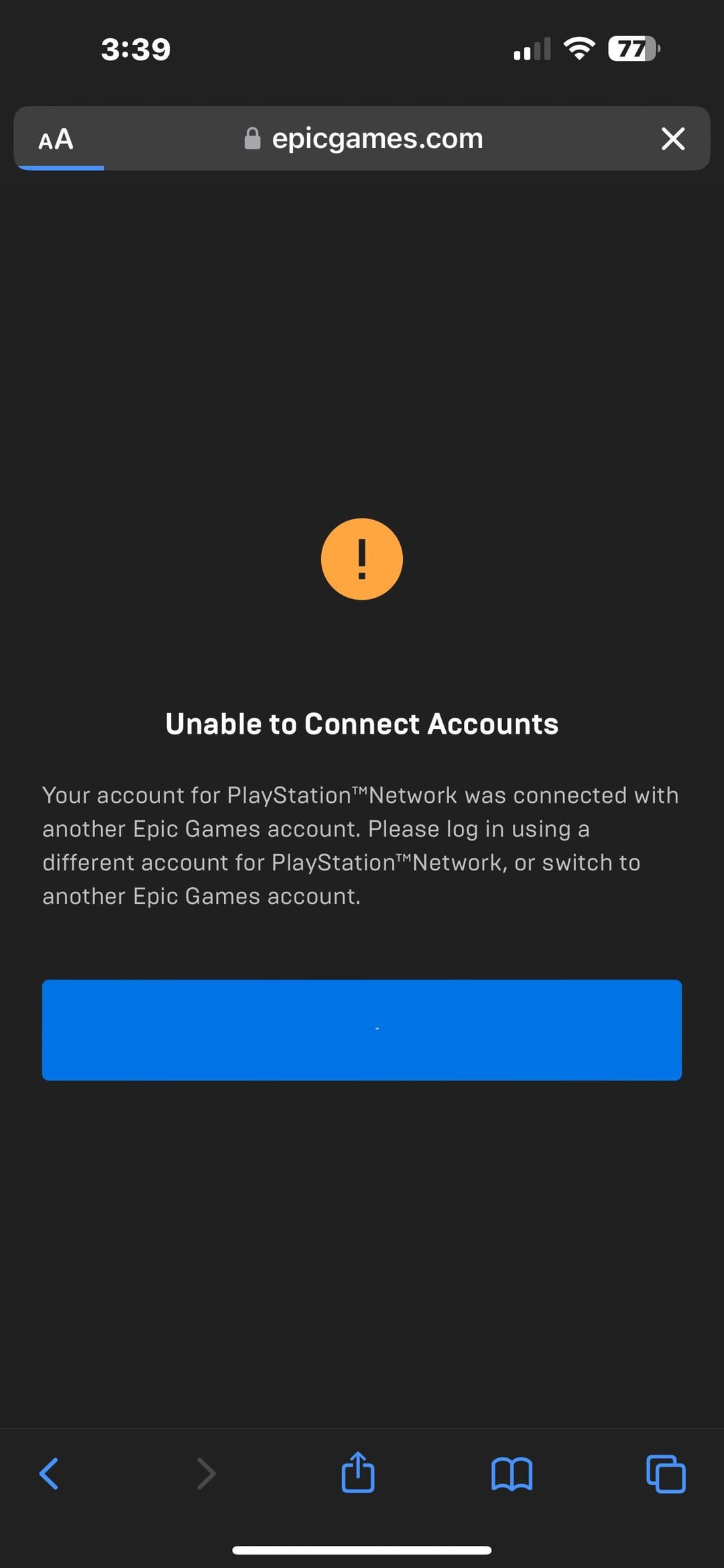
Already Linked to Another Account
If you or someone else linked your PS4 account to another Epic Games account before, you will need to unlink it first. Once it’s unlinked you can link it to the account you would like.
- Unlink the Account: You can do this through the Epic Games website in your “Connections” settings. You should see a button labeled “Unlink.” Click that and follow the steps to unlink.
- Be Careful with Unlinking: Make sure you know the consequences of unlinking. Sometimes, it might cause you to lose any progress or purchases. Always make sure it’s the correct account you are unlinking.
- Contact Support: If you have any trouble with unlinking, or you are not sure what the consequences are, contact Epic Games support for help.
Incorrect Email or Password
Sometimes, the linking process won’t work if you enter your email or password incorrectly. Double check your login info to ensure it’s correct.
- Double-Check: Make sure you have not misspelled your username, password or email address.
- Password Reset: If you’ve forgotten your password, click the “Forgot password?” option on the login page. Epic will send you an email with instructions on how to set up a new password.
Important Tips and Considerations
Before you go off and link your accounts, consider these important tips to help you through the process.
- Use a Strong Password: Always make sure you are using a password that’s not easy to guess. This helps to keep your account safe.
- Keep Your Email Safe: Use an email that you check often. This is important for password resets and other account-related info.
- Be Patient: If the linking process is taking a while or if there is some server trouble, just wait for some time and try again. Don’t keep pressing buttons if the servers are having problems.
Linking your PS4 account to your Epic Games account is a great way to enjoy your games to the fullest. With all your progress, items, and friends at your fingertips, you can continue the fun, no matter where you play!
How To Link Epic Games Account To PlayStation Account – Easy Guide
Final Thoughts
Linking your PS4 account to Epic Games involves visiting the Epic Games website. You must sign in to your Epic account or create one if needed. Then, navigate to the “Connected Accounts” section under your profile.
Select the PlayStation icon and follow the prompts. This process connects your PSN ID with your Epic Games account. Completing these steps helps you access your progress and items across platforms. This is how to link ps4 account to epic games effectively.

