
To link your PSN account to Epic Games, navigate to the Epic Games website, log in, go to ‘Account Connections,’ and select ‘PlayStation Network’. Then, you’ll be prompted to sign in with your PSN credentials to complete the linking process.
Want to use your favorite skins across different platforms? Linking accounts is the answer, and it’s quite easy to learn how to link psn to epic games. It lets you share game progress and purchases.
This simple process lets you access your Epic Games content on your PlayStation. You will be able to use everything seamlessly. This guide quickly shows you how.

How to Link PSN to Epic Games
So, you’re itching to play your favorite Epic Games titles with your PlayStation buddies, or maybe you want to keep all your cool skins and progress in one place? Linking your PlayStation Network (PSN) account to your Epic Games account is the key! It’s like building a bridge between your two gaming worlds, and it’s easier than you might think. Let’s walk through all the steps, and even look at why you might need to link them, and what to do if something goes a little wonky.
Why Link Your PSN Account to Epic Games?
Before we dive into the ‘how,’ let’s explore the ‘why.’ Think of it like this: Epic Games makes awesome games, and you might play them on different platforms, like your PlayStation console and your computer. Linking your accounts lets all these platforms talk to each other. Here’s why it’s a good idea:
Unified Game Progress
Imagine grinding for hours to get that awesome skin in Fortnite on your PlayStation. Without linking your accounts, if you then switched to your computer, you’d start over. Linking your PSN account to your Epic Games account means your progress, your skins, your V-Bucks—everything is shared across all linked platforms. You can continue your game where you left off, no matter which device you are using. This is super handy for people who like playing games at home on the console, and then maybe when they are traveling on a PC or laptop.
Friend Connections Made Easy
Got friends who play on different platforms? Linking your accounts makes it much easier to find and play with them. Instead of being limited to people who use the same gaming system, you will be able to join your friends game even if they are playing on PlayStation while you are using a PC. It bridges the gap between different consoles and PC users. It allows you to enjoy your games together and expand your social circle.
Accessing Exclusive Content
Sometimes, Epic Games might offer special in-game goodies or rewards for linking your accounts. These can range from extra skins, special emotes, or experience boosts, adding even more fun to your game. Linking your accounts is like getting a VIP pass to those cool extras. Keep an eye out for the promotions Epic may run. You don’t want to miss out on anything!
How to Connect Your PSN Account to Your Epic Games Account: A Step-by-Step Guide
Alright, let’s get to the action. Linking your PSN account to your Epic Games account is a pretty straightforward process, but we’ll take it step-by-step to make sure you don’t miss anything:
Starting the Link Process
- Go to the Epic Games Website: Use your computer or phone and open your web browser (like Google Chrome, Firefox, or Safari). Type in epicgames.com and go to their official site. Be sure to type the correct address to avoid visiting any fake websites that might try to steal your information.
- Sign In or Create an Account: If you already have an Epic Games account, click the “Sign In” button and put in your email address and password. If you’re new to Epic Games, click “Sign Up” and follow the steps to make a new account. You’ll need to give them an email address, pick a username, and make a strong password.
- Find Account Settings: Once you are signed in, you will find your username in the upper-right area of the screen. Click on that, and a menu should appear. Select ‘Account’. This takes you to your Epic Games account settings page where you manage all the information about your account.
Linking Your PlayStation Account
- Go to Connections: In the account settings menu, look for the tab or section that says “Connections.” It’s often located on the left side of the screen, but the design of the page may change over time. Look around and find the Connections section of your account settings. Click on ‘Connections’ to view the linkable accounts options.
- Select PlayStation Network: Under the “Connections” section, you should see a list of different services you can connect to, like PlayStation Network, Xbox, Switch, and others. Find the PlayStation icon and the text “PlayStation Network,” and click the “Connect” button next to it.
- PSN Sign-In: Clicking ‘Connect’ will take you to a new page where you will see the PlayStation Network login page. Make sure that it is a legitimate page of PlayStation website. Sign in with your PSN email address or username and the password.
- Authorize Connection: After you sign in with your PSN credentials, the page will ask for your permission to link your PSN account to your Epic Games account. Read through the permissions, and if you are comfortable to allow the connections, click on the “Allow” or “Authorize” button. This is the step where you allow Epic Games to access certain data from your PlayStation account. This does not give Epic Games full access to your account, only the necessary data they require for account linking.
Account Verification
- Confirm Your Connection: Once you’ve authorized the connection, you will be redirected back to the Epic Games website. You should see a confirmation message that says your PlayStation Network account is now linked. Sometimes a small pop-up message will appear confirming a successful connection.
- Play Your Games: Now that your accounts are linked, you can start your game on any device and everything will be connected. You can now play your favorite games that are linked with your PlayStation Network and Epic Games account, like Fortnite, Rocket League or Fall Guys.
What to Do if Something Goes Wrong?
Sometimes, things don’t go exactly as planned, even with careful instructions. If you run into a problem while trying to link your PSN and Epic Games accounts, don’t worry! Here are some common issues and how to fix them:
The Accounts Are Already Linked
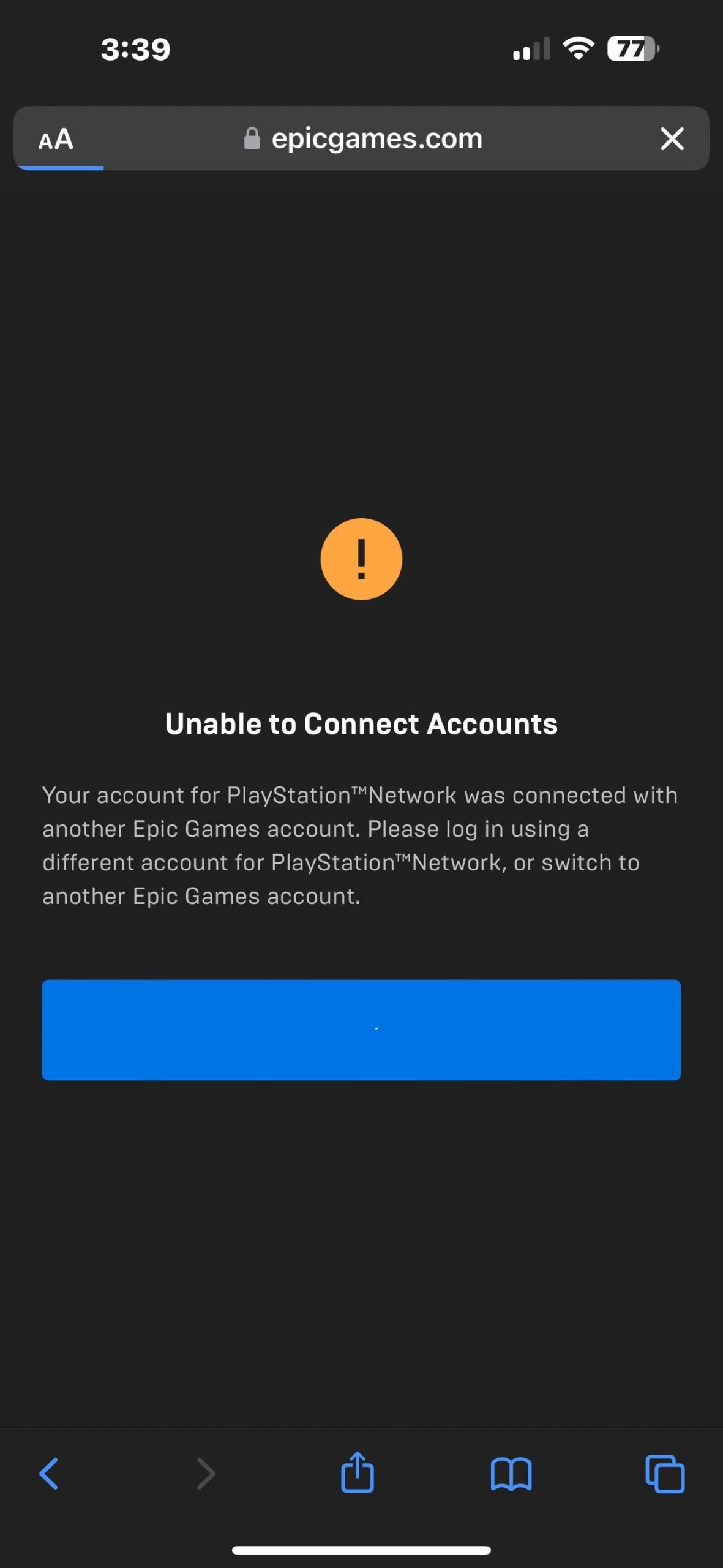
If you see an error message that says “This account is already linked to another Epic Games account,” it means your PSN account is connected to an Epic Games account that you might not remember creating. This is actually a common issue. Here is what you can do:
- Try Other Epic Games Accounts: If you have multiple email addresses, try logging into Epic Games with each one. It’s possible you used a different address or created an account a long time ago and forgot about it. Try each of your emails and see if you get lucky.
- Contact Epic Games Support: If you can’t figure out which Epic Games account is linked to your PSN account, reach out to Epic Games’ customer support. They can assist you in identifying the account and help you with unlinking it. You can do this through their website. Just search for Epic Games customer support and there are instructions on how to contact them directly.
Problems With Authorization
Sometimes, you might get stuck while authorizing the connection, and the pages might not load correctly. Usually this is because of the problems with your internet connection, or might be due to a glitch on their system. Here is how to handle authorization issues:
- Double Check your Internet Connection: Make sure that your internet is connected and working correctly. A poor or unstable internet connection can cause problems with websites loading or during the authorization process. If your connection is the issue, try using another network and trying the process again.
- Clear Your Browser Cache: Your web browser stores old data that sometimes gets in the way. Clearing your browser’s cache and cookies can sometimes fix these types of issues. Check how to clear the browser’s cache and try again.
- Try a Different Browser: If clearing the cache does not work, try using a different browser. For example, if you were using Google Chrome before, try Firefox, Safari or Microsoft Edge. Using another browser might also solve the problem.
- Restart Your Computer: Sometimes the problem might be with your computer. If the problem persists, try restarting your computer and then retry the linking process again.
PSN Account is Linked to a Different Platform
If the error says your PSN account is linked to a different account on another platform, like an Xbox or Nintendo Switch, this can also cause issues when linking to Epic Games account. This can be solved easily. Here is how:
- Unlink From The Other Platform: You will need to log in to your Epic Games account that is linked to that other platform. Once you are logged in, go to the connections settings and unlink the account that is causing the issue. After that, try linking your PSN account to your Epic Games account again.
Login Issues
If you are facing login issues, it might be due to a number of reasons. Here are some of the ways you can tackle login issues:
- Check Your Password: Make sure you are typing the correct password. If you have forgot your password, you can always reset it from the ‘Forgot Password’ option.
- Check For Typos: If you keep getting incorrect password error, double check for any typos or spelling errors on your username or password. Sometimes it is just one small spelling mistake that can cause this error.
- Confirm You Have Entered The Correct Email Address: Make sure that you are using the right email address to login to the correct Epic Games account.
Tips for Keeping Your Accounts Secure
While linking accounts makes gaming easier, it’s super important to keep your accounts safe. Follow these simple tips to safeguard all your progress and personal info:
Use Strong Passwords
Make sure your Epic Games account, your PSN account, and your email address all have different, very strong passwords. Use a mixture of capital and small letters, numbers and symbols. Avoid using easily guessable information like your name, birthday or pet’s name.
Enable Two-Factor Authentication
Turn on two-factor authentication (2FA) for all your gaming and online accounts. It adds an extra layer of security, so even if someone gets your password, they still can’t log in without a code from your phone or email.
Be Wary of Phishing Scams
Be cautious of any messages or emails asking for your login details. Epic Games and PlayStation will never ask for your password through email. It is a phishing scam if someone is asking for your password or your other account login details in their messages. Be cautious of these types of messages. When in doubt always try to reach the official customer support of Epic Games or PlayStation for the support.
Keep Your Email Secure
Make sure that your email address is secure. Your Epic Games account and PlayStation Network are tied to your email account, so it is important to keep your email safe.
Now, you are all set to connect your PSN account to your Epic Games account and enjoy your games on any platform. Enjoy the awesome games with your friends and always keep your accounts secure!
How To Link Epic Games Account To PlayStation Account – Easy Guide
Final Thoughts
Linking your PlayStation Network (PSN) account to Epic Games is simple. Access the Epic Games website, navigate to your account settings. Find the ‘Connections’ section and select the PlayStation icon.
You must log in to your PSN account for successful linking. After that, your accounts will be connected. Now, you can play your Epic Games on PlayStation. ‘how to link psn to epic games’ is quick and easy.

