
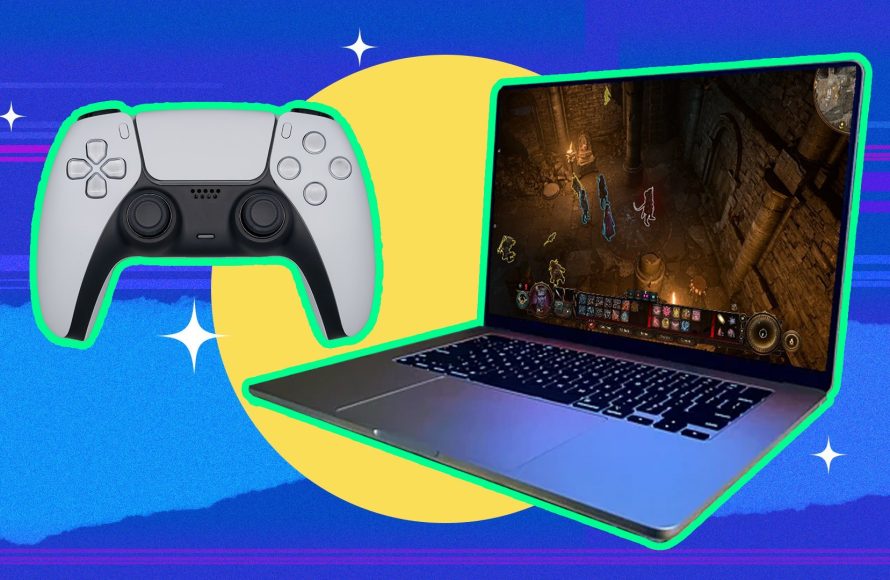
Yes, you can play a PC game on a Mac, though it often requires using emulation software or compatibility layers like CrossOver or Parallels.
Want to dive into the world of PC gaming but own a Mac? Many wonder, can you play a pc game on a mac? The answer is yes, with a few extra steps. You don’t need to miss out on PC exclusive titles just because of your hardware.
While Macs aren’t typically designed to run Windows games natively, you have options. Emulation and virtual machines allow your Mac to run Windows and therefore access PC games. This often involves some setup, but it definitely opens up a wide range of gaming possibilities.

Can You Play a PC Game on a Mac?
So, you’ve got a shiny Mac and a huge list of awesome PC games you’re itching to play? It’s a common question: Can a Mac really handle PC games? The short answer is: it’s complicated, but yes, you often can! Macs and PCs are different in many ways, but thanks to some clever workarounds, it’s possible to enjoy many PC games on your Mac. Let’s dig into the hows, whys, and what-ifs.
Understanding the Differences: Macs vs. PCs
Before we dive into playing games, it’s helpful to know why Macs and PCs are different. Think of them as two different types of cars. A PC is like a car that you can easily modify and tinker with, using parts made by many different companies. A Mac, on the other hand, is a car that’s designed to work very specifically with its own parts. This means PCs are usually built with parts made for gaming while Macs prioritize things like video editing or graphic design.
Operating Systems: The Key Difference
The biggest difference is their operating system (OS). PCs use Windows, while Macs use macOS. These operating systems handle how your computer works and are not interchangeable. Think of it like having two different rulebooks. Games are often built to follow one rulebook or the other. Most games are made for the Windows rulebook, making them PC games. Because of this, a game made for Windows won’t just magically work on macOS.
Hardware Considerations
Besides the operating system, there are hardware differences. PCs often offer a wider range of graphics cards, which are important for running games. Macs, while having good graphics capabilities, are not always built with the top-of-the-line gaming-focused graphics cards you find in gaming PCs. This means that some games that require a lot of power might not run as smoothly on a Mac, or might not run at all.
Methods to Play PC Games on a Mac
Now, the good news! Even though there are differences, you can still play PC games on a Mac. Here are the main ways how:
Using Boot Camp: Dual-Booting to Windows
Boot Camp is a special tool made by Apple that lets you install Windows on your Mac. It’s like creating two separate areas on your computer’s hard drive. When you start your Mac, you choose whether to use macOS or Windows. If you pick Windows, your Mac becomes like a PC. This method gives you the best chance of running games smoothly, but you need to install Windows and purchase a license, which may cost some money.
How Boot Camp Works
Boot Camp is integrated within macOS and offers an easy way to set up a Windows partition on your hard drive. When you set it up, you download the Windows installation files, it creates a dedicated place for it on your storage. You’ll have to restart your Mac and select Windows instead of macOS at startup.
- Pros:
- Best performance for demanding games.
- Direct access to your Mac’s hardware resources.
- Highest compatibility with Windows-only titles.
- Cons:
- Requires a separate Windows license purchase.
- You must restart your computer to switch between macOS and Windows.
- Requires dedicating storage space to Windows.
Virtual Machines: Running Windows Inside macOS
Another way to play PC games is to use a virtual machine (VM). Think of a VM as a computer inside your computer. With VM software, like Parallels Desktop or VMware Fusion, you run Windows in a window while you are still using macOS. This can be convenient, but the performance is not as good as with Boot Camp, making it a less-ideal option for very demanding games.
How Virtual Machines Function
Virtual machines create an artificial computer environment within your current operating system. The VM software acts as the go-between, managing resources between macOS and the virtual Windows environment. It’s like having a tiny Windows computer running inside of your Mac, allowing you to use Windows applications and games.
- Pros:
- No need to restart your computer to switch between operating systems.
- Easier to share files between macOS and Windows.
- Cons:
- Slower performance compared to Boot Camp.
- Not suitable for high-graphics, demanding games.
- Requires buying a VM software and a Windows license.
CrossOver: Running Windows Games Without Windows
CrossOver is a clever tool that tries to let you run Windows games without needing a copy of Windows itself. It’s like a translator that helps the Mac computer understand some parts of a Windows game. While it works with many games, it is not foolproof and might not work with all PC games. Plus, you might still see reduced performance in some games, compared to playing them on a Windows PC.
How CrossOver Works
CrossOver works by mimicking parts of the Windows environment, allowing many Windows-based programs to function within macOS. It creates a “container” where your Windows software runs. This removes the need to install a whole Windows system, making it a convenient option for some.
- Pros:
- No Windows license required.
- Runs Windows games directly within macOS.
- Good compatibility with many older or less demanding games.
- Cons:
- Not compatible with all Windows games.
- Can experience performance issues with some titles.
- Software costs money.
Cloud Gaming Services: Streaming PC Games
Cloud gaming is a different approach. Instead of running games directly on your Mac, you stream them over the internet from a powerful server. Services like GeForce Now and Xbox Cloud Gaming let you play games that normally need a powerful gaming PC by streaming the game to your Mac. However, the quality of the experience depends on the speed and stability of your internet connection. If your internet is slow, this method will not work well.
How Cloud Gaming Operates
Cloud gaming uses powerful servers to run your games, sending the video stream directly to your computer. The game’s controls are sent from your computer to the server and this data is processed to give you a smooth gaming session. It’s like watching a YouTube video but with interactive gameplay.
- Pros:
- No need for powerful hardware on your Mac.
- Play a vast library of games, including some new titles.
- Accessible across devices.
- Cons:
- Requires a fast and reliable internet connection.
- Lag or input delays can impact gaming enjoyment.
- Subscription fees may apply.
What Kind of Games Can You Play?
With all these methods in mind, the question arises: What PC games can I actually play on a Mac?
Less Demanding and Older Games
If you are using methods like CrossOver or a virtual machine, you are more likely to play older games or those that don’t need a lot of computer power. Things like indie games, or older versions of popular titles, will often run well. These types of games require less from your computer to run smoothly.
Demanding AAA Titles
For the newest, most graphics-heavy games, Boot Camp is usually the best way to go. Because the Mac will be using Windows as the primary system, the game has better access to the computer’s resources. This approach might require you to look into upgrading your Mac with a dedicated graphics card (if possible), depending on your Mac model.
Cloud Gaming’s Advantage
If cloud gaming is your way to play, then you often have the flexibility to enjoy a wide variety of the newest titles without worrying about your Mac’s hardware. The biggest factor for cloud gaming will be your internet connection.
Performance: What to Expect
Performance on a Mac playing PC games depends on the method you use and the game you’re playing.
Boot Camp Performance
Using Boot Camp is often the closest experience you can get to playing the game on a dedicated PC. Because you are running Windows on your Mac, games typically perform better, with smoother graphics and higher frame rates. However, the quality of performance still depends on the hardware of your Mac.
Virtual Machine Performance
Virtual machines provide the convenience of running Windows within macOS, but there is a performance tradeoff. They often share your computer’s resources and don’t allow games full access to it, which results in lower frame rates. If you are playing a simple game, it can be fine, but demanding games will run poorly on a virtual machine.
CrossOver Performance
With CrossOver, the performance varies depending on the game you are trying to run. Some older games might work great, while newer ones might be laggy or have issues. CrossOver offers a convenience, but the performance results are not always consistent.
Cloud Gaming Performance
With cloud gaming, your internet is the key. If you have a fast internet connection, you can have smooth gameplay and good performance even for demanding games. On the other hand, a bad internet connection can cause delays and pixelated graphics.
Compatibility Challenges and Solutions
Not all PC games will work perfectly on a Mac, and you may run into issues.
Driver Issues
Sometimes games don’t work well because of issues with device drivers. These are special pieces of software that help your computer parts talk to each other. Keeping your graphics drivers up to date can help. Make sure you install the Windows driver to use with Boot Camp and the Mac version for any game you play directly on macOS.
Game-Specific Problems
Some games have specific ways they are built, which may not be supported by the methods mentioned above. There may be errors or graphical problems. In this case, it’s always a good practice to research if others have had similar problems, and what their solutions were.
Checking Game Requirements
Before you try to play any PC game, always check the minimum and recommended requirements. Your computer should meet these requirements for the game to run properly. Make sure that your Mac meets, or ideally exceeds, these requirements, whether you are using Boot Camp, Virtual Machine or CrossOver.
Troubleshooting Tips
Here are some general troubleshooting tips when you have problems:
- Check for Updates: Make sure your OS (macOS or Windows, depending on your method), and game are updated.
- Restart Your Mac: A simple restart can fix many temporary issues.
- Close Unnecessary Programs: Close any apps running in the background that are not needed for the game, so that your resources are not used by those programs.
- Adjust Game Settings: Lowering the game’s graphics quality can sometimes improve the performance.
- Consult Online Communities: Look for help online on forums and websites that might have solutions.
Playing PC games on a Mac is possible with a bit of extra effort. By understanding the methods available and being prepared for potential problems, you can open up a whole new world of games on your Mac!
Ultimately, the best way to play PC games on your Mac depends on your specific needs and priorities. If performance is key and you have a Windows license, Boot Camp offers the best results. If convenience is more important and you’re playing less demanding games, a virtual machine or CrossOver might be a better fit. And, if you want the easiest and most flexible solution, cloud gaming might be your best friend. Now that you understand how to play PC games on Mac, you can explore all the fun that awaits you!
Steam Games on MacOS! Apple's Game Porting Tool is AMAZING!
Final Thoughts
Essentially, you can play many PC games on a Mac, though it often requires workarounds. These methods include using software like Boot Camp to install Windows, or employing game porting toolkits. These options enable compatibility, but may introduce performance variations.
So, the answer to ‘can you play a pc game on a mac’ is yes, often with extra effort. A key requirement might be using different solutions to experience the games. However, native Mac gaming has improved considerably, offering more options.

